
FreedomPay
Connect FreedomPay to Recurly using your Store ID, Terminal ID, Enhanced Security Key, and RSA Key to process card payments, gateway tokens, and Point of Sale subscriptions.
Prerequisites
- An existing relationship with FreedomPay is required to use this gateway.
- Point of Sale / NTID via API — To use a POS system with FreedomPay and provide POS-derived NTIDs via the Recurly API, contact Recurly Support to enable the Allow NTIDs to be sent via API feature flag on your account.
Limitations
- Multi-currency requires multiple gateway instances — FreedomPay currencies are managed per credential set. To support multiple currencies, configure a separate FreedomPay gateway instance in Recurly for each currency.
Definition
Key details
| Feature | Details |
| Services that work with Recurly | Payment processing, renewals, MOTO processing |
| Supported integrations | Recurly.js, API, Checkout, HPP |
| Supported operations | Verify, Purchase, Void, Refund |
| Supported payment types | Credit and debit cards, gateway tokens |
| Supported card brands | Visa, Mastercard, Discover, Amex, JCB, Diners, UnionPay |
| Gateway-specific 3DS2 supported | N/A |
| Supported capabilities | Card on file, gateway tokens, ZDA |
| Regions | United States |
| Currencies | See all available |
Configuring FreedomPay in Recurly
Development mode → FreedomPay UAT:
https://cs.uat.freedompay.com/Freeway/Service.asmxProduction mode → FreedomPay production:
https://cs12.freedompay.us/Freeway/Service.asmxSandbox mode → Recurly internal test gateway (FreedomPay not used)
Step 1: Obtain your Store ID and Terminal ID
Log in to your FreedomPay Gateway account and retrieve your Store ID and Terminal ID. If you don't have an account, sign up with FreedomPay first.
Step 2: Generate your Enhanced Security (ES) Key
Step 3: Acquire RSA Key permissions and Key Slot ID
Step 4: Enter credentials in Recurly
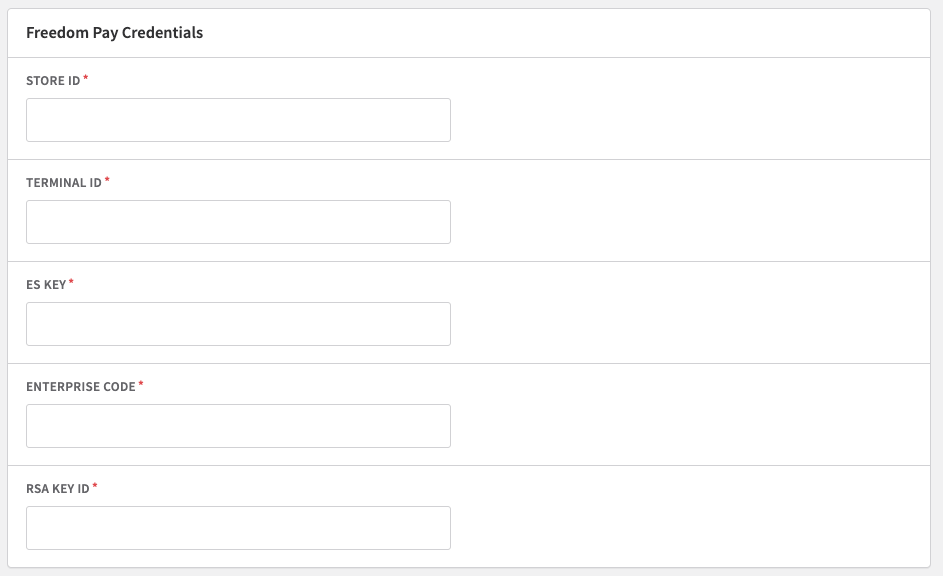
Step 5: Configure gateway settings and save
Processing with FreedomPay
Further reading
- Developer Hub: Error messages
- Invoice dashboard
- Refunds: Refund / credit invoices
- Voids: Voiding invoices
- Auth and Capture
Escalating to FreedomPay or Recurly Support
When escalating a transaction issue to FreedomPay, have the following details ready:
- Store ID, Terminal ID, Error Code, Request ID of the transaction
Gateway Store and Terminal IDs are in your Recurly account under Configuration → Payment Gateways — select the appropriate gateway instance.
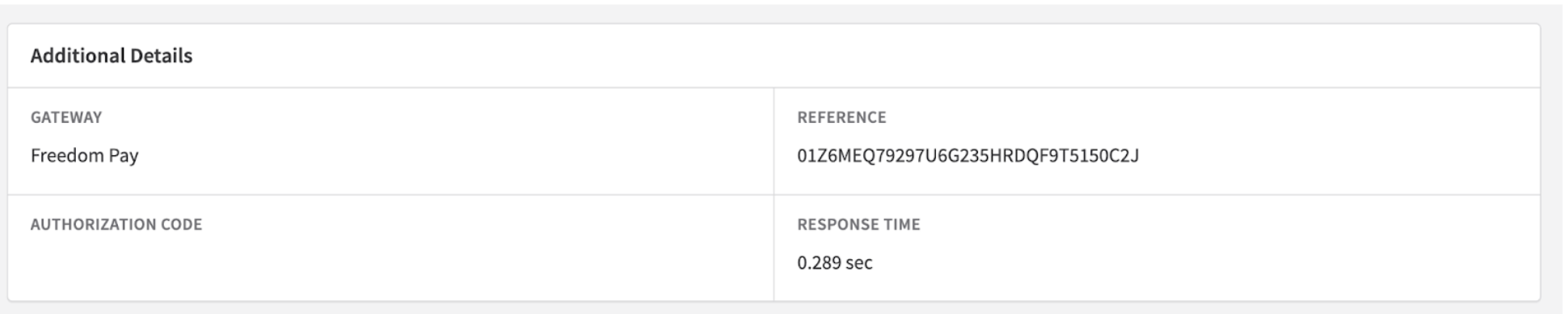
Gateway error codes appear at the top of a declined or errored transaction. In the example below, the error code is 431.

The Reference field maps to the FreedomPay Request ID.
FreedomPay contact details:
- Test environment help desk: freedompay.atlassian.net/servicedesk
- Production email: [email protected]
- Production phone: 888-495-2446 (US) / +44-2030148966 (UK)
- Status page: status.freedompay.com
Payload examples and error documentation
Per FreedomPay's request, the following are examples of a standard payment request and response.
Token request example
<SOAP-ENV:Body>
    <Submit>
      <request>
        <storeId>******</storeId>
        <terminalId>******</terminalId>
        <esKey>******</esKey>
        <merchantReferenceCode>{{Recurly-UUID}}</merchantReferenceCode>
        <brand>VS</brand>
        <ccAuthService run="true">
          <transType>purchase</transType>
          <allowPartial>N</allowPartial>
          <returnBalance>Y</returnBalance>
          <cofIndicator>U</cofIndicator>
          <cofComplianceData>{{NTID}}</cofComplianceData>
          <enableAVS>Y</enableAVS>
          <commerceIndicator>internet</commerceIndicator>
          <recurring>Y</recurring>
        </ccAuthService>
        <ccCaptureService run="true">
          <isSplitTransaction>N</isSplitTransaction>
        </ccCaptureService>
        <billTo>
          <customerID>{{Recurly-Account-Code}}</customerID>
          <firstName>Jane</firstName>
          <lastName>Doe</lastName>
          <street1>123 Main</street1>
          <city>Chicago</city>
          <state>IL</state>
          <postalCode>12345</postalCode>
          <country>US</country>
        </billTo>
        <card>
          <accountNumber>{{gateway-token}}</accountNumber>
          <cardType>token</cardType>
          <cvNumber>{{masked-cvv}}</cvNumber>
          <nameOnCard>Jane Doe</nameOnCard>
        </card>
        <invoiceHeader>
          <invoiceNumber>1000</invoiceNumber>
          <purchaserCode>12345</purchaserCode>
        </invoiceHeader>
        <clientMetadata>
          <sellingSystemName>merchantdomain.com</sellingSystemName>
          <sellingSystemVersion>1.0</sellingSystemVersion>
          <sellingMiddlewareName>Recurly</sellingMiddlewareName>
          <sellingMiddlewareVersion>1.0</sellingMiddlewareVersion>
        </clientMetadata>
        <pos>
          <entryMode>keyed</entryMode>
          <cardPresent>N</cardPresent>
          <paymentDate>2024-12-31T17:22:18Z</paymentDate>
          <caps>K</caps>
        </pos>
        <purchaseTotals>
          <chargeAmount>10.00</chargeAmount>
          <taxTotal>0</taxTotal>
        </purchaseTotals>
        <items>
          <item>
            <id>1234567890</id>
            <productName>Product Name</productName>
            <productDescription>Description of the Product</productDescription>
            <unitPrice>10.00</unitPrice>
            <quantity>1</quantity>
            <totalAmount>10.00</totalAmount>
            <unitOfMeasure>EA</unitOfMeasure>
            <saleCode>S</saleCode>
            <taxAmount>0</taxAmount>
            <taxIncludedFlag>N</taxIncludedFlag>
          </item>
        </items>
      </request>
    </Submit>
  </SOAP-ENV:Body>
</SOAP-ENV:Envelope>
Token response example
<soap:Envelope xmlns:soap="http://schemas.xmlsoap.org/soap/envelope/"
               xmlns:xsi="http://www.w3.org/2001/XMLSchema-instance"
               xmlns:xsd="http://www.w3.org/2001/XMLSchema">
  <soap:Body>
    <SubmitResponse xmlns="http://freeway.freedompay.com/">
      <SubmitResult>
        <merchantReferenceCode>{{Recurly-UUID}}</merchantReferenceCode>
        <ccAuthReply>
          <amount>10.00</amount>
          <processorTransactionID>1234567890</processorTransactionID>
          <enhancedDataEnabled>N</enhancedDataEnabled>
          <avsCodeRaw>N</avsCodeRaw>
          <processorResponseCode>100</processorResponseCode>
          <reasonCode>100</reasonCode>
          <authorizationCode>123456</authorizationCode>
          <avsCode>N</avsCode>
          <partialAmount>N</partialAmount>
          <cvCode>M</cvCode>
          <authorizedDateTime>2024-12-01T17:22:18.8622020Z</authorizedDateTime>
          <processorResponseMessage>APPROVED</processorResponseMessage>
          <requestDateTime>2024-12-01T17:22:18.7641802Z</requestDateTime>
          <cvCodeRaw>M</cvCodeRaw>
          <reconciliationID>252306047</reconciliationID>
        </ccAuthReply>
        <requestID>01Z6MGHC2A97U6G5L9DH6JCG10BDCLTD</requestID>
        <networkData>
          <network>FREEWAY</network>
        </networkData>
        <tokenInformation>
          <brand>VS</brand>
          <accountNumberMasked>411111xxxxxx1111</accountNumberMasked>
          <cardExpirationYear>29</cardExpirationYear>
          <cardExpirationMonth>12</cardExpirationMonth>
          <cardType>credit</cardType>
        </tokenInformation>
        <decision>ACCEPT</decision>
        <reasonCode>100</reasonCode>
        <ccCaptureReply>
          <processorTransactionID>252306047</processorTransactionID>
          <amount>55.15</amount>
          <requestDateTime>2024-12-10T17:22:18.7641802Z</requestDateTime>
          <processorResponseCode>100</processorResponseCode>
          <purchasingLevel3Enabled>N</purchasingLevel3Enabled>
          <enhancedDataEnabled>N</enhancedDataEnabled>
          <reasonCode>100</reasonCode>
          <reconciliationID>1234567890</reconciliationID>
          <partialAmount>N</partialAmount>
          <processorResponseMessage>APPROVED</processorResponseMessage>
        </ccCaptureReply>
      </SubmitResult>
    </SubmitResponse>
  </soap:Body>
</soap:Envelope>
Security suggestions
FAQs
How do I contact Recurly Support?
See the Do you need help? page for all Recurly Support contact options.
What if my customer doesn't provide an address or CVV and AVS rejection is enabled?
FreedomPay will still generate AVS and CVV response codes in those cases, which will likely result in a rejection due to missing address or CVV data. Collect billing information and CVV codes for all customer-initiated transactions to reduce declines when these features are enabled.
I'm getting authentication failure or gateway configuration errors when making a purchase. How do I fix this?
Check the following:
- Verify your ES Key has the correct mappings to your Terminal and Store IDs in FreedomPay (this must be done in your FreedomPay account, not in Recurly).
- Check which Tiers the ES Key is mapped to in your Enterprise FreedomPay login — review the Enterprise Management tab if you have special mappings.
- Confirm you're not using a UAT Store ID, Terminal ID, or ES Key in Production mode (or vice versa).
- Verify that the card types selected in Recurly match what's enabled at FreedomPay. If a card brand is selected in Recurly but not enabled in FreedomPay, either contact your FreedomPay representative to add it or remove it from your Recurly gateway configuration.
If the issue persists, contact FreedomPay Support directly.
I'm using a Point of Sale card terminal. How can I connect it to Recurly?
Recurly does not directly support EMV or Card Present transactions. To set up a Card Present → Recurring Subscription flow, first build your card present solution with FreedomPay. That integration should produce a gateway token and a subscription Network Transaction ID (NTID). Once complete, follow the Recurly.js guide to create subscriptions and provide the external NTID correctly. See also: Card on File compliance documentation.
How does customer data flow from my site to FreedomPay?
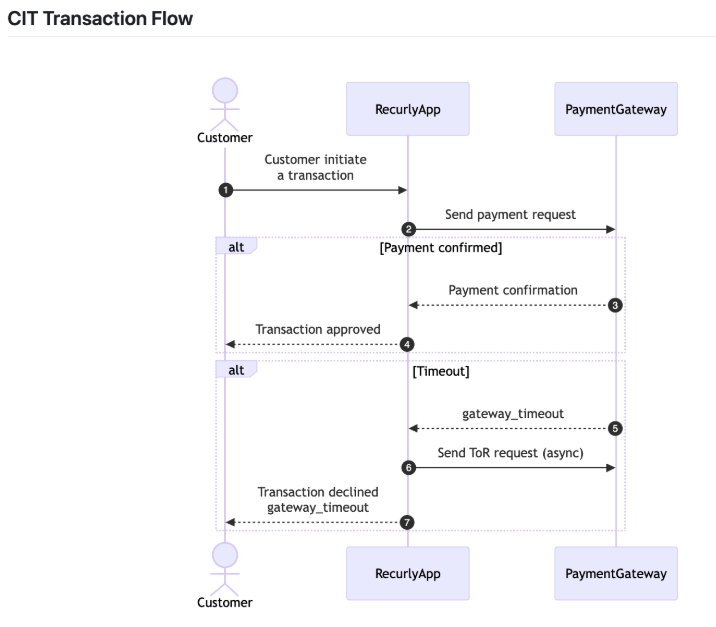
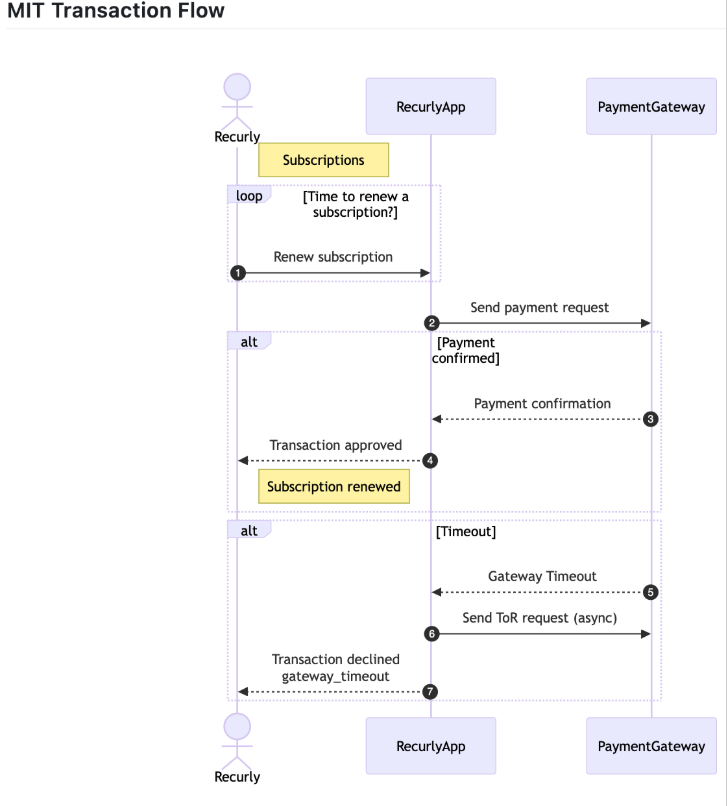
Data flows from a supported front-end — the Recurly API, Recurly.js, or a Hosted Page — into Recurly and through to FreedomPay via their API connection. Recurly supports two transaction types: CIT (Customer Initiated) and MIT (Merchant Initiated). See Card on File for compliance details.
For Merchant Initiated Transactions, the customer is no longer in session, but their bank still approves or declines the transaction. Recurly does not approve or decline transactions — for decline details, have the customer contact their bank directly.
Updated 4 months ago