
Change subscription
Modify a subscription's plan, price, quantity, or add-ons in Recurly — with control over timing, proration behavior, credits, charges, discounts, and trial handling.
Prerequisites
- Admin access to manage subscription settings
- Understanding of your subscription model and billing cycle
Limitations
- Changes during a free trial period don't generate an invoice
- Coupon redemption during a change is limited to immediate changes that include a product modification
- Subscription modifications can be blocked based on payment status — see Modification enforcement
Definition
Key details
How to modify a subscription
Navigate to the customer's account, click the subscription name to open the Subscription Details page, then open the Subscription Actions dropdown and select Edit Subscription. Make your changes and click Save Changes.
Changes are also available via the API. Refer to the Recurly API documentation for available endpoints.
What can be changed
The following can be changed immediately:
- Plan
- Price segment
- Price
- Quantity
- Plan or add-on price
- Plan or add-on quantity
- Bill date with proration
- Add or remove an add-on
- Collection method
- Net terms
- PO number
- Customer notes
- Terms and conditions
The following can be changed at next bill date or at term renewal:
- Plan
- Price
- Price segment
- Plan or add-on price
- Plan or add-on quantity
- Add or remove an add-on
All other changes — collection method, notes, and similar — always take effect immediately, even if a future timeframe is selected.
Timing options
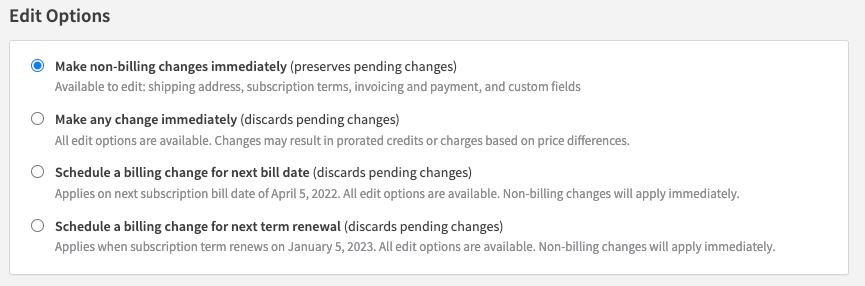
| Timeframe | Behavior |
| Immediate | The change takes effect now. An invoice is created immediately and, for automatic collection, a transaction is attempted right away. If the transaction fails, the invoice and subscription enter dunning. |
| At next bill date | Recurly saves the change and applies it on the next billing date. No proration. Only one pending change is retained — submitting a second replaces the first. Pending changes can be cleared by submitting an immediate change with no other modifications. |
| At term renewal | Recurly saves the change and applies it when the subscription term renews. No proration. Same one-change retention behavior as next bill date. Pending changes can be cleared the same way. |
Merchants typically apply upgrades immediately to give customers access to higher-value features right away. Downgrades are usually deferred to the next bill date or term renewal to honor the customer's current paid period.
When pending changes already exist, you can update attributes like shipping address, subscription terms, invoicing settings, and custom fields without affecting those pending changes.
Preview changes
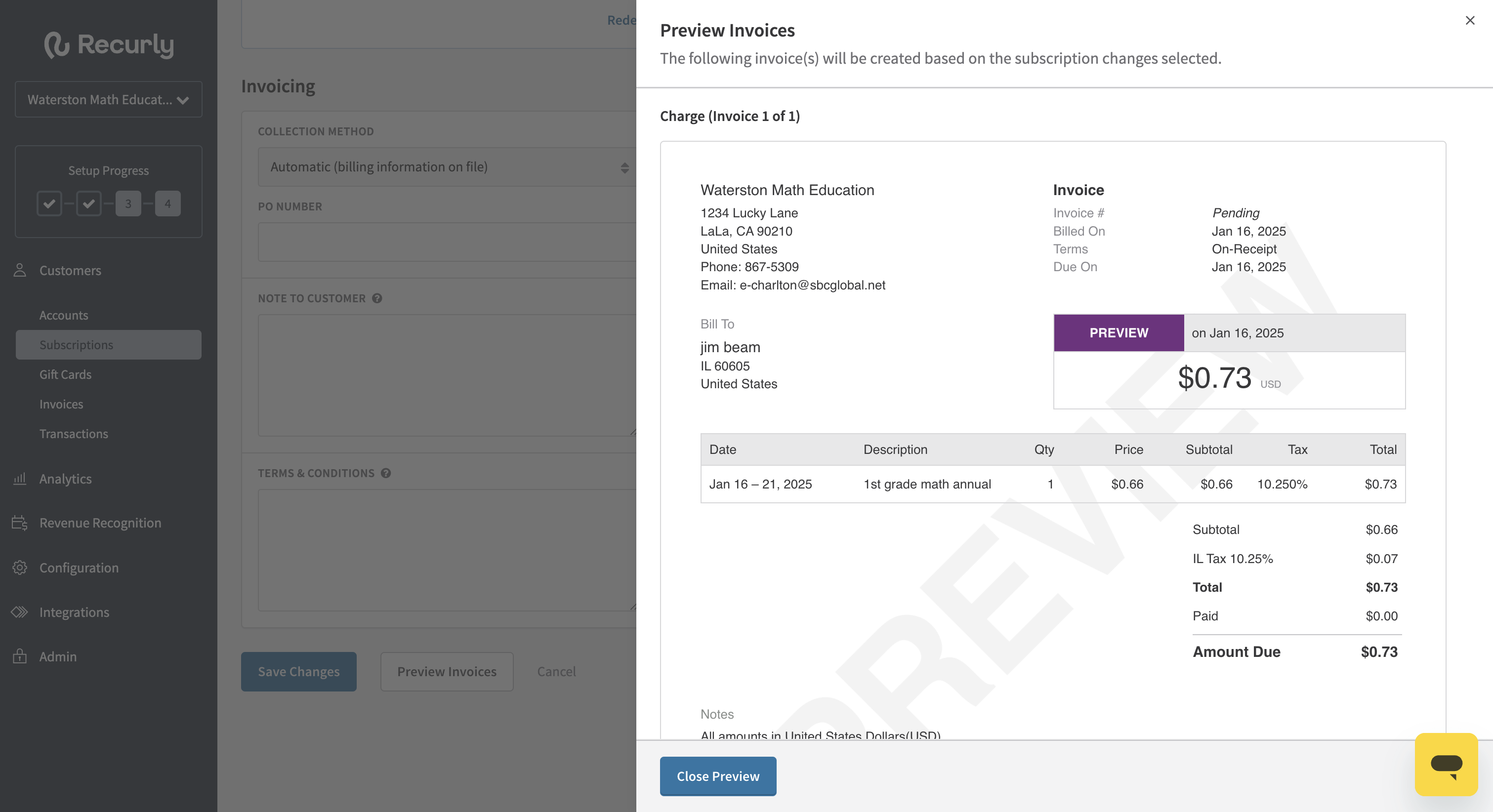
Before saving an immediate change, click Preview Invoice to see the resulting charge and credit invoices, including the billable amount based on proration. The final amount calculated at the moment you click Save Changes may differ slightly from the preview, since the exact second of change is used in the final calculation.
Email communications
Both automatic and manual collection subscriptions send the Subscription Change email at the time of the change — immediately for immediate changes, and at renewal for at-renewal changes.
- Manual collection: also sends the New Invoice email, if enabled
- Automatic collection: also sends Payment Confirmation or Payment Declined, if enabled, depending on the transaction outcome. Downgrades do not trigger a payment email
Immediate change handling
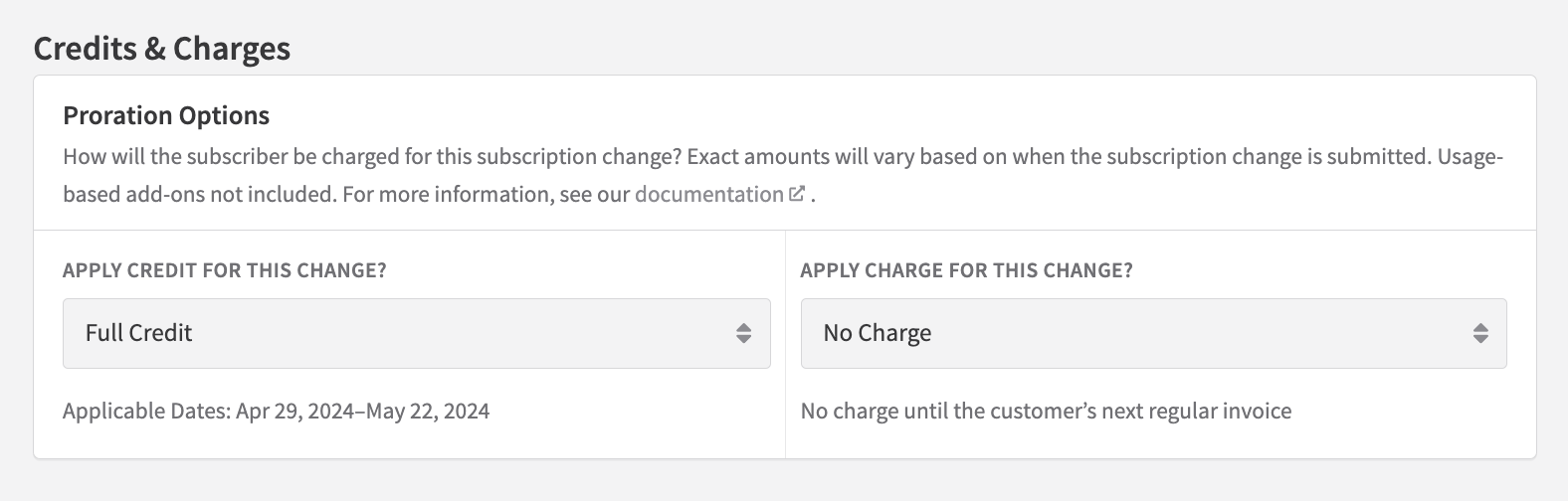
When a change takes effect immediately, Recurly generates credits and/or charges to account for the time remaining in the current billing period. You control whether these are prorated, full, or skipped entirely.
When credits and charges are created
| Scenario | Result |
| Plan change (any) | Full rebill — both a credit and a charge. Always occurs regardless of OBWC status. |
| Both price and quantity change on a plan or add-on | Full rebill — both a credit and a charge. |
| OBWC not enabled on site | Full rebill for any immediate change. |
| Bill date change with proration | Full rebill — credit for days already paid, charge for days to new bill date. |
| Price increase only (OBWC enabled, no plan change) | Charge only. |
| Quantity increase only (OBWC enabled, no plan change) | Charge only. |
| Price decrease only (OBWC enabled, no plan change) | Credit only. |
| Quantity decrease only (OBWC enabled, no plan change) | Credit only. |
Credit and charge options
You have three options for both credits and charges:
| Option | Credit behavior | Charge behavior |
| Prorated | Credits the unused portion of the current billing period based on time remaining. | Charges only for the remaining portion of the billing period. |
| Full | In a rebill: credits the full price of the old subscription state. Without rebill: credits the full price difference. | In a rebill: charges the full price of the new subscription state. Without rebill: charges the full price difference. |
| None | No credit invoice is created. | A zero-dollar invoice is still generated to reflect the change. |
How proration is calculated
Proration is calculated using the following formula:
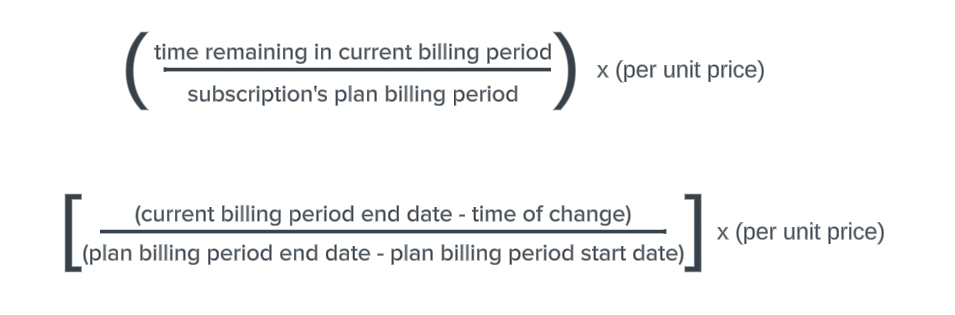
The denominator always represents the plan's full billing period — not an adjusted billing period. If a bill date is changed on an annual plan, the denominator is still 365 days; the numerator reflects the adjusted end date.
Configuring credit and charge behavior
Site-level default — set your preferred credit and charge behavior on the Invoice Settings page under Configuration. This applies to all immediate changes sitewide.
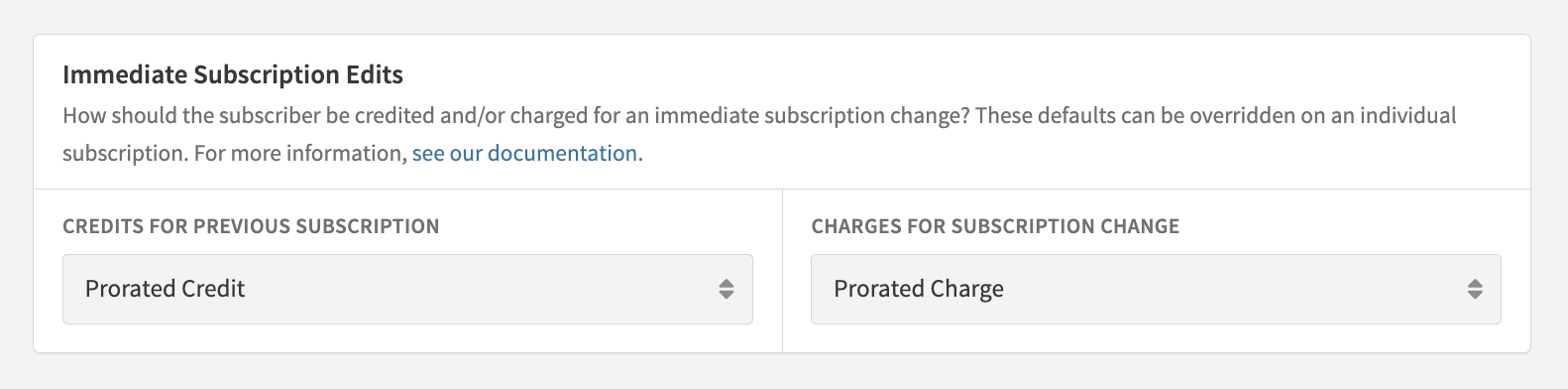
Subscription-level override — override the site default for a specific change in the UI or via API v2/v3. If no override is set, the site-level default applies.
Bill date proration
When a subscription's bill date is changed with proration applied, Recurly immediately generates a credit for the days already paid in the current period and a charge for the days between today and the new bill date. The credit is applied to the immediate charge by default. To prevent this, set the subscription's credit application policy before changing the bill date.
Example: David's bill date is the 10th of every month. He changes it to the 16th, and today is the 7th.
- Credit: three days prorated
- Charge: today through the 15th
- New billing period begins on the 16th

Credits — additional behavior
Credit quantity is always 1
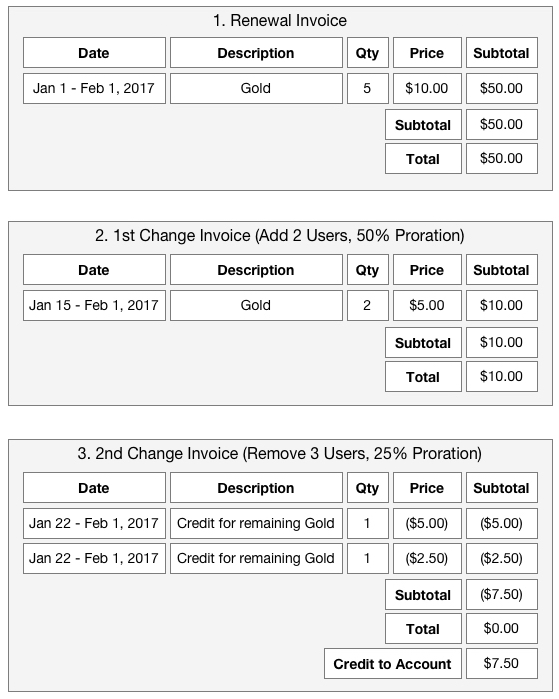
Credits generated from a subscription change always carry a quantity of one, regardless of the product quantity involved. This prevents ambiguity when both price and quantity change within the same billing cycle — the customer sees the credited amount clearly, and the subscription reflects the current quantity and price accurately.
Multiple credits for one product
Each credit line item is linked to a single charge line item. When multiple changes occur within a billing cycle, a single subscription change invoice may show two credits for the same product — each tracing back to a different charge on a different invoice.
Credit's original charge
To trace a credit back to its originating charge, refer to the credit invoice — the display includes a reference link to the invoice containing the original charge line item.

Taxes on credits
Credits issued during an immediate change reverse the taxes on the referenced charge proportionally. If tax collection is first enabled while subscribers are mid-cycle, new charges will include tax while credits for the same period may not include a tax reversal.
When a customer has relocated between subscription changes, credits may reference different addresses, resulting in different tax rates on the same invoice. Recurly calculates tax reversal using the original address on the referenced charge. If mixed tax rates appear, Recurly shows the rate at the line-item level rather than at the invoice level.
Change scenarios and examples
Plan change
A plan change always triggers a full rebill — a credit for the old plan and a charge for the new plan — regardless of OBWC status. When add-ons with the same add-on code exist across plans, those add-ons are also rebilled because Recurly cannot confirm they are identical (their underlying IDs differ even if the codes match).
Plan change example — downgrade with 10 days remaining
Customer is on a $100/month plan. You downgrade them to $60/month with 10 days left in the billing cycle. This is a full rebill.
Credit options:
- Prorated: (10 ÷ 30) × $100 = $33.33
- Full: $100
- None: no credit invoice
Charge options:
- Prorated: (10 ÷ 30) × $60 = $19.80
- Full: $60
- None: zero-dollar invoice reflecting the new plan
Quantity change
A quantity increase generates a charge for the additional quantity only. A quantity decrease generates a credit — always with a quantity of one, at a price reflecting the total value of the removed quantity.
Quantity increase example — 1 to 2 with 10 days remaining
Plan is $30/month. Customer increases from quantity 1 to quantity 2 with 10 days left. No rebill if OBWC is enabled.
Charge options:
- Prorated: (10 ÷ 30) × $30 = $9.90
- Full: $30
- None: zero-dollar invoice
Quantity decrease example — add-on quantity 2 to 1 with 10 days remaining
Add-on is $15/unit. Customer decreases from quantity 2 to quantity 1 with 10 days left. No rebill if OBWC is enabled.
Credit options:
- Prorated: (10 ÷ 30) × $15 = $4.95
- Full: $15
- None: no credit invoice
Price change
A price increase generates a charge for the price difference. A price decrease generates a credit. Quantity of one is always used on the credit; the price reflects the total value of the price difference at the applicable quantity.
Price increase example — $80 to $100 with 10 days remaining
You increase the plan price from $80 to $100 to reflect immediate access to a new feature. 10 days left.
Charge options:
- Prorated: (10 ÷ 30) × $100 = $33.33 (prorated on full new price, not difference)
- Full: $20 (the price difference)
- None: zero-dollar invoice
Price decrease example — add-on $20 to $10 with 10 days remaining
You decrease an add-on from $20/month to $10/month. 10 days left.
Credit options:
- Prorated: (10 ÷ 30) × $20 = $6.60
- Full: $10 (the price difference)
- None: no credit invoice
Quantity and price change together
Changing both quantity and price simultaneously always triggers a rebill, regardless of OBWC status. A credit is generated for the old state and a charge for the new state.
Quantity and price change example — add-on update with 10 days remaining
Add-on changes from $15/unit × 1 to $20/unit × 3. 10 days left. Rebill occurs.
Credit options (for old state — 1 × $15):
- Prorated: (10 ÷ 30) × $15 = $4.95
- Full: $15
- None: no credit invoice
Charge options (for new state — 3 × $20 = $60):
- Prorated: (10 ÷ 30) × $60 = $19.80
- Full: $60
- None: zero-dollar invoice
Quantity-based add-ons (tiered, volume, stair step)
For add-ons with Tiered, Volume, or Stair Step pricing, mid-cycle changes follow the site-level credit/charge settings on the Invoice Settings page. Subscription-level overrides for these add-on types are only supported via the API — not through the Recurly UI.
Usage-based add-ons
For immediate changes that don't alter the plan:
- Unchanged usage-based add-ons don't appear on the change invoice; unbilled usage remains unbilled
- If a usage-based add-on is removed, or its price or percentage is changed, a charge for any unbilled current usage is created immediately
- Adding a usage-based add-on alone doesn't create an invoice — usage-based add-ons are billed in arrears and don't appear on their first invoice
- Unbilled corrections for a past cycle aren't invoiced in the immediate change unless the add-on is altered; otherwise they're invoiced at the next billing date
Terminate and refund
When a subscription is terminated, Recurly issues a refund against the last invoice only — which may be the most recent bill date invoice or an immediate change invoice from the current period. If the last invoice was from an immediate change where the plan was unchanged, it may only cover some subscription products. If the last invoice was credit-only, it isn't refundable and the refund request is disregarded.
Plan period change
Immediate changes that keep the same plan period (e.g., monthly to monthly) retain the current billing period and apply standard proration. Changes that alter the plan period (e.g., monthly to annual) or term length restart the subscription billing term — new charges are not prorated.
Same billing period example
Customer subscribes to a monthly/annual Silver plan on January 15. Upgrades to a monthly/annual Gold plan on May 15.
- Billing period remains May 15 – June 15
- Prorated charge for Gold covering May 15 – June 15
- Prorated credit for Silver covering May 15 – June 15
- Remaining billing periods in the term are unaffected
Different billing period example
Customer subscribes to a monthly/annual Silver plan on January 15. Upgrades to a quarterly/two-year Gold plan on May 15.
- New billing period: May 15 – August 15
- Full charge for Gold covering May 15 – August 15
- Prorated credit for Silver covering May 15 – June 15
Changes with discounts
Credits and discount reversals
Credits reverse discounts proportionally — based on the ratio of the credit amount to the original charge.
Percentage coupon example: Subscription is quantity 10 at $1/unit with a 20% forever coupon. First invoice: $8. Downgrade to quantity 7 (remove 3): credit is $3, discount reversed = (3 ÷ 10) × $2 = $0.60, net credit = $2.40.
Fixed amount coupon example: Same setup with a $2 fixed coupon. Same result — $0.60 reversed, net credit $2.40.
Charges and active coupon discounts
New charges in an immediate change are discounted by currently active coupon redemptions only.
Fixed amount discounts are prorated in immediate changes to reflect the time remaining in the cycle. Percentage discounts don't require special handling since they automatically represent a prorated portion of an already prorated amount.
Fixed amount discounts cannot be prevented from prorating in an immediate change. If this is a requirement, use custom credits as an alternative and contact Recurly Support.
Single-use coupons
Single-use coupons discount charges on one invoice only. If a single-use coupon was used at the bill date, it won't discount new charges on an immediate change invoice. Additionally, a portion of the previously received discount will be reversed on the credit for the original plan.
If it's critical that customers never lose a discount due to mid-cycle changes, use limited-time or forever duration coupons rather than single-use.
Fixed amount coupons with limited or forever duration
These coupons are intended as a fixed discount per billing period. Recurly tracks the remaining available discount within a period — if the full amount was consumed at the bill date, no additional discount is applied in an immediate change. If only a portion was consumed, the remaining amount is available but prorated for the time passed in the period.
Mid-cycle coupon redemptions and upgrade discounts
If a new coupon is redeemed mid-cycle and an immediate change triggers a rebill (plan change), the discount applies to the new subscription version for the time remaining in the period.
If the immediate change only bills what changed (quantity, price, or add-on adjustment without plan change), the discount applies only to the additional quantities, prices, or add-ons — not the full subscription. For example, increasing quantity from 7 to 10 discounts only the 3 additional units, not all 10. At the next bill date, the discount would apply to the full quantity of 10.
Redeeming a coupon during a change
Coupons can only be redeemed as part of a subscription change that is immediate and includes a product modification (plan, price, quantity, or add-on change). This behavior exists to support subscription-level coupons during plan upgrades, where the account may not have a subscription to the coupon's eligible plan before the change.
Account-level coupons can also be redeemed during a change, but the subscription's new plan must be eligible for the coupon. Coupons cannot be redeemed on at-renewal change requests.
Changes during a free trial
No invoice during trial
Recurly doesn't generate a change invoice during a free trial period. Customers aren't charged for upgrades while in trial — they're trialing whatever access you grant them. To charge a customer for a change during trial, create a one-off invoice manually.
Plan changes and trial rules
If a plan change alters the plan and the new plan has a different trial rule, the original trial rules continue to apply.
7-day trial → plan with no trial
The subscription stays in the current 7-day trial but with access to the new plan. If the customer is 4 days in, they get 3 more days free on the new plan.
No trial → plan with 7-day trial
The subscription doesn't receive a new trial. The customer is charged for the new plan immediately.
7-day trial → plan with 14-day trial
The subscription stays in the current 7-day trial with access to the new plan. If the customer is 4 days in, they get 3 more days — not 14.
Convert trial
To end the trial immediately and transition to a new billing cycle, submit a request to the Convert Trial API or use the Admin UI. If the resulting transaction fails, the trial continues.
Modification enforcement
Some merchants require accounts to be current on all payments before allowing a subscription change. These settings are configured on the Invoice Settings page.
| Setting | Behavior |
| Require paid invoice and successful transaction on upgrades | No past-due invoices allowed, and the payment method must process successfully. If payment is declined, the subscription stays on the original plan. |
| Require paid invoice to downgrade | All invoices must be paid before a downgrade is allowed. If any invoice is past due, the subscription stays on the original plan and the customer receives an error message. |
Updated 4 months ago