
Compass agents & skills: Retention agent
Discover how Recurly's retention agent uses automated dunning optimization and in-app payment prompts to recover failed payments and cut involuntary churn.
 Scale · Compass Agents & Skills
Retention agent
Keep the revenue you've already earned — optimize your dunning and win back subscribers whose payments quietly fail.
Navigation Menu
 Navigate Home
 Retention Agent
What the retention agent does
The retention agent helps you keep revenue you've already earned. It optimizes your dunning — the retry-and-reminder process that recovers failed payments — and helps you remediate involuntary churn with in-app prompts that ask subscribers to fix a past-due payment.
Currently, this agent has two skills: Optimize default dunning and involuntary churn remediation. One tunes your automated recovery settings; the other builds a prompt that appears in your app. Together they target the failed payments that quietly erode subscription revenue.
Retention agent skills
Open a skill below to learn more and try it in your own account. New retention agent skills will be added to this list as they deploy.
Involuntary churn remediation
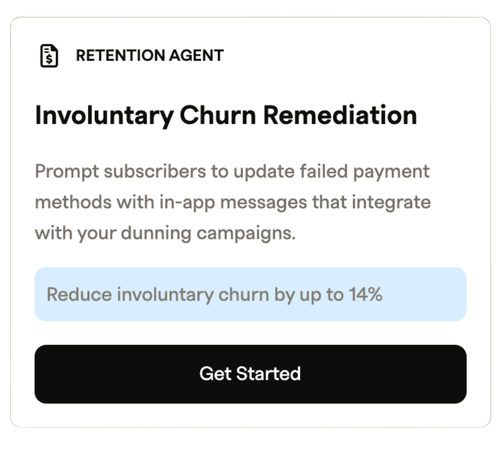
What it does: Prompt subscribers with a past-due payment to update their billing details through an in-app message that works alongside your dunning campaigns — recovering revenue that would otherwise churn involuntarily, and reducing involuntary churn by up to 14%.
How to use it: Open Compass → Skills and choose involuntary churn remediation. The Compass Assistant walks you through the prompt — title, message, button, and colors — then hands you a snippet to add to your app.
Compass AI skills: Involuntary churn remediation - Retention agent
Launch the skill from Compass → Skills, then use one of these tested message sets as your starting copy:
Title: Action Required: Update Your Payment Info
Message: It looks like there was an issue with your payment method. Update your billing details to keep your subscription active and uninterrupted.
Button: Update Payment Method
Title: We Couldn't Process Your Payment
Message: Your recent payment didn't go through. Don't lose access — update your billing information now to stay subscribed.
Button: Fix My Payment
You control five things — background color, button color, title, message, and button text. The skill doesn't handle fonts, logos, or imagery.
Tips for a high-performing prompt
- Keep it brand-consistent so the message feels native to your app.
- Be clear, not alarming — subscribers often don't know their payment failed.
- Use a strong, specific CTA — "Update Payment Method" beats "Click Here."
- Increase urgency gradually if later dunning touches are also in play.
- Don't blame the customer — frame it as a system issue to protect the relationship.
Optimize default Dunning
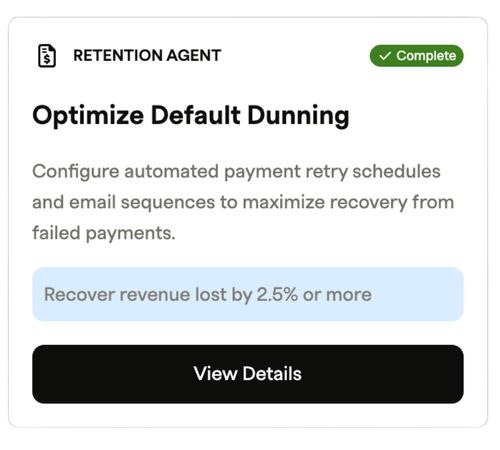
What it does: Configure automated payment retry schedules and email sequences to maximize recovery from failed payments — recovering revenue lost by 2.5% or more.
How to use it: Open Compass → Skills and choose "optimize default Dunning." The Compass Assistant checks your current setup and applies the change for you — no prompt needed.
Compass AI skills: Optimize default Dunning - Retention agent
Find the skill. In the left nav, open Compass → Skills and locate the optimize default Dunning card. You'll need the Compass Assistant Chat feature flag enabled, plus Admin — or both Configuration and Analytics — permissions.
Launch it. Click the card and the Compass Assistant opens and runs the workflow. Progress saves automatically, and because this is a site-wide setting, once anyone completes it the card shows as Complete for everyone.
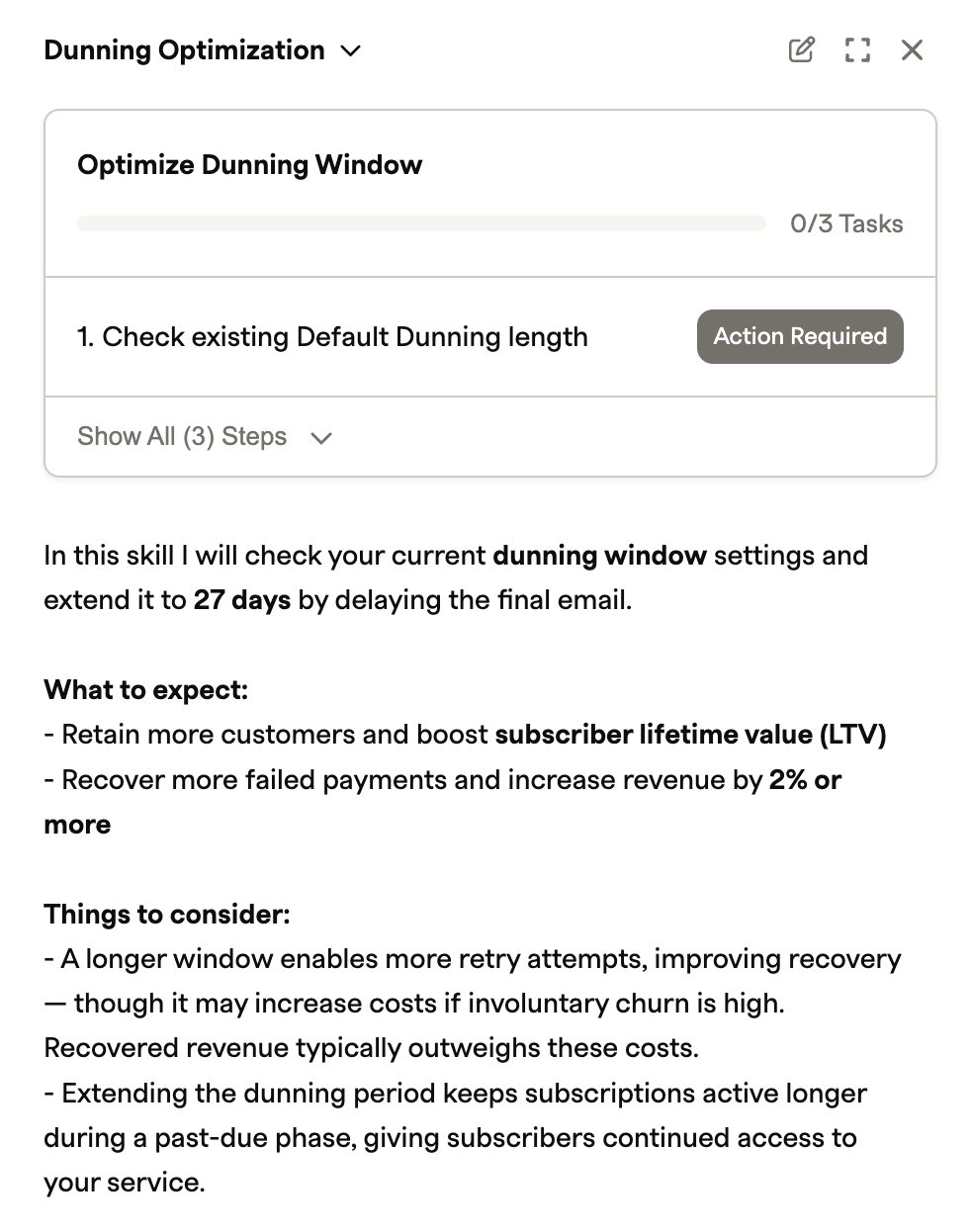
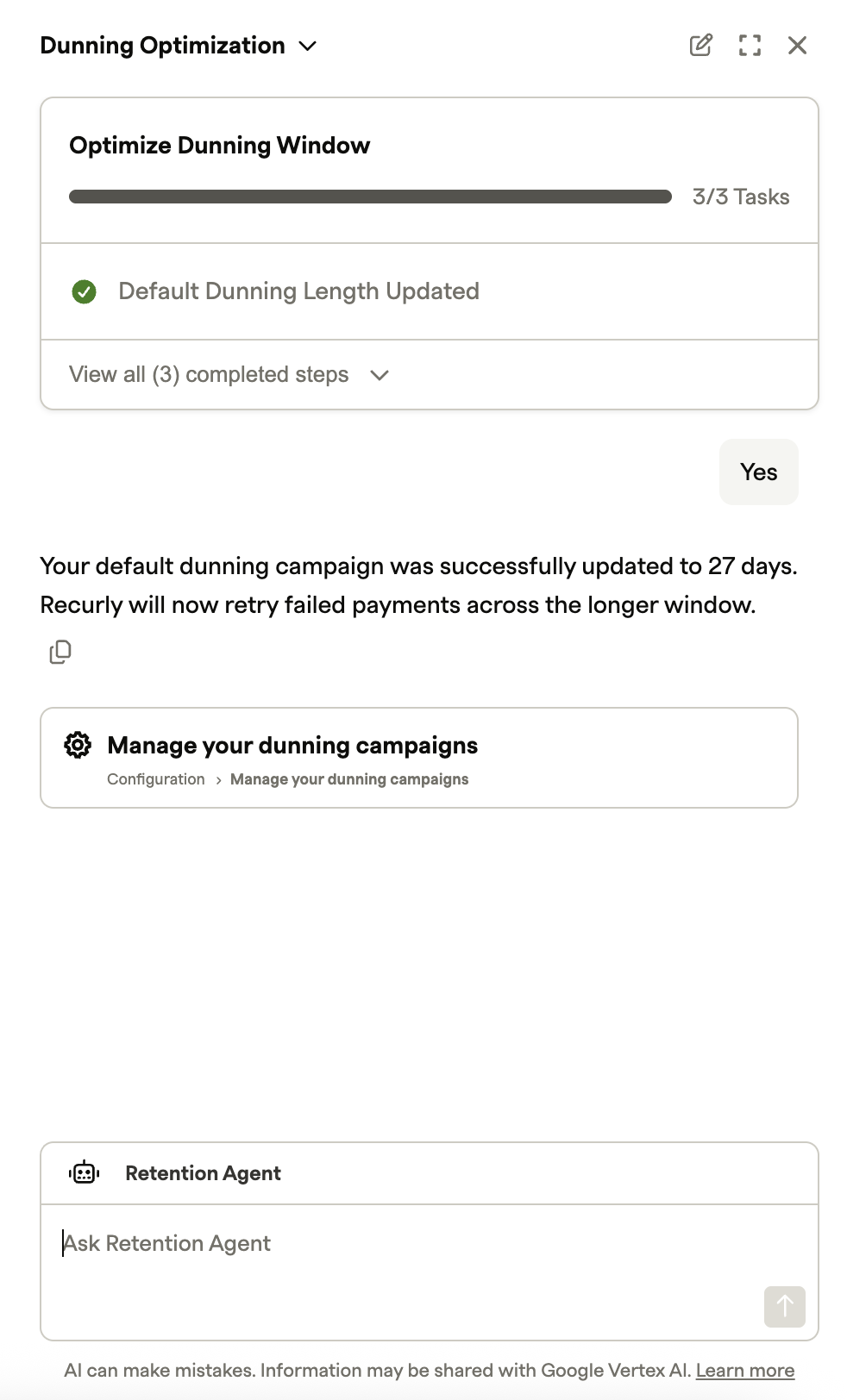
Review your current setup. The Assistant checks your default Dunning and shows your existing length, then explains it will add one email before the final "Expired for Non-Payment" notice to reach 27 days.
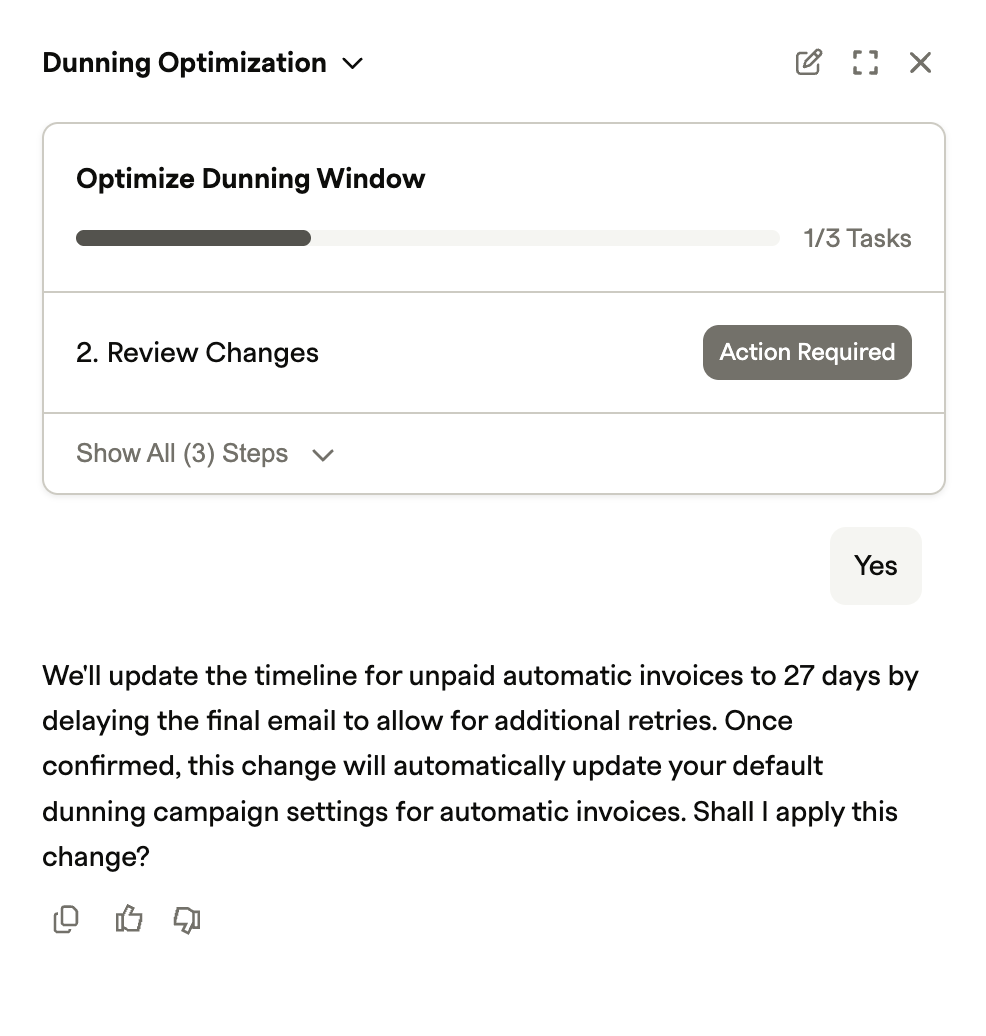
Confirm the change. Approve it and Compass Assistant applies the update. You'll then be pointed to your Dunning emails to write the new copy yourself — the skill surfaces a "Manage your Dunning campaigns" link, but doesn't edit copy for you.
Updated about 1 month ago