
Accounts dashboard
Search, create, update, close, reopen, and delete customer accounts in Recurly, with full visibility into account status, subscription status, billing info, and internal notes.
Prerequisites
- Admin access to Recurly's dashboard
- Familiarity with your customer data and billing processes
Limitations
- Account codes cannot be modified once set
- Accounts can only be deleted in sandbox mode
Definition
Key benefits
Dashboard
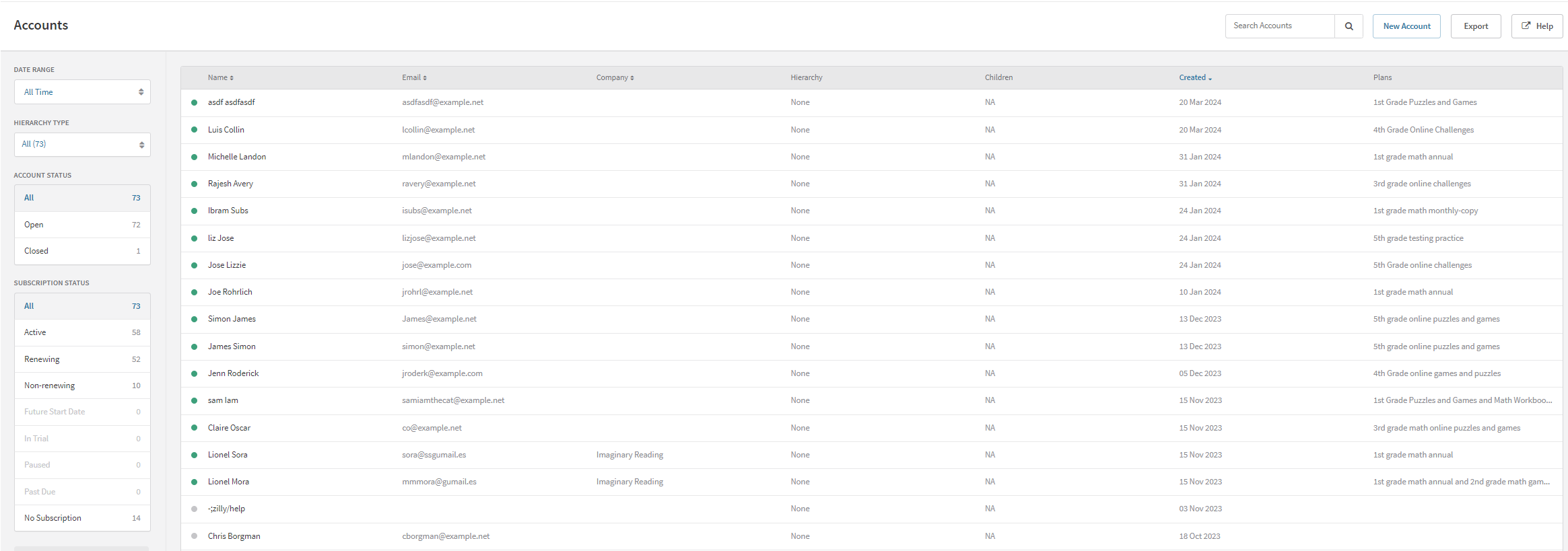
Your accounts dashboard is the gateway to every customer account managed by Recurly. Search by first name, last name, email address, account code, and more. Use filters to narrow results by status category — note that filters can overlap: the Open filter includes both Non-subscribers and Subscribers.
Account status
| Status | Description |
| Open | Accounts that are active and not closed. |
| Closed | Accounts that have been deactivated or closed. |
Subscription status
| Status | Description |
| Active | Subscribers with an ongoing subscription without interruptions. |
| Renewing | Subscribers whose subscriptions are set to renew automatically at the end of the current term. |
| Non-renewing | Subscribers whose subscriptions will not renew automatically after the current term concludes. |
| Future start date | Subscribers whose subscriptions are set to begin at a future date. |
| In trial | Subscribers who are currently in a trial period. |
| Paused | Subscribers whose subscriptions are temporarily on hold but not canceled. |
| Past due | Subscribers with at least one invoice that has not been paid by the due date. |
| No subscription | Accounts without any current or past subscriptions. |
Account search
Locate any account using the search bar with any of the following fields:
- Account code
- Company name
- First name
- Last name
- Username
Create an account
From the accounts overview page, select New Account to create a new customer account. Complete the following fields:
| Field | Description |
| Account code | A unique identifier for the customer within Recurly — no two accounts can share the same code. Many merchants sync account codes with identifiers from their own tracking systems, or use the customer's email address as the code. Once set, the account code cannot be changed. Account codes must not start with a period (.) or contain slashes (/) or semicolons (;). |
| Username | A secondary identifier that is searchable from the dashboard. |
| The customer's email address — used for all Recurly communications and for accessing hosted account management pages. Unlike the account code, email addresses do not need to be unique. | |
| CC emails | Additional email addresses to copy on account correspondence. Separate multiple addresses with commas. All recipients listed here receive every communication sent to the primary email address. |
| First name | Customer's first name. |
| Last name | Customer's last name. |
| Company | Customer's company name, if applicable. |
| VAT number | VAT information, if applicable. |
| Phone number | Customer's phone number. |
| Address | Required for manual invoicing. When provided, include at least a postal code and country to enable accurate tax calculations on the account's transactions. |
Billing info
The Billing info section displays stored payment information, typically provided by the customer during a purchase or account update. Required billing address fields are configured in the Admin under Site Settings. Note that billing info can differ from the account address. Learn more about the Subscriber Wallet →
Account notes
Keep internal notes on any account for context — refund reasons, customer requests, complaints, or anything else your team needs. Notes are never visible to customers.
Update an account
All account fields except the account code can be updated after the account is created.
Close an account
Closing an account permanently deletes its billing info, cancels all active subscriptions (which remain active through the end of the current billing period), and fails any open invoices. Make sure all business with the customer is concluded before closing. The close account option is available when viewing an account in the admin console.
Reopen a closed account
To reopen a closed account, go to the Account Options menu in the admin console and select Reopen Account — or create a new account using the same account code. Reopening restores the account's history, but the customer must re-provide billing information before charges can resume.
Delete an account
Account deletion is only available in sandbox mode using the Clear Test Data button in Site Settings. Once your site is in production, all data must be retained for historical accounting purposes and cannot be removed.
Updated 5 months ago