
Commerce Hub by Fiserv
Connect Commerce Hub (formerly First Data / Payeezy) to Recurly to process card, Apple Pay, Google Pay, and network token transactions globally via Fiserv's payment management platform.
Prerequisites
- Your Commerce Hub Merchant Account must have Multi-Use Public Key Encryption (MUPK) enabled, set to recycle every 10 days at minimum. This is not enabled by default — contact Fiserv to configure it.
- Your Business Entity Merchant Category Code must be filled in correctly on your Commerce Hub account.
Limitations
- No lifecycle or post-auth webhooks — Recurly does not support lifecycle or post-auth webhooks from Commerce Hub. If you're using gateway-level fraud review systems, gateway tokens, or processing transaction actions directly at the gateway, Recurly and Commerce Hub can fall out of sync. Always capture, void, and process refunds from Recurly rather than directly in the gateway.
Definition
Key details
| Feature | Details |
| Services that work with Recurly | Payment processing, recurring billing |
| Supported operations | Verify, Purchase, Authorize and Capture, Void, Refund (full and partial) |
| Supported payment types | Credit/debit card, Apple Pay, Google Pay, network tokens |
| Supported card brands | Visa, Mastercard, American Express, Discover, Diners Club, JCB, Union Pay |
| Gateway-specific 3DS2 supported | No |
| Card on file supported | Yes |
| Regions | Global |
| Currencies | All ISO standard currencies |
| Transaction categories | Ecommerce, recurring, MOTO |
| Additional feature support | MOTO processing, billing and shipping information, Level 2 data, Visa trial descriptors, AVS / CVV checks, Fiserv Transarmor gateway tokens, omnichannel point-of-sale subscriptions, VAT and line item passthrough |
Migrating from First Data and Payeezy
To migrate, follow these steps:
- Onboard Commerce Hub in your Recurly site.
- If your integration uses the
gateway_codevalue, update it in your code to avoid routing transactions to the wrong gateway. - You can migrate gradually — update the
gateway_codefor new transactions and existing subscriptions over time at your own pace.
Feature parity with First Data and Payeezy
Recurly has built Commerce Hub to reach full feature parity with the previous gateways and has certified the platform with Fiserv. Transactions that worked on First Data and Payeezy will work on Commerce Hub.
Existing subscriptions
First Data and Payeezy merchants have already been migrated to Commerce Hub behind the scenes via a Fiserv emulation rule — existing subscriptions have been processing on Commerce Hub without any action required. To keep subscriptions processing after the deprecation date, update the gateway_code each subscription is pointed at in Recurly.
For new subscribers, update the gateway_code value in your API transactions before you disable your First Data or Payeezy gateway instances in Recurly.
Address Verification System (AVS) settings
Commerce Hub merchants can configure Address Verification System (AVS) and CVV (Card Verification Value) checks through the Payment Settings page in Recurly — unlike the previous First Data and Payeezy implementations. Learn more about gateway-agnostic AVS / CVV rules.
Configuring Commerce Hub in Recurly
Step 1: Access Commerce Hub Developer Studio
Log in to your Commerce Hub Developer Studio. If you don't have an account, sign up through Commerce Hub and acquire a Corporate Merchant Account.
If you already have a Fiserv Corporate Merchant account where Merchant ID access codes are created, you can use that. Contact Fiserv directly if you need help with the dashboard.
Step 2: Generate your Commerce Hub credentials
Create or navigate to your workspace
- New merchants — Work with your Fiserv merchant representative to create a Workspace and ensure your sandbox or production Merchant ID is associated with it.
- Migrating merchants — You'll already have an existing Workspace with your production Merchant ID and existing API keys.
Add your Merchant IDs
Click Credentials and verify your Merchant IDs are present. If any are missing, add them using the Add Merchant ID button.
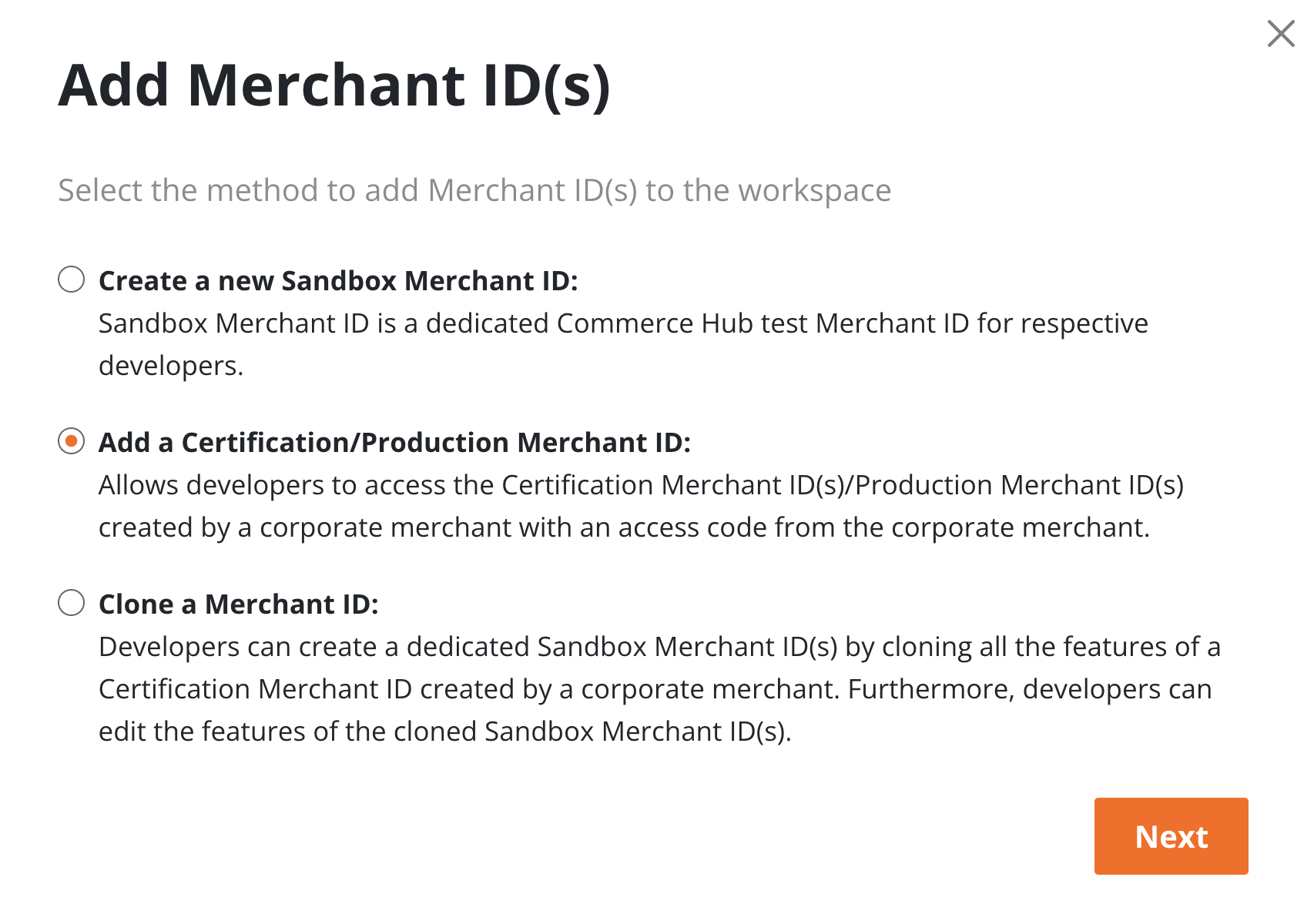
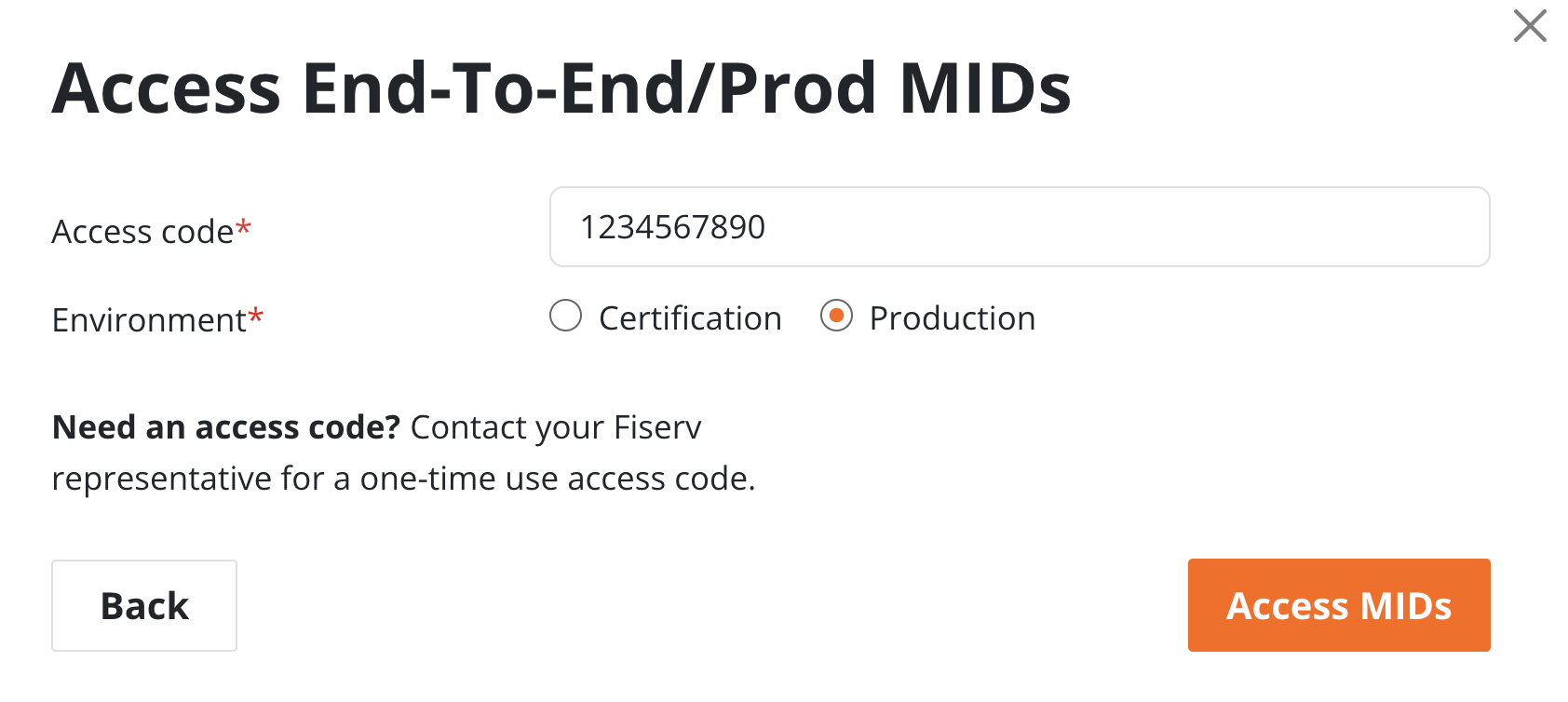
You'll need an Access Code from Fiserv to add Production Merchant IDs.
- Production MID — Select the Production environment when adding. You don't need a Certification MID.
- Sandbox MID — Click Add Merchant ID, select Create new Sandbox Merchant Id, and follow the prompts.
Create API keys
API keys in Commerce Hub are per Merchant ID. Create separate keys for sandbox and production environments, and make sure you're entering the correct credentials in the corresponding Recurly site.
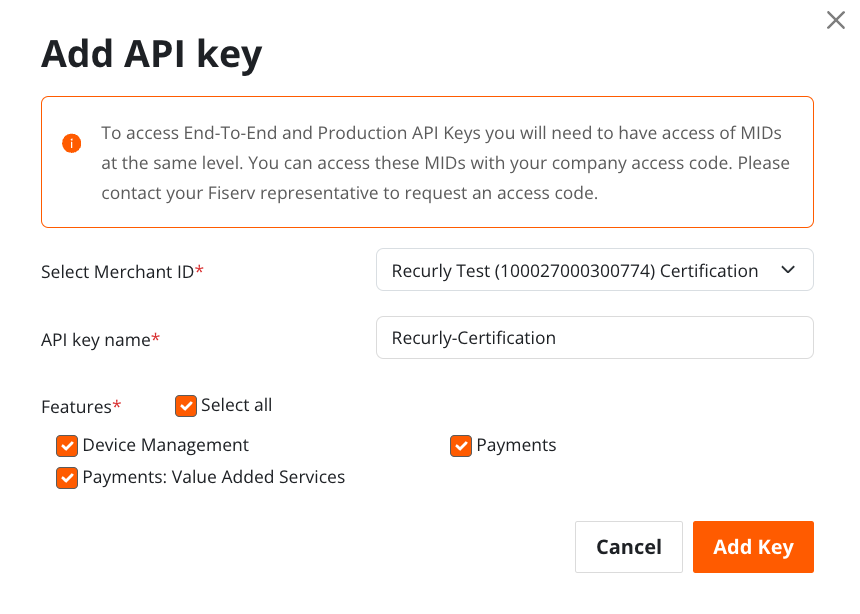
You'll also need the following to complete the Recurly setup:
- Fiserv Merchant ID
- Terminal ID
- Service Entitlement Number (former Payeezy merchants only, for descriptors)
Optionally, if you have more than one site ID or store ID and want to route by them:
- Store ID
- Site ID
Step 3: Enter credentials in Recurly
Step 4: Set accepted card types
Under Accepted Card Types, enable only the card brands and payment methods that are active on your Commerce Hub Merchant ID.
Step 5: Enable currencies
USD is enabled by default. Use the currency selection tool to add or remove currencies based on what your Commerce Hub gateway accepts.
Step 6: Save and enable the gateway
Click Add Payment Gateway. Commerce Hub will appear in your Production Gateways list in Recurly with a status of Enabled.
Step 7: Test the configuration
Run a test transaction to confirm the integration is working correctly. Use your Recurly sandbox site in development mode before moving to a live environment.
Step 8: Go live
Once testing passes, you're ready to accept live payments through Commerce Hub.
Updated 4 months ago