
Sales taxes
Configure Recurly's built-in tax solution — powered by Avalara — to calculate and collect sales tax, VAT, and GST across supported regions worldwide, with address validation, tax-exempt customers, and per-plan tax collection settings.
Limitations
- Recurly's built-in tax calculations are based on Avalara's AvaTax. Advanced tax rules and rate mappings require integration with your own Avalara AvaTax or Vertex account.
- Custom credit adjustments don't support tax calculations.
- In sandbox mode, Avalara's address validation can't be tested, and minor variations in applied tax rates may occur.
Definition
Additional resources:
- For wider global sales tax support beyond the regions covered on this page, see Direct Integration with Avalara AvaTax.
- For tax-inclusive pricing support, see Tax-inclusive pricing.
- For communications taxes and surcharges, see Avalara for Communications.
Key details
Determining taxable addresses
Every invoice passes two addresses to your tax service: an Origin Address (your business address) and a Destination Address (the customer's location where goods or services are fulfilled). The tax service uses both to identify the applicable rate.
Merchant taxable address
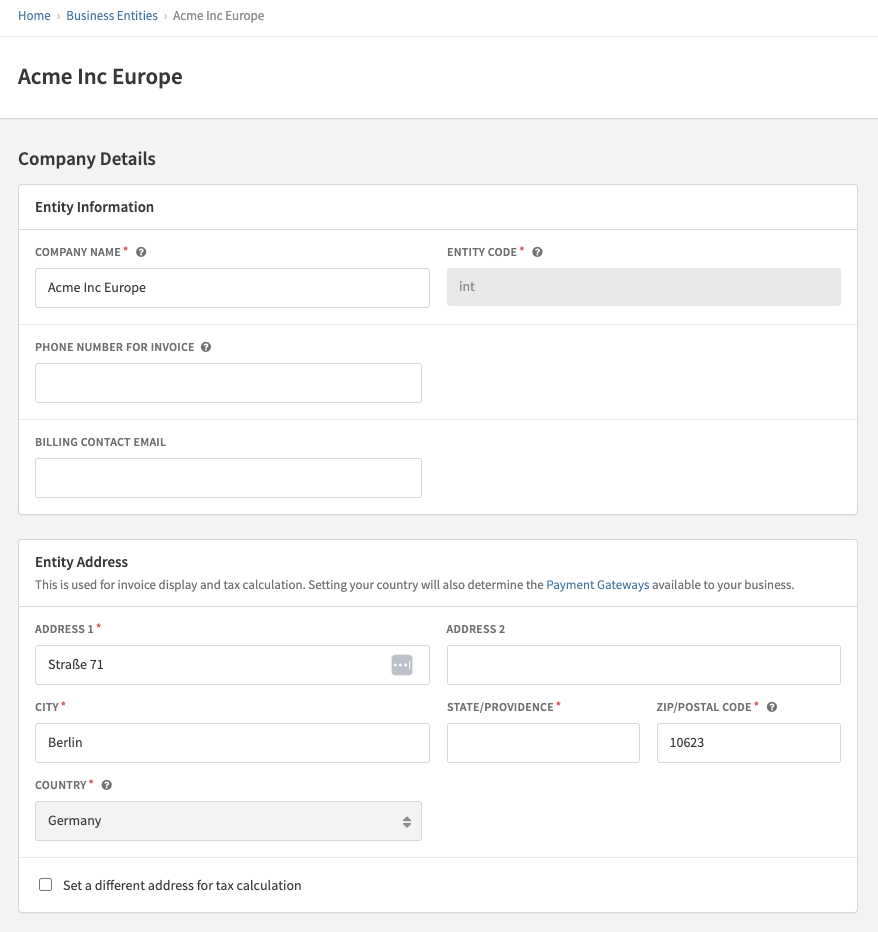
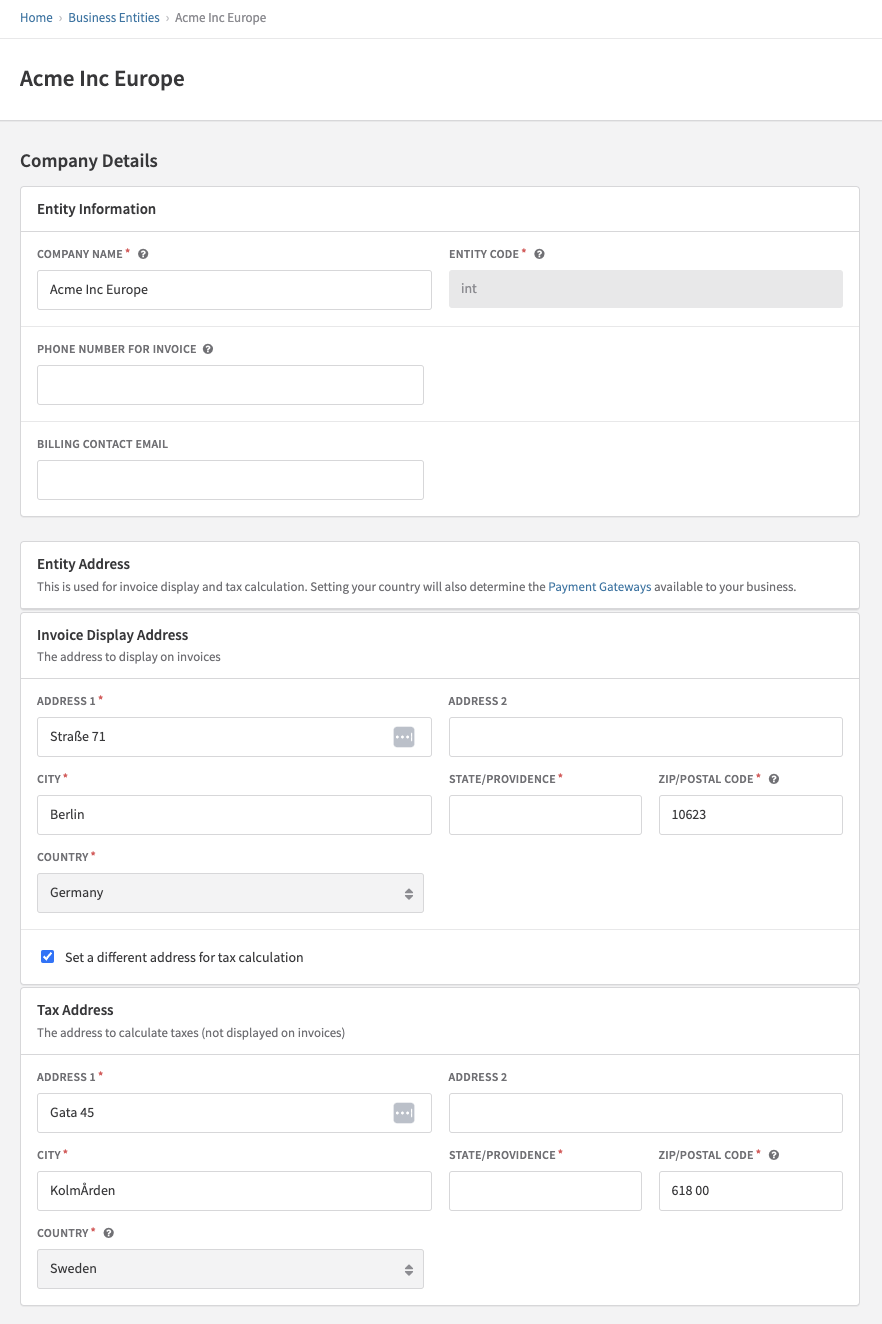
The merchant's taxable address always reflects the business entity's tax address. On each business entity configuration page, you can use the same address for both invoice display and tax calculation, or set a separate address for each. In all cases, the entity tax address is what's sent to the tax service as the Origin Address.
Customer taxable address
The customer's taxable address is drawn from one of three sources, depending on the invoice type and your Tax Settings configuration:
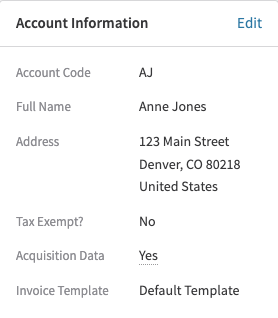
Account Information address — Always used as the customer's taxable address on manual invoices, unless a shipping address is present on the invoice. You can also enable this for all invoices (manual and automatic) via the Tax Settings page.
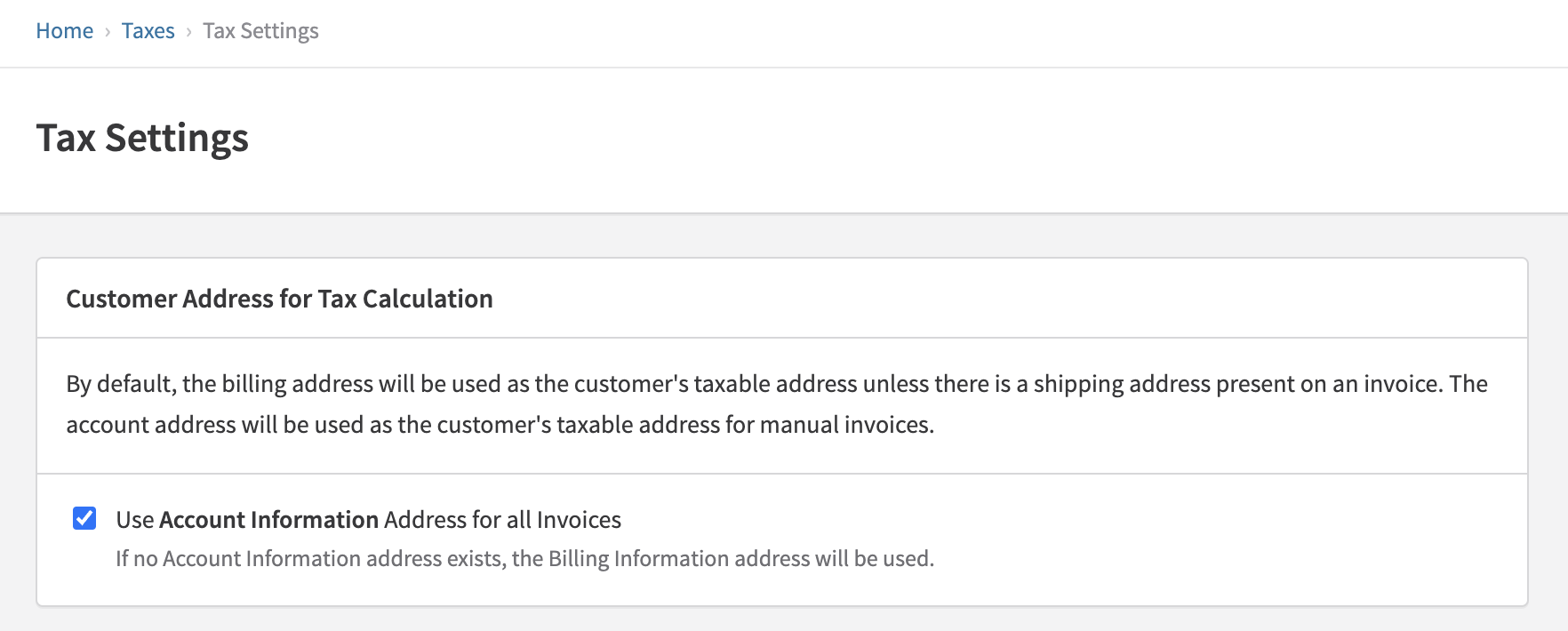
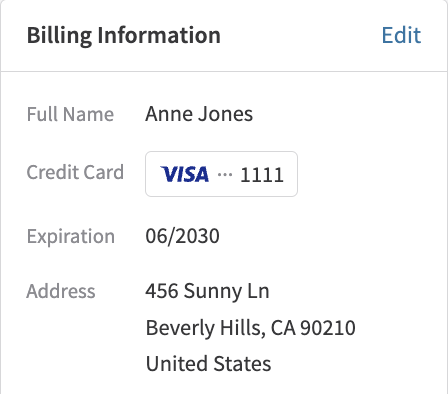
Billing Information address — Used as the customer's taxable address on all automatic invoices, unless a shipping address is present or the Account Info address override is enabled in Tax Settings.
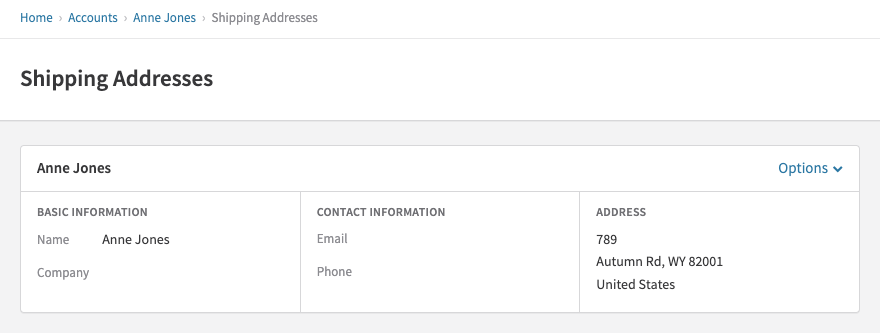
Shipping address — When a shipping address is present on an invoice, it always takes precedence as the customer's taxable address — regardless of invoice type or Tax Settings configuration.
Multiple shipping addresses
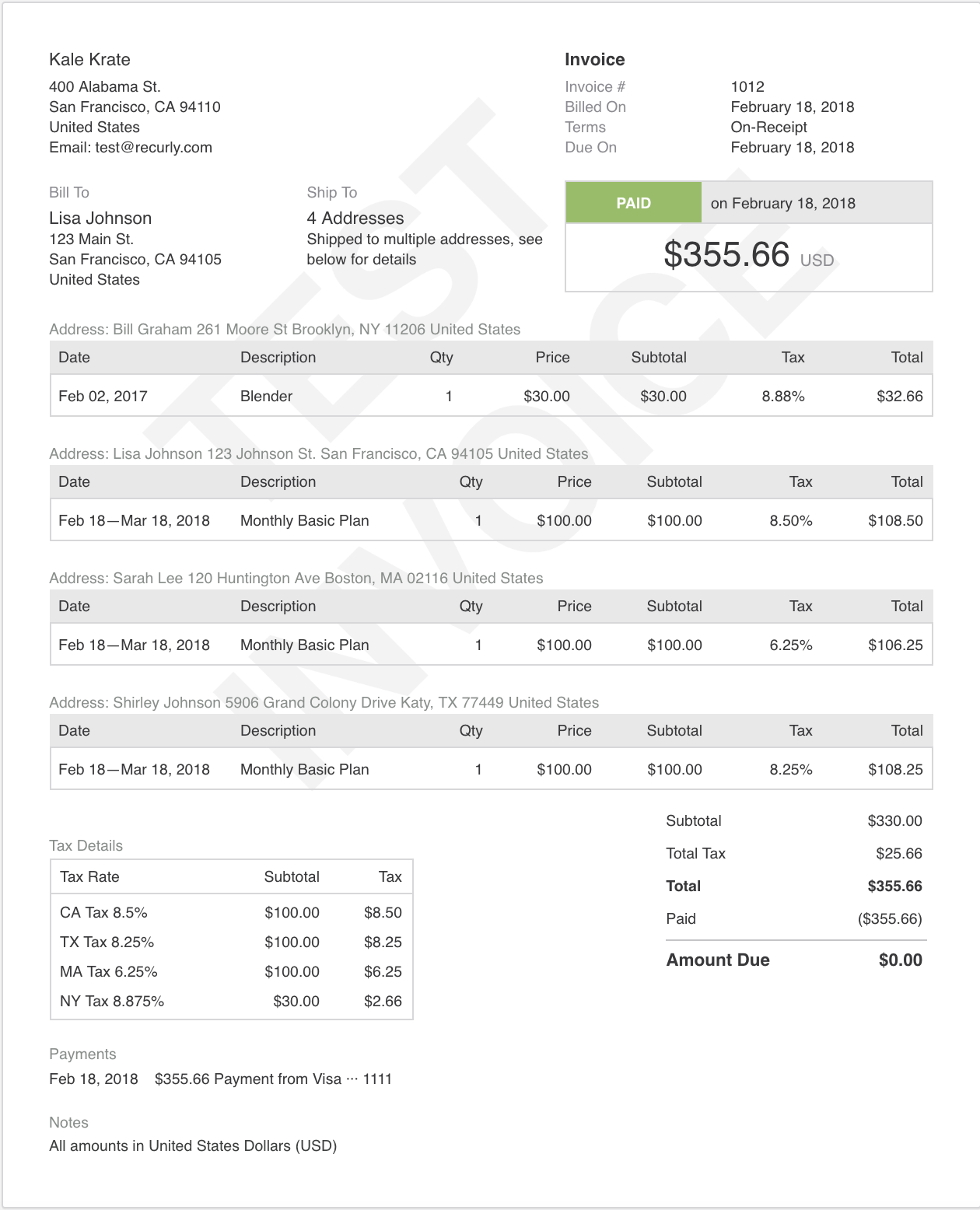
Some invoices have multiple unique shipping addresses — this can occur with Account Hierarchy Invoice Rollup and/or Calendar Billing. In these cases, Recurly sends the unique shipping address for each line item to the tax service. If different rates apply across line items, the invoice displays a generic "Tax" label with the total tax amount, plus a breakdown section showing each shipping address's state/country code, rate, and cumulative tax amount.
Note: If you are using Recurly's out of the box tax solution or your own Avalara account and need to ship to different countries on the same invoice, you will need to contact Support to enable this feature.
Setting taxable addresses
Taxable address configuration is set at the business entity level under the entity's Tax Settings section.
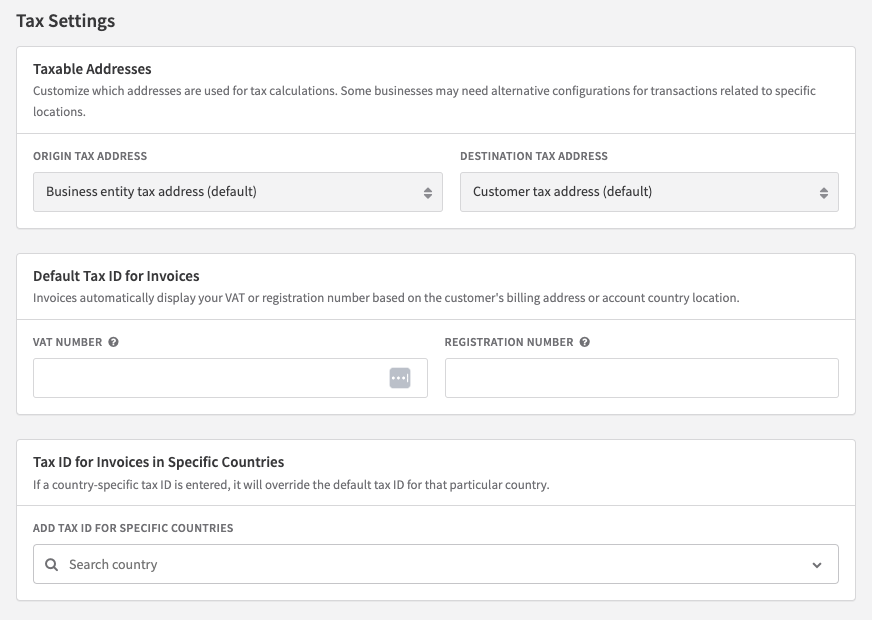
By default, Recurly sets all entities to use the Business Entity Tax Address as the Origin Address and the Customer Tax Address as the Destination Address. This is the standard configuration for most regions and ensures invoices reflect the customer's local tax rate.
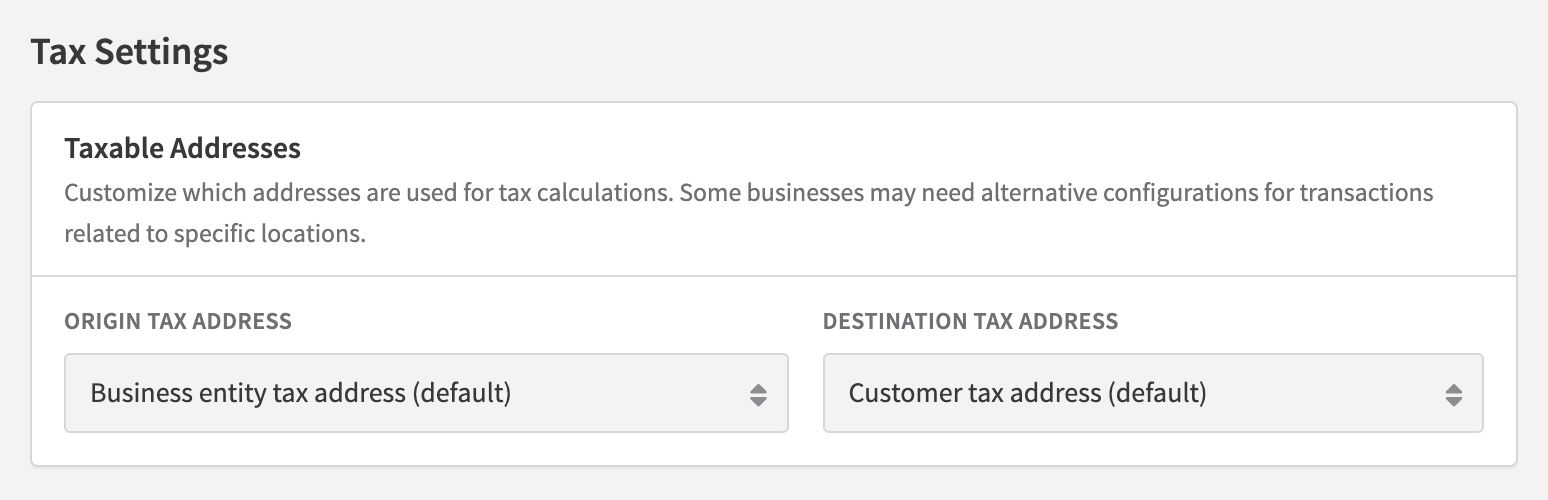
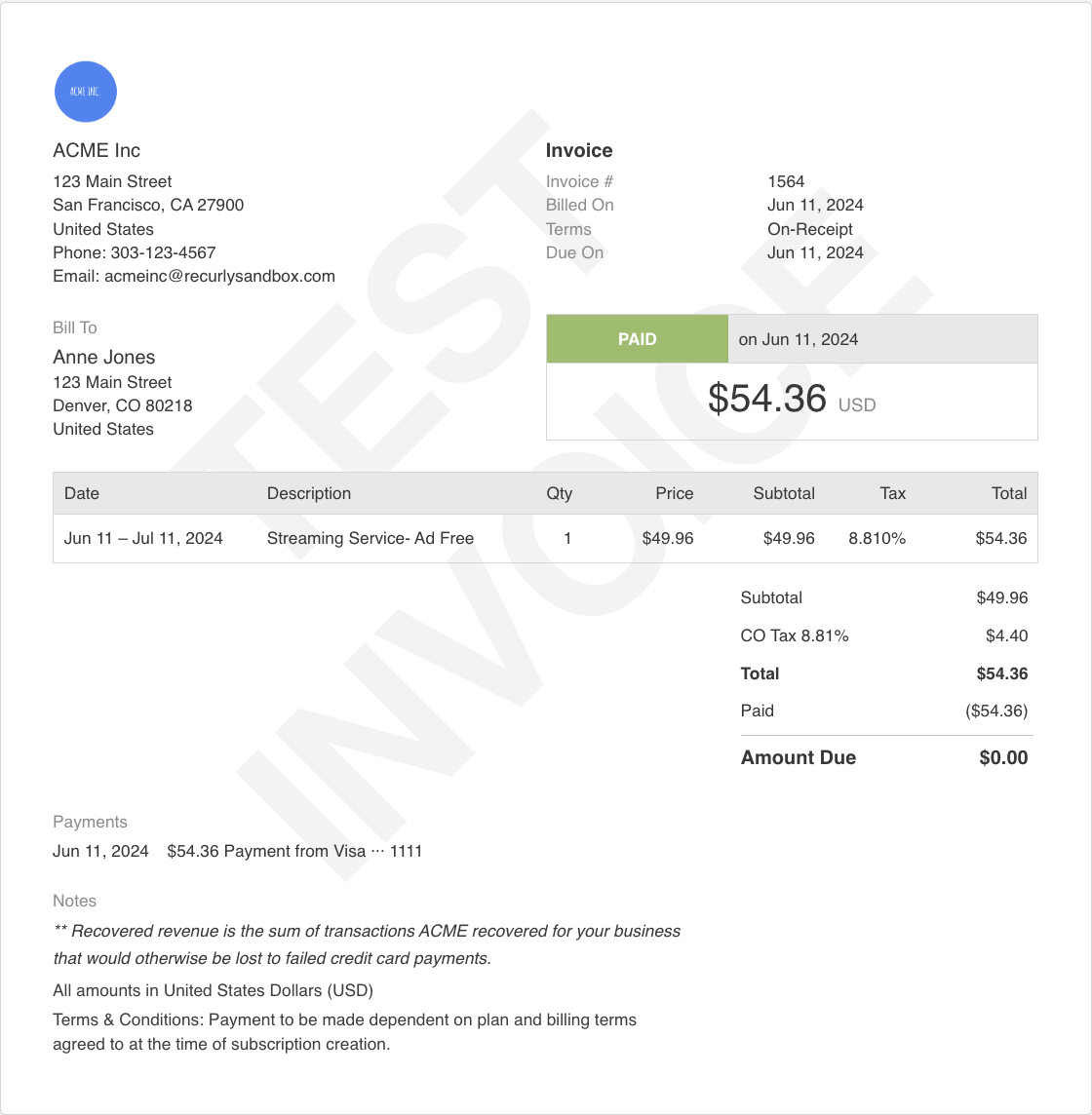
You can override these defaults if your business requires a different configuration:
Business Entity address for both Origin and Destination — Use this when all customers should be taxed based on your business entity's location. Tax will reflect the merchant's jurisdiction (e.g., GB VAT at 20% for a UK-based entity) regardless of the customer's location.
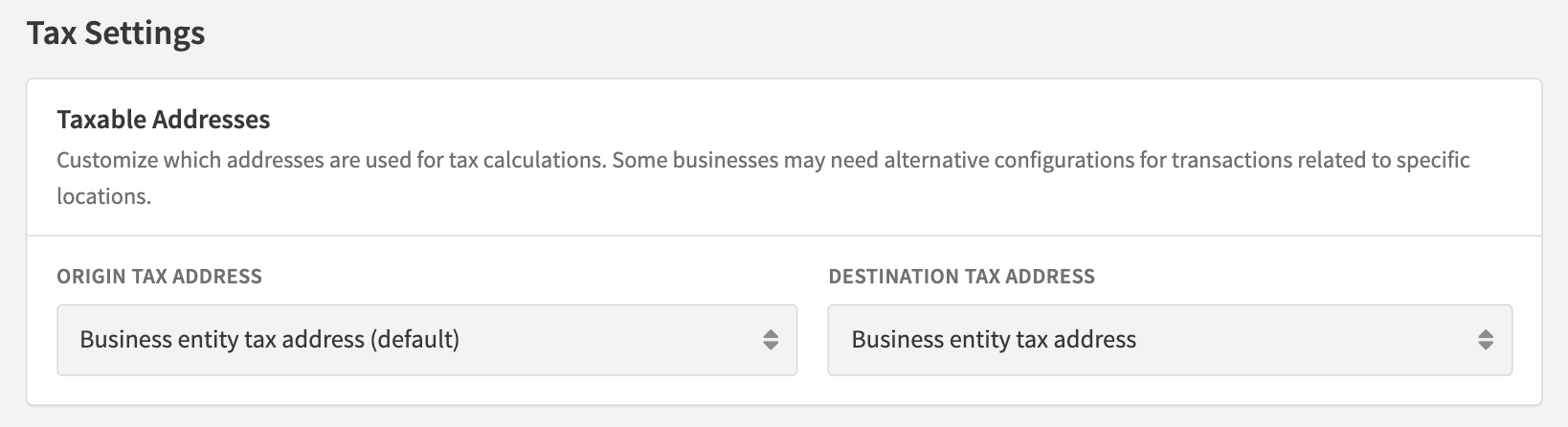
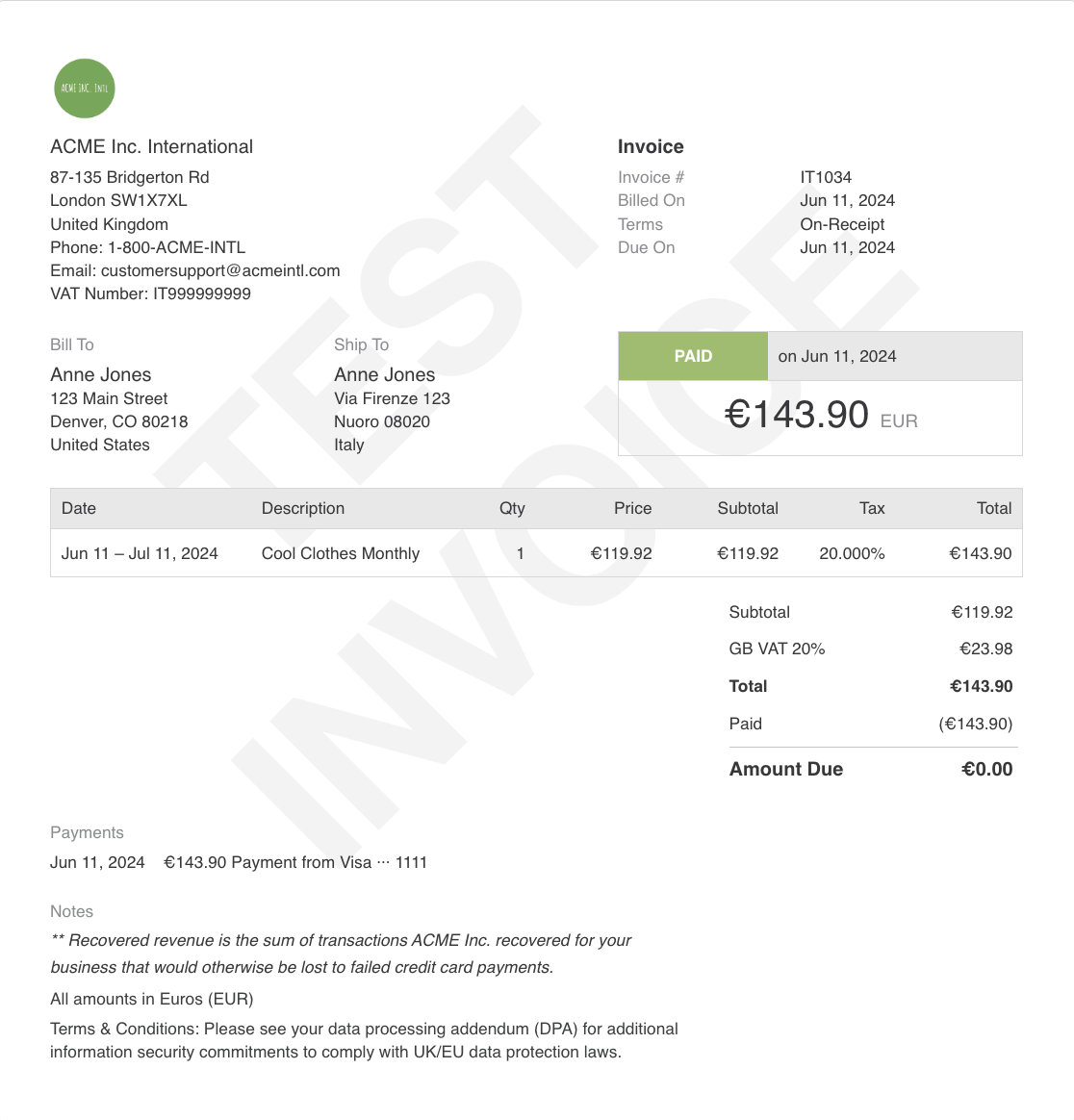
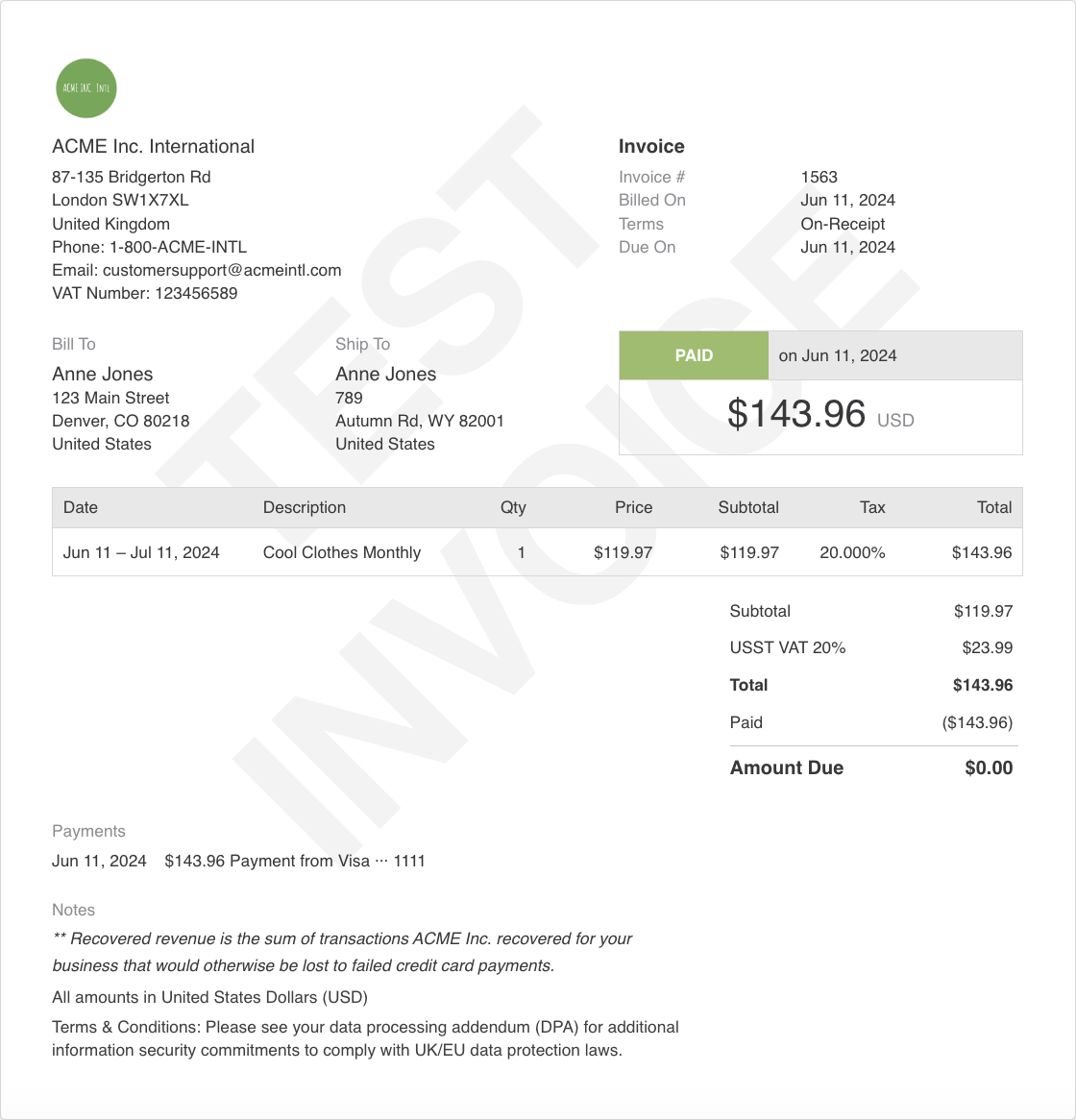
Customer address for both Origin and Destination — Some US states require this for specific goods, or when a merchant ships from a warehouse without a taxable presence at that location.
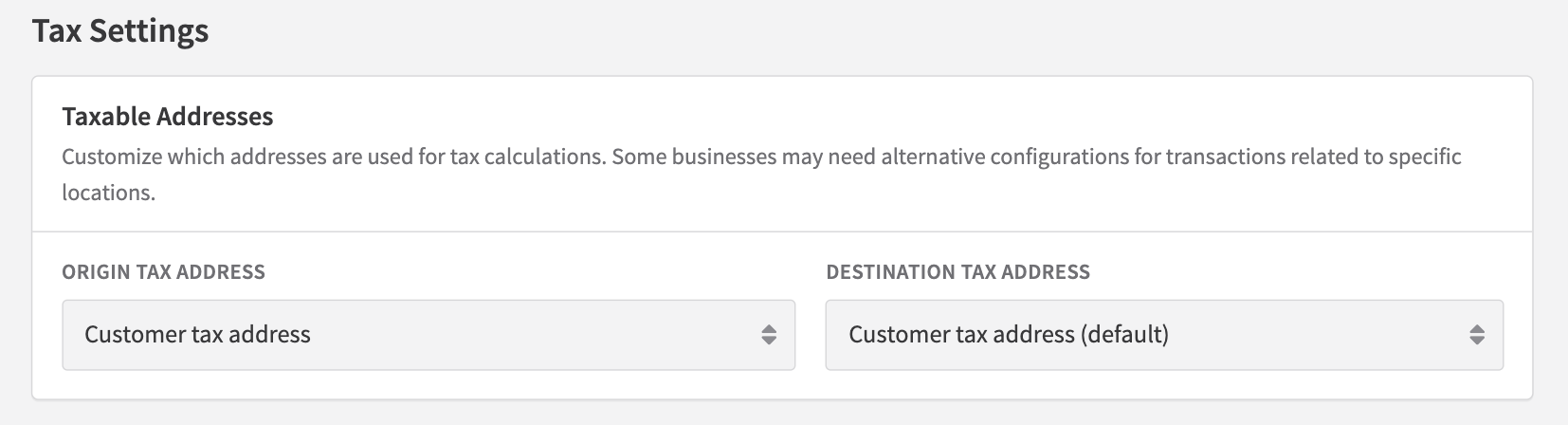
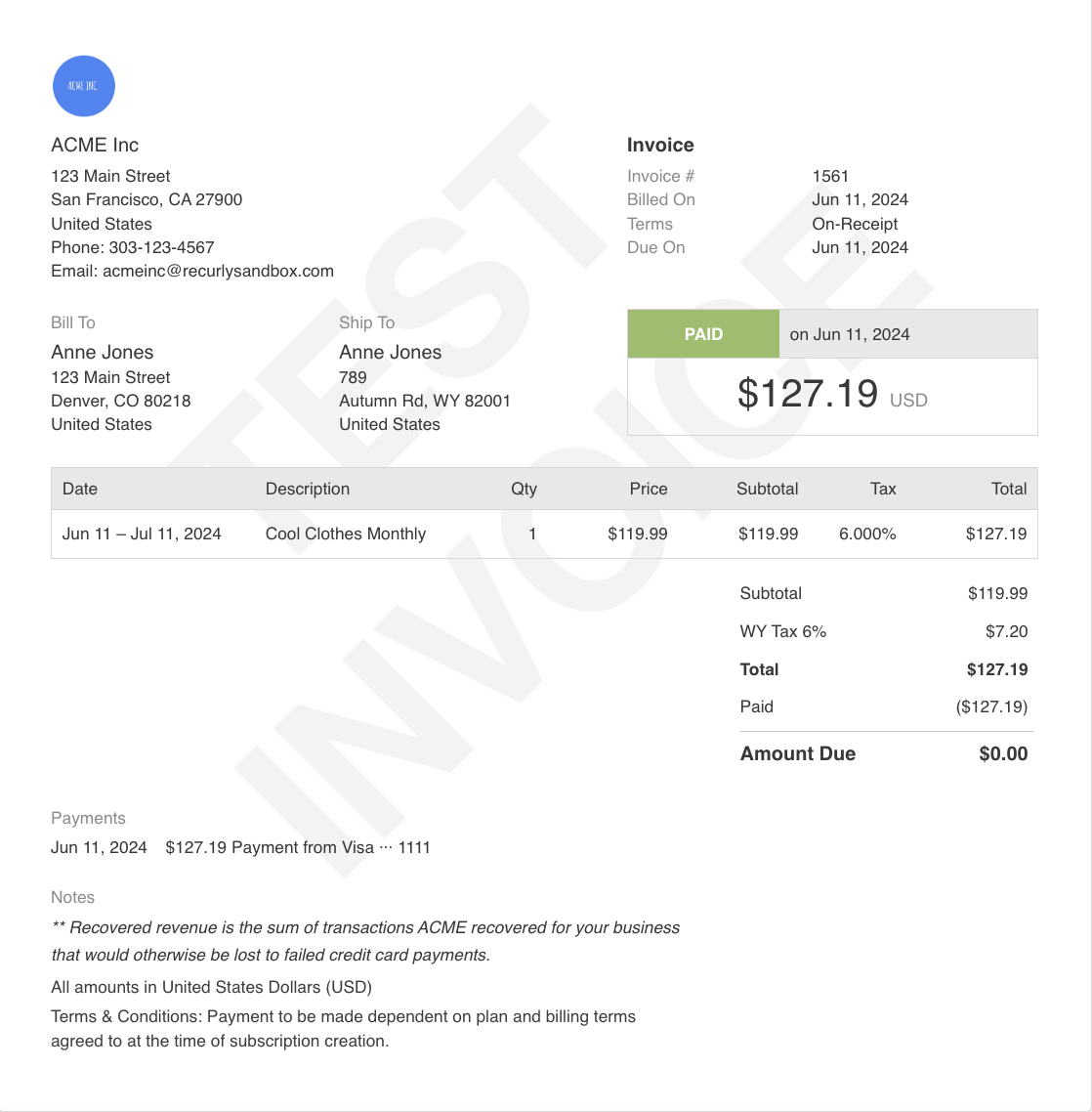
The taxable address configuration set on a business entity applies to all invoices associated with that entity. Each entity can have its own unique configuration. Changes to taxable address settings don't affect existing invoices — only invoices generated after the update follow the new behavior.
Taxable addresses for one-time charges
Taxable address settings for one-time charges are available via the Admin Console and both API versions for merchants on Recurly's Elite plan.
By default, charges inherit the taxable address configuration from the business entity applied to the invoice. To override this for a specific charge, enable Tax Collection when creating the charge, then check Override taxable address settings from business entity to set custom Origin and Destination addresses for that charge.
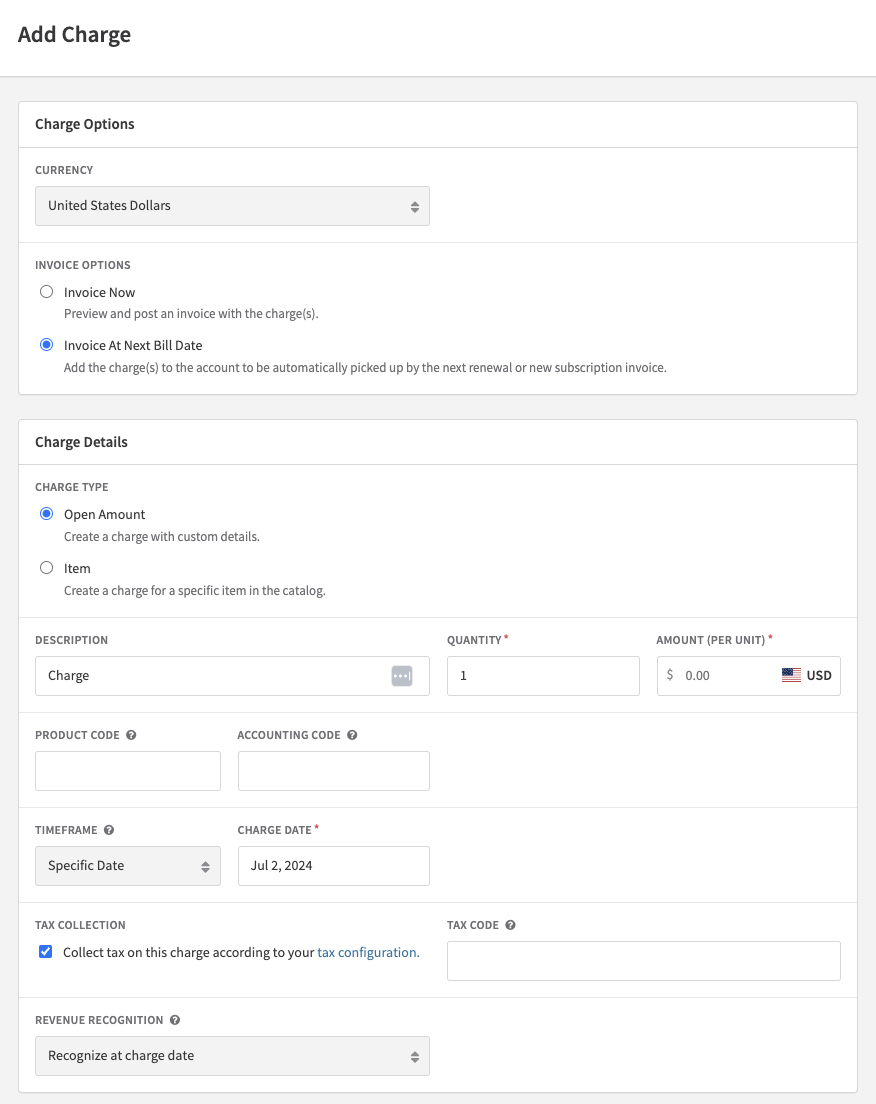
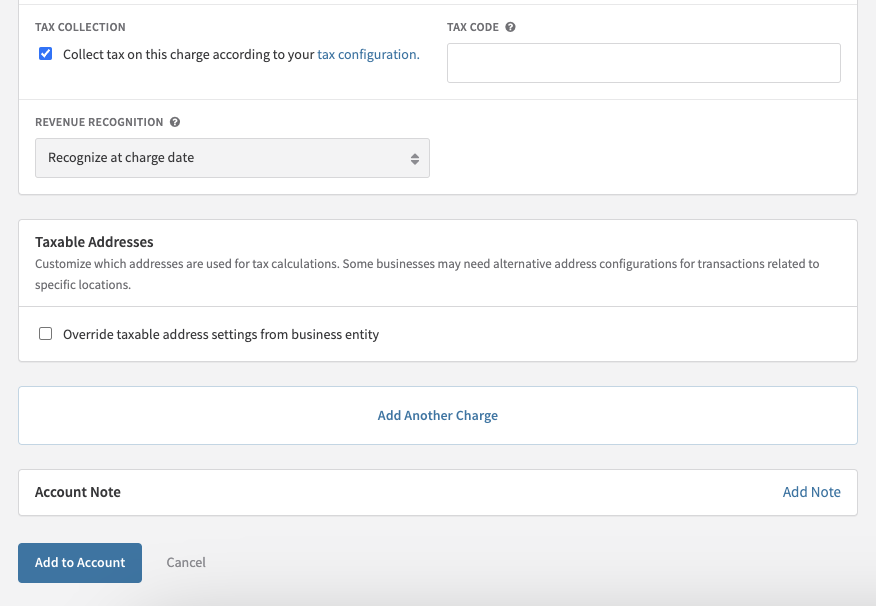
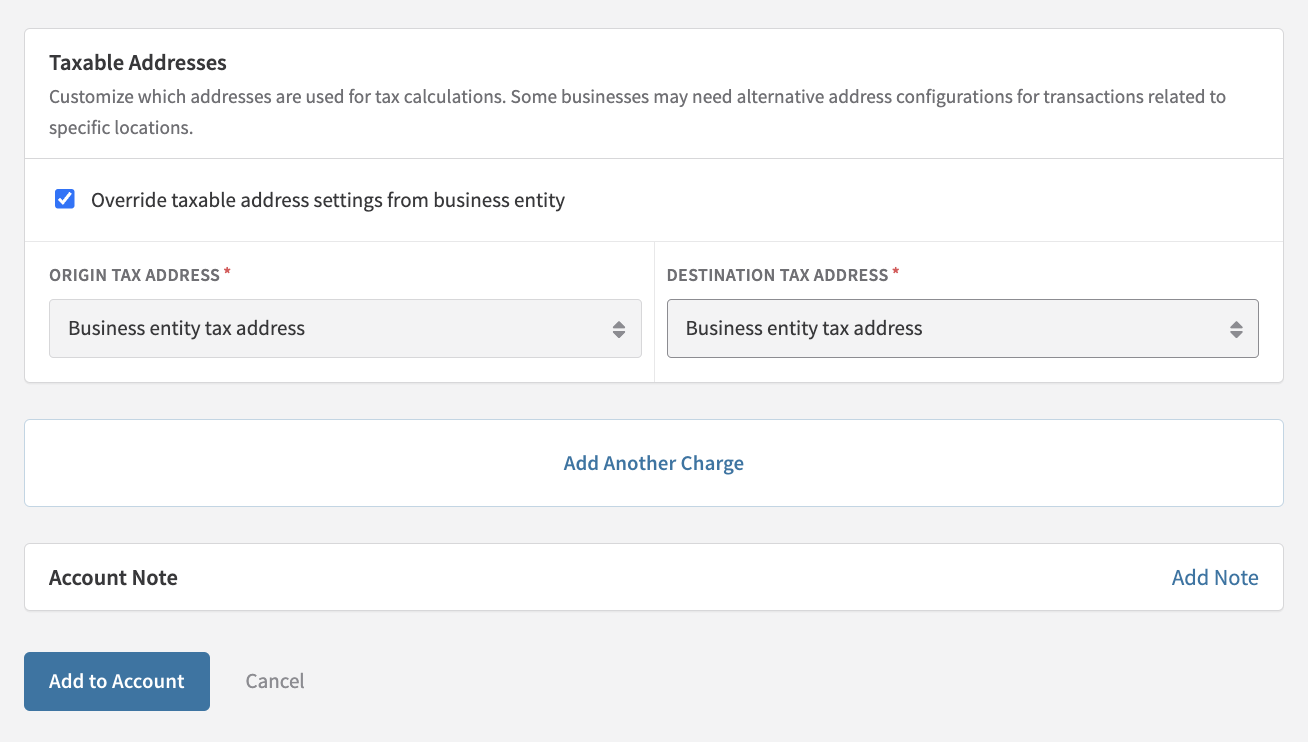
If an invoice contains multiple charges, each charge can have distinct taxable address settings — tax is calculated per line item based on each item's individual configuration.
Address requirements
Minimum address requirements by region
The minimum address fields required to calculate tax vary by region. Invoices missing the minimum required fields are posted without tax.
- Australia: Country
- Canada: Country and postal code
- Chile: Country
- Europe (non-EU): Country
- European Union: Country
- Indonesia: Country
- Israel: Country
- New Zealand: Country
- South Africa: Country
- Thailand: Country
- United Kingdom: Country
- United States: Country and postal code (full street address recommended)
Recurly address requirements
When you activate a tax region, Recurly automatically requires a country field for all new or updated customer billing addresses. This requirement applies to billing addresses only — if you're taxing based on the Account Information address, collect and store the necessary fields manually.
Address field character limits
Recurly Taxes enforces maximum character limits on address fields. Exceeding these limits can result in inaccurate tax calculation or no tax being applied.
| Field | Max characters | Example |
| Street address | 50 | 200 Main Street |
| Address line 2 | 100 | — |
| City | 50 | Irvine |
| State/province | ISO alpha-2 codes | CA |
| Country | ISO alpha-2 codes | US |
| Zip/postal code | 11 | 92614 |
Recurly uses ISO alpha-2 country codes on all forms. For example, the United Kingdom is "GB," not "UK." The state/province field is required for US, Canada, Italy, and the Netherlands when mandated by your Site Settings Address Requirement.
Address validation
Recurly uses Avalara's address validation tools to verify the addresses used on taxed invoices before generating an invoice.
For new sign-ups
When using Recurly Taxes, if the address is invalid or the tax jurisdiction can't be determined, the sign-up is blocked — no subscription or invoice is created. One of the following errors is returned:
- "The address provided is invalid, could not determine taxing jurisdictions" — The customer's or merchant's address is invalid or lacks sufficient information for jurisdiction determination.
- "The state/province provided is invalid, could not apply tax" — The state/province in the customer's or merchant's address is invalid.
- "The city provided is invalid, could not apply tax" — The city in the customer's or merchant's address is invalid for the specified country.
To allow sign-ups to proceed even when address validation fails, go to Configuration → Taxes → Tax Settings → Tax Service Settings and disable Require valid address for initial purchases. With this setting off, addresses are still sent to Avalara for jurisdiction determination, but an invalid address won't block invoice creation — the invoice is created without tax.
For renewals and ongoing subscriptions
Addresses are still validated on renewal, but an invalid address won't block invoice creation. The invoice is generated without tax until a valid address is on file.
Military addresses
For customers with military addresses, add "General Delivery" or "GD" to an extra street address line for proper validation.
When Avalara validation is used
For merchants using Recurly Taxes, only addresses in your active taxable regions are sent to Avalara for validation. For merchants with their own Avalara AvaTax account, all addresses are validated. If an account has no address, invoices are created without tax and skip Avalara validation.
Exempt customers
To mark an account as tax-exempt, navigate to the customer's account page in the Admin Console, edit the Account Information, and check Tax Exempt?. All future invoices for the account will be created without tax.
Your merchant address
Before activating a taxable region, confirm your merchant address is complete. This address — used on customer invoices and for tax calculations — is located in the Admin Console under Configuration → Business Entities. A postal code and country are required. Missing these fields will cause an error when attempting to enable a taxable region.
Tax registration numbers
In Business Entities, you can specify a default VAT Number and Tax Registration Number. These appear on all invoices you issue. For customer-specific VAT numbers or Tax IDs, a separate field is available on the customer's account record.
To display different VAT or Tax Registration Numbers for customers in specific countries (e.g., a Turkish VAT number on invoices to Turkey), configure this when adding or updating a business entity.
Enable a taxable region
Disable a taxable region
Disabling a taxable region stops tax collection on future invoices for customers in that location. Recurly tracks the date range during which you collected tax, so refunds on past invoices from a disabled region will still refund tax correctly.
Taxable plans and adjustments
Plans
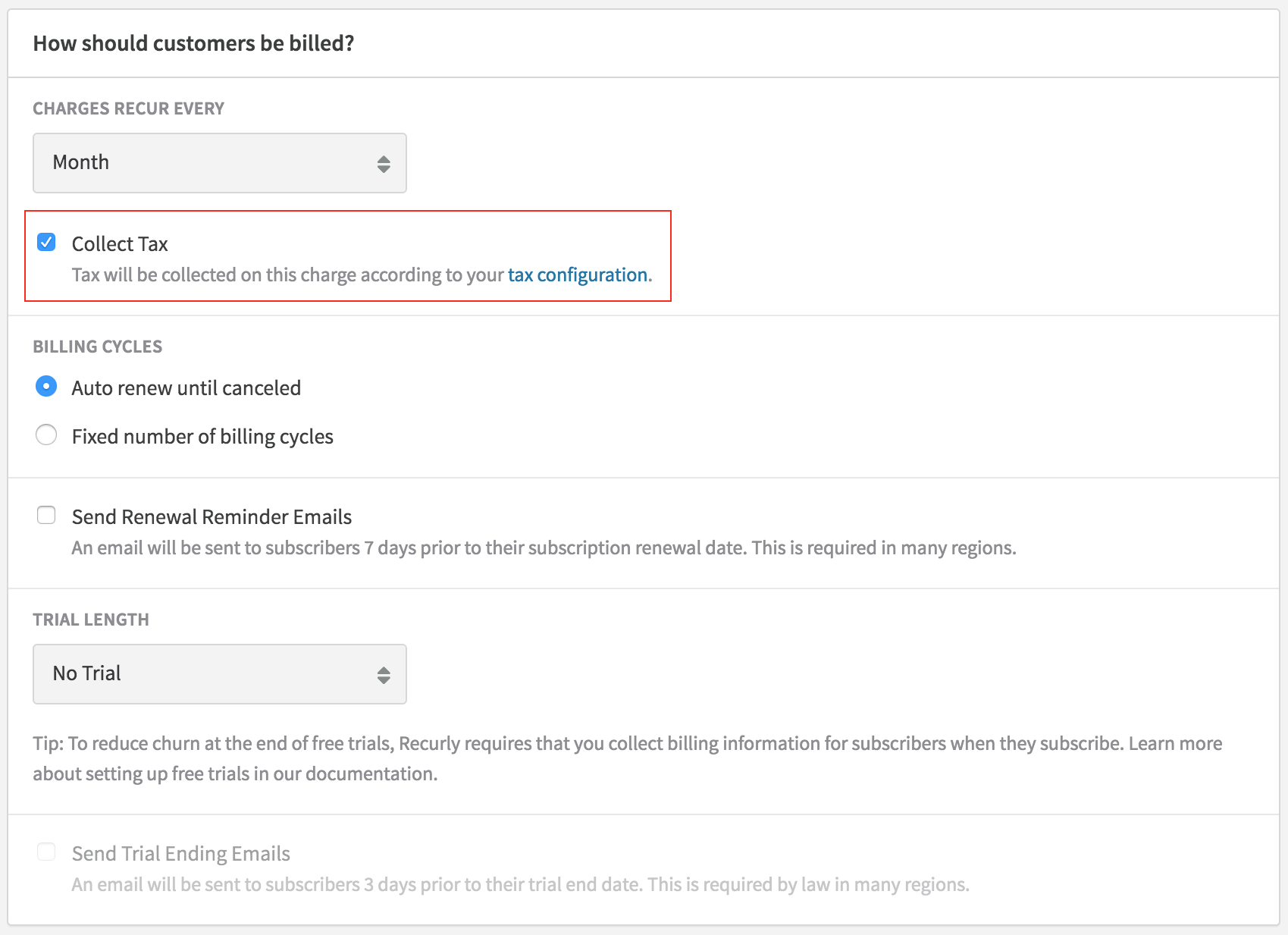
After enabling a taxable region, configure your plans to collect tax. All existing plans default to tax-exempt — edit each plan individually to enable Collect Tax. All new plans default to collecting tax. When a plan has tax collection enabled, its included add-ons are also taxed.
One-time charges
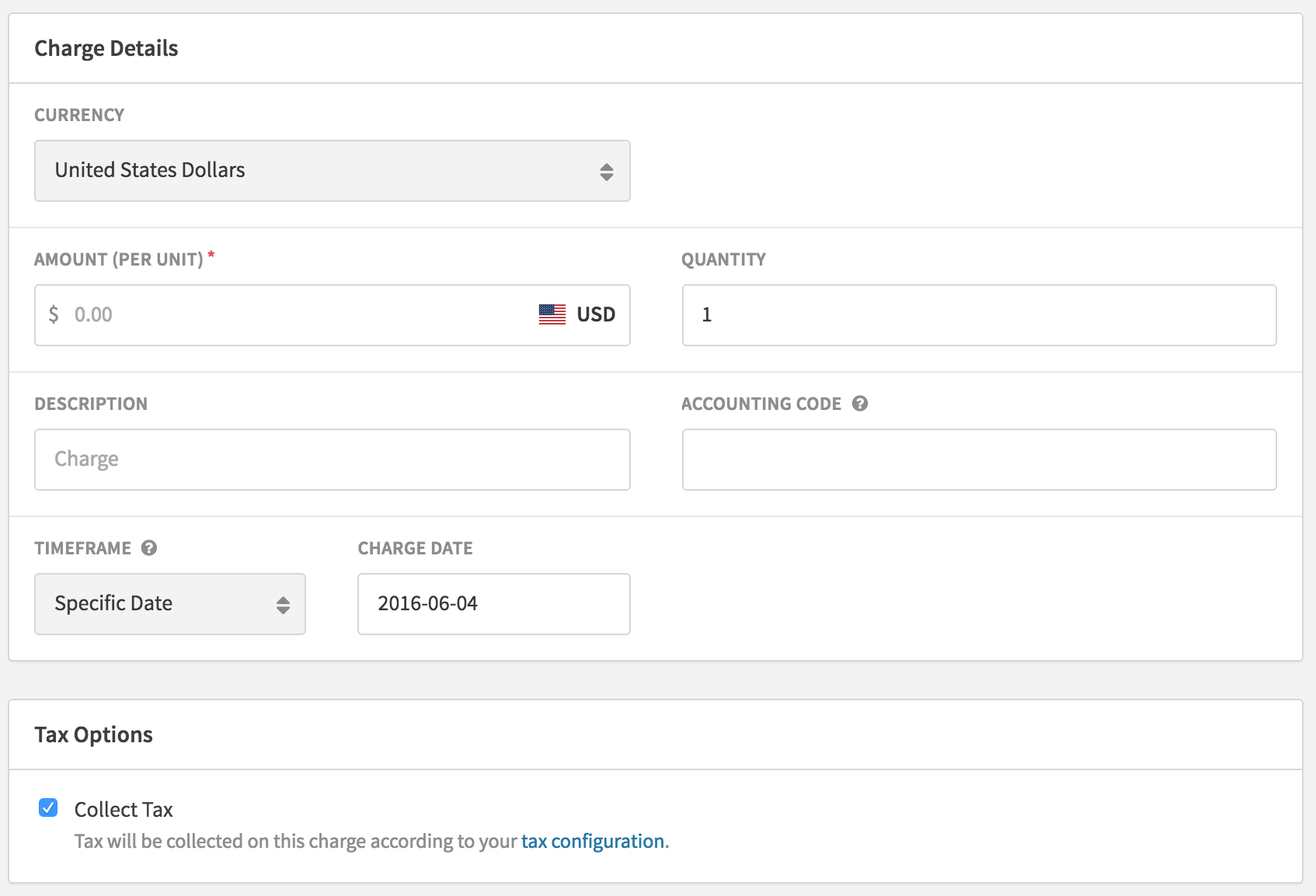
After enabling a taxable region, you can create custom charge adjustments that collect tax. The Create Charge page in the Admin Console defaults to collecting tax on new charges. Custom credit adjustments don't support tax calculation — to credit a customer and refund tax, issue a refund rather than creating a custom credit.
Tax product type and tax codes
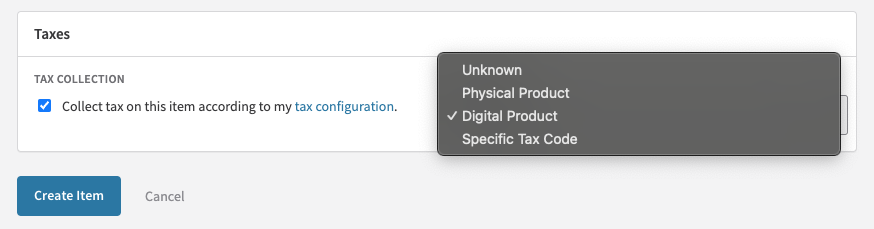
Recurly's built-in tax calculations treat each line item (plan, add-on, adjustment) as Tangible Personal Property (TPP). In many regions, digital goods and services follow the same tax rules as TPP. If your business requires a specific tax code, you can enter one per product.
You can find suggested tax codes on Avalara's website. Consult your tax and accounting team before applying a specific tax code. For advanced product distinctions and rule mappings, upgrade to your own Avalara AvaTax or Vertex account.
Tax previews at checkout
Recurly provides tax estimate previews based on internal rate tables. Final invoices use Avalara for tax calculation. Previews are available on Checkout, Hosted Payment Pages, via the API for Subscriptions and Invoices, and via Recurly.js for subscription sign-ups.
Tax on invoices
Invoices that include tax display:
- A Tax column next to Subtotal, showing the tax rate per line item (0.00% if not applicable)
- A Total column showing the combined subtotal and tax per line item
- An invoice-level tax row showing the tax region, rate, and total tax amount
When an invoice contains multiple tax rates (e.g., mixed item types or multiple shipping addresses), the invoice also includes a Tax Details card that breaks down each rate, the associated subtotal, and the tax amount per rate.
Tax amount rounding
In sandbox mode and production previews, tax amounts are always rounded up to two decimal places. On actual production invoices, Avalara applies region- and jurisdiction-specific rounding at the line item level — amounts below five round down, five or above round up.
Example with HU VAT at 27%:
| Sandbox / preview | Production | |
|---|---|---|
| Line item 1 ($5.79) | $1.57 | $1.56 |
| Line item 2 ($5.81) | $1.57 | $1.57 |
| Total tax | $3.14 | $3.13 |
Tax on credits and refunds
Refunds
Refunds generate a refund invoice that acts as a credit memo.
Line item refunds — Recurly calculates tax on the selected refund line items, maintaining the product identity so the correct tax amount is linked to the refunded credit on both the refund invoice and the Adjustments export. This is the recommended approach.
Open amount refunds — Recurly calculates the tax to be returned so the net refund matches the requested amount. Since these are at the invoice level, line item associations are lost.
Immediate upgrades and downgrades
Immediate subscription changes generate a single invoice that combines prorated charges for the new subscription and credits for the unused portion of the old one. Positive tax applies to new charges and negative tax applies to credits. The invoice's total tax is the net of both. Tax reporting through the Adjustments export reflects the correct amounts at the line item level.
Custom credit adjustments
Recurly doesn't calculate tax on custom credit adjustments. To credit a customer and refund tax, issue a refund rather than creating a custom credit.
Tax exports
Detailed tax reporting at the line item level is available through the Adjustments export. This export itemizes state, county, local, and special tax rates and amounts as calculated by Avalara.
Specialized tax reports and filings are available when you upgrade to your own Avalara AvaTax or Vertex account.
Existing customer addresses
Before activating tax collection, audit existing customer addresses to ensure they meet the minimum requirements for your taxable regions. Use the Accounts and Billing Info exports in the Reports section of the Admin Console to review postal codes and countries.
Avalara downtime
When Recurly can't reach Avalara to calculate tax, behavior varies by invoice type.
New sign-ups and purchases — Blocked until Avalara responds. The customer sees: "Tax service currently unavailable, please try again later."
To allow sign-ups to proceed without tax during Avalara downtime, go to Configuration → Taxes → Tax Settings → Tax Service Settings and disable Require successful tax response for initial purchases. Invoices created without tax during downtime must be handled by the merchant — it's not possible to add tax to an existing invoice. Recurly recommends merchants who disable this setting be prepared to absorb any missing tax rather than attempting to collect it from customers after the fact. Monitor for affected invoices using the Invoices — Summary export or the Invoices API.
Future subscriptions and renewals — Recurly retries activation or renewal every hour until Avalara responds, honoring the original billing cycle dates. If Avalara returns an error (rather than being unreachable) during a renewal, the renewal proceeds and the invoice is created without tax.
To check Avalara's operational status, visit Avalara's status page and review the Avalara AvaTax section under "Tax Calculation Service."
Determining if the tax service was used
- In the API and exports, the
used_tax_serviceboolean field indicates whether the tax service was used for a given invoice. - In the Admin Console, a note on the invoice indicates whether the tax service was used.
Sandbox testing
In sandbox mode, both preview and final invoices use Recurly's internal rate tables instead of Avalara. In production, Avalara handles final invoice tax calculations and Recurly's internal tables are used for checkout previews only. As a result, sandbox mode can't test Avalara's address validation, and minor differences in applied tax rates may occur compared to production.
Go-live checklist
Follow these steps before enabling tax collection on your production site. Test all configurations in sandbox mode first.
Activate taxable regions
Enable the countries and/or states/provinces where you plan to collect tax. This makes tax options visible on plan and account pages.
Choose the customer taxable address
Decide which customer address to use for tax calculation — billing address or account address — and configure your Tax Settings accordingly.
Audit existing customer addresses
Ensure existing and new customer addresses meet the minimum requirements for your taxable regions.
Verify your merchant address
Confirm your merchant address in Business Entities includes a postal code and country — required for tax calculations to work.
Configure taxable addresses per business entity
On each business entity, set the Origin and Destination address configuration for tax calculation.
Mark tax-exempt customers
Identify tax-exempt customers and mark their accounts accordingly before going live.
Add tax previews to checkout
Update your checkout pages to include tax previews so customers see estimated tax before completing a purchase.
Supported tax regions and rates
Africa
| Country | Tax region | Tax rate | Tax type |
|---|---|---|---|
| Algeria | DZ | 19% | VAT |
| Angola | AO | 14% | VAT |
| Benin | BJ | 18% | VAT |
| Botswana | BW | 12% | GST |
| Burkina Faso | BF | 18% | VAT |
| Burundi | BI | 18% | GST |
| Cameroon | CM | 19.25% | GST |
| Canary Islands | IC | 7% | VAT |
| Cape Verde | CV | 15% | GST |
| Democratic Republic of the Congo | CD | 16% | VAT |
| Côte d'Ivoire | CI | 18% | VAT |
| Egypt | EG | 14% | VAT |
| Ethiopia | ET | 15% | GST |
| Ghana | GH | 15% | GST |
| Kenya | KE | 16% | VAT |
| Lesotho | LS | 15% | GST |
| Madagascar | MG | 20% | GST |
| Mauritania | MR | 16% | GST |
| Mozambique | MZ | 16% | GST |
| Namibia | NA | 15% | GST |
| Nigeria | NG | 15% | GST |
| Rwanda | RW | 18% | GST |
| Senegal | SN | 18% | GST |
| South Africa | ZA | 15% | VAT |
| Tanzania | TZ | 18% | GST |
| Togo | TG | 18% | VAT |
| Uganda | UG | 18% | GST |
| Zambia | ZM | 16% | GST |
| Zimbabwe | ZW | 14.5% | GST |
Asia
| Country | Tax region | Tax rate | Tax type |
|---|---|---|---|
| Armenia | AM | 20% | VAT |
| China | CN | 13% | VAT |
| Hong Kong | HK | 0% | GST |
| Indonesia | ID | 11% | VAT |
| Iran | IR | 9% | GST |
| Israel | IL | 17% | VAT |
| Japan | JP | 10% | VAT |
| Jordan | JO | 16% | GST |
| Kazakhstan | KZ | 12% | VAT |
| Kyrgyzstan | KG | 12% | VAT |
| Republic of Korea (South) | KR | 10% | VAT |
| Lebanon | LB | 11% | VAT |
| Maldives | MV | 8% | GST |
| Malaysia | MY | 10% | GST |
| Nepal | NP | 13% | GST |
| Pakistan | PK | 17% | GST |
| Palestine Occupied Territory | PS | 16% | GST |
| Philippines | PH | 12% | GST |
| Sri Lanka | LK | 15% | GST |
| Taiwan | TW | 5% | GST |
| Thailand | TH | 7% | GST |
| United Arab Emirates | AE | 5% | VAT |
| Vietnam | VN | 8% | VAT |
Australia
Enabling tax collection in Australia applies 10% GST to all taxable plan, add-on, or adjustment line items for Australian customers.
| Tax region | Tax type | Tax rate | Minimum address requirement |
|---|---|---|---|
| AU | GST | 10% | Country |
ABN and ACN
When a customer's country is set to Australia, the VAT number field is labeled ABN / ACN across invoices, Checkout, Hosted Pages, and the Admin Console. Values entered are validated as either nine or 11 digits and saved in the formats "000 000 000" or "00 000 000 000," respectively.
To identify customers with an active, GST-registered ABN for Australian GST exemption, contact [email protected] to enable ABN validation through the Australian Business Register on your site.
AU GST on digital services
Effective July 1, 2017, Australia requires non-resident businesses selling digital services above a certain threshold to register and collect GST. Businesses with an active, GST-registered ABN are exempt.
When ABN validation is enabled, 11-digit values in the ABN/ACN field are checked against the Australian Business Register API. Invalid ABNs are rejected. Valid, GST-registered ABNs for cross-border sales (where your Site Settings country is outside Australia) result in no GST being applied. ABNs that are valid but not GST-registered still appear on the invoice, but GST is charged.
Recurly revalidates ABNs every six months. If a revalidation finds the ABN no longer qualifies, GST is applied to the next invoice.
Test ABNs for sandbox mode:
10 120 000 004— Active and GST-registered; exempt from tax10 000 000 000— Valid ABN, not GST-registered; taxed51 824 753 555— Not a valid ABN; not saved
To require two pieces of matching location evidence from Australian customers, enable Tax Location Validation for Australia.
Europe
Non-EU Europe
Enabling tax collection in a non-EU European country applies that country's VAT rate to all taxable plan, add-on, or adjustment line items. All non-EU European countries have a tax type of VAT and a minimum address requirement of Country.
| Country | Tax region | Tax rate |
|---|---|---|
| Albania | AL | 20% |
| Åland Islands | AX | 24% |
| Andorra | AD | 4.5% |
| Belarus | BY | 20% |
| Bosnia and Herzegovina | BA | 17% |
| Georgia | GE | 18% |
| Iceland | IS | 24% |
| Isle of Man | IM | 0% |
| Kosovo | XK | 18% |
| Latvia | LV | 21% |
| Liechtenstein | LI | 7.7% |
| Moldova | MD | 20% |
| Monaco | MC | 20% |
| Montenegro | ME | 19% |
| Northern Ireland | XI | 20% |
| Norway | NO | 25% |
| Russia | RU | 20% |
| Serbia | RS | 20% |
| Switzerland | CH | 7.7% |
| Turkey | TR | 18% |
| Ukraine | UA | 20% |
Russia
If you need to collect a State Registration Number (SRN) instead of a VAT number for Russia, contact [email protected] to display the VAT Number field as "SRN / SRNIE" when the associated address country is Russia. This applies across invoices, the Admin Console, Checkout, and Hosted Pages. Values saved in this field are validated to be 13 or 15 digits.
European Union
The EU VAT system has its own dedicated page. See European Union VAT for full details.
United Kingdom
| Location | Tax region | Tax rate | Tax type | Minimum address requirement |
|---|---|---|---|---|
| United Kingdom | GB | 20% | VAT | Country |
Oceania
New Zealand
Enabling tax collection in New Zealand applies 15% GST to all taxable plan, add-on, or adjustment line items for New Zealand customers.
| Country | Tax region | Tax rate | Tax type | Minimum address requirement |
|---|---|---|---|---|
| New Zealand | NZ | 15% | GST | Country |
Starting October 1, 2016, New Zealand requires non-resident digital services businesses to collect GST from non-business customers. To enforce collection of two matching pieces of location evidence, enable Tax Location Validation for New Zealand.
Recurly supports collecting GST Numbers from New Zealand business customers. Enter the GST Number in the VAT Number field — for New Zealand addresses, the field is labeled "GST Number" and validated as eight or nine digits. When a valid GST Number is provided and your Site Settings country is not New Zealand, no GST is applied.
North America
Canada
Activating Canada applies 5% GST to all taxable line items for Canadian customers. Additional provincial taxes (PST, HST, or QST) apply when you enable specific provinces as taxable sub-regions. To collect GST only across all provinces, enable Canada without selecting any specific province.
| Tax region | Tax type | Minimum address requirement |
|---|---|---|
| CA | GST / GST+PST / GST+HST / GST+QST | Country and postal code |
Provincial tax types by province:
| Province | Tax type |
|---|---|
| Alberta | GST |
| British Columbia | GST/PST |
| Manitoba | GST/PST |
| New Brunswick | GST/HST |
| Newfoundland and Labrador | GST/HST |
| Northwest Territories | GST |
| Nova Scotia | GST/HST |
| Nunavut | GST |
| Ontario | GST/HST |
| Prince Edward Island | GST/HST |
| Quebec | GST/QST |
| Saskatchewan | GST/PST |
| Yukon | GST |
Customers in a province not enabled in your Canada tax settings are charged GST only. Some Canadian cities have unique exemption rules (e.g., Lloydminster spans Alberta and Saskatchewan and is PST-exempt). Recurly Taxes accounts for city-specific rules in production; sandbox mode and production previews calculate at the provincial level only.
United States
Enabling US tax collection applies sales tax — including state, county, local, and special taxes — to all taxable line items for customers in the states you enable. The tax region always shows as the two-letter state code.
The minimum address requirement for US Sales Tax is postal code and country.
Caribbean and Central America
| Country | Tax region | Tax rate | Tax type |
|---|---|---|---|
| Barbados | BB | 17.5% | VAT |
| Costa Rica | CR | 13% | VAT |
| Dominican Republic | DO | 18% | VAT |
| Guadeloupe | GP | 8.5% | GST |
| Guatemala | GT | 12% | GST |
| Honduras | HN | 15% | GST |
| Jamaica | JM | 15% | GST |
| Martinique | MQ | 8.5% | VAT |
| Mexico | MX | 16% | GST |
| Nicaragua | NI | 15% | GST |
| Panama | PA | 7% | GST |
| El Salvador | SV | 13% | GST |
South America
| Country | Tax region | Tax rate | Tax type |
|---|---|---|---|
| Argentina | AR | 21% | GST |
| Bolivia | BO | 13% | GST |
| Chile | CL | 19% | VAT |
| Colombia | CO | 19% | VAT |
| Curacao | CW | 6% | GST |
| Ecuador | EC | 12% | VAT |
| Falkland Islands | FK | 0% | GST |
| Guyana | GY | 14% | GST |
| Paraguay | PY | 10% | GST |
| Peru | PE | 18% | GST |
| Suriname | SR | 10% | GST |
| Trinidad and Tobago | TT | 12.5% | GST |
| Uruguay | UY | 22% | GST |
| Venezuela | VE | 16% | GST |
Updated 9 days ago