
Custom fields
Create and manage custom fields on accounts, charges, subscriptions, plans, and invoices to capture additional data tailored to your business needs.
Prerequisites
- Users must have the Configuration permission within their role to create and edit custom field definitions.
Definition
Plan availability
| Plan | Custom field limit |
| Sandbox and Developer modes | Up to 5 custom fields — for testing custom field behavior and verifying integrations. |
| Starter | Not supported. If you enabled custom fields in Sandbox mode, you must remove them before transitioning to the Starter plan. |
| Pro | Up to 5 custom fields. |
| Elite | Up to 10 custom fields. |
Key details
Creating and editing custom field definitions
To create a custom field definition, navigate to Configuration → Custom Fields → Create Custom Field.
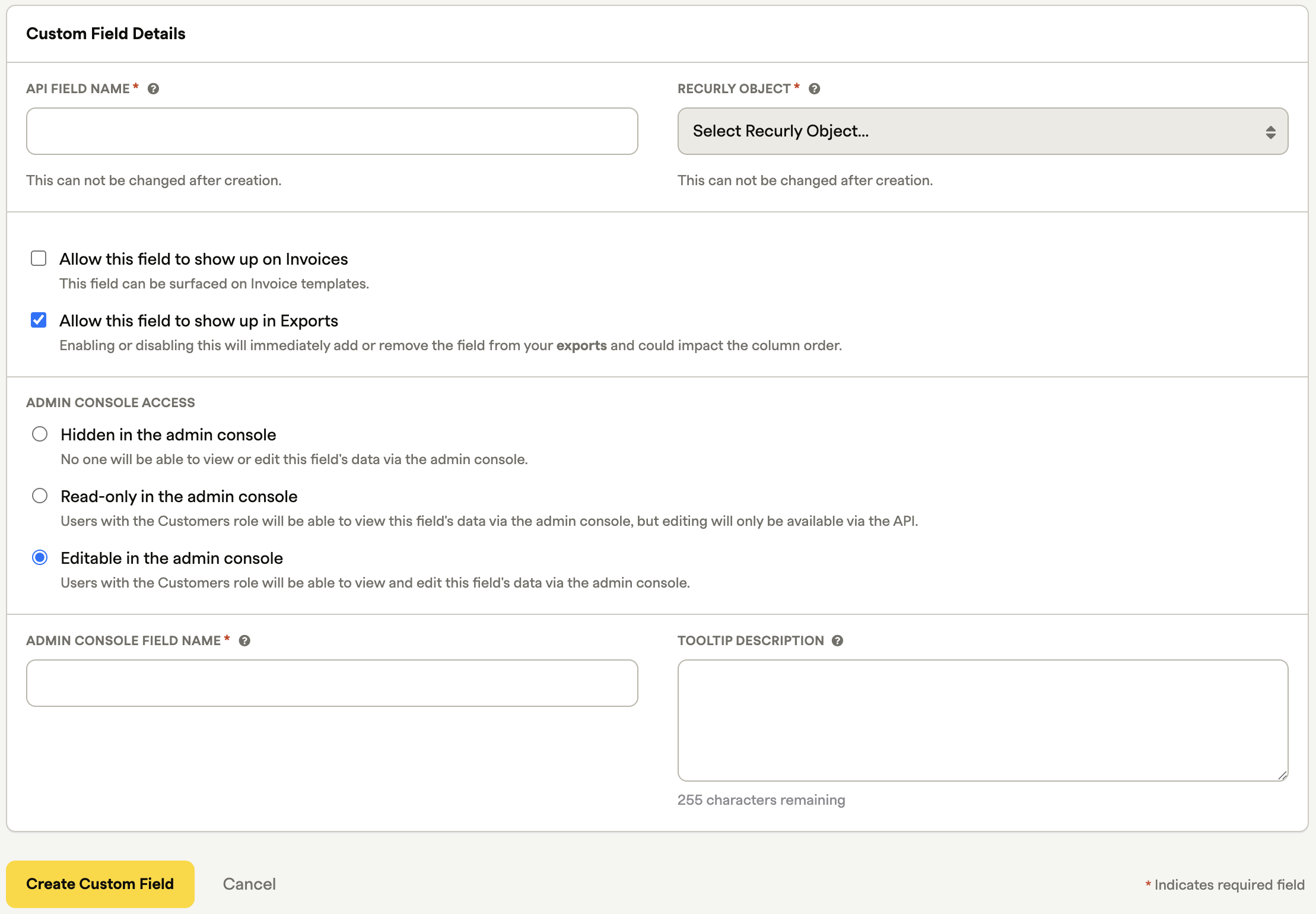
The following fields are available when creating a custom field definition:
| Field | Description |
| API field name | The ID used in the API to reference the custom field. No spaces — numbers, letters, dashes, and underscores only. |
| Recurly object | The object the custom field is created on: account, charge, item, plan, or subscription. |
| Allow this field to show up on invoices | When enabled, the field appears in the invoice template editor's variable picker. The field name and value will display on invoices. |
| Allow this field to show up in exports | When enabled, the field is included in exports associated with its Recurly object. |
| Admin Console Access | Controls field visibility and editability in the UI: Hidden (API only), Read-only (viewable in UI, editable via API), or Editable (viewable and editable in both UI and API). |
| Admin Console field name | Required when the field is set to visible or editable in the Admin Console. This name also appears on invoices when Allow this field to show up on invoices is enabled. |
| Tooltip description | When populated, a question mark icon appears next to the Admin Console field name, providing additional context for users. |
Custom field data types
All custom fields are text fields with a 255-character limit. You can populate them with any combination of letters and numbers — for example, xyz123, John Smith, or こんにちは.
Deleting custom field definitions
To delete a custom field definition, navigate to Configuration → Custom Fields.
Custom fields on an account
Account custom fields let you capture subscriber-specific data alongside the Account object — such as subscriber IDs from external systems, sales representative names, channel partner names, subscriber segments, or regions.
When an account custom field is set to Editable in the Admin Console, you can set its value when creating or editing an account. The field and its value appear within Account Information once the account is saved.
Custom fields on charges
Charge custom fields let you attach custom values to non-subscription line item charges or credits. This adds context to individual charges and enables conditional customization of email communications based on those values.
When a charge custom field is set to Able to be set in the Admin Console, you can populate it from the Add Charge page. The field and its value can be queried via the API.
Custom fields on a subscription
Subscription custom fields let you capture subscription-level data such as customer device ID, acquisition channel, customer segment, subscription ID from an external system, or partner ID.
When a subscription custom field is set to Editable in the Admin Console, you can set its value when creating or editing a subscription from the subscription details page.
Custom fields on a plan
Plan custom fields let you attach metadata to plans for integration rules, grouping, or display purposes — for example, flagging available upgrade or downgrade paths, defining rules for external systems such as NetSuite, grouping plans, or surfacing exclusive offers like professional support.
When a plan custom field is set to Editable in the Admin Console, you can set its value when creating or editing a plan.
Custom fields on invoices
Any custom field can be made available on invoices by enabling Allow this field to show up on invoices when creating the field definition. Once enabled, the field becomes selectable in the invoice template editor.
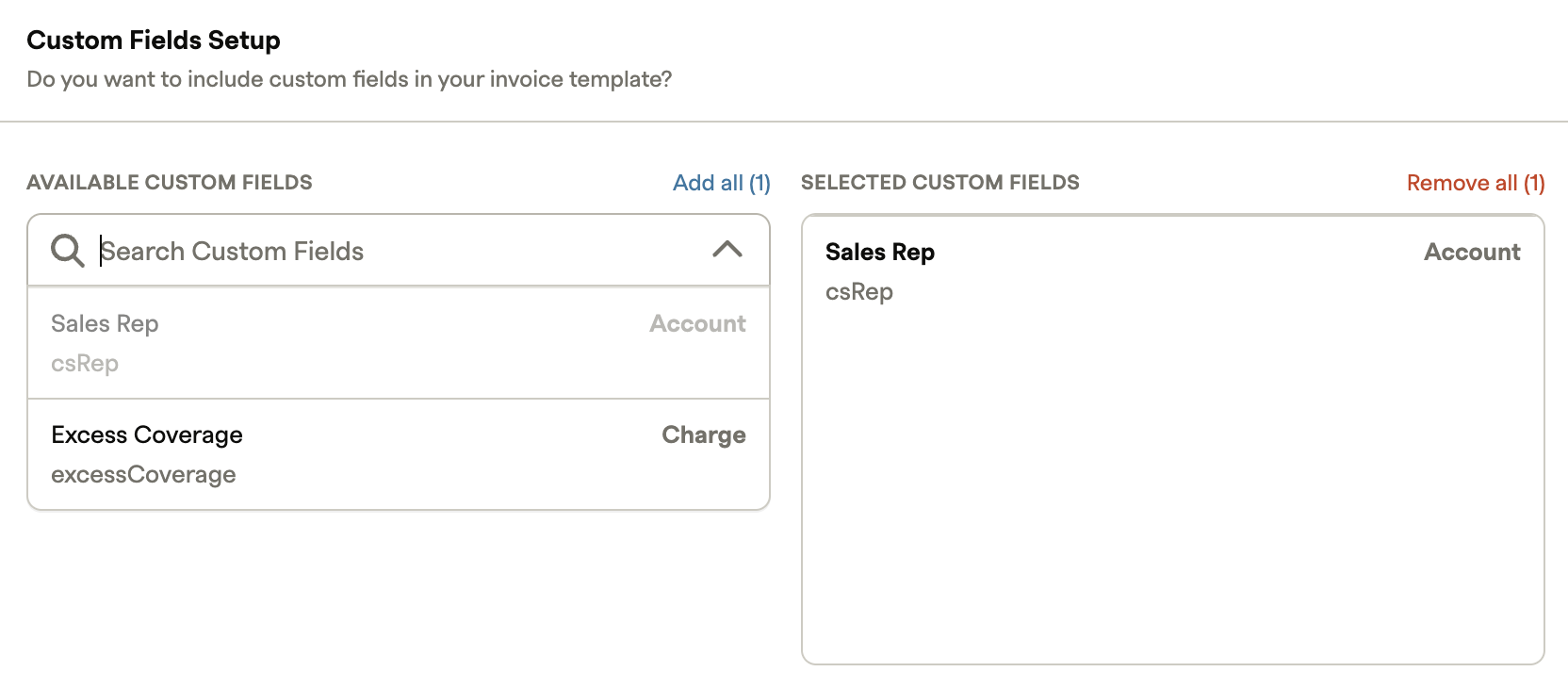
After the field is added to an invoice template, it will appear on any invoice where that custom field is populated:
- Account custom fields display at the bottom of the "Bill to" section.
- All other custom field types (plan, subscription, item, and charge) display within the invoice line item they're associated with.
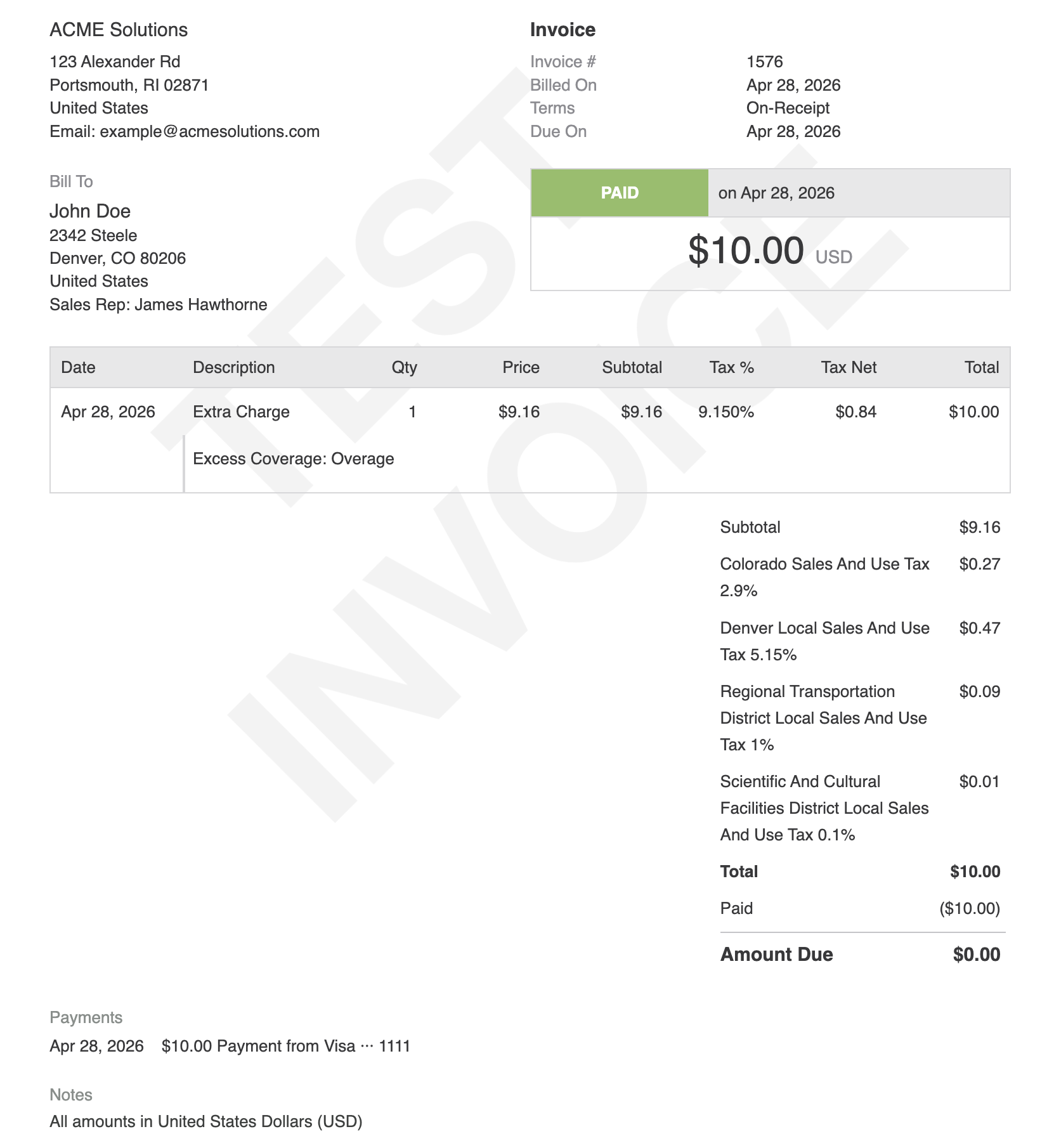
When account hierarchy is enabled and both the parent and child accounts have custom fields, the child account's custom fields are displayed on the invoice.
Custom fields are also returned through the invoices API (GET /invoices/{invoice_number}).
Updated 3 months ago