
Explore - Invoices and workbook agent
Learn how to use Recurly's invoices Explore feature to build custom reports and analyze invoice and account data, including with the AI-powered Workbook Agent.
Prerequisites
- Users must have the Analytics user role permission.
Definition
Key benefits
Key details
Invoices Explore includes all invoices and their corresponding line items. It doesn't contain transaction or gateway information, which makes it particularly useful for reports related to invoicing or accounting.
Explore interface
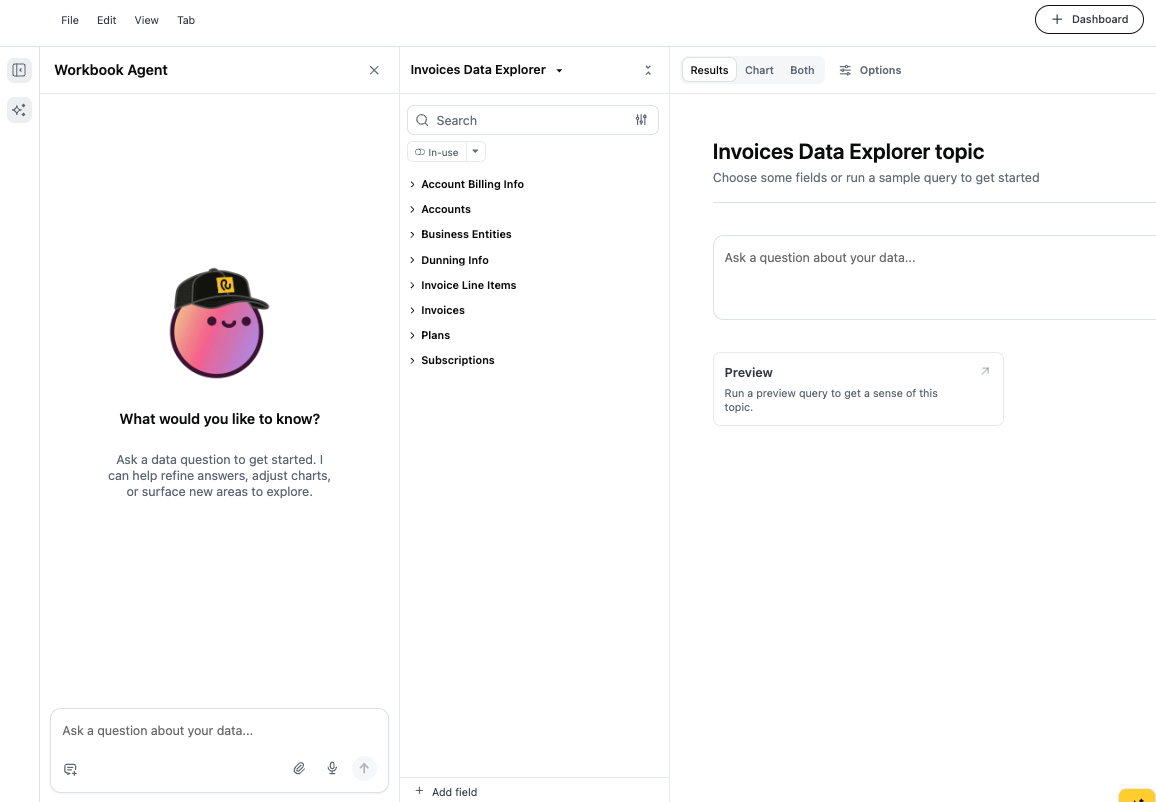
The Explorer is divided into three areas:
| Interface area | Description |
|---|---|
| Left panel — Workbook Agent | Ask natural-language questions about your invoice data. The agent suggests fields and runs queries on your behalf. |
| Center panel — Field picker | Browse and search the full field catalog. Fields are grouped by topic. Click any field to add it to your active query. Use the In-use filter to see only selected fields. |
| Right panel — Results area | Toggle between Results (table view), Chart (visualization), or Both. Use the Options tab to configure axes, grouping, and chart type. Click Preview to run a sample query and verify your field selection before committing. |
Using the Workbook Agent
The Workbook Agent is the fastest way to start an analysis. Type a question in the text box at the bottom of the left panel and press Enter, or select the send icon.
Example prompts:
- Show me total invoice revenue by plan for the last 30 days
- Which accounts have open invoices older than 60 days?
- Break down failed charges by dunning state this month
- How many invoice line items are associated with add-ons?

Switching between Agent and manual mode
You can use the Agent and the field picker together. After the agent populates a query, add or remove fields manually using the center panel — changes appear immediately in the results view.
Available data
The field picker organizes all available dimensions and metrics by topic. Each topic maps to a set of underlying data entities:
| Data | Description |
|---|---|
| Account billing info | Payment method details, billing address, and card metadata associated with accounts. |
| Accounts | Account-level attributes including account code, email, address, name, and more. |
| Business entities | Legal entity data for multi-entity merchants, including entity name and tax region. |
| Dunning info | Retry attempts, dunning state, and communication timing for failed payment recovery. |
| Invoice line items | Individual charges and credits at the line level, including unit amounts, quantities, and product codes. |
| Invoices | Invoice totals, state (open, collected, failed, voided), currency, and dates. |
| Plans | Plan codes, names, intervals, and pricing tiers. |
| Subscriptions | Subscription state, start and end dates, trial info, and associated plan and add-on metadata. |
Tips & best practices
- Use Preview before adding many fields — it confirms the data shape without running a full query.
- Use the In-use toggle in the field picker to narrow the view to your current selection, making it easier to review what's included.
- Save frequent queries as a dashboard using the button in the top-right corner so teammates can access them without rebuilding.
- For large date ranges, start with aggregated metrics (totals, counts) before drilling into line-level detail to keep load times fast.
- The Workbook Agent works best with specific, scoped questions. Include a timeframe and at least one entity type (account, plan, subscription) for the most accurate results.
Creating a new report
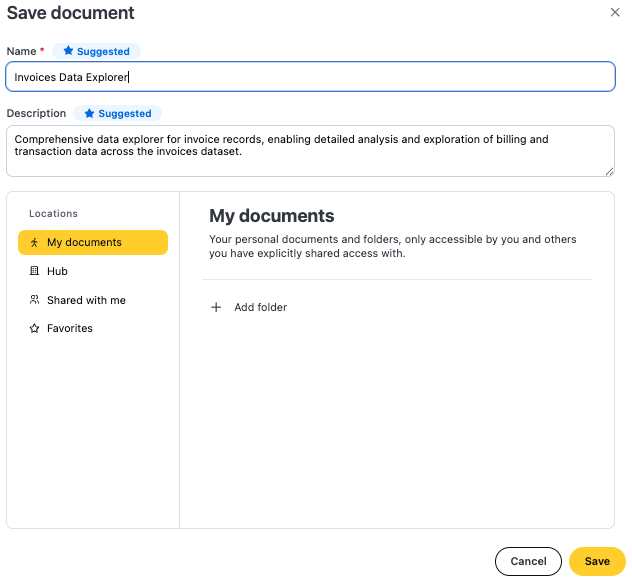
Saving a report
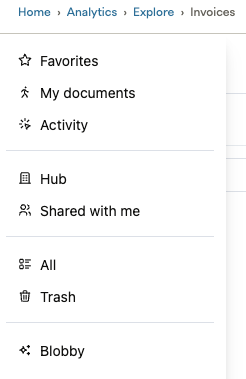
Opening an existing report

Running or refreshing a report
Once you're in an existing report, you can run or refresh it with or without cache from the View menu.
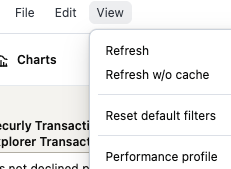
- Refresh — Re-runs the report against previously saved data. If you (or a colleague) ran the exact same query with the same filters, sorts, and fields within the last hour, Explore instantly loads those pre-saved results. It only sends a new query to your data source if the cache has expired, or if filters, sorts, or fields change in the report.
- Refresh w/o cache — Bypasses the stored query results for the report and sends a direct query to your data source to pull live, up-to-the-minute data.
Updated 2 months ago