
PayPal Complete
Connect PayPal Complete to Recurly to accept credit cards, debit cards, and PayPal payments — with support for subscriptions, one-time payments, and the PayPal Recurring Module.
Prerequisites
- Verify your PayPal merchant account email — An unverified email causes repeated "Configuration" errors during transaction processing. To verify, log in to your PayPal Business account and go to Settings → Email to locate and confirm the verification email. If you're not receiving the email (common in sandbox accounts), see PayPal: How do I confirm my email address? If you continue to have trouble, open a ticket with PayPal Support directly.
Limitations
- Hosted Payment Pages (HPP) not supported for PayPal — HPP does not support PayPal as a payment method. Credit cards are fully supported on HPP. PayPal is supported on Checkout.
- No migration from PayPal Complete to PayPal Business — Subscriptions initiated on PayPal Complete cannot be migrated to PayPal Business due to differences in vaulting (PayPal Complete tokens vs. PayPal Business Billing Agreement IDs). Migration in the reverse direction (PayPal Business → PayPal Complete) is supported, and existing Billing Agreement IDs continue to function.
- Regional availability — PayPal Complete is only supported in certain regions. See the Regions row in Key details.
- JCB available to Canadian merchants only.
- Address details require pre-approval from PayPal — PayPal only returns address information to pre-vetted merchants. Contact PayPal to enable this for your account, then reach out to Recurly Support to enable the corresponding feature flags. See Address features on PayPal below.
- Prohibited activities — Review PayPal's acceptable use policy to confirm your business qualifies for a PayPal Complete account.
- Recurring Module zero-dollar limitation — PayPal Complete's Recurring Module implementation does not support zero-dollar amounts unless a trial is specified.
Definition
Key details
| Feature | Details |
| Supported Recurly services | PayPal Complete, subscriptions, one-time payments, automatic subscription cancellations |
| Supported operations | Payment, refund |
| Supported payment types | Credit and debit cards, PayPal |
| Supported card brands | Visa, Mastercard, American Express, Discover, JCB, Diners Club |
| Gateway-specific 3DS2 supported | N/A |
| Card on file supported | N/A |
| Regions | United States, EMEA, Canada, United Kingdom / EU, APAC |
| Currencies | USD, AUD, BRL, CAD, CHF, CNY, CZK, DKK, EUR, GBP, HKD, HUF, ILS, JPY, MXN, MYR, NOK, NZD, PHP, PLN, SEK, SGD, THB, TWD |
| Additional feature support | PayPal tokens, token lifecycle and transaction status webhooks, PayPal Recurring Module |
Address features on PayPal
PayPal only returns billing and shipping address information to pre-vetted merchants. To enable this, contact PayPal to request address data for your business account — see the PayPal Knowledge Base for details. Once PayPal has enabled it on their side, contact Recurly Support to enable the Save PayPal Billing Address and/or Save PayPal Shipping Address feature flags for your Recurly site.
eCheck and bank account–funded transactions
Transactions funded by bank accounts (eChecks) behave like direct debits — it takes 3–6 days for funds to clear in the customer's PayPal account. Refunds processed from a bank account when no PayPal balance is available may also take 3–6 days or longer. During this period, PayPal labels the transaction as "pending."
You must enable PayPal status update webhooks in your Recurly site developer settings for status updates to propagate correctly.
Processing and status flow
When Recurly initiates an eCheck transaction, PayPal returns a "pending" status. Recurly updates both the transaction and invoice to "processing" and dispatches a "processing payment" webhook. If enabled, a "payment processing" email is also sent to the customer.
As PayPal resolves the transaction, it notifies Recurly. Recurly then updates statuses to "successful" / "paid" or triggers the appropriate decline flow, along with relevant webhooks and customer emails.
eChecks and dunning
Recurly treats eCheck invoices differently from instant payment methods during dunning. When a retry is attempted on a PayPal eCheck, the invoice moves to "processing" until PayPal responds. Based on PayPal's response, the invoice either returns to "past due" (if still within the dunning cycle) or updates to "failed" (if the dunning cycle has ended).
Sample eCheck status progression:
| Event | PayPal transaction status | Recurly transaction status | Recurly invoice status |
| Pending | Processing | Processing |
| Failed | Declined | Past Due |
| No change | No change | No change |
| Pending | Processing | Processing |
| Failed | Declined | Past Due |
| Pending | Processing | Processing |
| Failed | Declined | Failed |
Integrating PayPal Complete with Recurly
Step 1: Add the gateway
Step 2: Monitor verification status
After adding the gateway, PayPal verifies your merchant account. Track progress in the Recurly Admin UI. If your application isn't approved immediately, it may show as Incomplete Configuration — check the Payment Gateways page for real-time status updates.
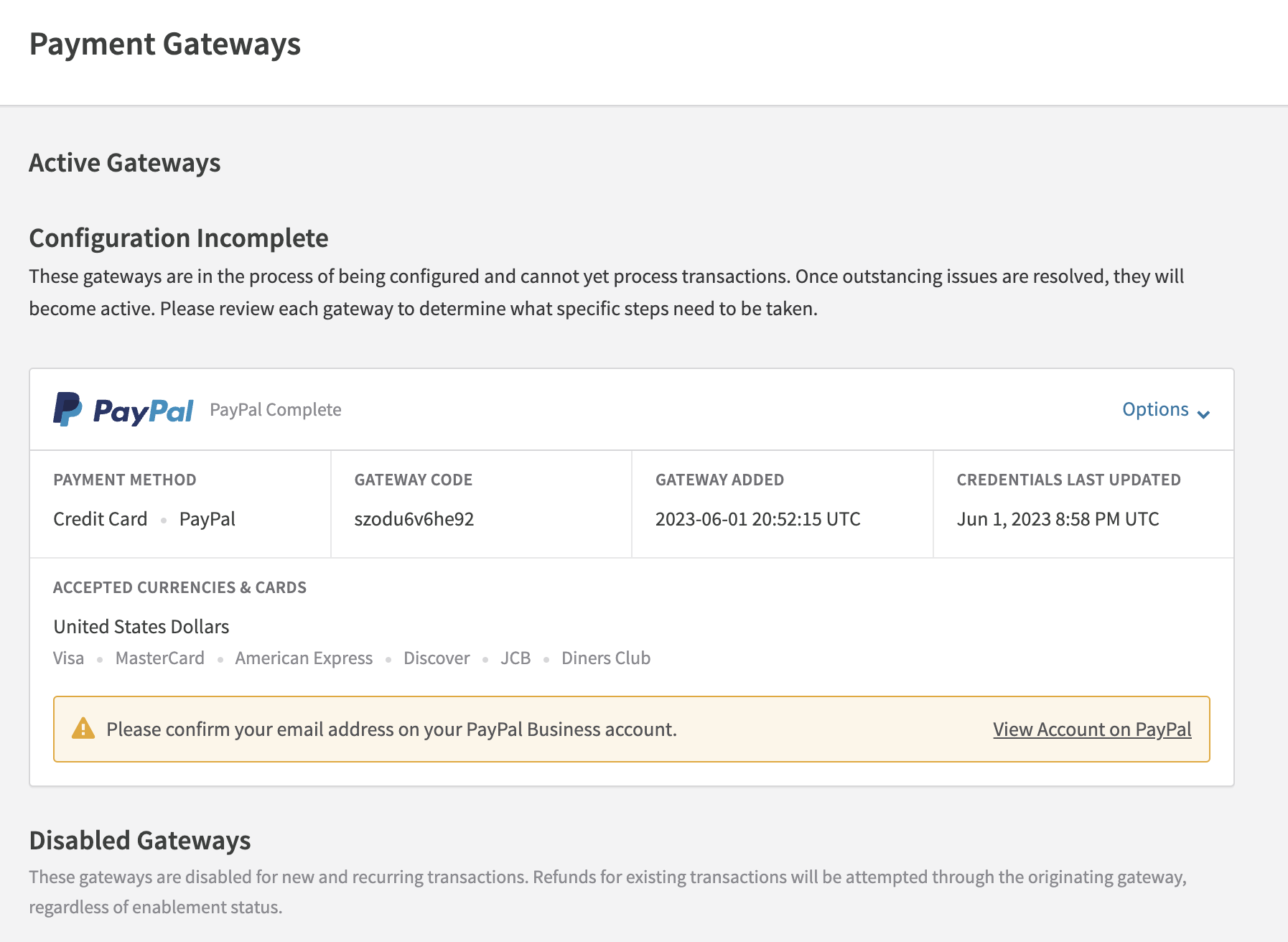
Status messages may include email confirmation requirements, application reviews, or account restrictions. Address each alert as it appears. If you encounter issues, contact PayPal directly via the seller portal — Recurly Support may not have access to the details of your PayPal account.
Step 3: Configure currencies and card brands
Once the gateway is active, set your accepted currencies and card brands in the gateway configuration.
Step 4: Configure billing and shipping data (optional)
If you're not passing billing or shipping data to Recurly directly, you can have Recurly consume the data PayPal returns by enabling one or both feature flags: Save PayPal billing address and Save PayPal shipping address. Contact Recurly Support to enable these for your site.
Step 5: Configure webhooks
Recurly listens to the following PayPal webhook events. Enable all of them in your PayPal account — enabling all events now ensures you're covered if new functionality is added in the future.
When prompted for a callback URL, use the format:
https://callbacks.recurly.com/paypal_complete/<MERCHANT_SUBDOMAIN>
Vault and billing events:
VAULT.PAYMENT-TOKEN.DELETED— Ensures billing info is disabled and subscriptions are cancelled if a customer cancels their billing agreement from within the PayPal app.
Onboarding events:
CUSTOMER.MERCHANT-INTEGRATION.PRODUCT-SUBSCRIPTION-UPDATED— Fires when PayPal updates the products available to your merchant account.CUSTOMER.MERCHANT-INTEGRATION.SELLER-EMAIL-CONFIRMED— Fires when you verify your seller email with PayPal.CUSTOMER.MERCHANT-INTEGRATION.CAPABILITY-UPDATE— Fires when a capability on your PayPal account changes (e.g., processing ability).
Transaction events:
PAYMENT.CAPTURE.REFUNDED— Fires when a scheduled refund is approved.PAYMENT.CAPTURE.COMPLETED— Fires when a scheduled payment is approved.PAYMENT.CAPTURE.DECLINED— Fires when a scheduled payment is declined.
PayPal Complete's Recurring Module
The Recurring Module provides customers with a richer checkout experience when subscribing via PayPal. Without it, the PayPal modal shows only the charge amount and available payment methods. With it enabled, customers see the merchant name, subscription terms, cadence, plan name, start date, and trial details.
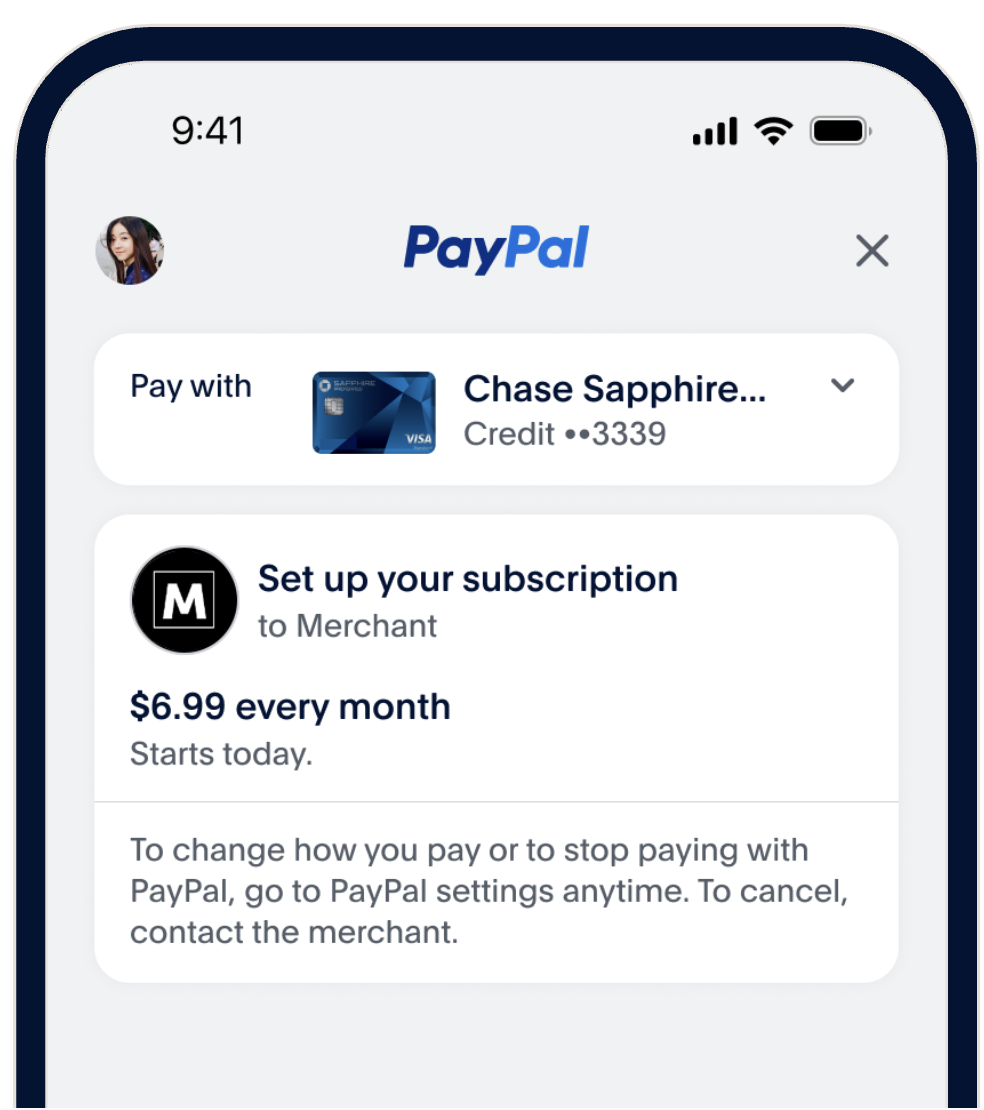
To enable the Recurring Module in your PayPal Complete implementation, see the Recurly.js documentation.
Updated 4 months ago