
Charges and credits adjustments
Create and manage charge and credit adjustments in Recurly — automatically during subscription billing events or manually via the Admin Console or API — to handle one-time charges, service credits, and custom billing scenarios.
Definition
Key benefits
Key details
Subscription billing events that trigger adjustments
Recurly automatically creates adjustments during the following subscription events:
- Sign-up — Adjustments are created for setup fees, plan fees, and add-on fees when a customer subscribes.
- Immediate upgrade or downgrade — A plan change generates a prorated credit, charge, or both depending on the direction of the change. Learn more about subscription changes.
- Start of a new billing period — Adjustments are created for the plan fee and any active add-ons at the start of each billing cycle.
- Refund — A credit adjustment is created to reflect the amount returned to the customer.
- Final invoice (usage-based billing) — For usage-based billing plans, adjustments are created when the final invoice is issued.
Custom charge adjustments
Custom charge adjustments are manually created charges outside of regular subscription billing. Common use cases include:
- Billing for a one-time physical product purchased alongside a subscription
- Charging for professional services such as consulting or training
- Recreating charges after an incorrect invoice was voided
Create charges via the Purchases API
The Purchases endpoint is the right choice for complex billing scenarios. It handles:
- Custom one-time charges
- Subscription charges (plan fee, add-on fee, setup fee)
- Combinations of subscription and one-time charges
- New customer sign-ups with subscriptions and/or one-time products
All charges created via the Purchases endpoint are combined into a single transaction sent to your payment gateway, treating the entire purchase as one unit.
Create charges via the Adjustments or Line Items API
For scenarios where you want to add a charge without immediately invoicing it, use the Adjustments endpoint (v2 API) or the Line Items endpoint (v3 API). You can also create charges directly in the Admin Console.
This approach is useful when you want a mid-cycle charge to appear on the next regularly scheduled invoice rather than triggering a new invoice immediately.
Custom credit adjustments
Custom credit adjustments are manually created credits that reduce the amount a customer owes. Common use cases include:
- Issuing a service credit as compensation for downtime or a service issue
- Issuing an external gift card credit (API only)
To issue a credit, navigate to the customer's account in the Admin Console and click Add Credit in the Account Actions dropdown.
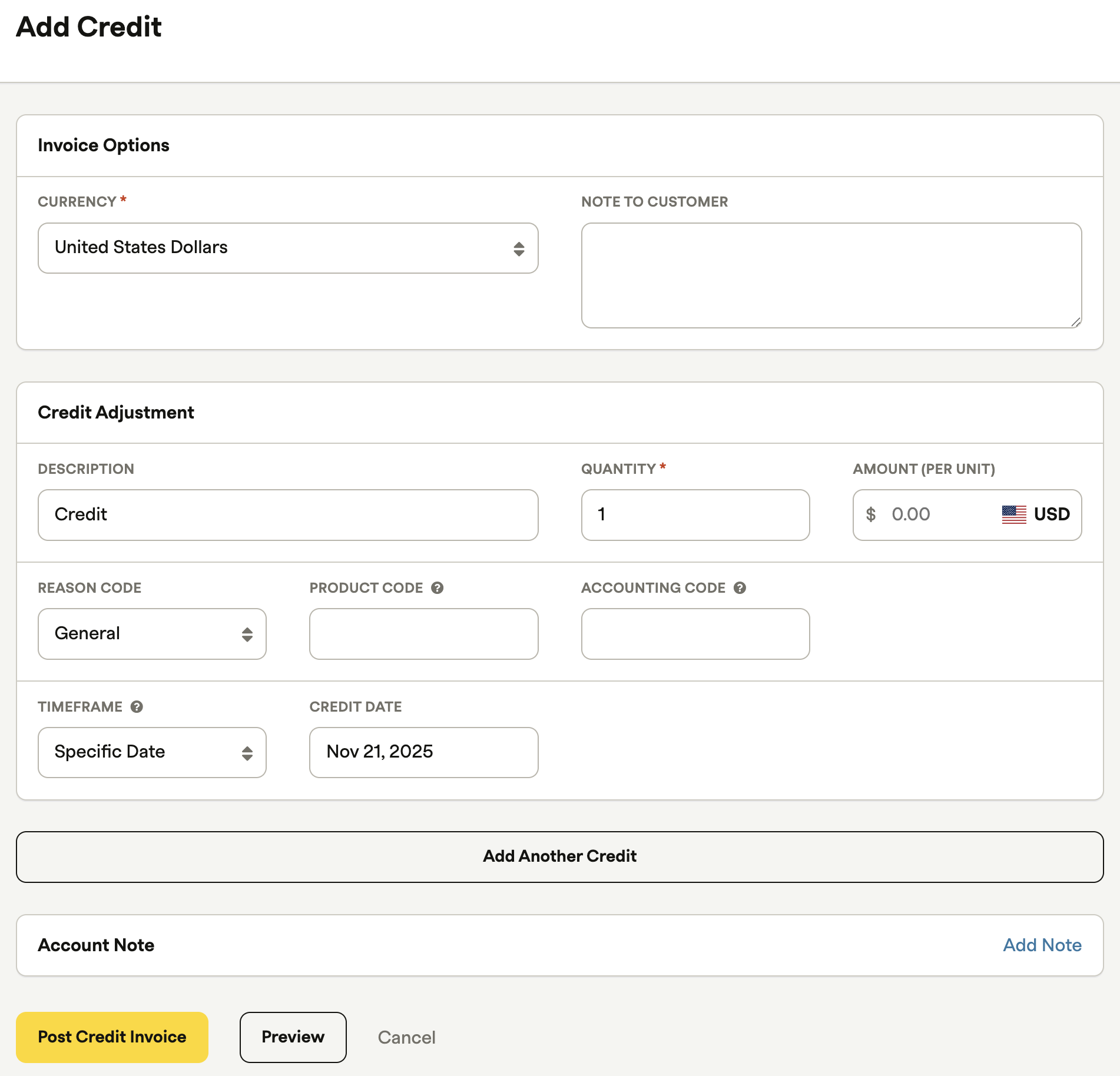
When issuing a credit, you control the amount, currency, and how it's described on the customer's invoice.
Credit application control
The credit_application_policy field lets you control when available credit is applied — at the subscription, purchase, or invoice level — via the v3 API. When set to all, you can also specify which credit invoice origin types (credit, gift card, prepayment, etc.) are eligible.
To override the credit application policy for a specific purchase without changing the subscription-level setting, use the credit_application_policy_override field. If neither field is set, Recurly applies available credit automatically by default.
Example:
"credit_application_policy": {
  "mode": "all",
  "allowed_origins": [
    "line_item_refund"
  ]
}
This field is available on the following API endpoints: Purchases, Invoices, and Subscriptions.
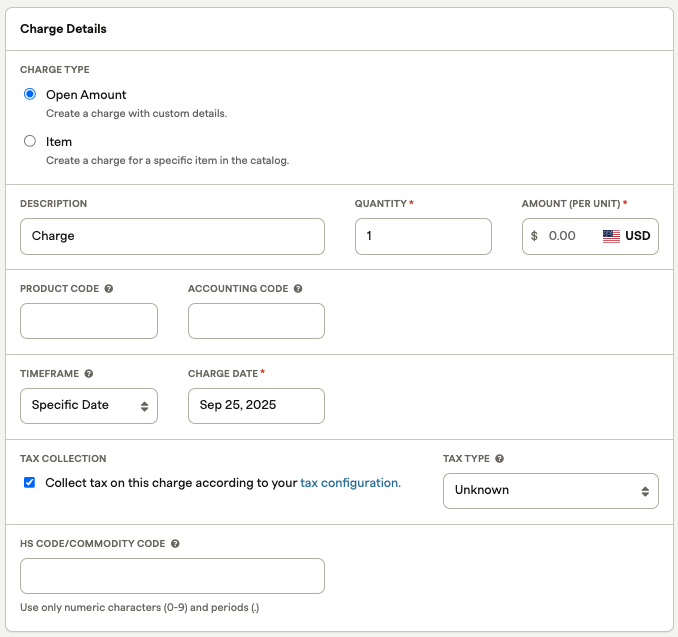
Create a custom charge
Fill in charge details
Select the currency, then choose Invoice Now or Invoice at Next Bill Date. Select a Charge Type and enter the description, quantity, and amount. Optionally, add a product code, accounting code, HS code, and timeframe.
Issue a credit
FAQs
Can I create a charge without immediately invoicing it?
Yes. When creating a charge via the Adjustments (v2) or Line Items (v3) endpoint, or in the Admin Console by selecting Invoice at Next Bill Date, the charge is held on the account and included in the next subscription billing event or manually posted invoice.
Can I issue a credit that reverses a tax or discount amount?
Custom credits aren't taxable or discountable by default. To reverse taxes or discounts, issue a Line Item Refund instead.
What happens if I create a charge in a different currency than the customer's existing subscriptions?
If there are uninvoiced charges on an account in multiple currencies, you'll see an option to generate one invoice per currency when manually generating an invoice from the Admin Console.
Can I apply a credit to a specific invoice?
Yes. Navigate to the specific invoice in the Admin Console and apply the credit directly to that invoice.
Updated 3 months ago