
Quantity-based pricing
Configure tiered, volume, or stairstep pricing models in Recurly to charge customers based on the number of units they purchase.
Quantity-based pricing lets you charge customers based on how many units they purchase — and gives you three distinct models to work with: tiered, volume, and stairstep. Each one unlocks a different incentive structure, from graduated discounts to flat-rate tiers. This page explains how each model works and walks you through setting one up in Recurly.
Definition
Quantity-based pricing is a flexible billing model that calculates charges based on the number of units a customer acquires. Rather than a flat rate, the price a customer pays shifts with volume — making it a natural fit for businesses that want to reward larger purchases or offer predictable tiers.
Key benefits
Pricing models
Recurly supports three quantity-based pricing models. Each one handles unit pricing differently as volume increases — choose the one that best matches your product's cost structure and the behavior you want to encourage.
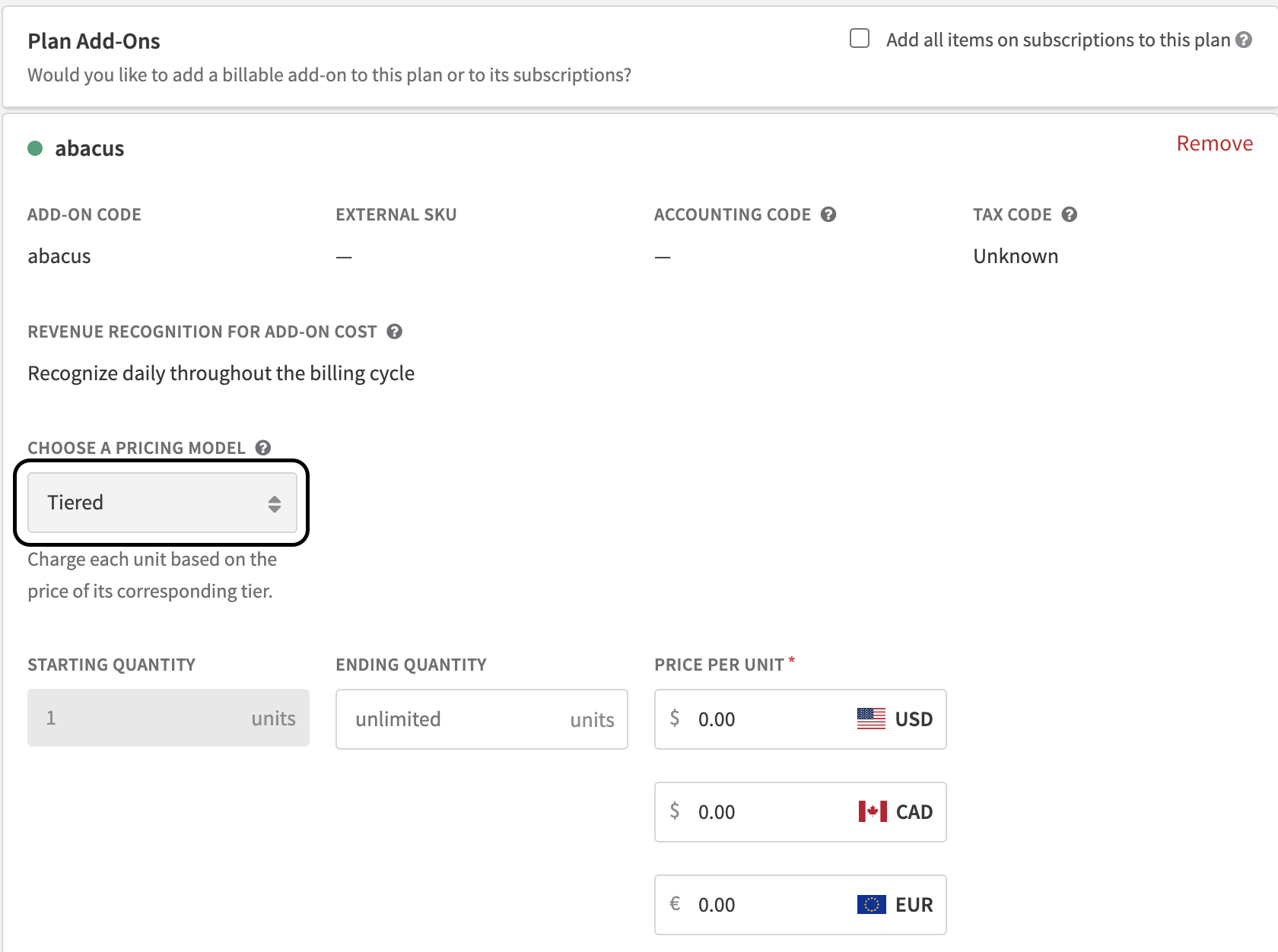
Tiered pricing
Tiered pricing assigns a different unit price to each range of quantities. As a customer buys more, only the units within each tier are charged at that tier's rate — creating a graduated cost structure.
Example: An office services firm charges $1 per document for the first 100, then $0.50 per document beyond that. A customer who orders 150 documents pays $1 × 100 + $0.50 × 50 = $125.
Volume pricing
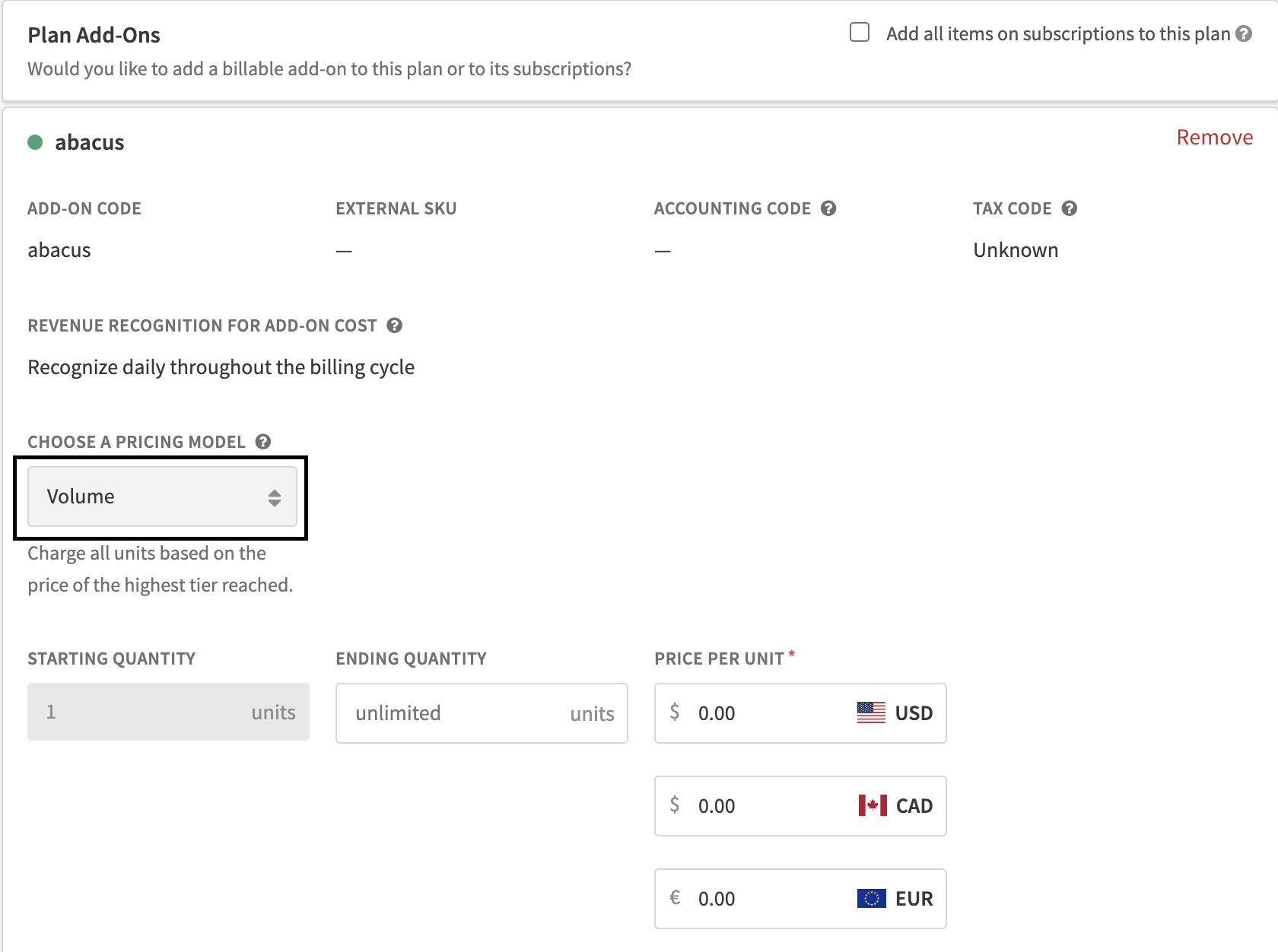
Volume pricing charges all units at the rate of the highest tier reached. Once a customer crosses a volume threshold, every unit — including the first — is repriced at the lower rate.
Example: A screen-printing company charges $10 per shirt for orders of 1–20 shirts, and $9 per shirt for orders over 20. A customer who orders 25 shirts pays $9 × 25 = $225 — not a blended rate.
Stairstep pricing
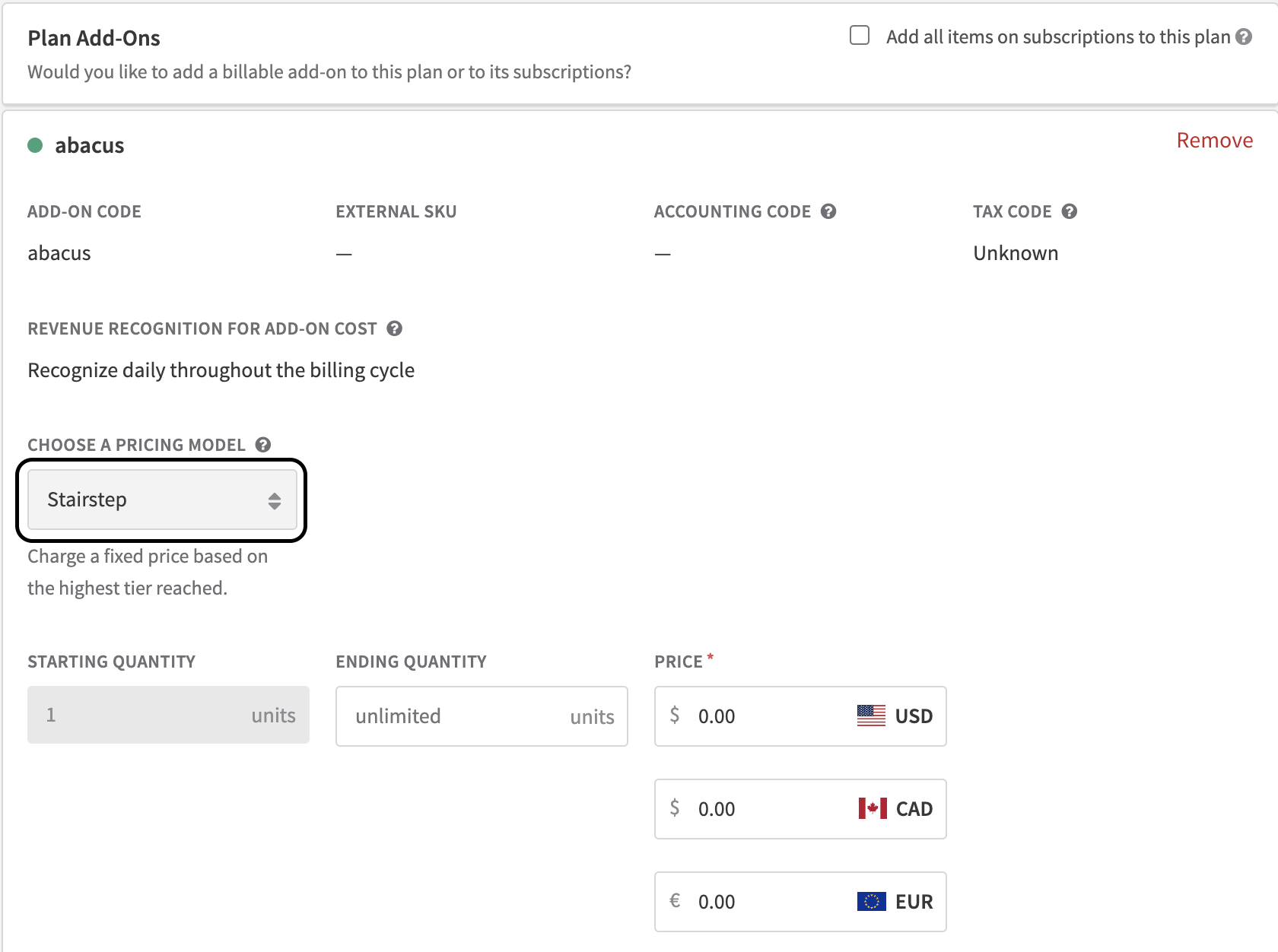
Stairstep pricing charges a flat rate for an entire quantity range — the price doesn't change within a tier, no matter how many units a customer acquires within it.
Example: A SaaS company prices seat licenses at $50 for 1–10 seats, $100 for 11–20 seats, and $150 for 21+ seats. Whether a customer has 25 or 100 seats, they pay $150 flat. This model is ideal when your delivery costs don't scale linearly with each additional unit.
Activate quantity-based pricing
Quantity-based pricing is configured on a plan using an add-on. Recurly handles the total calculation automatically once you've defined your tiers, prices, and subscription quantity.
Choose your pricing model
Decide whether tiered, volume, or stairstep pricing best fits your business needs. See the Pricing models section above for a comparison of each approach.

Updated 5 months ago