
Multiple business entities
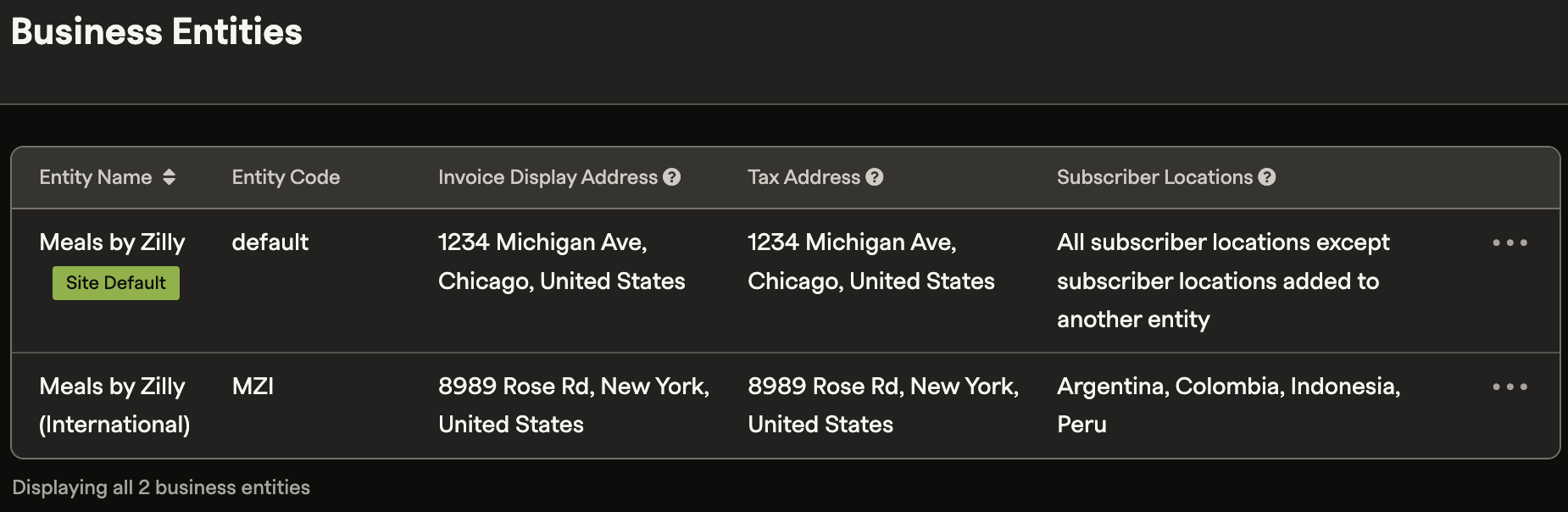
Configure multiple business entities in Recurly to represent distinct brands, subsidiaries, or geographic locations — each with its own invoice treatment, tax configuration, and automatic subscriber assignment.
Prerequisites
- A Recurly site with at least one configured business entity (the Site Default Entity is created automatically)
- Admin UI access to configure entities, invoice templates, and account settings
Limitations
- Business entity assignment cannot take effect mid-billing period — changes apply at the start of the next billing cycle
- Changing the business entity on a subscription is not available for immediate subscription changes
- Subscription-level entity assignment is not available for purchase calls made through Recurly Checkout
- Each country can only be added to a single entity's Subscriber Locations at a time
- The Site Default Entity cannot be deleted
- Recurly supports one Avalara account per site — multi-entity tax support is handled via sub-entity mapping
- Merchants on Starter and Professional plans cannot configure invoice notes at the entity level
Definition
Key benefits
Key details
Entity-specific merchant email addresses
The Billing Contact Email is the "from" address on all transaction emails and appears on invoices, receipts, hosted pages, and the cancel authorization copy on hosted invoice pages.
You can set a unique billing contact email per alternate entity. If you don't, it falls back to the address configured on the Site Settings page. The Site Default Entity always uses the Site Settings email. You can also override this at the individual email template level.
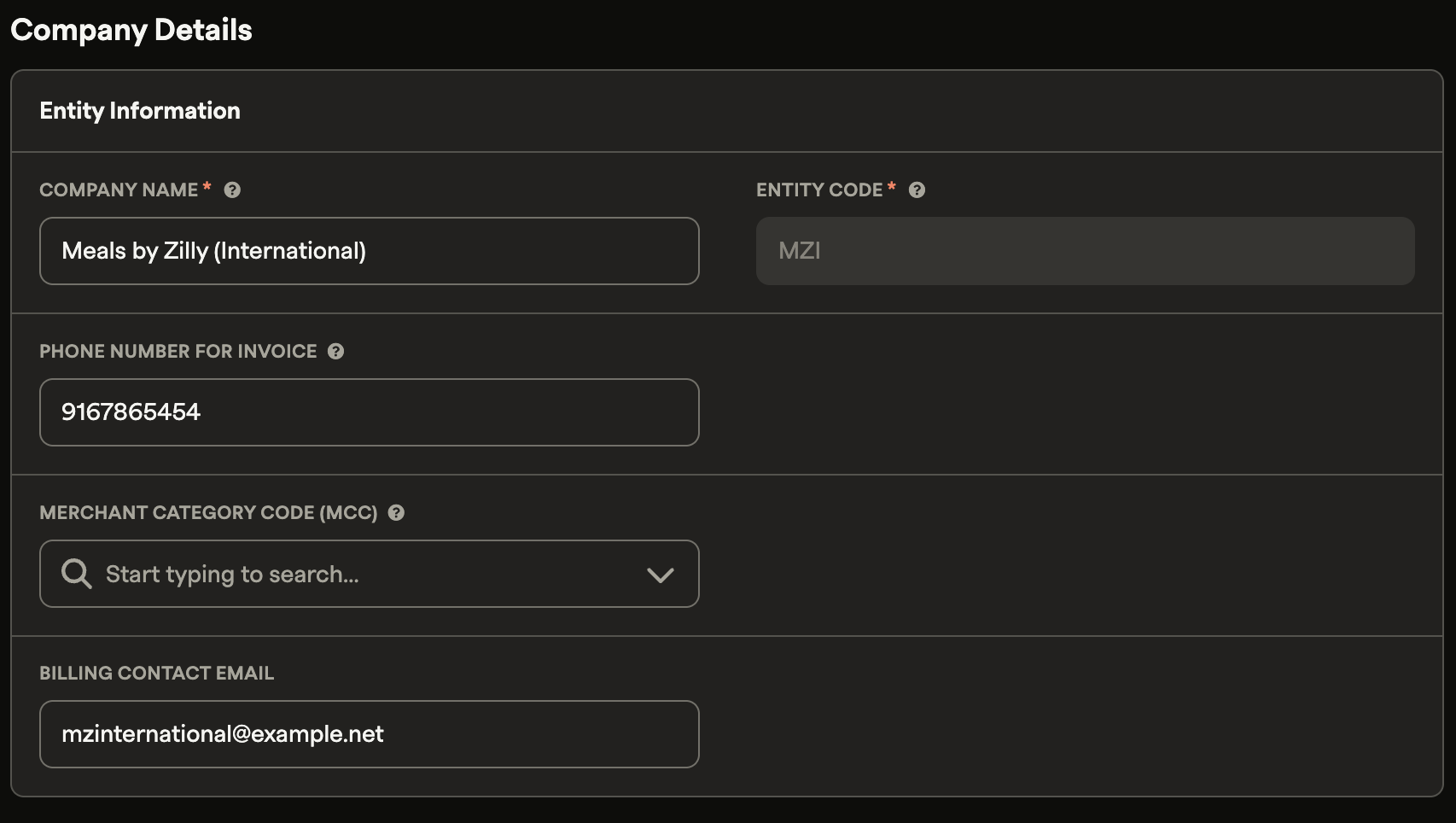
To preview which email address will appear on an invoice, click Invoice Preview when creating or modifying a subscription or one-time purchase.
Automatic assignment by subscriber location
How automatic assignment works
By default, Recurly automatically assigns a business entity to each invoice based on the customer's Bill To address at the time of the transaction. If manual billing is enabled, or if your site is configured to use the account address, that address is used instead.
Subscriber locations
Subscriber Locations are an optional configuration on alternate entities that define which countries trigger automatic assignment to that entity. Each country can only be added to one entity's Subscriber Locations at a time.
If no countries are added to any alternate entity, all customers are automatically assigned to the Site Default Entity — which acts as the site-wide fallback.
Once Subscriber Locations are configured, affected customers start receiving invoices from the corresponding entity at the start of their next billing period. This applies to both new and existing subscribers, unless their subscription or account already has a specific entity assigned.
Example
If you create an entity called "Acme Inc. Western Europe" and add Germany, Italy, France, Spain, Ireland, and England to its Subscriber Locations, customers with a Bill To address in any of those countries automatically receive invoices from that entity. A second entity, "Acme Inc. Eastern Europe," with Poland and Hungary in its Subscriber Locations would capture customers from those countries. Your global headquarters serves as the Site Default Entity — the fallback for everyone else.
Viewing entity assignments
Entity assignments are visible on individual invoices within a customer's account. You can also query the Invoice object via API to see which entity was applied to a specific invoice.
Entity-level invoice treatments
Each entity can be configured with its own invoice display options:
- Entity prefix for invoice numbering
- EU country sequencing
- Header and footer logo images
- Notes to the customer
- Terms and conditions
Invoice sequencing
Each entity can use either its own unique invoice sequence or your site's shared sequence.
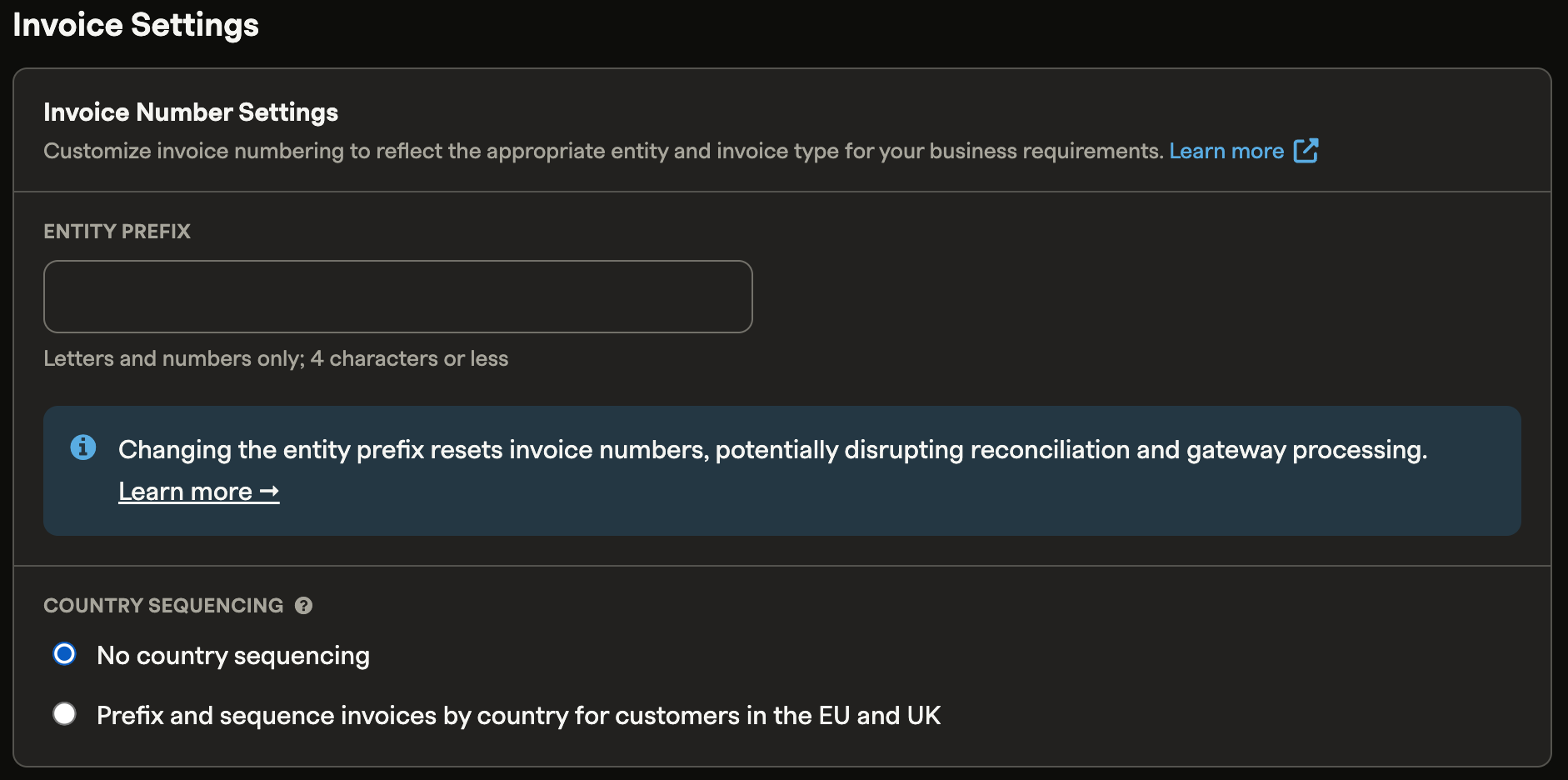
Entity prefix
An entity prefix is an alphanumeric value (four characters or fewer) prepended to the sequential invoice number. When enabled, the sequence starts at 1,000 and increments by one.
Country sequencing
By default, Recurly uses a single invoice number sequence across your site. Certain EU member states require a unique sequence per country — Country Sequencing lets you create distinct sequences for each EU member state. Enable or disable this using the radio button in the entity settings.
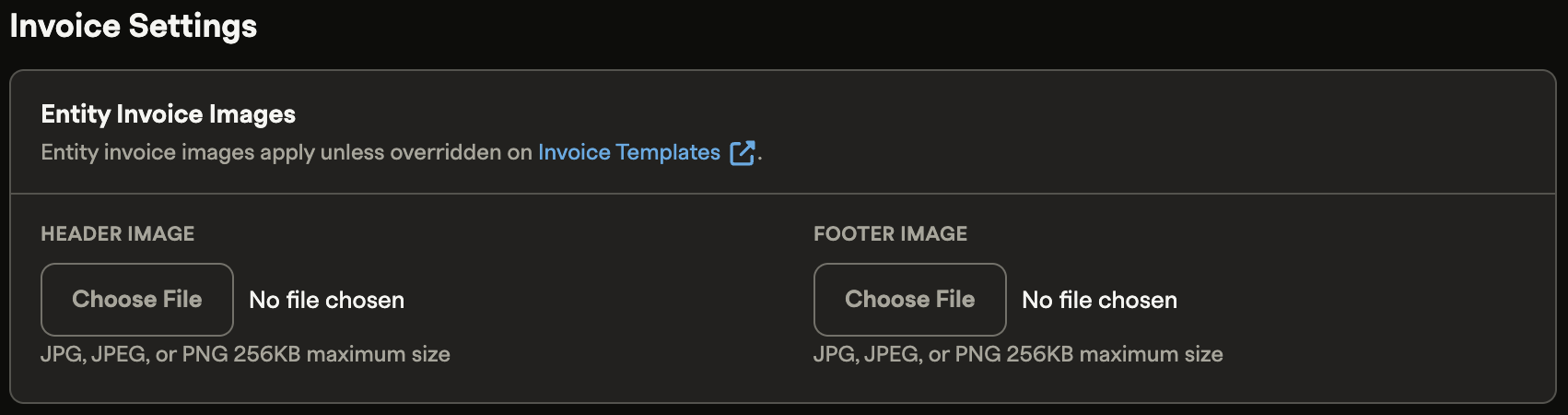
Entity invoice images
Header and footer images control which logos appear on invoices sent to customers. Footer images are commonly used for secondary logos or custom messaging.
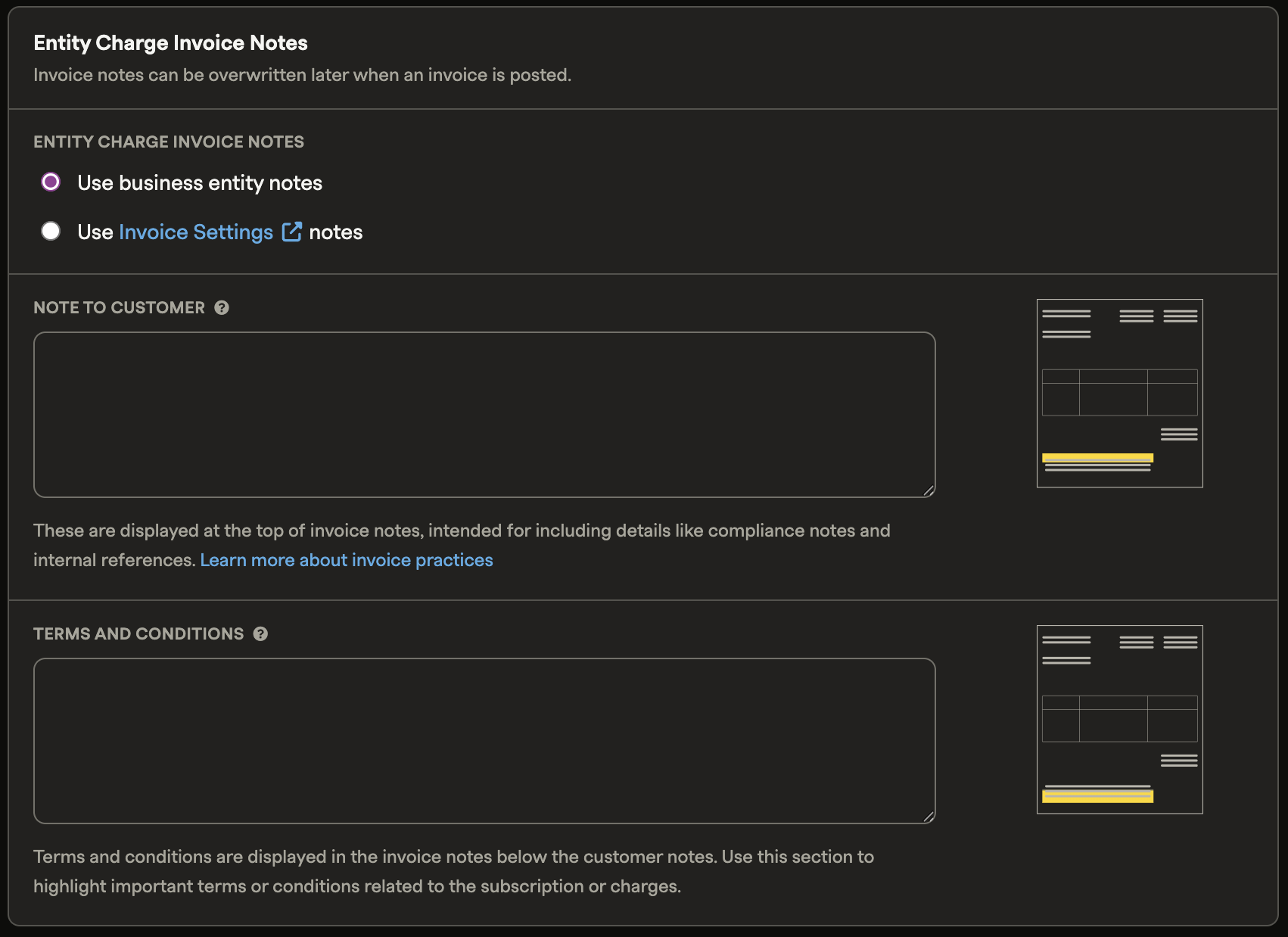
Entity charge invoice notes
You can use site-level invoice notes or override them with entity-specific notes.
Note to customer — Customer-visible details or a personalized message (e.g., "Thanks for your business"). Also supports local compliance notes such as authorized dealer status, delivery note numbers, type of supply, intra-community supply details, and Israel-specific invoice fields. Shown only when text is present; no section title displayed. Appears at the bottom of the invoice in larger font than Terms and Conditions.
Terms and conditions — Payment terms, legal notes, or contractual information. Shown only when text is present.
Entity invoice treatments and Invoice Customization
If a customer has a custom invoice template assigned, display addresses and header/footer images on that template continue to apply. To use entity-level settings instead, select the first radio button in the invoice template's edit page. New invoice templates default to entity-level addresses and images. You can change this at any time — updates apply only to future invoices.
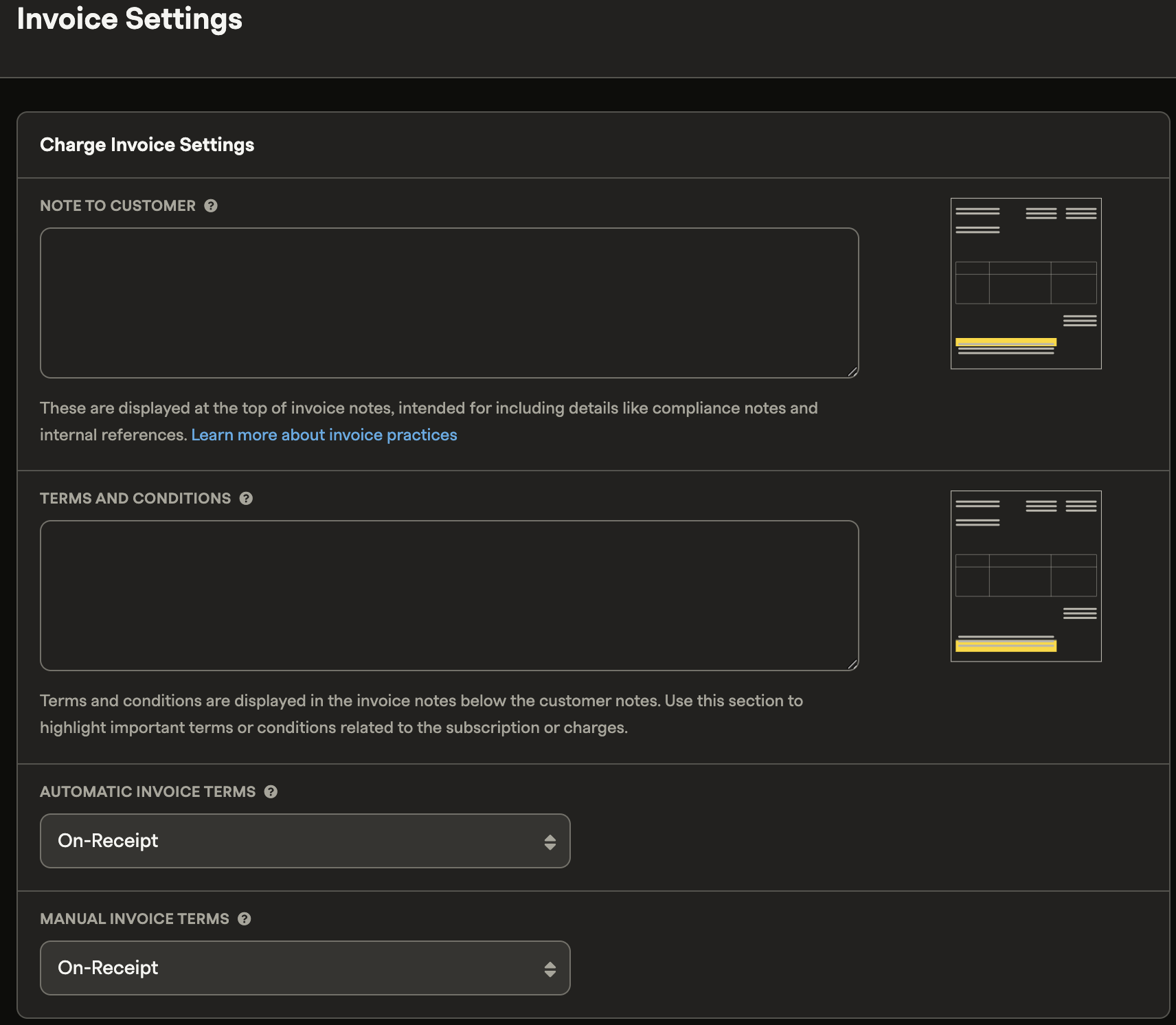
Entity notes and site-level invoice notes
Notes on your site's Invoice Settings page apply site-wide by default. To use entity-specific notes instead, select the first radio button on the relevant entity. Updates apply only to future invoices.
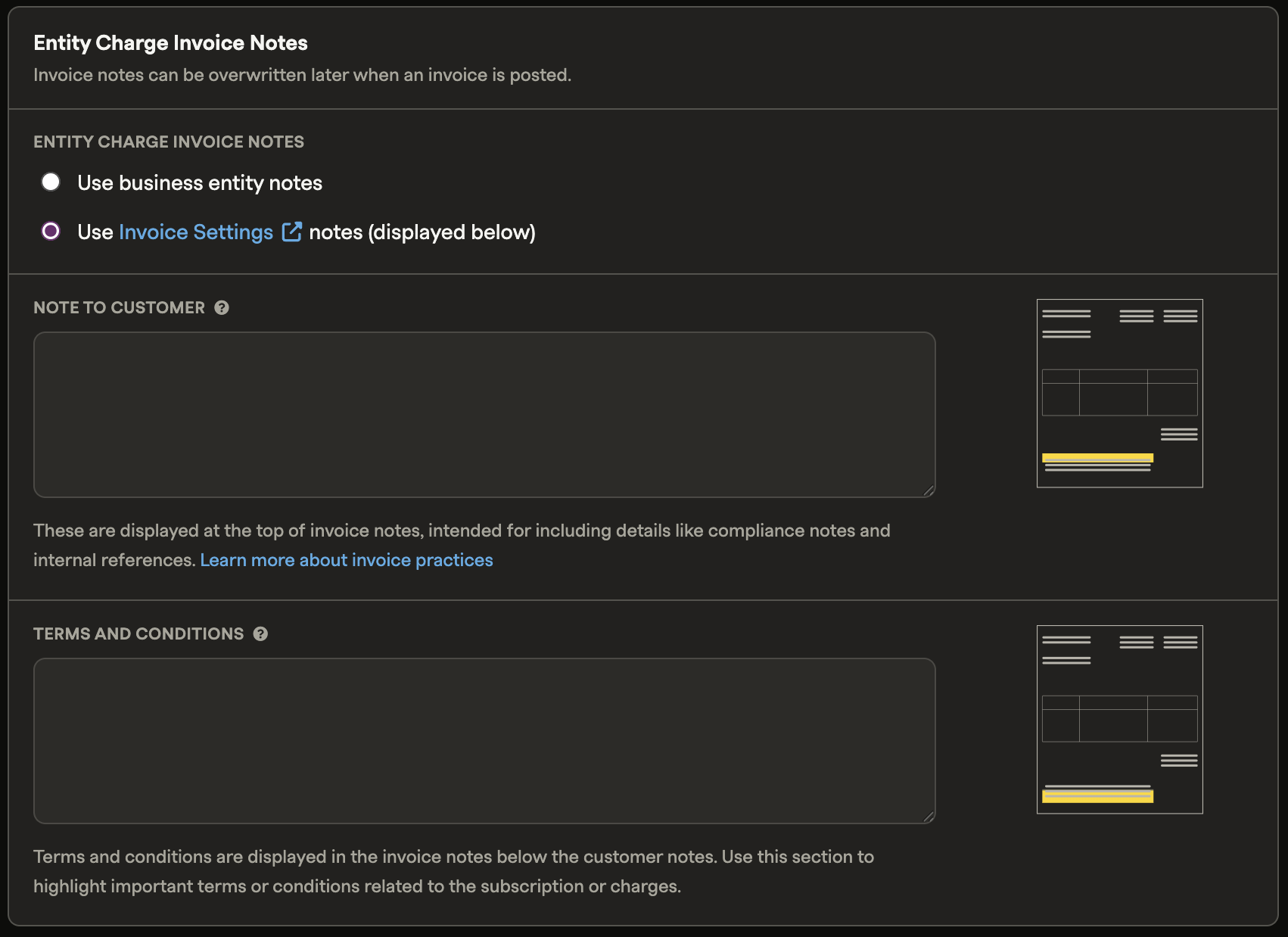
If you create a new alternate entity and the Invoice Settings page has no notes, entity-level notes are selected automatically. You can switch back to Invoice Settings notes at any time.
Applying an entity to a subscription
If you have multiple brands, or customers who subscribe to more than one of your entities, you can assign a business entity directly to individual subscriptions. This supports consolidated account management across subsidiaries and entities.
Entity assignment at the subscription level is available via the Admin UI and the Recurly API v3 (at creation and on changes).
In the Admin UI: Open the subscription, select your desired Override Business Entity, and save.
To change an entity on an existing subscription: Changes can only take effect on the next_bill_date or subscription_term. Immediate subscription changes do not support entity changes.
Via API: Set business_entity_id on the subscription object at creation, or update it via a subscription change. The new entity applies at the next billing renewal.
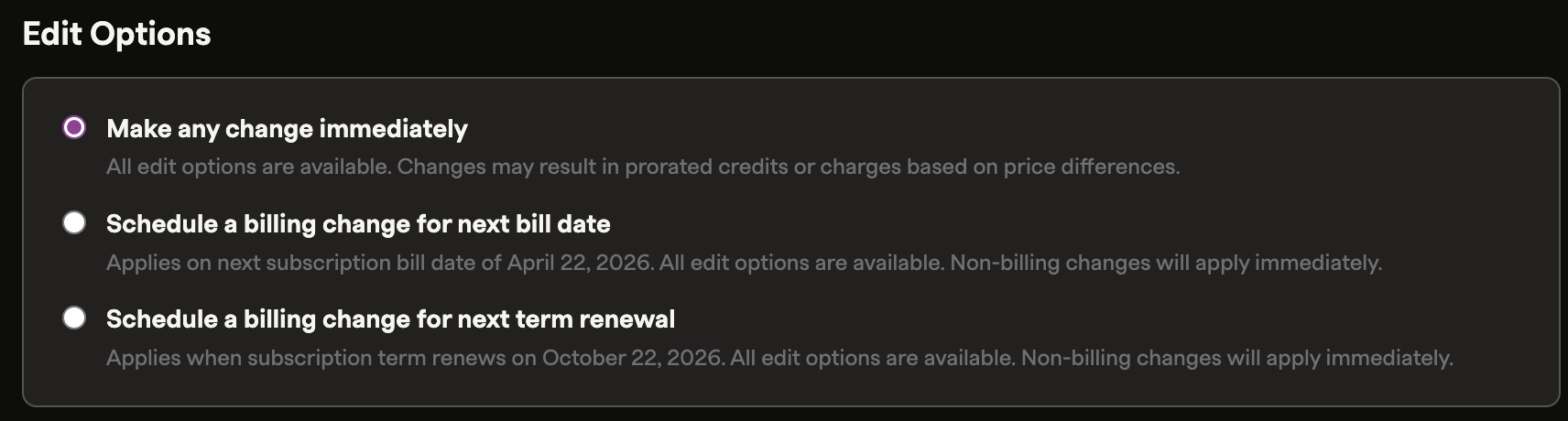
When scheduling changes for the next bill date or next term renewal, you can also change the business entity on the subscription.
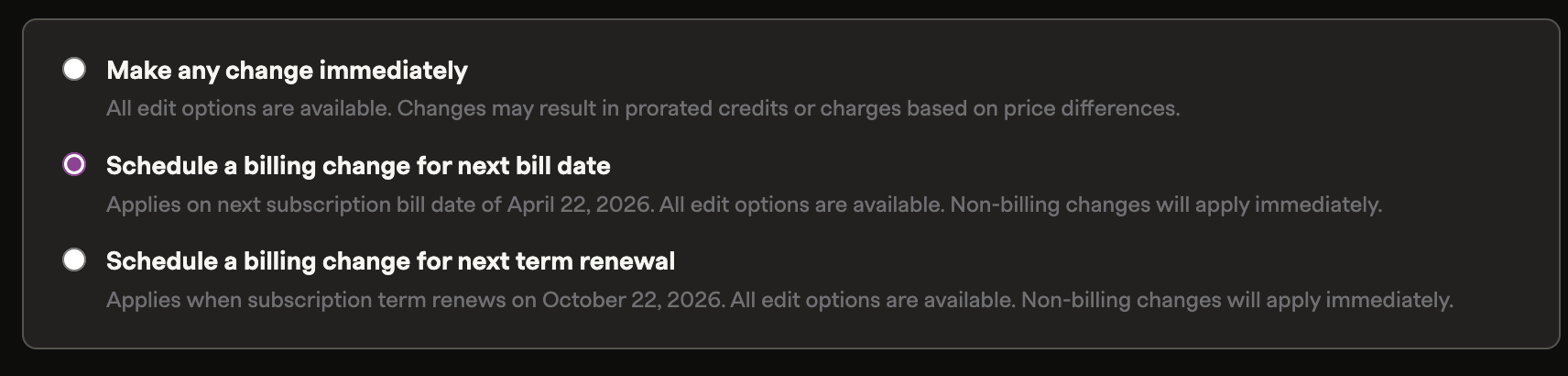
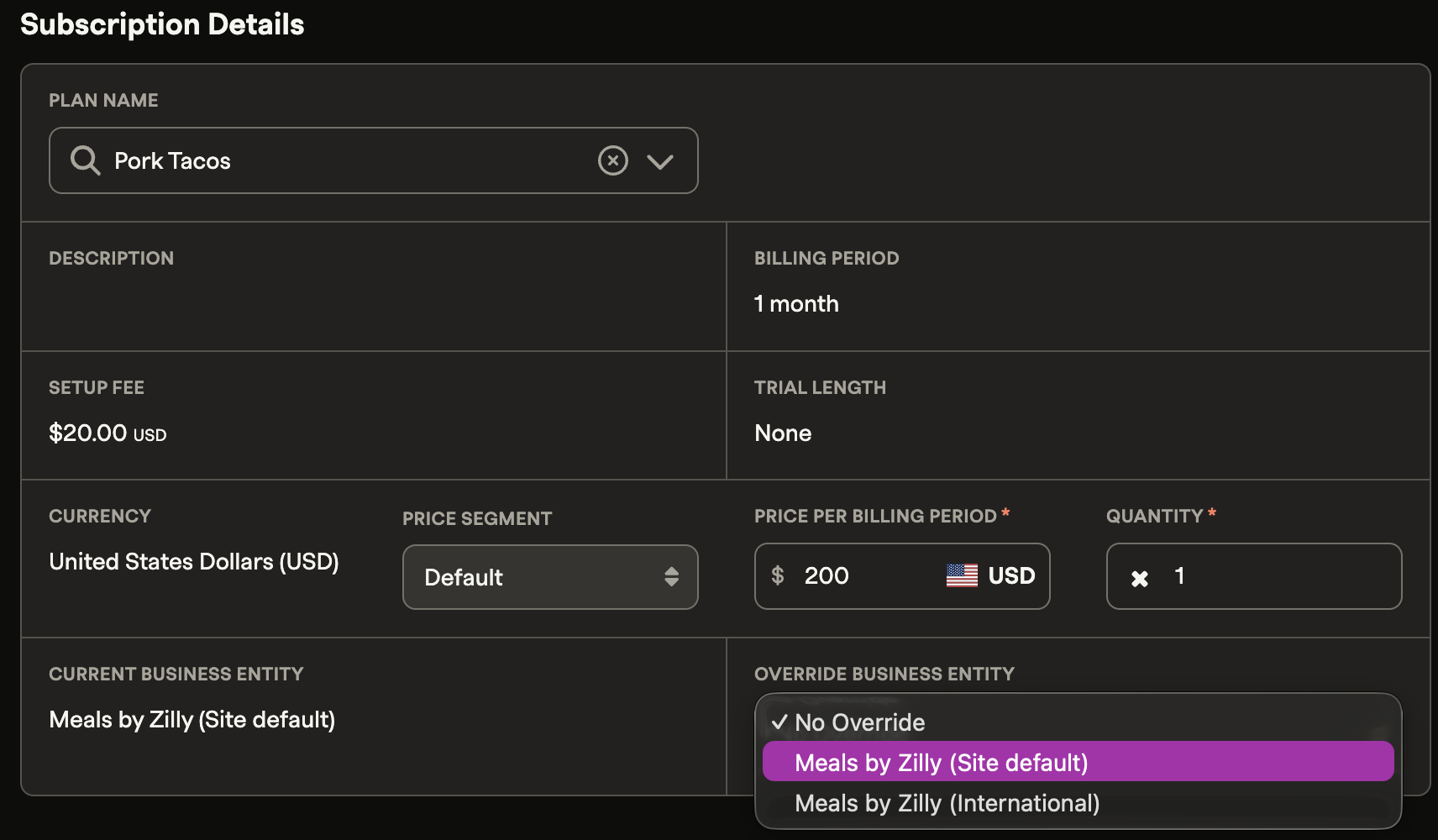
Subscription-level entity assignment takes precedence over location-based assignment and any account-level entity override.
Applying an overriding entity to an account
To give a customer a static entity assignment — where all their subscriptions and purchases always use the same entity — apply an overriding entity at the account level.
Account-level overrides can be applied via the Admin UI or API (v2/v3).
In the Admin UI:
Once saved, all future transactions for that account use the selected entity. The assignment persists until changed or reverted. The new entity takes effect at the start of the next billing cycle — entity changes can't take effect mid-billing period.
Viewing the overriding entity
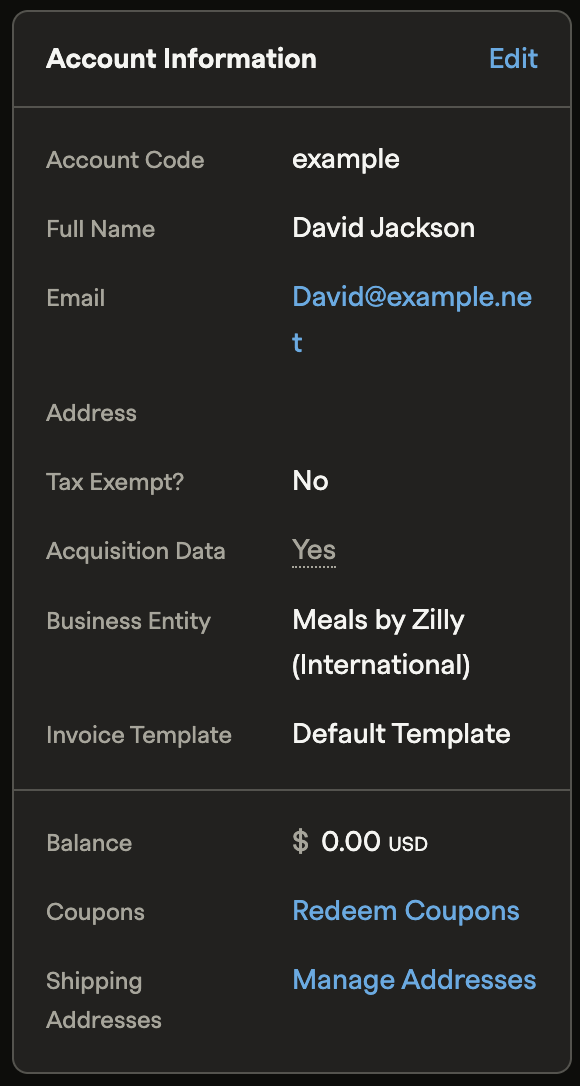
The assigned entity is visible on the customer's account page under Account Information. You can also query the Account object via API to see the assigned entity, or the Invoice object to see which entity was applied to a specific invoice.
Account hierarchy and entities
For customers in a parent/child account hierarchy, entity assignment depends on billing configuration:
- Bill charges to child account — Each child account receives its own invoices and follows standard entity assignment (automatic, subscription-level, or account-level override).
- Bill charges to parent account — Invoices from a child account's charges are assigned to whichever entity applies to the parent: subscription-level, account-level override, or automatic assignment based on the parent's Bill To address.
Refund invoices
Refund invoices always use the entity, invoice display information, and tax address from the original transaction — even if the customer's entity assignment has changed since the original purchase. This ensures accurate tax calculation and invoice consistency.
Deleting an entity
The Site Default Entity cannot be deleted — it's the fallback for all customers and essential to the invoicing process. It can be edited at any time.
Any alternate entity can be deleted at any time. To delete one:
- From the entity list page: hover over the entity, click the ellipsis (…), and select Delete
- From the entity view page: select Delete Entity from the Entity Actions dropdown
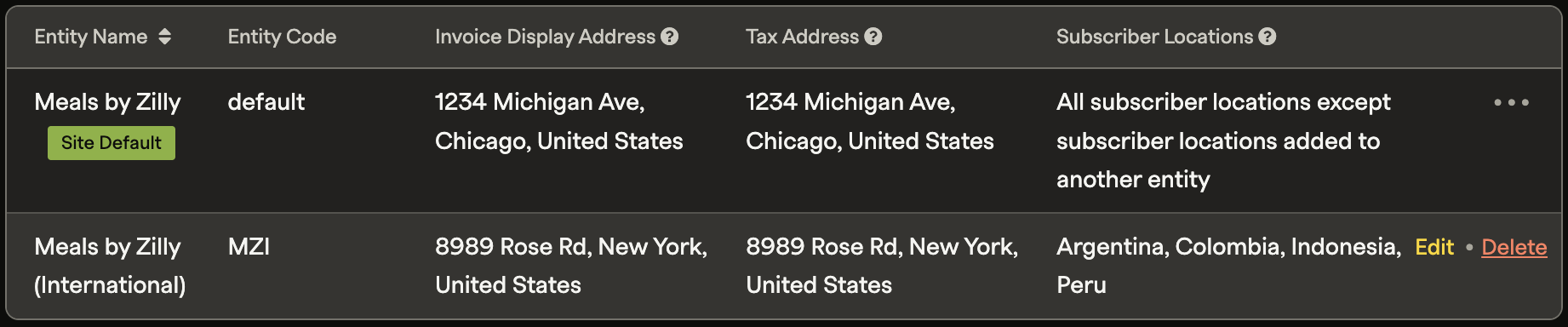
To confirm deletion, enter the entity's code. Once confirmed, the entity is permanently removed. Refunds tied to original transactions under that entity will still use its display and tax address information.
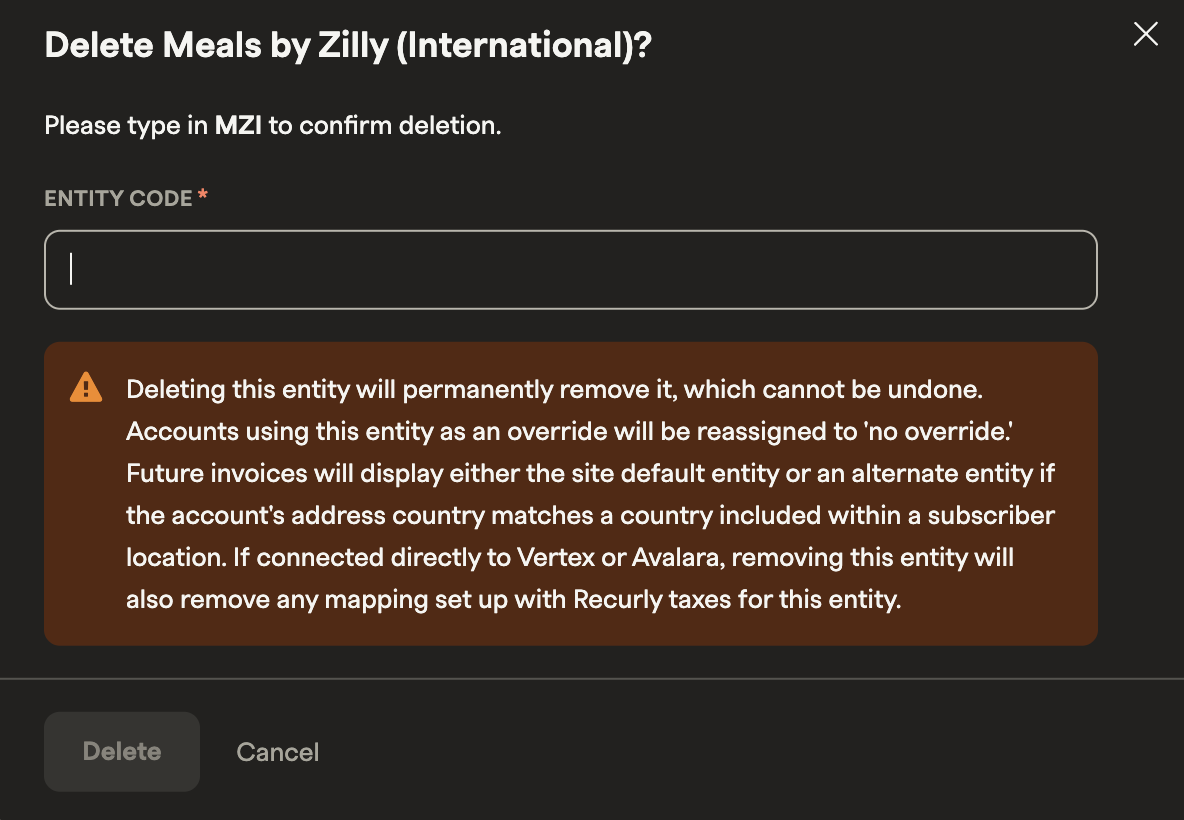
After deletion, customers who had that entity as their account-level override are reassigned to the Site Default Entity — unless their subscriptions are reassigned to a different entity, their Bill To address matches a country in another entity's Subscriber Locations, the deleted entity's Subscriber Location countries are moved to another entity, or they're manually reassigned at the account level.
Tax ID numbers
Tax ID Numbers (TINs) are configured per entity and appear as the last line of merchant information on invoices. When a default TIN/VAT number is set on an entity, it displays on all invoices issued under that entity.
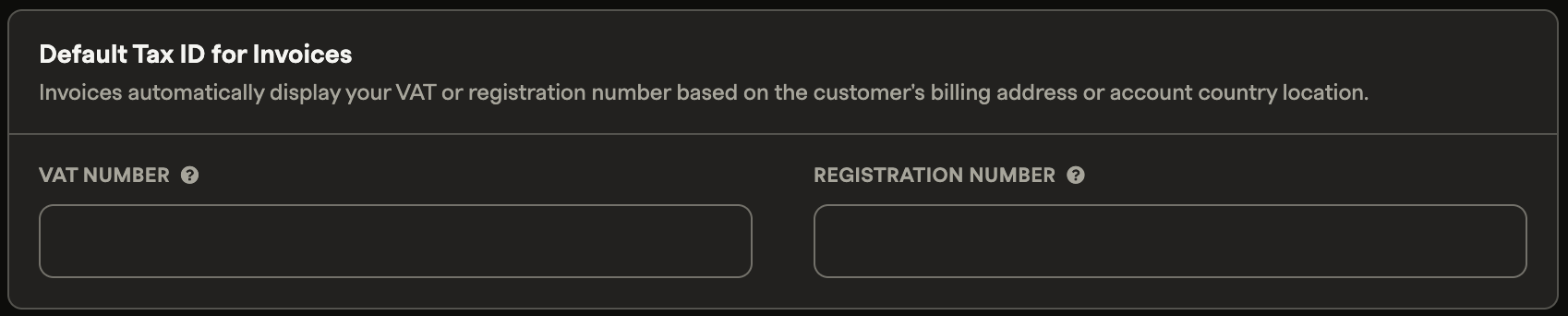
Country-specific TINs override the default when a customer's Bill To address is in a country that has its own TIN configured on the entity. For example, if an entity has a default VAT number and a separate Portugal-specific VAT number, customers with a Portuguese billing address see the Portugal-specific number; all others see the default.

Direct Avalara accounts
If you have a direct Avalara integration, map each Recurly entity to the corresponding company in your AvaTax account for independent tax reporting and filing per entity.
Recurly supports one Avalara account per site. Multi-entity support works by mapping the Recurly Site Default Entity to the Avalara main company, and each alternate entity to a sub-entity within that same Avalara account.
If you delete an entity in Recurly, the mapping to the corresponding Avalara sub-company is also removed. Keep mappings current as your entities change.
Paused subscriptions
When a paused subscription is resumed or an immediate change is made, a new billing period is triggered. The next invoice uses whichever entity applies at that point — account-level override, Subscriber Location assignment, or the Site Default Entity.
Plan downgrades
If you downgrade from an Elite plan to Starter or Professional, you lose the ability to maintain multiple entities once the downgrade takes effect. Historic invoices and refunds that used alternate entities remain unchanged. All future invoices, subscriptions, and transactions are assigned to the Site Default Entity.
If you re-upgrade to an Elite plan, you'll need to recreate your alternate entities.
Entity-specific email templates
Recurly supports up to 20 template variations per email template type. You can assign a specific variation based on geographic location or entity assignment. See the Alternate Email Templates documentation for details.
FAQs
Can other Recurly objects like plans or coupons be entity-specific?
Plans, items, and coupons aren't siloed by entity within Recurly. You can pass specific plan, item, or coupon codes to customers via API based on their entity — but you'll need to maintain those mappings in your own integration.
Can purchases from a given entity be routed to a specific payment gateway?
This isn't available through the Admin UI. However, you can set a specific payment gateway at both the subscription and account levels — so a subscription assigned to a particular entity can be routed to your preferred gateway.
Can I file taxes by entity in Avalara or Vertex?
Yes, for merchants with a direct Avalara or Vertex account. Configure the integration in your Recurly site by mapping entity and company/division codes appropriately to enable entity-specific filing in your tax system.
Does this feature work with Recurly revenue recognition?
Yes. Multi-entity is compatible with Recurly revenue recognition. If you enable revenue recognition after creating entities, create two GL codes for each entity on your site.
Can I run entity-specific analytics in Recurly?
Yes. Two dashboards include entity-specific data: the Business Entity Overview Dashboard and the Explore — Invoices Dashboard. The Entity Code is also included in the following exports: Invoices — Accounts Receivable, Adjustments, Adjustments — Taxes, and Invoices — Summary.
Updated 3 months ago