
Add-ons
Elevate your subscription model with Recurly's versatile Add-ons. Tailor pricing, design unique add-ons or reuse items across plans, and enjoy flexible billing options. Streamline your product setup and enhance your offerings effortlessly.
Add-ons let you attach additional charges to a subscription plan — billed each period alongside the base charge. Whether you're building a unique add-on from scratch or reusing an item from your catalog across multiple plans, Recurly gives you the flexibility to package your products exactly the way your business needs.
Available on all Recurly plans
Definition
Add-ons are additional charges billed each billing period alongside a subscription's base charge. You can associate one or more add-ons with each plan, and add-ons can be unique to a plan or created from an item in your item catalog — making it easy to reuse them across multiple plans without duplicating your setup.
Key benefits
Versatility
Design an add-on from scratch, or derive one from an item in your item catalog to reuse it across multiple plans.
Deep customization
Define add-ons with full control over type, name, code, accounting code, pricing model, price, tiers, taxes, and quantity options.
Flexible billing options
Bill add-ons up front or in arrears using usage-based billing — whichever fits your revenue model.
Four pricing models
Choose from fixed price, tiered, volume, and stairstep pricing to meet the needs of diverse business models and customer segments.
Items on subscriptions
Configure item-based add-ons directly on customer subscriptions for streamlined operations without plan-level setup.
Create an add-on
1
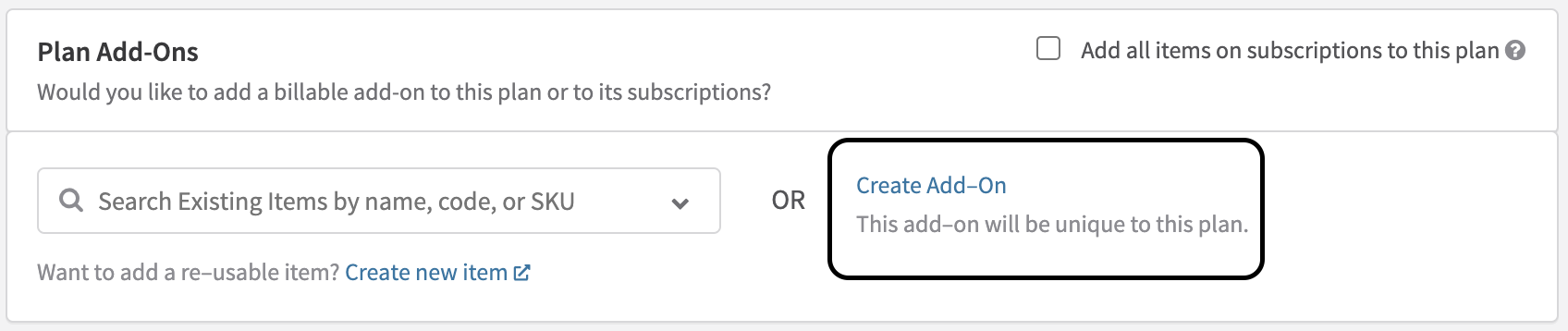
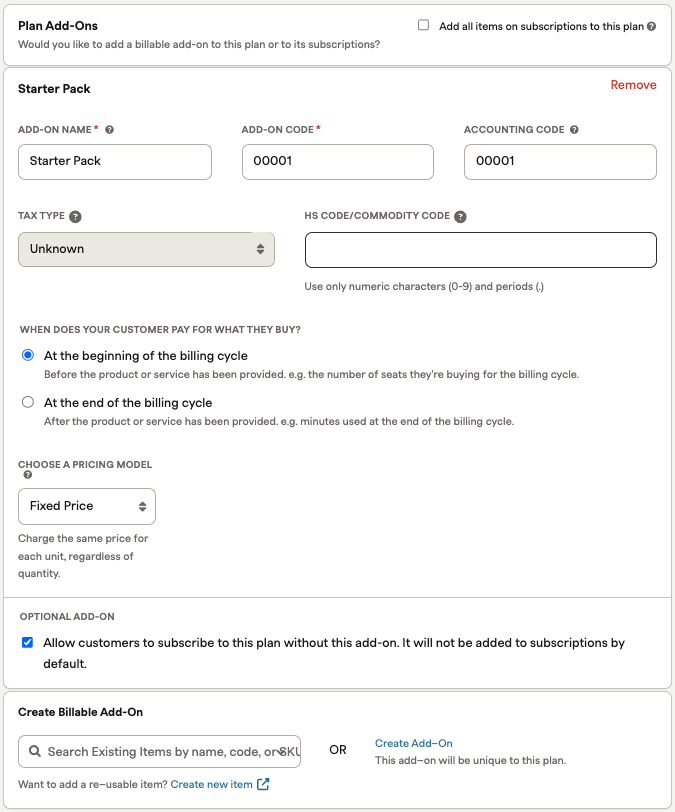
| Field | Description |
| Accounting code | A unique code to identify this add-on in your internal invoice exports. Configure based on your tax settings and compliance requirements. Limit: 25 lowercase alphanumeric characters. |
| HS code / Commodity code | An HS or Commodity code for invoice compliance on traded products. HS codes are at least six digits, with countries adding digits for regional classification. Limit: 25 lowercase alphanumeric characters. |
Configure item add-ons on subscriptions
You can configure item-based add-ons directly on customer subscriptions — no plan-level setup required first.
1
Set up your item catalog
Follow the instructions in the item catalog documentation to create and manage the items you want to use as add-ons.
Updated 3 months ago
Did this page help you?