
Gift cards dashboard
Use the Gift Cards dashboard to search, view, and manage gift card transactions — including status filtering, delivery edits, and exports.
The Gift Cards dashboard is your central hub for locating and managing all gift card activity. Search by redemption code, gifter name, or recipient name — then drill into any card for full transaction details, delivery management, and cancellation controls.
Definition
The Gift Cards dashboard in Recurly provides a centralized interface for managing all gift card transactions. From here you can track purchases, redemptions, and balances — and take action on individual cards without leaving the Admin Console.
Key benefits
Dashboard
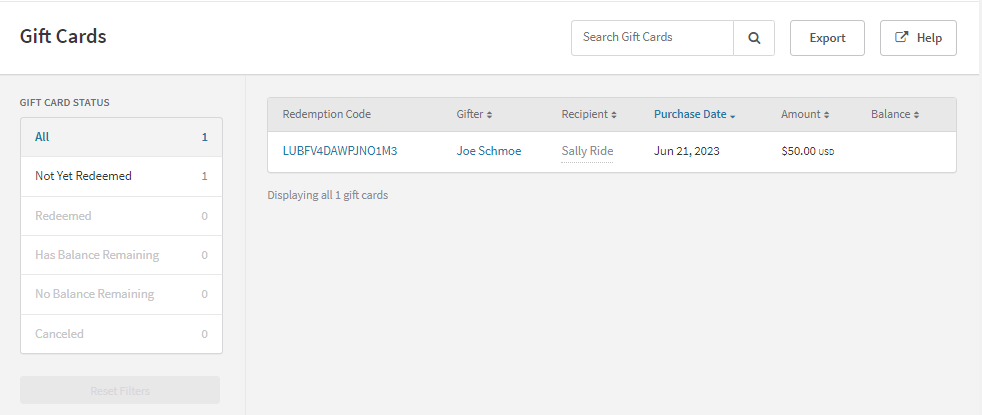
Navigate to Customers → Gift Cards to access the dashboard. Search for any gift card using the redemption code, gifter's name, or recipient's name.
Gift card status
Use the status filter to narrow results by the current state of each card.
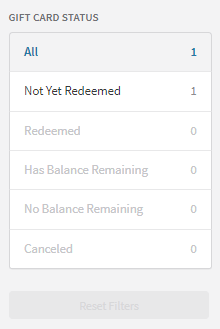
| Status | Description |
| All | Displays all gift cards regardless of status. |
| Not yet redeemed | Gift cards issued but not yet used by the recipient. |
| Redeemed | Gift cards that have been used by the recipient. |
| Has balance remaining | Gift cards that are partially used but still have a balance. |
| No balance remaining | Gift cards that have been fully used with no remaining balance. |
| Canceled | Gift cards that have been canceled and are no longer valid. |
Gift card details

Select a gift card from the list and click its redemption code to open the detail view. From here you can see all associated information for that card.
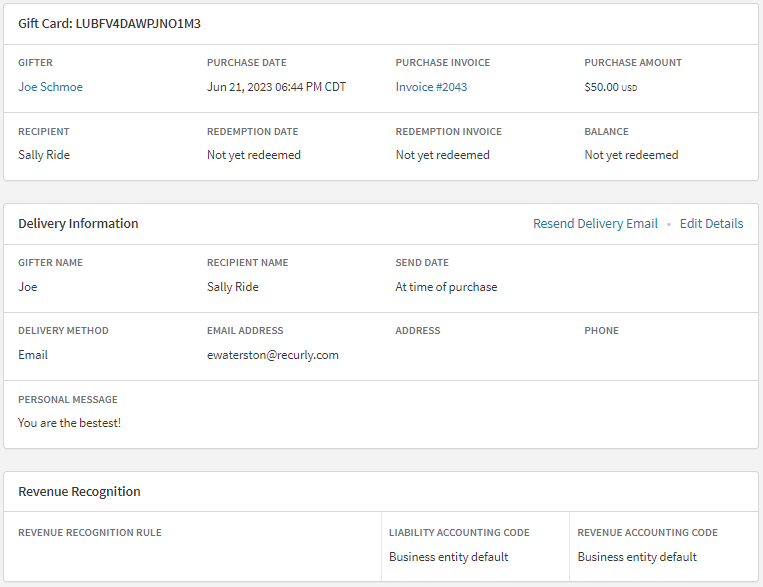
Clicking the gifter's name navigates to their account. Clicking the purchase invoice number opens the invoice view.
Edit delivery information
Click Edit Details to modify delivery information. Update the necessary fields and save your changes.
Resend delivery email
Click Resend Delivery Email to resend the gift card delivery email to the recipient. Verify the information and click Send to complete.
Cancel gift card
To cancel the gift card, click Cancel Gift Card in the upper-right menu.
Exports
For full details on available fields and export configuration, see the Gift Cards exports page.
Updated 5 months ago