
Account activities export
The Account Activities export provides a detailed log of every user action and modification made within customer accounts — including actor, action type, affected object, and timestamp.
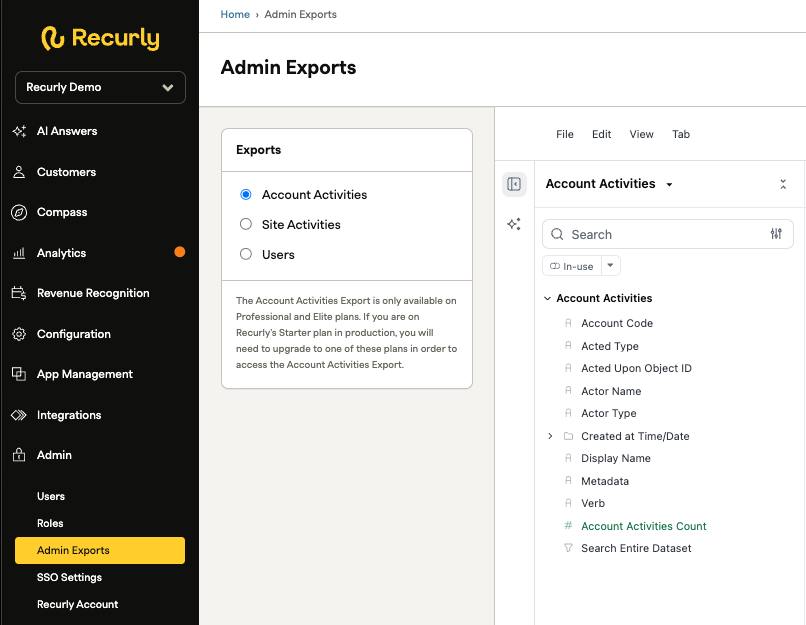
Access the export
Account activity data is available at two levels:
- Account level — view activity for a specific customer account directly on their account page
- Site level — access the full activity log for your entire site via Admin → Admin Exports → Account Activities
Explore interface
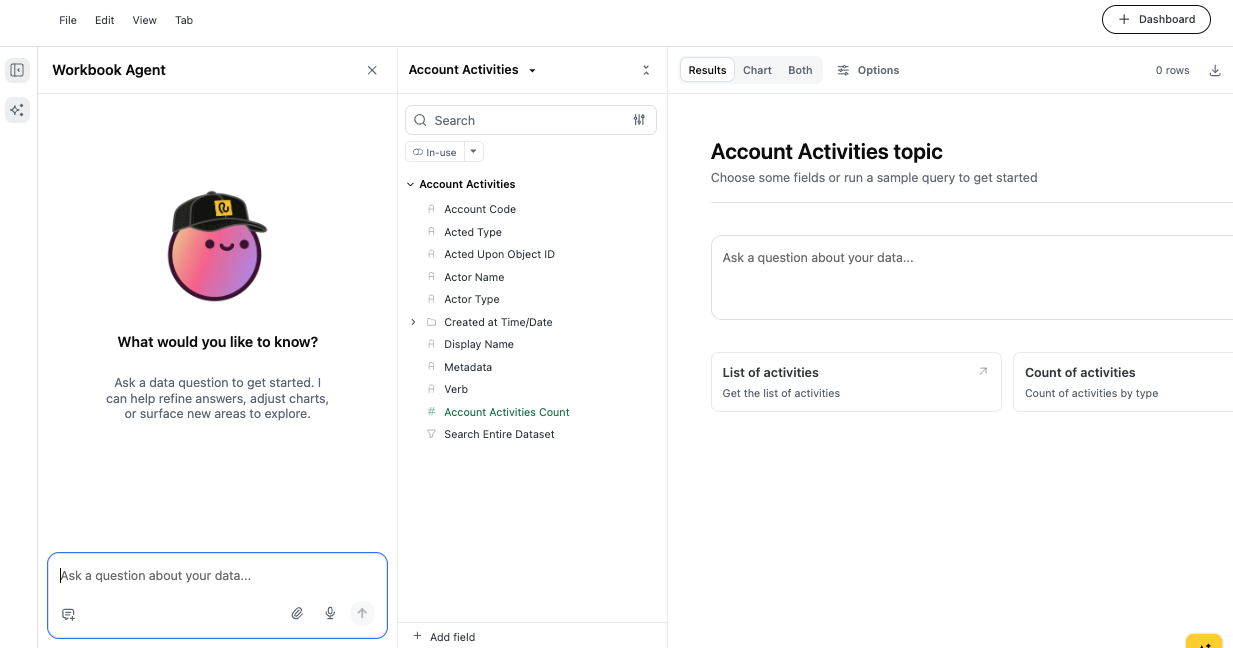
The Explore interface provides an interactive query builder for analyzing account activity data. It's divided into three panels:
| Panel | Description |
| Left — Workbook | Ask natural-language questions about your activity data. The Workbook Agent suggests fields and runs queries on your behalf. |
| Center — Field picker | Browse and search the full field catalog, grouped by topic. Click any field to add it to your active query. Use the In-use filter to see only selected fields. |
| Right — Results area | Toggle between Results (table view), Chart (visualization), or both. Use the Options tab to configure axes, grouping, and chart type. Click Preview to run a sample query before committing. |
Pre-built sample queries
Two sample queries are available to get started quickly:
- List of activities — Returns a row-level list of all account activity events within the active date scope, including actor, action type, affected object, and timestamp.
- Count of activities — Returns a grouped count of activity events broken down by activity type, providing a quick summary of the most common actions across your accounts.
Workbook Agent
The Workbook Agent is the fastest way to start an analysis. Type a question in the text box at the bottom of the left panel and press Enter (or click the send icon).
Example prompts:
- "Show me all activity on account ABC123 in the last 14 days"
- "Which actors made the most changes to accounts this month?"
- "List all subscription cancellations performed via API in the past 30 days"
- "Count account activities by type for the current revenue period"
- "Show me all activities where the acted-upon object is a billing info record"
Available fields
- Account code — filter activity to a specific customer account
- Acted upon object ID — filter by the unique ID of the object where the activity occurred (such as a specific invoice or transaction); click any ID in the table to open that object directly in a new tab
- Acted type — filter by the type of object the activity occurred on (such as an invoice or subscription)
- Actor name — filter by the entity that performed the action — the Recurly Background Bot, an API call, or a specific user
- Actor type — filter by the type of actor (such as a user)
- Created at — filter by the timestamp or date the activity occurred
- Verb — filter by the action performed, such as
sent_email,renewed, ormarked_past_due - Metadata — filter by specific details about the activity, such as a plan name or invoice ID
Build a report
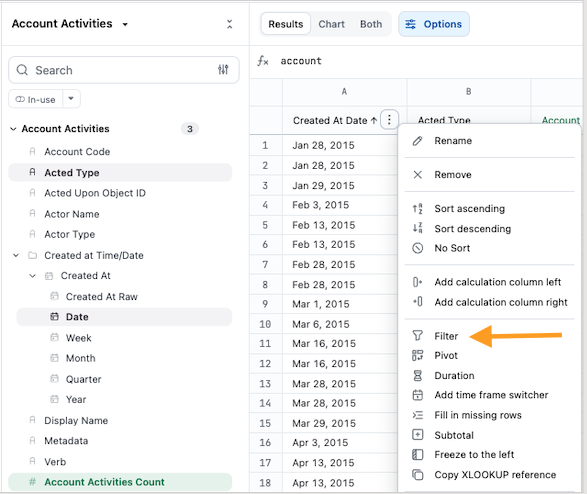
Apply filters
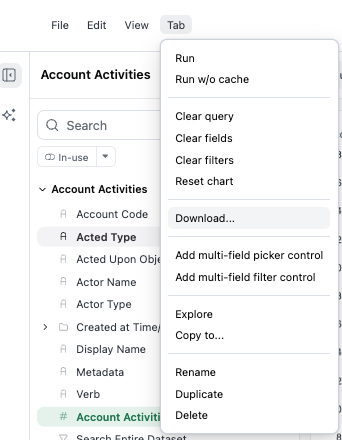
Drag and drop any field into the Filters section, or click the dropdown/actions menu next to a field header in the data view and select Filter. To create a measure tied to a specific dimension, build a pivot table with your target metric and dimension, then right-click the measure under a pivot value and select Create filtered measure.
Export fields
| Id | Example | Description | Data type (max size) |
|---|---|---|---|
| account_code | 123456789 | The unique identifier for the customer account associated with the activity. | string |
| acted_upon_object_id | inv-abc123 | The unique identifier for the specific object where the activity occurred, such as an invoice or transaction. | string |
| acted_type | invoice | The type of object the activity occurred on, such as an invoice or subscription. | string |
| actor_name | [email protected] | The entity that performed the activity — the Recurly Background Bot, an API call, or a specific user. | string |
| actor_type | user | The type of actor who performed the activity. | string |
| created_at | 2025-01-15T10:30:00Z | The timestamp when the activity occurred. | datetime |
| verb | sent_email | The action performed on the object, such as sent_email, renewed, or marked_past_due. | string |
| metadata | plan_name: Gold | Additional details about the activity, such as a plan name or invoice ID. | string |
Updated 3 months ago