
Entitlements
Enable comprehensive access management across your digital ecosystem with Recurly's Cross-platform Entitlements. Create and manage customer access rights, establish effective paywalls, and leverage API functionality for detailed entitlement checks. Learn more in our comprehensive guide.
Entitlements let you define and control which features or content a subscriber can access based on what they've purchased. Link entitlements to plans or items — when a customer subscribes, access is granted automatically. Changes to entitlements take effect immediately and are reflected in all subsequent API calls.
Not included in Starter or Pro — contact Recurly Sales to upgrade
Definition
Entitlements are granular access rights that define which features or services a subscriber can use. They are linked to recurring products — plans or items — and are granted automatically when a customer purchases a subscription. Entitlements can be applied across platforms (web, mobile, and app stores) and checked in real time via the Recurly API.
Key benefits
Controlled access
Define exactly which features each subscriber tier can access, creating differentiated experiences across your product.
Cross-platform consistency
Configure and apply entitlements across web, mobile, and app stores from a single interface.
Enhanced monetization
Gate premium features or content behind paywalls to drive revenue from tiered subscription offerings.
Unlimited flexibility
Create as many entitlements as your product needs, each linkable to multiple plans or items.
Key details
Entitlement attributes
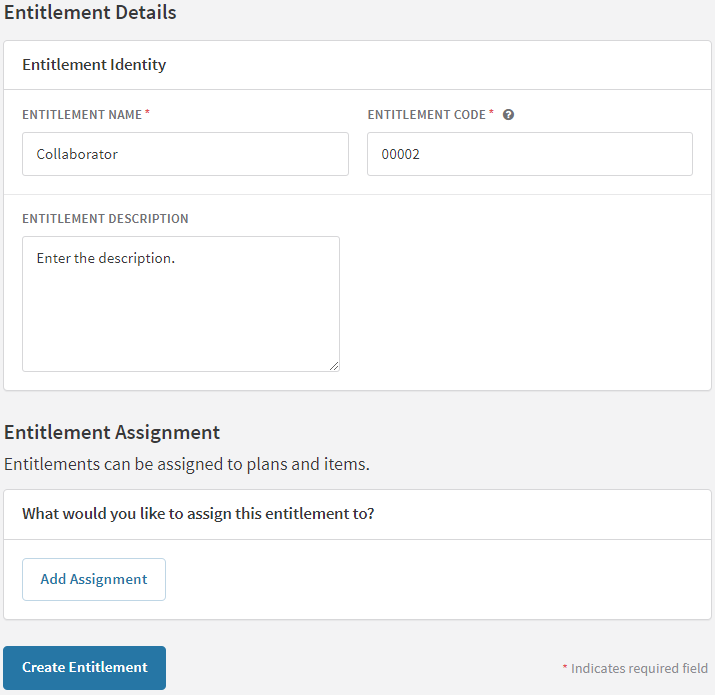
Each entitlement is defined by four attributes:
| Attribute | Description |
| Name | A concise label summarizing the entitlement's function. Does not appear on subscriber invoices, Checkout, or Hosted Payment Pages. 255-character limit. |
| Code | A unique identifier within Recurly used to link the entitlement to specific features or functionality in your application, such as feature flags. |
| Description | A detailed explanation of what the entitlement provides — useful for internal reference and customer-facing context. |
| Grantors | The recurring products (plans or items) that grant the entitlement upon subscription purchase. An entitlement can be linked to multiple products, and a single product can correspond to multiple entitlements. |
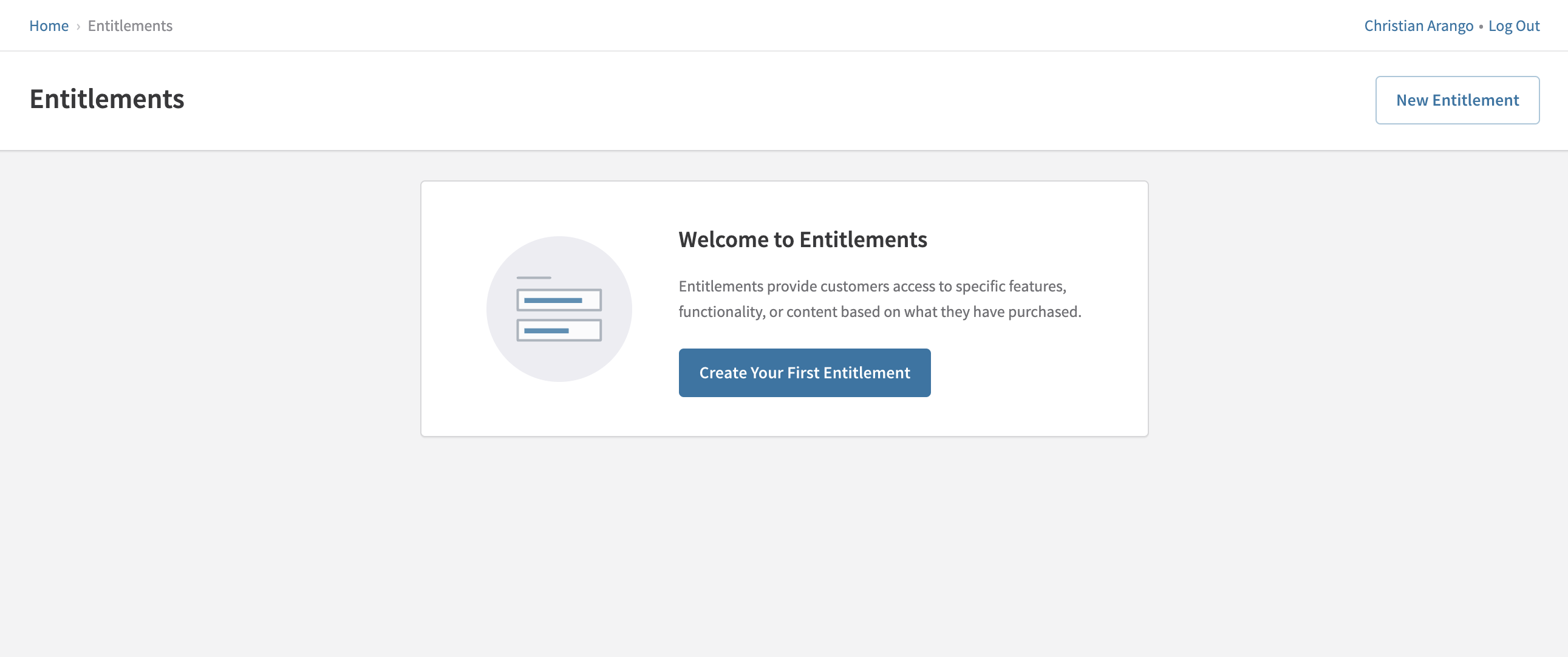
Create an entitlement
3
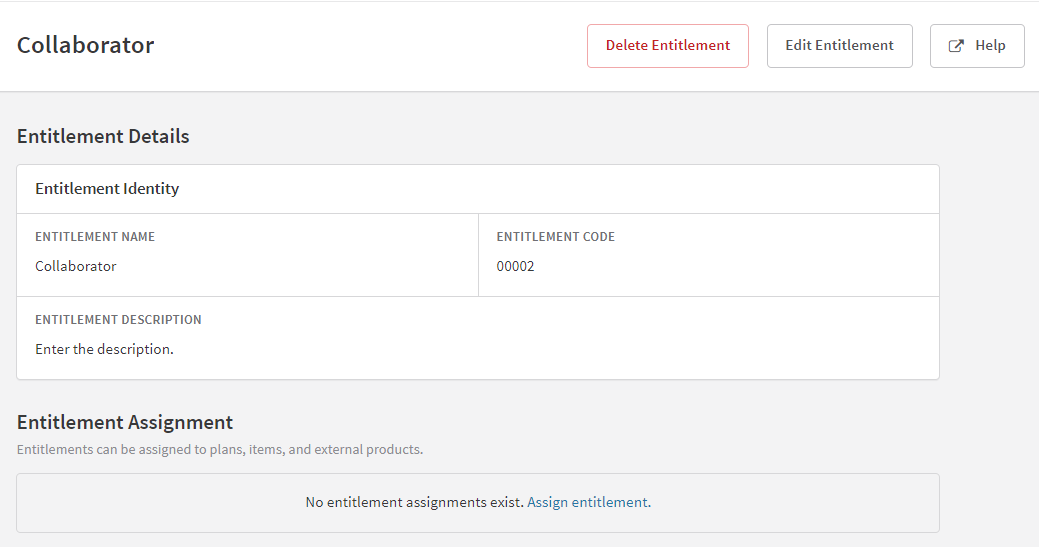
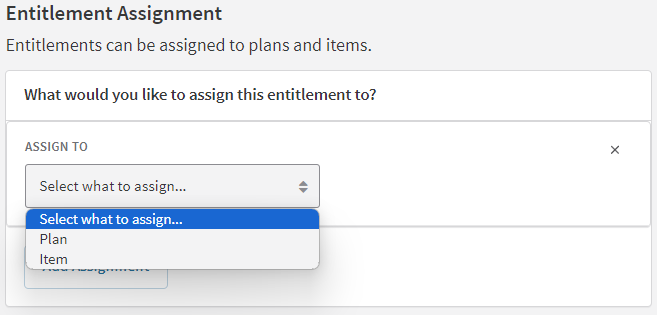
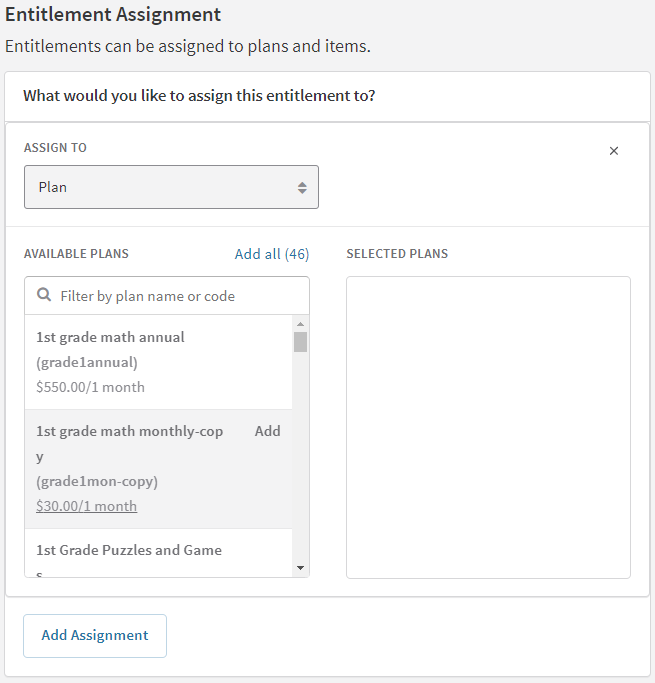
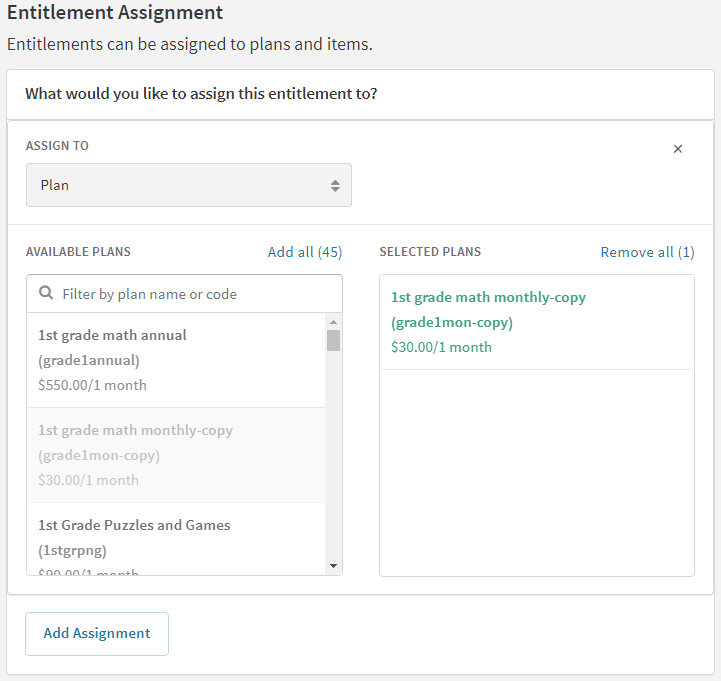
Assign an entitlement to a plan or item
Entitlements can be assigned to plans or items during creation or by editing an existing entitlement.

Update an entitlement
Delete an entitlement
Deletion is immediate and permanent Deleting an entitlement removes it from the system instantly. Ensure no active subscriptions or features depend on the entitlement before proceeding.
Updated 5 months ago
Did this page help you?