Explore overview
Overview
Required plan
This feature is only available to customers on the Elite subscription plan. To upgrade to this plan, please contact your Recurly account manager or reach out to [email protected] for more details.
Prerequisites
- Users must have Analytics user role permission.
Definition
The Explore feature is a dynamic, versatile, and powerful tool that provides a custom view of your organization's data. It transforms raw data into insightful and actionable information, catering to a wide array of data needs. From transaction details to account information, and from credit card specifics to various other fields, Explore allows you to deeply analyze your Recurly data.
The Workbook Agent accompanies every Explore session. Ask it plain-language questions and it will identify the relevant fields, construct the query, and return results or a chart. You can refine results conversationally or switch to the field picker for manual control.
Key benefits
- Customizable reports for actionable insights: Recurly Explore provides flexible report-building capabilities, allowing you to create custom reports tailored to your specific business needs.
- Comprehensive data views for deep analysis: From accounts to transactions, Explore offers predefined data views, enabling you to analyze every aspect of your Recurly data.
- Optimized decision-making through detailed metrics: Use dimensions and measures to uncover patterns and make informed decisions that enhance business performance.
- AI-assisted analytics: Use the Workbook Agent to ask data questions in plain language. The agent interprets your question, selects the relevant fields, and returns a result set or chart.
Key details
Explore interface
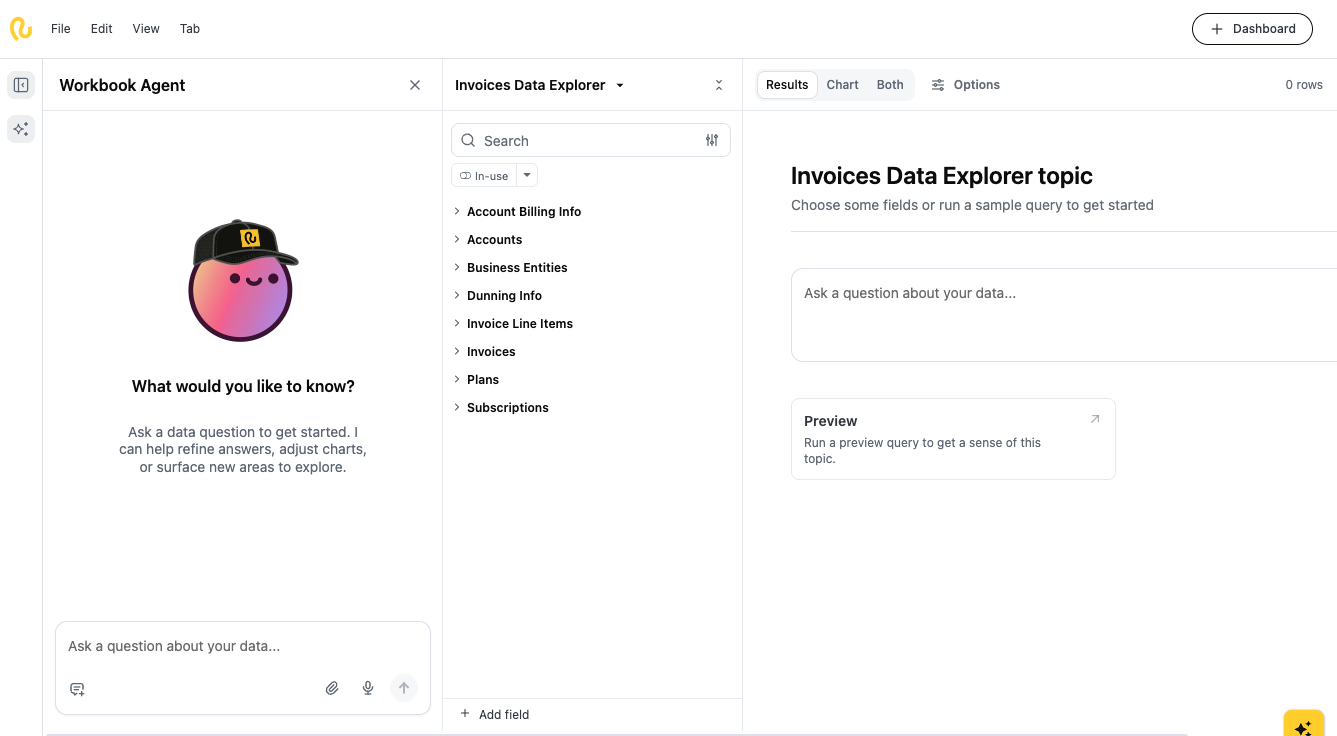
The Explorer is divided into three areas:
| Interface Area | Description |
|---|---|
| Left panel -Workbook | Agent Ask natural-language questions about your invoice data. The agent suggests fields and runs queries on your behalf. |
| Center panel - Field picker | Browse and search the full field catalog. Fields are grouped by topic. Click any field to add it to your active query. Use the In-use filter to see only selected fields. |
| Right panel - results area | Toggle between Results (table view), Chart (visualization), or Both. Use the Options tab to configure axes, grouping, and chart type. Click Preview to run a sample query and verify your field selection before committing. |

Using the Workbook Agent
The Workbook Agent is the fastest way to start an analysis. Type a question in the text box at the bottom of the left panel and press Enter (or click the send icon).
Example prompts:
-
“Show me all failed transactions in the last 7 days grouped by failure reason”
-
“What is the total transaction volume by country this month?”
-
“Which credit card types have the highest decline rates?”
-
“List transactions flagged for fraud in the past 30 days”
-
“Break down successful transactions by plan and subscription state”

Switching between Agent and manual mode
You can use the Agent and the field picker together. After the agent populates a query, you can add or remove fields manually using the center panel. Changes are reflected immediately in the results view.
Opening an existing report
- Click the yellow Recurly logo in the Explore
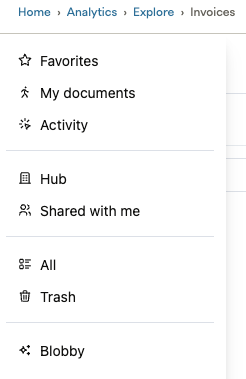
- Either go to My documents or the Hub. My documents stores your private personal data reports and folders while the Hub is the shared workspace for the entire merchant site.
- Click on the folder or report to open
- Click on Edit or Explore in the upper right corner


Creating a new report
- Browse and search the full field catalog. Fields are grouped by data topic.
- Click any field to add it to your active query. Use the In-use filter to see only selected fields.
- Toggle between Results (table view), Chart (visualization), or both.
- Use the Options tab to configure axes, grouping, and chart type.
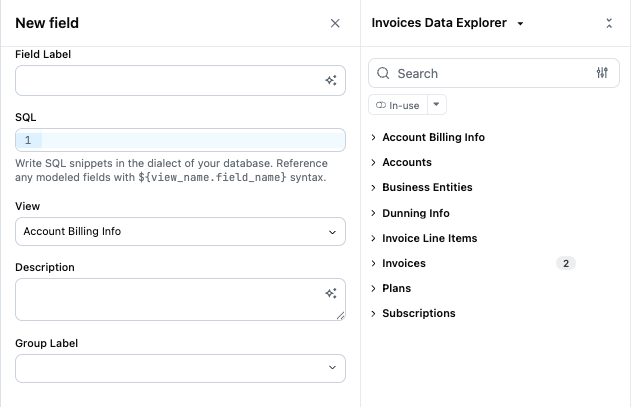
Creating a custom field
Creating custom fields allows for more personalized reporting. Use custom fields to create formulaic calculations based on existing fields.
- Fields can be created by clicking on ”+ Add Field” menu at the bottom of the field list. Field can also be adjusted by right-clicking on any existing field and selecting ‘Edit.’
- Right click on any existing dimension and choose an aggregation (e.g. count distinct, sum, average, min, max). This will automatically create a new custom measure that appears in the field picker.
- Click Add to save the field

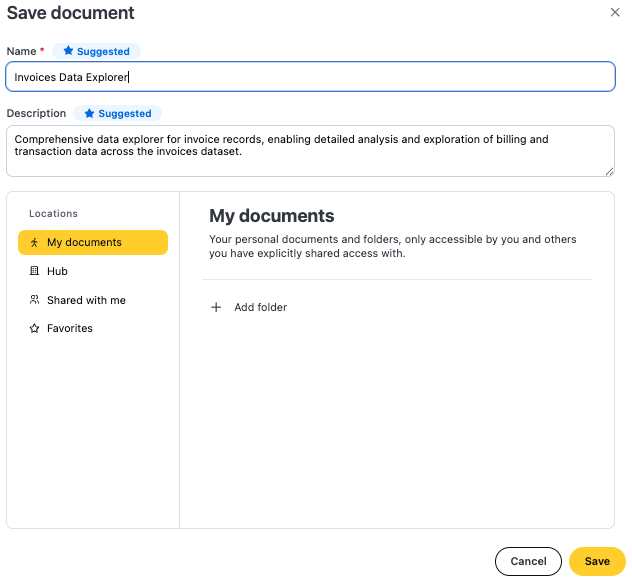
Saving a new report
To save a report:
- In the workbook, click File > Save.
- Give the document a Name and an optional Description
- Use the Locations browser to find and select the folder you want to save the document to. The document can be moved after saving if needed.
- Click Save to save the document.

Creating & editing dashboards
- To create a dashboard, click the + Dashboard button in the top right corner of the document.
- You can add, modify, resize, and remove elements in the dashboard. Your changes will be automatically saved while you work.
- Dashboards can include various elements like visualizations, headers, filters, and texts.
- After customizing your dashboard, download it for further use. This feature allows you to compile multiple reports and visualizations into one cohesive view, ideal for sharing with your team.
Updated 7 days ago