
Tax inclusive pricing
Tax inclusive pricing lets merchants display prices that already include applicable taxes, ensuring subscribers see a consistent all-in price at checkout and on invoices.
Tax inclusive pricing lets you display prices that already account for any applicable taxes — so subscribers always see one clear, all-in number. You can set tax inclusivity at the subscription level, and it works seamlessly with Recurly's native tax solution, Avatax, and Vertex.
Definition
Tax inclusive pricing allows merchants to set prices that already include any applicable taxes. Rather than calculating and displaying tax as a separate line item after the fact, the full tax obligation is baked into the displayed price — giving subscribers a consistent, predictable number every time.
- Once enabled, tax inclusive pricing cannot be disabled on your Recurly site.
- The tax inclusivity status of a subscription cannot be changed after it's created.
Prerequisites:
- A subscription to Recurly's out-of-box tax solution, or a direct integration with Avatax or Vertex
Key benefits
How it works
When you create a subscription plan, you configure it as usual. At the point of subscription creation, you select the tax inclusivity status for that subscriber. From that point forward, it's locked in — the subscriber's final price reflects the tax treatment you chose.
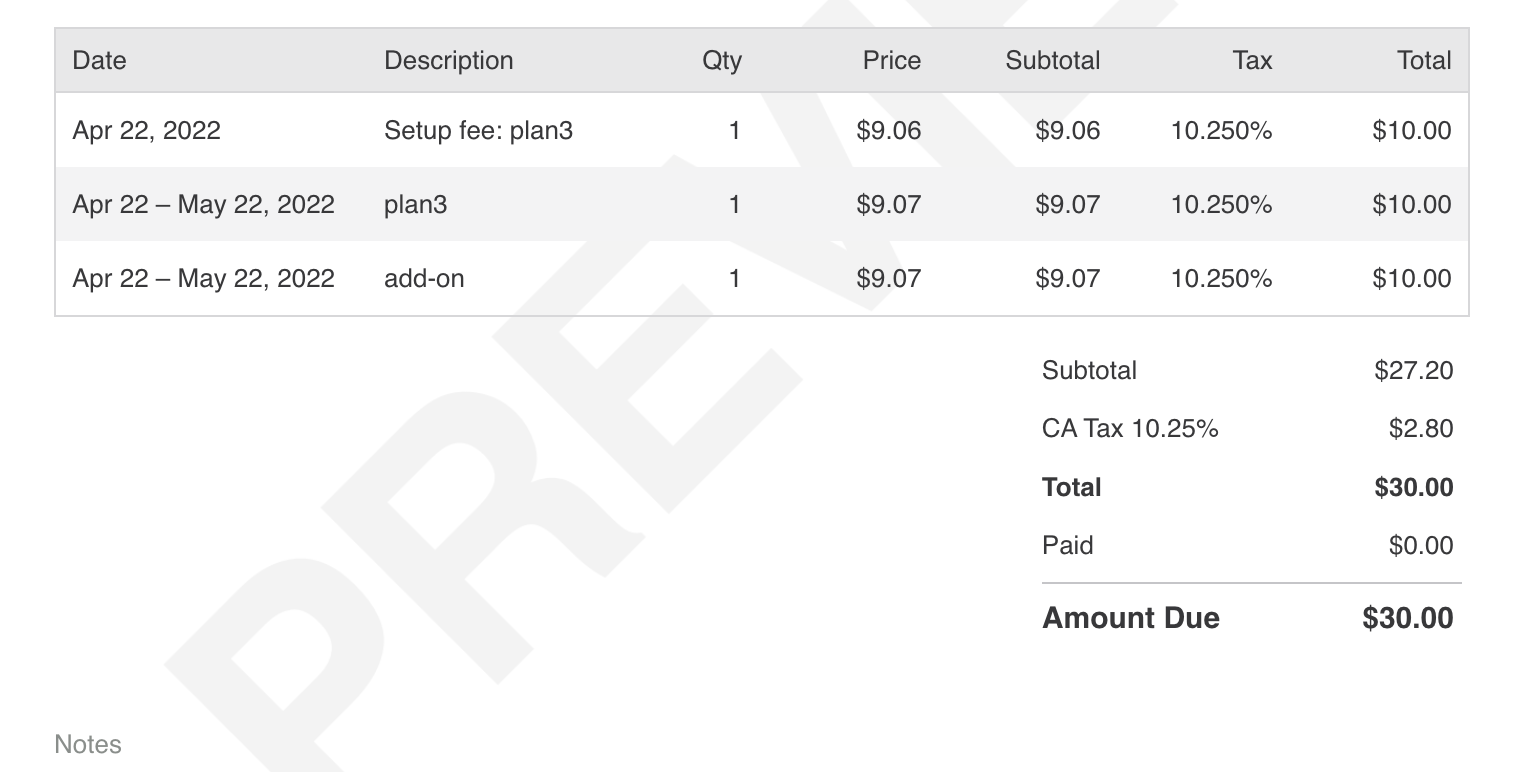
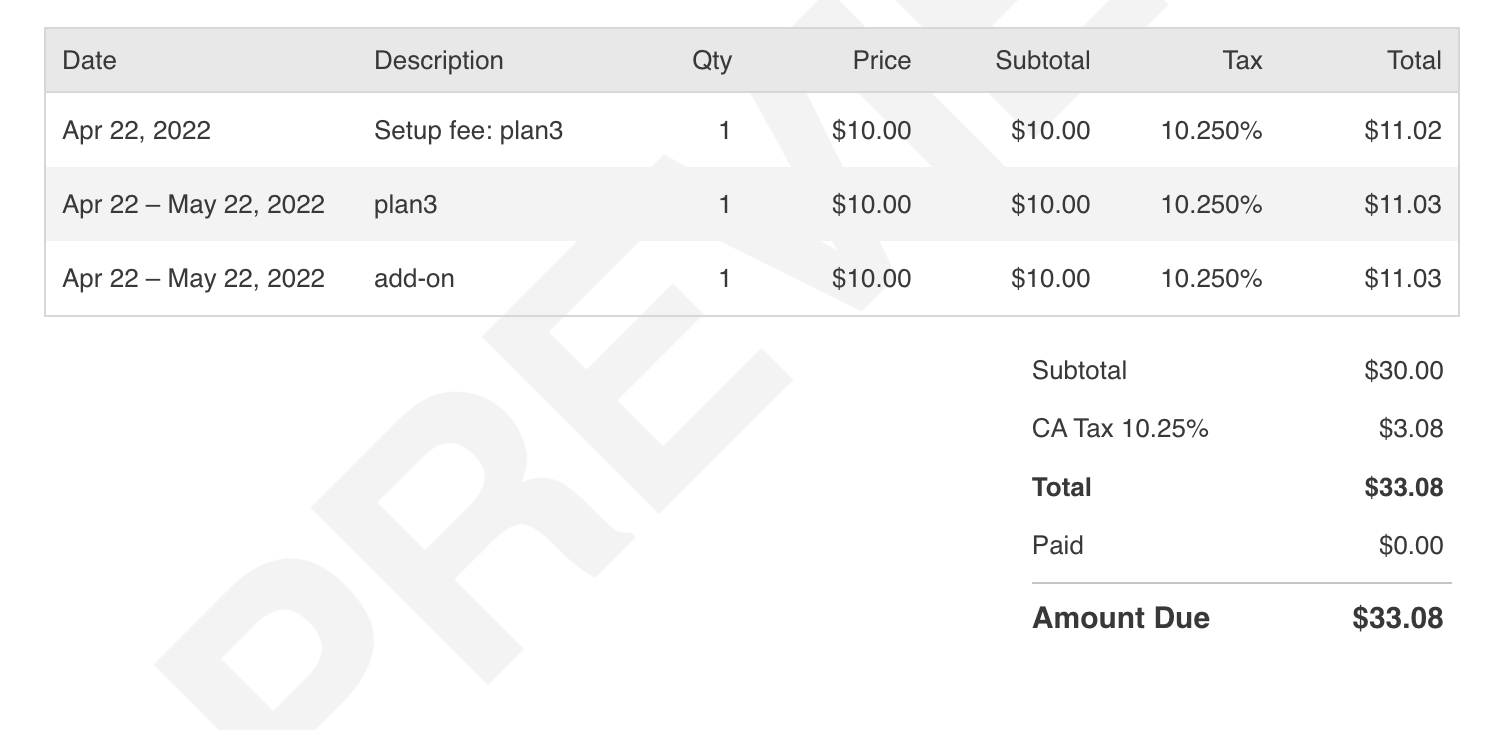
For example: a plan priced at $10.00 can produce different final prices for two subscribers if their tax rates differ, while both see a clean, tax-inclusive number at checkout.
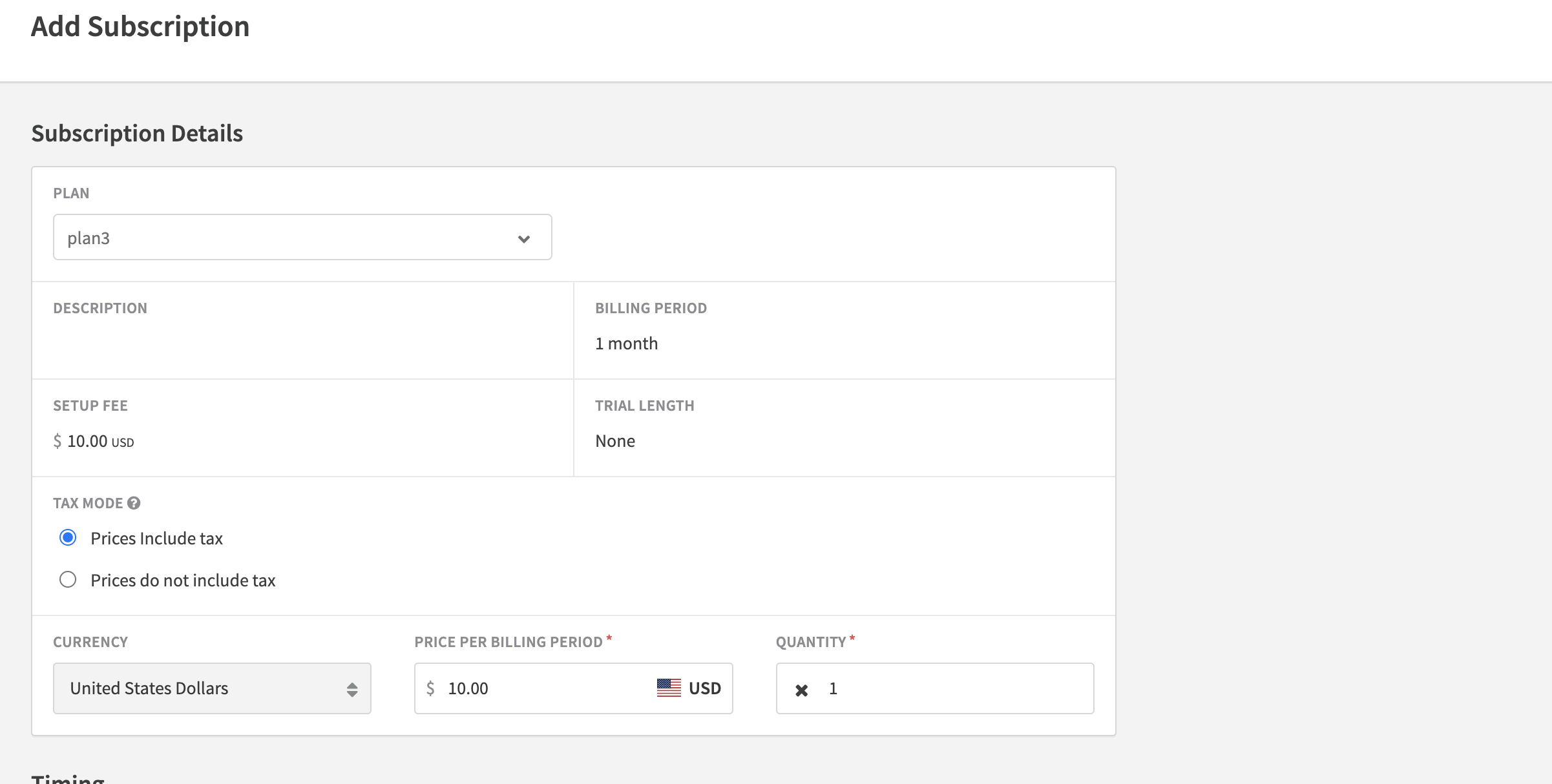
Items created outside of the plan page inherit the tax inclusivity status of the associated subscription. For one-time purchases, you can add a charge to an account and select the tax inclusivity preference at that time.
Discounts and tax inclusivity
Discounts work as expected when tax inclusive pricing is active. Recurly handles the math automatically — you apply the discount, and the system adjusts both the subtotal and the tax amount proportionally.
| Discount type | Example | Final price | Breakdown |
| Percentage discount | 20% off a $300.00 tax-inclusive price (10.25% tax rate) | $240.00 | $217.69 subtotal + $22.32 tax |
| Fixed amount discount | $60.00 off a $300.00 tax-inclusive price (10.25% tax rate) | $240.00 | $217.69 subtotal + $22.32 tax |
To apply a discount: choose the subscription or item, select your discount type (percentage or fixed amount), and apply it. Recurly recalculates automatically.
Invoicing
When tax inclusive pricing is enabled on your site, you can choose whether taxes appear as a separate line item on invoices — or stay folded into the displayed price. This setting lives in your invoice template configuration and is disabled by default.

To configure: go to Invoice templates in your Recurly dashboard, create or edit a template, and toggle the option to show or hide taxes.
Tax Inclusive Regions
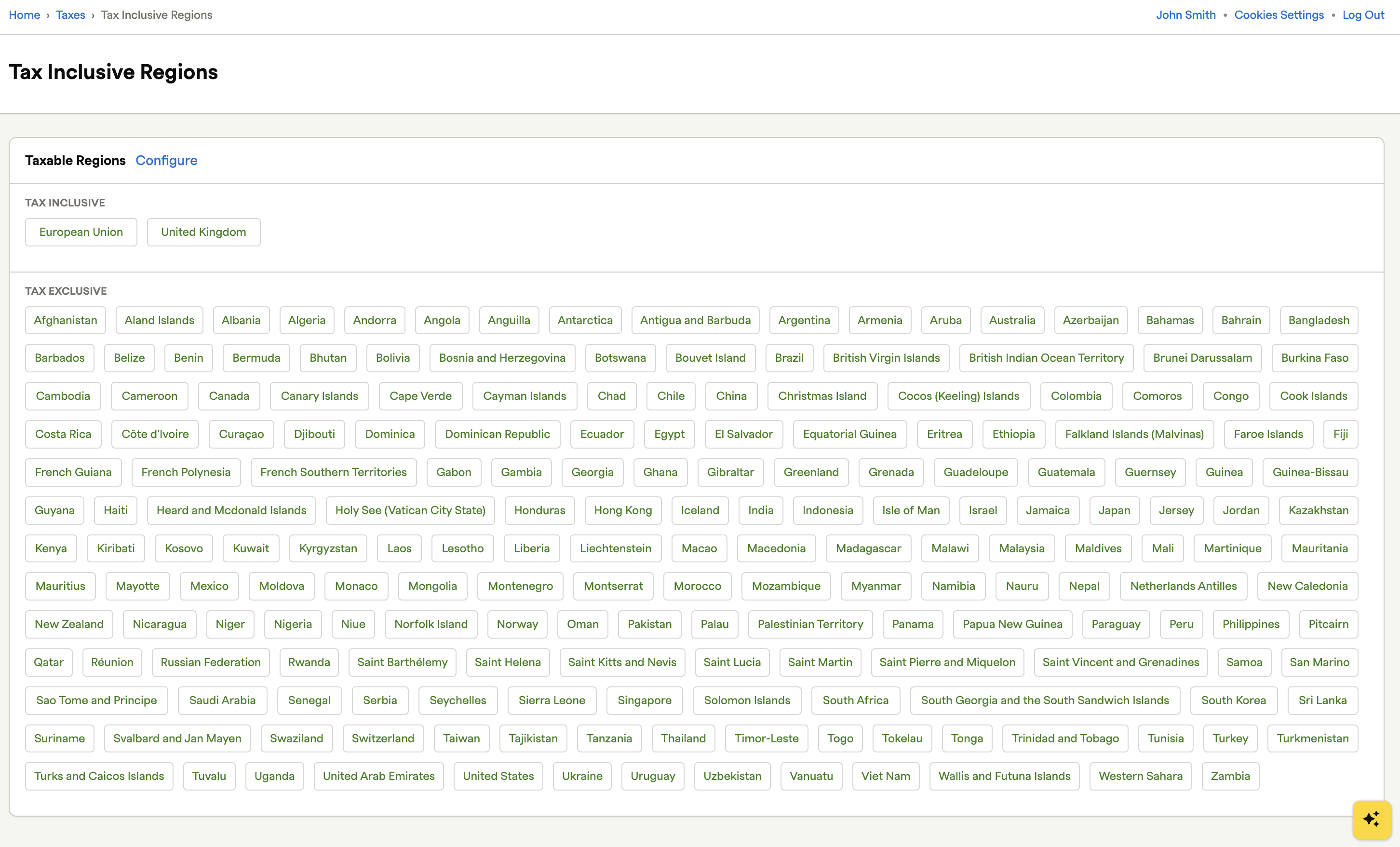
When tax-inclusive pricing is enabled, you can choose which regions use tax-inclusive pricing. To configure regions, go to Taxes → Tax Inclusive Regions.
Once you save your selections, they'll stay in place even if you disable your tax integration. This makes it easy to switch from one tax integration to another without losing your configuration.
Integration with Recurly.js
For accurate tax estimates in Recurly.js, follow this three-step sequence:
Updated 2 months ago