
Revolv3
Configure Revolv3 as a payment gateway in Recurly to accept Credit Cards across global markets.
Revolv3 is a global payment gateway that plugs into Recurly to handle recurring subscriptions, one-time payments, and 3D Secure authentication — across virtually any currency or region. Whether you're onboarding fresh or migrating from another gateway, setup follows a straightforward process.
Definition
Revolv3 is a global payment gateway that integrates with Recurly to manage financial transactions for recurring subscriptions and one-time payments. It supports a wide range of card brands and currencies worldwide, and employs best-in-class orchestration behind-the-scenes to improve auth rates.
- Using 3DS requires Recurly.js to collect browser and device data, and deliver the customer challenge.
- Ensure your Business Entity's Merchant Category Code (MCC) is filled in correctly before enabling 3DS.
- The CVV is required for all CIT card payments, including MOTO. Ensure you are capturing the CVV for return customer transactions including signups, and one-time transactions. Recurly will never store the CVV code on your behalf.
Key details
| Feature | Details |
| Services that work with Recurly | Recurring subscriptions, payments (ecommerce and MOTO), 3D Secure |
| Supported operations | Authorize and Capture, Purchase, Refund, Verify, Void, Recurring, Unscheduled MIT |
| Supported payment types | Credit card, Google Pay |
| Supported card brands | Visa, Mastercard, Amex, Discover, JCB, Diners Club, Union Pay |
| Unified 3DS2 supported | Yes |
| Card on file supported | Yes |
| Regions | Worldwide except LATAM and India |
| Currencies | All supported currencies |
| Additional feature support | Billing and shipping information, Level 2 data, Dynamic Descriptors, AVS/CVV checks, and line item passthrough |
Set up Revolv3 with Recurly
Step 1 — Obtain your Revolv3 credentials
For additional guidance, see Revolv3's direct documentation: Access and/or create Static Tokens.
If you plan to enable 3DS, you'll also need the following from Revolv3 before proceeding:
- Your Acquirer BIN (6 digits)
- Your Acquirer Merchant ID
- Your Acquirer Country
These are used in Step 3. Gather them now so you have them ready.
Step 2 — Enter your credentials in Recurly
| Field | Where to find it |
|---|---|
| Developer Key | Revolv3 dashboard → Integration Profile → Developer Static Tokens |
| Static Token | Revolv3 dashboard → Integration Profile → Developer Static Tokens |
| 3DS Details | Your Revolv3 account manager |
Step 3 — Enable 3D Secure
Skip this step if you're not using 3DS.
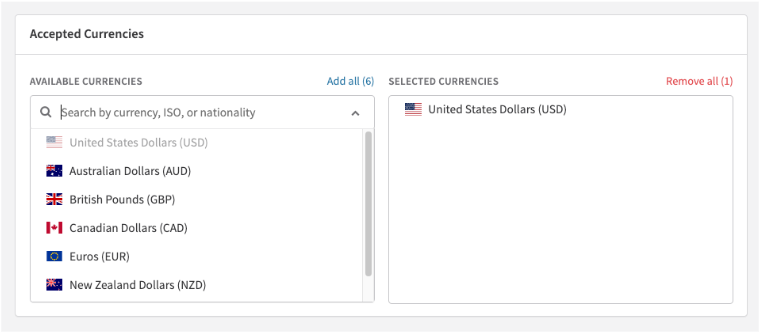
Step 4 — Enable currencies
Select the currencies your Revolv3 gateway should accept. You can add or change currencies at any time — choose only from those you're approved to process.
Step 5 — Save your gateway configuration
Once you've configured everything, select Add Payment Gateway. If you're updating an existing configuration, the button reads Update Payment Gateway instead.
Additional configuration
Address and card code verification
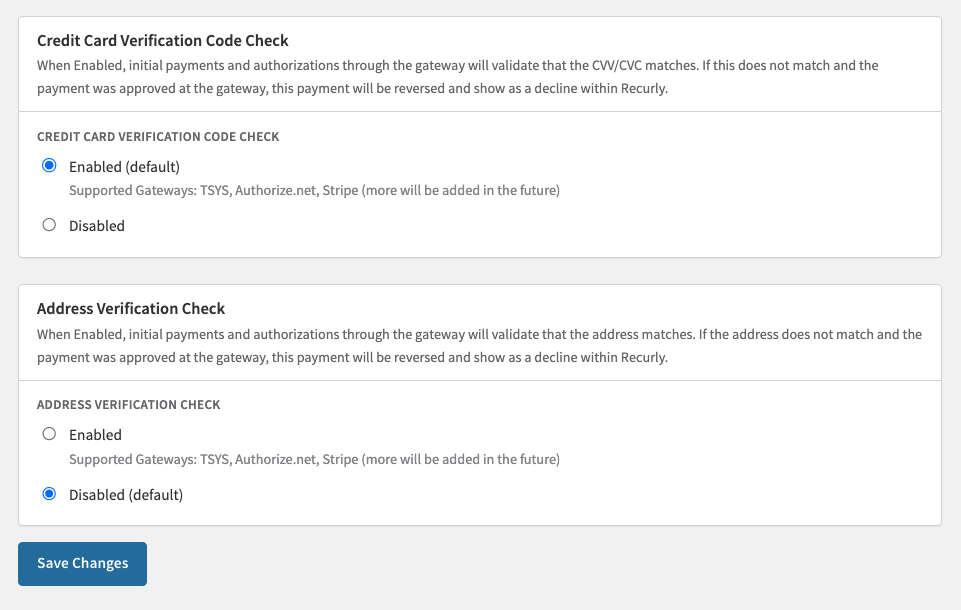
You can configure Recurly to automatically reject transactions where the billing address or CVV doesn't match what the card issuer has on file. These settings apply across all gateways — they're not Revolv3-specific.
Enable Address Verification (AVS)
- Go to Configuration → Payment Settings.
- Scroll to the Address Verification Check section.
- Select your preferred AVS rule.
- Select Save Changes.
Enable Card Code Verification (CVV)
- Go to Configuration → Payment Settings.
- Scroll to the Credit Card Verification Code Check section.
- Set the option to Enabled. When enabled, transactions with an invalid or mismatched CVV are rejected based on issuer feedback.
- Select Save Changes.
Test your integration
- Go to Configuration → Payment Gateways.
- Find your Revolv3 configuration and select Options → Test Configuration.
If your credentials are correct, Recurly will confirm a successful connection.
Go live
Once testing passes, your gateway is ready for real transactions. Monitor activity in both Recurly and your Revolv3 dashboard to confirm everything is processing as expected.
Production and sandbox behavior
Production and sandbox environments in Revolv3 are entirely separate systems with distinct endpoints. Keep the following in mind when managing your environments:
- If you create a Revolv3 gateway configuration while your Recurly site is in either Production or Sandbox mode, you can control which Revolv3 endpoint — production or sandbox — your transactions hit.
- If you ever change your Recurly site's mode (for example, from Sandbox to Production), your existing gateway tiles will stop working. You must create new gateway configurations for the new mode and disable the old ones.
- Best practice: Keep your site in a consistent mode and use a dedicated development site for integration testing. Set that site to Development mode before adding gateway accounts, and keep it there for the duration of your testing.
- When testing Revolv3, it is best to use their test cards for streamlined development and testing. You can find their test cards and sandbox limitations at the below two pages. Please note, Recurly does not control Revolv3 test card behavior or sandbox limitations.
Updated about 1 hour ago