
HomeProduct DocsAPI ReferenceChangelog
RecurlyAPI GuidesRecurly.jsWebhooksAPI ReferenceSupportBook demo
Product Docs

Audience segmentations

Configure alternate versions of Payment Confirmation and New Subscription email templates that target specific customer subsets by billing or account country code.

Audience segmentation lets you send tailored email content to specific subsets of your customers — defined by billing or account country code — without changing the default template everyone else receives. Use it to meet regional compliance requirements, improve engagement, and deliver the right message in the right language.
Requires an Elite plan and enablement by Recurly Support — contact [email protected] to get started

Definition

Audience segmentation is a feature that lets merchants create alternate versions of the Payment Confirmation and New Subscription email templates, each targeting a defined audience based on billing or account country codes. When a customer matches the segment criteria, they receive the alternate template; everyone else gets the default.

Key benefits

Targeted messaging Segment your audience by billing or account country code and deliver content that speaks directly to each group.
Stay compliant Communicate country- or region-specific regulatory requirements to the right customers, keeping you aligned with compliance mandates.
Higher engagement Personalized emails drive better open rates and stronger connections with your audience.
Built-in multi-locale support Set up your segment once, then customize content per locale — Recurly handles routing the right language to the right audience automatically.
Flexible template management Modify, rename, delete, or add alternate templates at any time, giving you an agile communication toolkit as your business evolves.

Key details

Supported templates

Audience segmentation works with exactly two email templates: New Subscription and Payment Confirmation. Each has a default version that all customers receive unless they match an alternate template's audience criteria.

How audience criteria work

Audience criteria determine which customers receive an alternate template instead of the default. A few rules govern how they behave:

  • You must define at least one criterion in the Audience section for an alternate template to activate.
  • Criteria use OR logic — a customer who matches any one criterion qualifies for the alternate template.
  • Customers who don't match any criterion continue to receive the default template.

Locale support

Alternate templates support all Recurly locales. After defining your audience segment, you can customize the email content for each locale independently.

For example, if your segment targets customers in the UK, Italy, and Sweden:

  1. Customize the content for the UK audience in English.
  2. Use locale support to add Italian and Swedish translations.
  3. Recurly routes the alternate template to customers in those countries, in the language set for their region.

PDF attachments

You can attach a PDF to an alternate template. Each locale on an alternate template supports its own unique PDF attachment, keeping your message consistent across languages.

Managing your alternate templates

After creation, your alternate template appears in the Email Templates section. From there you can preview the HTML, edit content, rename, or delete the template.
Renaming a template

Hover over the ellipsis next to the alternate template and select Rename. Save your changes when done.
Create an alternate template

1

Navigate to the template header

Go to the Payment Confirmation or New Subscription email template in your Recurly account.

2

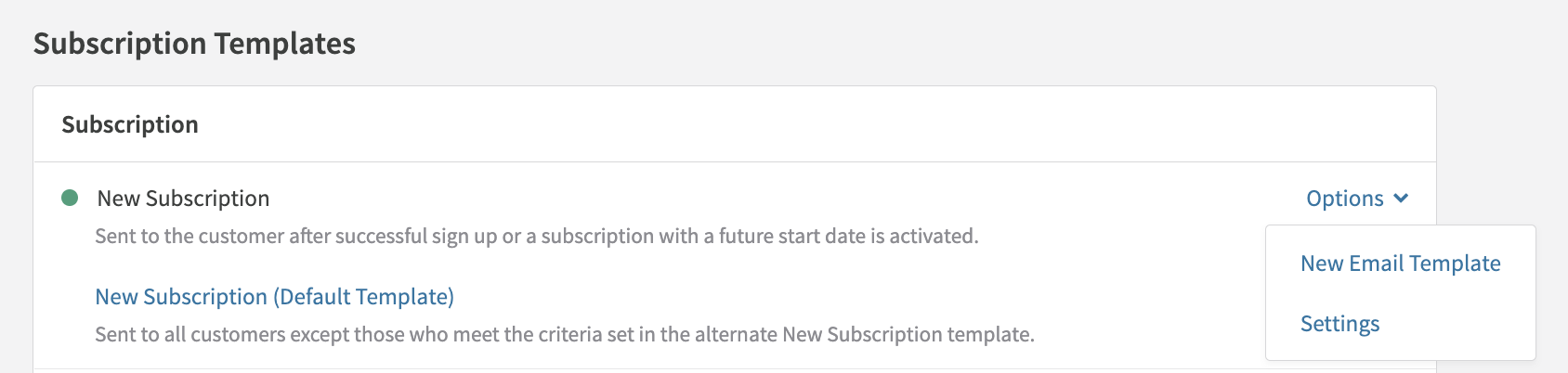
Create a new template

Select the Options button, then choose New Email Template.

3

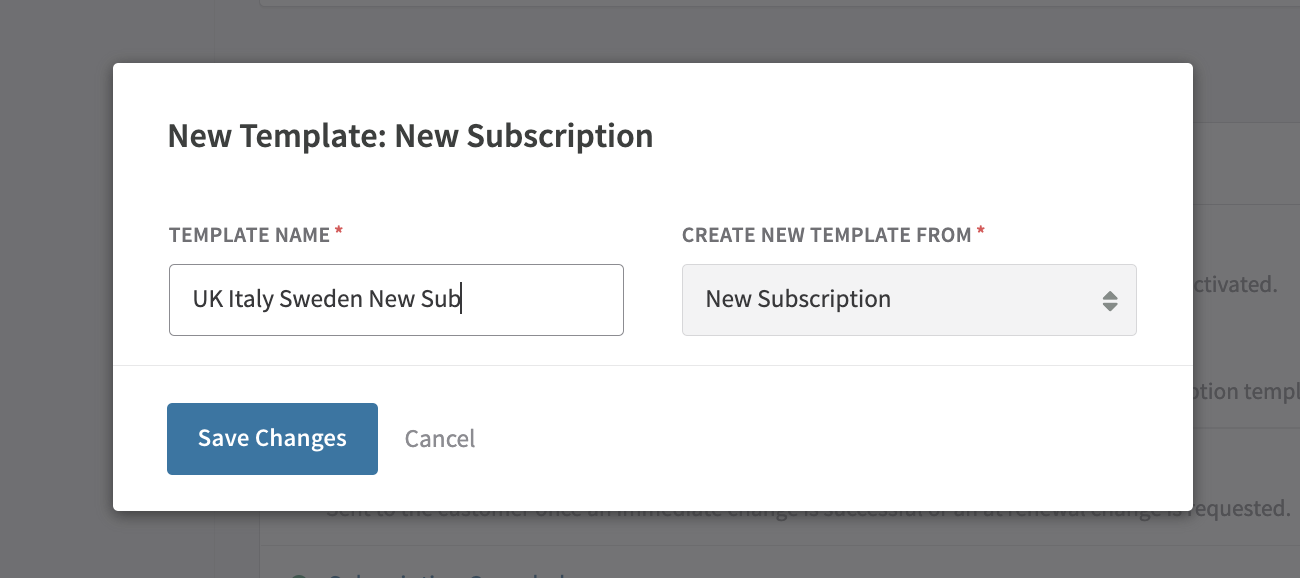
Name your template

Assign a unique name to the alternate template and save.

4

Customize the template

Edit the subject line, email body, and audience criteria. The template won't activate until at least one criterion is defined in the Audience section.

Add audience criteria

1

Add an attribute

Select Add Attribute near the bottom of the screen.

2

Choose your attributes

Select the attributes you want to use for this segment — billing country code, account country code, or both.

3

Define your country criteria and save

Set the specific country values and save your changes. Once saved, the segment is active and the alternate template is ready to send.

Upload a PDF attachment

1

Open the PDF section

In the alternate template editor, locate the PDF section and select Choose File.

2

Upload your document

Select the PDF you want to attach. The file must be 512 KB or smaller.

3

Activate the template

Once the template is active, the attached PDF will be included in every email sent to customers in the defined audience segment.

Note Each locale on an alternate template supports its own PDF attachment. If you've configured multiple locales, upload the appropriate PDF for each one to keep your messaging consistent across languages.


Did this page help you?