
Kount (fraud) integration
Integrate with Kount for advanced fraud protection, ensuring safer transactions and a more secure customer experience.
Overview
Required plan
This feature may not be included in the Starter or Pro plans. If you are interested, please contact Recurly Sales to discuss upgrade options.
Prerequisites
- You must have a Kount 360 account. Please reach out to Recurly Support or your CSM/TAM if you are not already using this service.
- You must be able to utilize Recurly.js and invoke the risk related data-collector of that integration method.
- If you plan on setting up 'Review' rules in Kount, you must be able to ingest Recurly webhooks and use the API to take action against invoices (refund / void).
Limitations
- Risk inquiries are only performed on new billing info verifications (sign-ups and billing info updates) for the following payment methods:
- Cards (including ApplePay and GooglePay)
- All APMs available on the Recurly Platform. If you are not using Recurly.js for APMs (some do not offer this support) then Kount DDC / Session Information will be excluded.
- Kount Portfolio Merchants will not be able to modify default rules. If you would like a list of default rules that are set, please reach out to Support. These are not listed publicly for anti-fraud purposes.
- Existing accounts with a billing info (card or otherwise) on file will not undergo risk inquiries unless they update their billing information.
- Integrators using Third Party Checkout (Stripe and Adyen) will need to use fraud tools made available by the gateway. There is not enough information available to Recurly at time of transaction when using these tools to utilize Kount.
Recommendations and Best Practices
- Use Recurly.js for all supported payment methods if you are not already doing so. This will ensure that the data collector creates a session ID which supports proper fraud detection with Kount and reduces false positives.
- For APMs that are not supported with Recurly.js, we will support a session ID bypass option. There are no integration changes you need to make for APMs not supported with Recurly.js -- continue to use them as documented.
- Properly set up your webhooks if your Kount Account has rules for 'Review' flows, and ensure your integration is properly listening for Kount Fraud Update webhooks from Recurly. See Enabling Kount Review Webhooks on this page for more information.
- If you have your own Kount DDC implementation and are sending Recurly a Fraud Session ID, ensure you are sending a valid Kount Session ID or your fraud checks will fail. Sending a 'name', or anything other than a valid Kount format will cause errors.
Definition
Kount is a leading fraud management platform that specializes in ensuring secure online transactions. Through its integration with Recurly, businesses can benefit from enhanced fraud detection and prevention mechanisms, ensuring a safer and more seamless transaction experience for their customers.
Recurly recognizes the importance of safeguarding businesses from potential threats. In our commitment to support and protect our customers, we've partnered with Kount, a frontrunner in fraud management. This collaboration equips you with top-tier fraud prevention capabilities right within your Recurly platform.
Recurly's integration uses Kount's updated Kount 360 platform.
Key benefits
- Reduced fraudulent orders: Minimize the risk of accepting deceptive orders to safeguard your business.
- Decreased chargebacks: Lower the incidence of chargebacks, preserving both time and financial resources.
- Enhanced customer experience: Offer a secure transaction environment, elevating customer confidence and satisfaction.
- Cost efficiency: Curtail operational expenses tied to fraud detection and management, promoting a healthier bottom line.
- Retention boost: Foster a secure transaction milieu, aiding in reducing customer churn and enhancing loyalty.
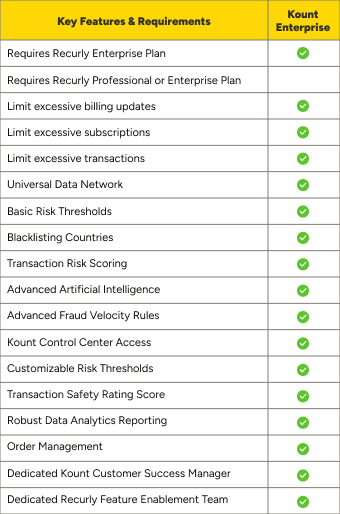
Once Kount’s Fraud Service is activated, Recurly initiates risk assessments for new card verifications, including sign-ups and billing info updates. Accounts with existing credit or debit cards will only be assessed if their billing information is updated.
Kount Basic (Portfolio)
For businesses seeking a fraud management solution, but don't want to deal with a lot of customization or technical enablement, Kount Portfolio is the ideal choice. With Kount Basic, you can:
- Select which payment methods Kount takes action on.
- Access Kount scores in the Recurly UI to track fraud behavior.
- Leverage Kount's advanced artificial intelligence scoring for improved fraud detection.
Kount Enterprise
For businesses seeking a robust and customizable fraud management solution, Kount Enterprise is the ideal choice. It offers the foundational fraud prevention technology of Kount Basic, enhanced with direct access to your Kount Control Center and a dedicated Kount Customer Success Manager. With Kount Enterprise, you can:
- Create custom rules based on observed fraud trends and specific business policies.
- Access Kount scores in the Recurly UI to track fraud behavior.
- Select which payment methods Kount takes action on.
- Access Kount’s business intelligence tools for comprehensive analysis.
- Conduct manual reviews for transactions.
- Leverage Kount's advanced artificial intelligence scoring for improved fraud detection.
Standard Flows and Behavior
For new billing information (Cards) and APMs, Recurly will send relevant payment method and customer data to Kount for review. Any time card information is provided to Recurly, we will treat this as a 'new' billing info. Using the Account Code or Billing Info ID will not typically be sent to Kount for re-review.
Scenarios
- Subscription Signups: Subscription signups with a new payment method will be sent to Kount for review as usual.
- One Time Transactions/BI Updates: One Time / CIT transactions, including Billing Info updates, will be sent to Kount if those updates include new payment information.
- If a customer provides the same card number as is already on file, that transaction will be re-reviewed by Kount and can be marked as fraudulent. This may have impact on renewals using that billing info.
- MOTO transactions: Transactions marked as 'MOTO' (either via API or in Recurly Admin) will be sent to Kount without data-collector information by design as the customer is not in session during a MOTO transaction.
- Renewals: Recurring and merchant-initiated transactions are not sent to Kount for review. If an existing Billing Info has been marked as 'fraudulent' due to a CIT transaction being declined by Kount, renewals using that billing information will start to fail.
Approval, Review, and Decline Behavior:
- On Approval -- if Kount "approves" a transaction, Recurly will send the authorization request to the specified gateway for approval at the bank. The transaction can still be declined by the bank or gateway.
- On Review -- if Kount marks a transaction to be "reviewed", Recurly will send the authorization request to the specified gateway for approval at the bank. The transaction can still be declined by the bank or gateway. If you mark a 'Review' transaction in Kount as declined, expect a webhook from Recurly. You will need to take action (void or refund) on your own when this happens.
- See Webhook Setup and our Kount Webhook Integration Guide for more details.
- Note: Review flows are only available to Kount Enterprise accounts.
- On Decline -- if Kount marks a transaction as "declined", Recurly will not send the transaction to the gateway, and the transaction will be marked declined.
Kount Configuration
API Key Configuration and Setup
Kount Basic Accounts
Please Note: If you have a Kount Basic/Portfolio account with Kount, skip to Step 2, sub-step 7 to configure your Account in Recurly.
Step 1: Obtain your Kount 360 API Key and MID
You may follow these same steps for your Sandbox or Production Kount credentials. Please be aware that Sandbox Kount credentials will only work when your Recurly site is in 'Development' mode. Please reach out to Recurly support for assistance.
-
Log into your Kount 360 Dashboard -- you must have Owner and/or Admin permissions to access API Keys, ensure you are logging in to the correct account credentials.
-
If you have multiple Organizations, select the correct organization for your business.
-
Navigate to "Product Configuration" → "System Settings" → "API Keys"
-
Click 'Generate API Key'
-
A modal will appear (see below) where you can copy your Kount 360 API Key. This will be the only opportunity you have to copy the actual key.
-
Add a Description for your Key. Our suggestion is to use the Recurly subdomain that this key will be for, so it is obvious in Kount's dashboard which key goes to which site, if you are using multiples.
-
Please note again that this is your last chance to copy the actual API Key as the UI will not display it again. So make sure you copy it now (click the 'Copy' button) and click 'Save' after adding a description.
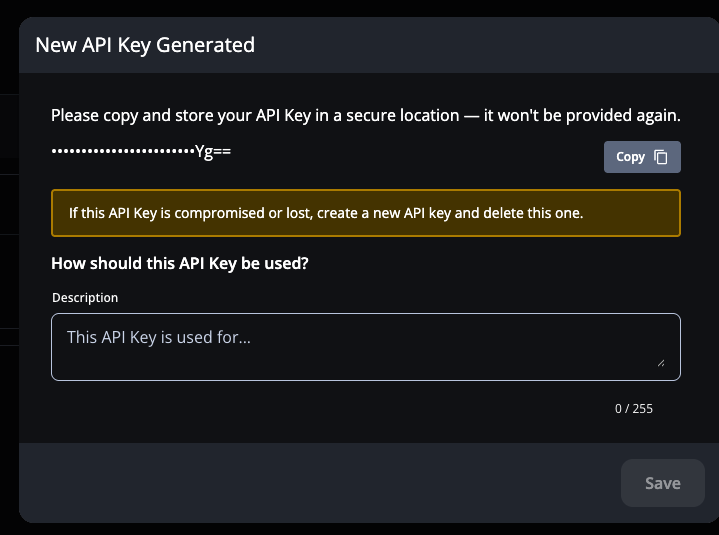
-
Your copied key will look something like this:
MG9hMX...lmNjRSMVItTl8zbU1LVXlkNFFKWg==(the key will be longer, this has been shortened/obfuscated for example purposes). Note the==at the end of the key. That is part of the key and should not be deleted. -
Obtain your Account MID from your Kount CSM / or a Kount 360 dashboard manager with Admin or Owner permissions. This value can be accessed via the Product Configuration UI only by hovering over the API Keys setup.
-
Head over to Step 2.
Step 2: Enter your Kount Credentials in Fraud Management configuration
-
Log into your Recurly Site.
-
Navigate to "Configuration" → "Fraud Management"
-
Click 'Options' and choose 'Edit Configuration'
-
Website ID: If you have multiple sites using the same Kount MID/API Key, and you have rules based on 'channels' in Kount 360', you will want to enter your website ID exactly as it is entered into Kount. Otherwise, leave this field blank.
-
Merchant ID: This will be a 6-15 digit number provided to you by Kount.
- If you are a previous Kount Command user, your ID will be 6 digits. If you are a brand new Kount 360 user, your ID will be 15 digits.
-
API Key: Enter your Kount 360 that you obtained in Step 1 in this field.
Step 3: APM Configuration
-
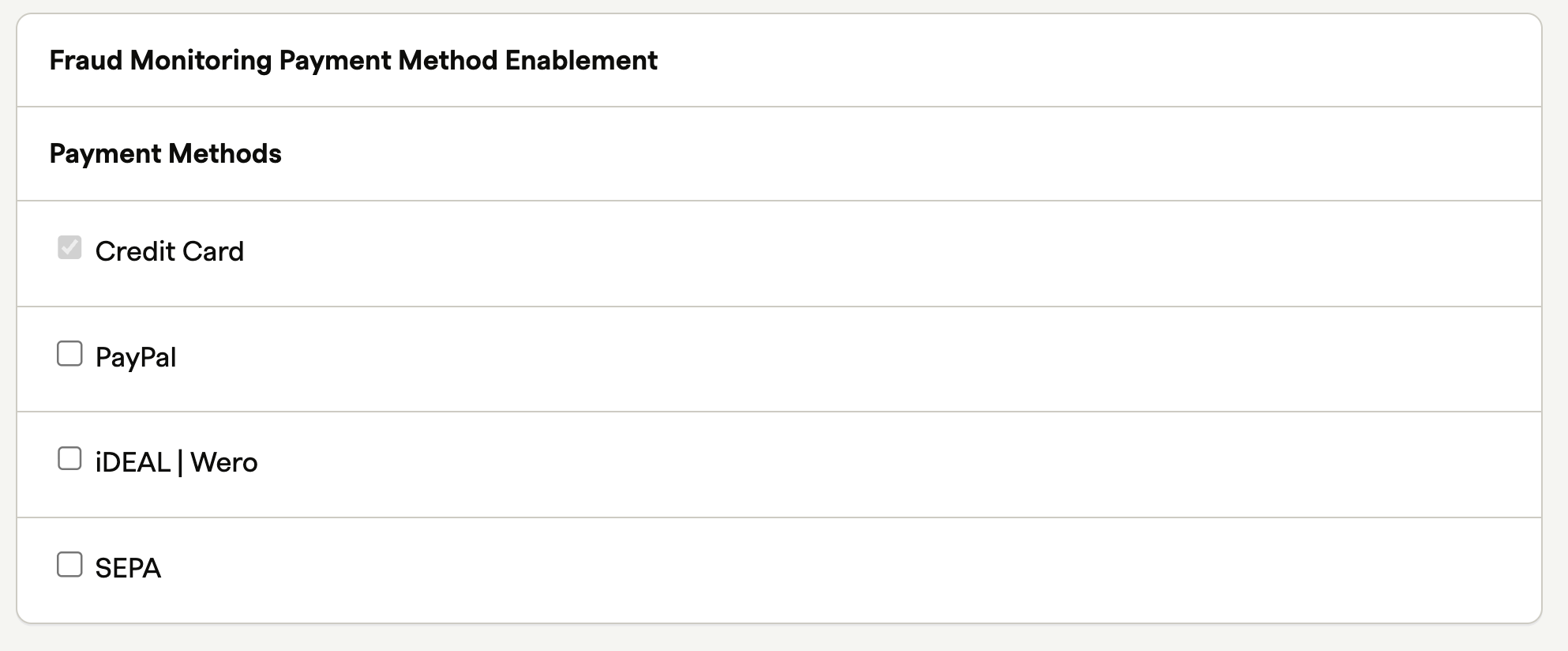
APM Configuration: Select which Payment Methods, in addition to Cards, that you wish to use fraud checks on. You may select from any that are active on your site. See example below. Deselecting will keep these payment method transactions from being sent to Kount.
Step 4: Enable Kount Fraud Management
- Set your Fraud Monitoring Status to 'Enabled' and save settings.
Step 3: Webhook Configuration (Optional)
You will only need to set up webhooks if you plan on using the 'Review' option. Otherwise, you can skip this step.
For merchants who are not ingesting Recurly webhooks or are not integrated using the Review flow (see documentation below), do not use or set up 'Review' rules in Kount 360.
- Log into your Kount 360 Dashboard -- you must have Owner and/or Admin permissions to access API Keys, ensure you are logging in to the correct account credentials.
- If you have multiple Organizations, select the correct organization for your business.
- Navigate to "Product Configuration" → "System Settings" → "Webhooks'
- Click 'New Webhooks'
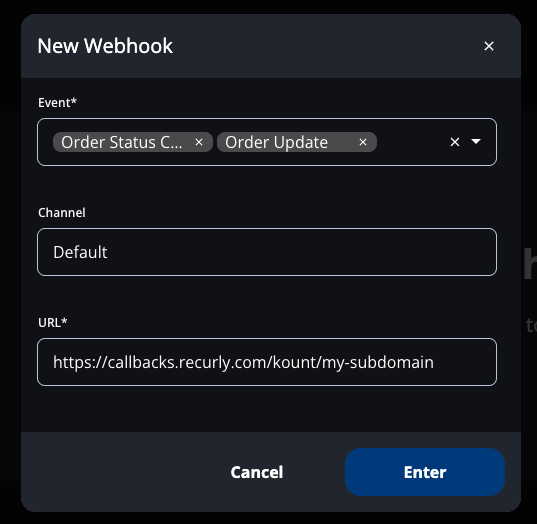
- Choose 'Order Status Change' and 'Order Update' under 'Payments Fraud' options.
- In 'Channel', ensure that this value and the 'Website ID' you entered in Recurly match (if applicable).
- If you did not enter anything as your website ID in Recurly, enter 'Default' here.
- Enter your Recurly callback endpoint:
https://callbacks.recurly.com/kount/your-subdomainwhereyour-subdomainwill be your Recurly site subdomain.- Example: If your Recurly subdomain is 'mysite.recurly.com', then your URL will look like this:
https://callbacks.recurly.com/kount/mysite
- Example: If your Recurly subdomain is 'mysite.recurly.com', then your URL will look like this:
- Click 'Enter' button.
- A modal to confirm your settings will appear. Click 'Confirm'.
- Unlike the API Key, you will be able to edit this configuration after saving.
Example Setup:
Kount Fraud Checks and Special Behavior
How does it work?
Upon activation, for every new card transaction, Recurly communicates with Kount’s Fraud Service, sharing essential transaction details like IP address, email address, shipping address, card details or apple pay tokens, billing info, and more.
Kount processes this data using its proprietary AI, applies your custom rules, and returns a risk decision. Recurly respects this decision: if Kount advises declining the transaction, Recurly halts the process, avoiding the payment gateway. If approved, Recurly continues with the transaction, forwarding details to the payment gateway.
Kount has additional layers of fraud protection in Kount Enterprise. Contact Kount to learn more about this offering and then, to integrate Kount Enterprise with Recurly, reach out to Recurly's onboarding team.
Using custom fields
When using Custom Fields (formerly referred to as UDFs or 'User Defined Fields'), the label was not case-sensitive. In Kount 360, the label you send to Recurly will need to match the label you set in Kount. Example:
- If your Kount Rule is set up with a custom field label of 'Velocity', then you must send 'Velocity' to Recurly, and not 'velocity', 'VeLoCiTy' or 'VELOCITY' as the rule will not trigger.
Enabling Kount Review Webhooks
If you are utilizing the 'Review' flows in Kount, you will need to configure an endpoint in your Kount 360 Dashboard so that Recurly receives updates on your orders when Review states move to Approved or Declined.
While you should have had your webhooks configured when you set up your account, merchants who have migrated from Kount Command to Kount 360 may not have this enabled.
Kount Webhook Endpoint: https://callbacks.recurly.com/kount/your-subdomain where your-subdomain will be your Recurly site subdomain.
Kount only supports a single endpoint at this time, so if you are sharing your Kount credentials across multiple Recurly sites, you will not be able to use Review flows on all of them, and you must choose. For this, it is recommended to have a specific website ID (Kount site) that has Review flows.
You can configure your Kount site settings in your Fraud Management settings within Recurly. Simply enter a value for the 'Website ID' in configuration, and set up your Review rules to look at that value in Kount.
For a quick guide on best practices when ingesting Review webhooks, see our integration guide on Ingesting Kount Status Webhooks and next steps.
Updated 12 days ago