
Zones
Zones designate areas in your app or site where personalized content—text, images, or invisible actions—can be injected by Recurly Engage.
Zones are the named spots in your app or website where Recurly Engage shows prompts. Watch the video to see how to create a horizontal zone — the steps for vertical, tile, and text zones are exactly the same.
Available on all Recurly Engage plans
Prerequisites
- You must have Company or App Administrator permissions in Engage.
Definition
A zone is a named placeholder in your application or website where Engage can insert prompts or perform invisible actions. Zones blend into your UI to guide users, display promotional content, or trigger behaviors such as hiding ads for VIP users.
Key benefits
Flexible placement
Define zones anywhere in your layout — top banners, sidebars, tiles, or inline sections.
Multiple modes
Render text-only, display items, or invisible actions without user-facing UI.
Dynamic targeting
Combine with segments, triggers, and limits to serve context-sensitive content.
Key details
You can deliver one or more prompt items into a zone. When multiple items are present, you can choose Stack, List, or Slider display modes.
Create a zone
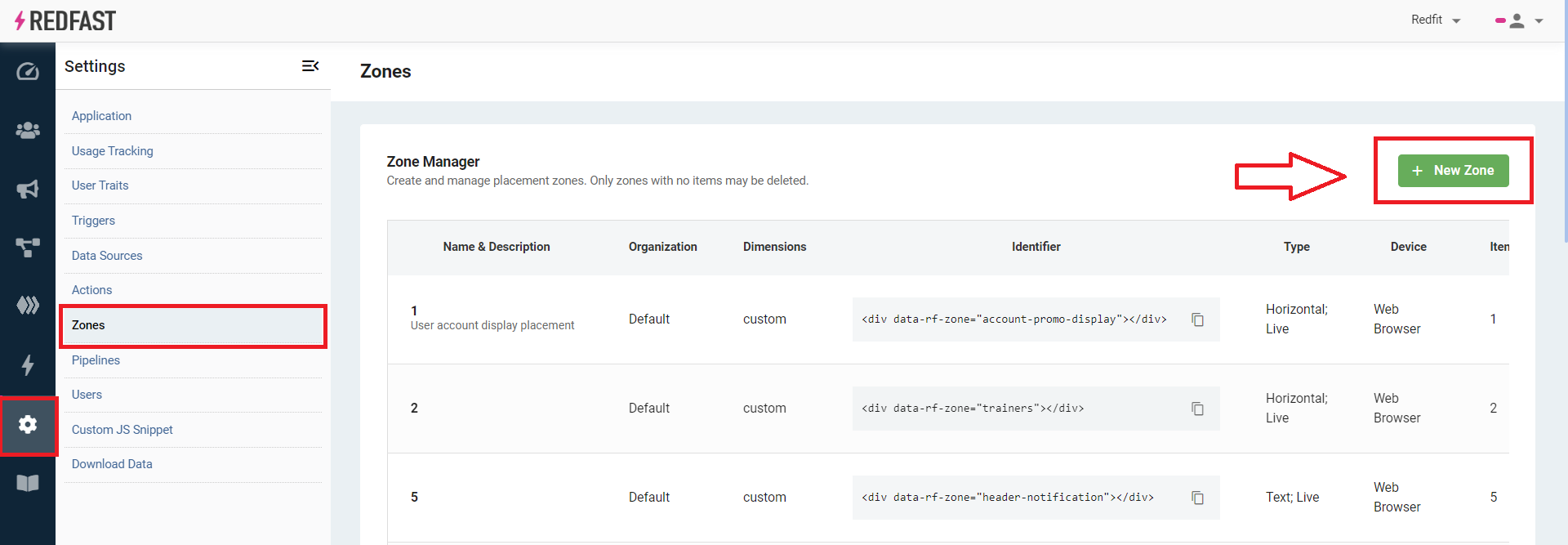
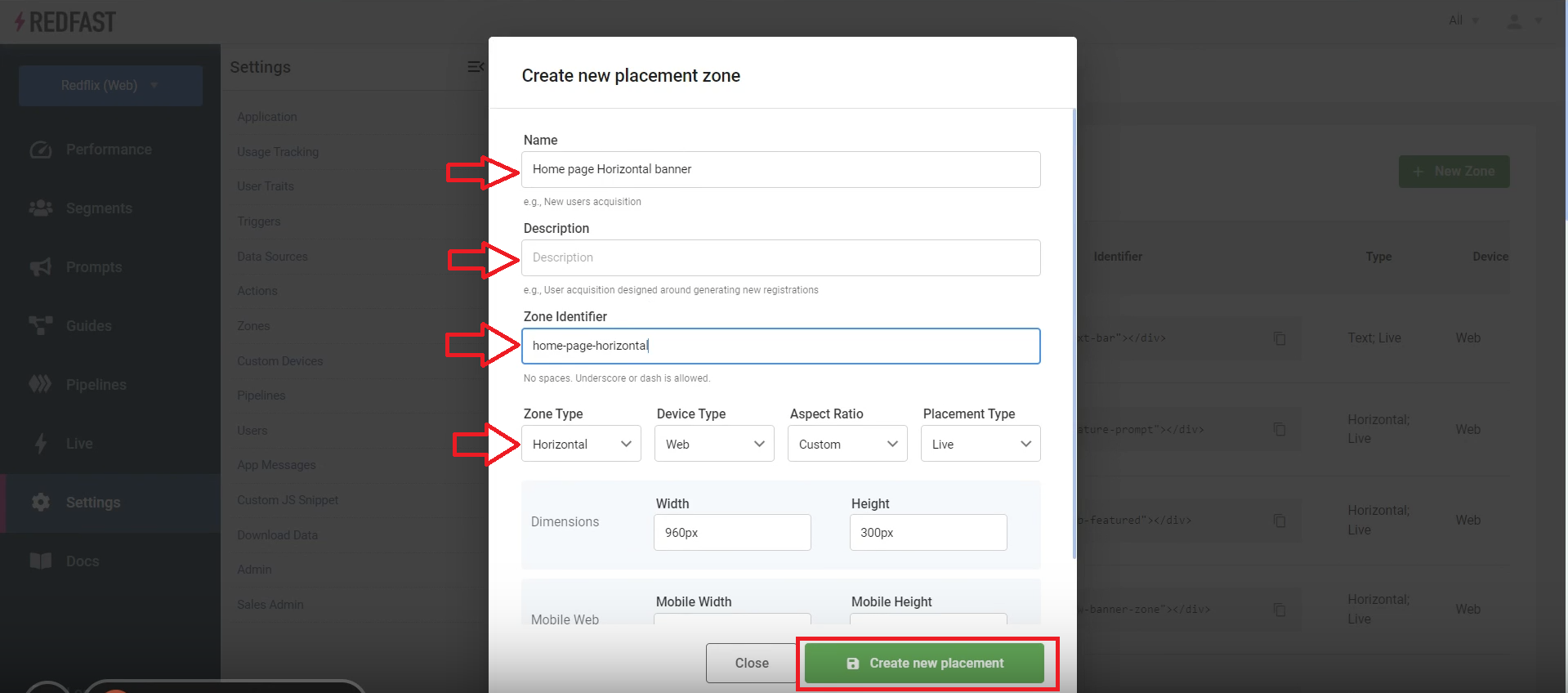
Once your zone is created, any inline prompts assigned to it render in the placement you’ve defined.
Updated 24 days ago
Did this page help you?