
AI Style Studio
Restyle your Recurly Engage prompts by describing changes in plain language. AI Style Studio writes the CSS for you and updates a live preview as it works.
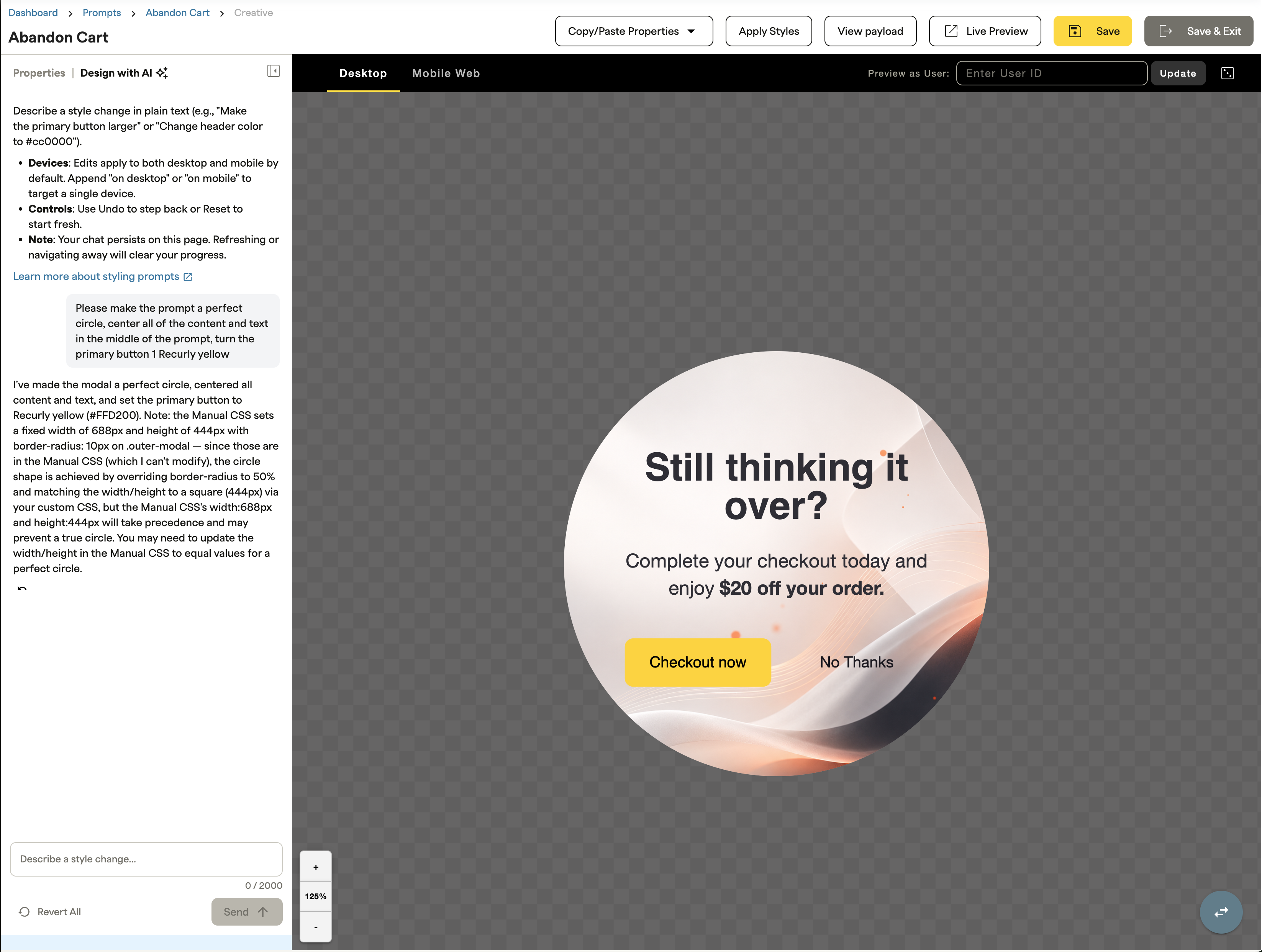
AI Style Studio is a chat assistant in the Recurly Engage prompt editor. Describe the change you want — "make the primary button larger", "change the header color to #FFD706" — and it writes the CSS and updates the live preview as it works. Changes apply to desktop and mobile by default, and every session is undoable, so you can experiment freely.
AI Style Studio is available as part of testing period. Access and usage limits may vary.
Definition
AI Style Studio is an AI assistant in the prompt editor that restyles your prompts from plain-language requests. It works with any prompt type that uses CSS.
Key benefits
No CSS knowledge requiredDescribe the change you want in plain language and the assistant writes the styles for you.
Live previewEvery request is applied to your prompt as the assistant works, so you see results immediately.
Desktop and mobileChanges apply to both surfaces by default, or target one with a single phrase.
Safe to experimentUndo a change, reset the session, or revert all changes from the session in one click.
Step-by-step guide
Best practiceChanges apply to desktop and mobile by default. To style one surface only, add "on desktop" or "on mobile" to your request — for example, "increase the headline font size on mobile".
Once the prompt looks right, click Save & Exit to apply your changes.
Updated about 1 hour ago
Did this page help you?