
Recurly Commerce
Learn how to create a Recurly Commerce connector action so subscribers can pause a subscription or apply a discount with one click from a Recurly Engage prompt.
This guide explains how to create a Connector Action that integrates your Recurly Commerce account with Recurly Engage. Subscribers can then perform instant, one-click actions on their subscriptions, such as applying a discount or pausing a subscription, directly within Engage prompts and without custom code.
Available on all Recurly plans
Definition
The Recurly Commerce connector action lets subscribers manage their subscriptions with one click from a Recurly Engage prompt. It runs on the subscription logic of Recurly Commerce and authenticates with your Recurly API key.
Key benefits
Code-free user experience
Deploy complex subscription actions in Engage prompts with a no-code setup for your development and marketing teams.
Instant subscription management
Let subscribers make real-time changes, such as pausing a subscription or applying a discount, with a single click.
Reduced churn
Deploy targeted save offers and win-back triggers using real-time Commerce actions in Engage to maximize customer retention.
Key details
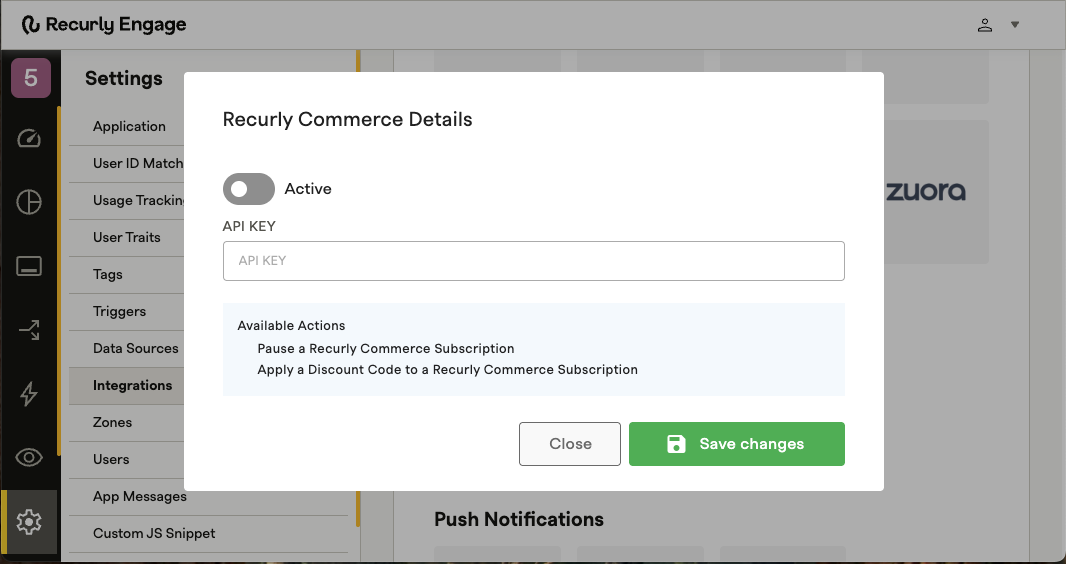
- Navigate to Settings > Integrations in Pulse, the Recurly Engage management console.
- Locate the Recurly Commerce connector setup page.
- Enter your unique Recurly API key in the required field to connect your accounts.
This key establishes a secure, authenticated link between Commerce and Engage and grants the permissions needed to run subscription actions.
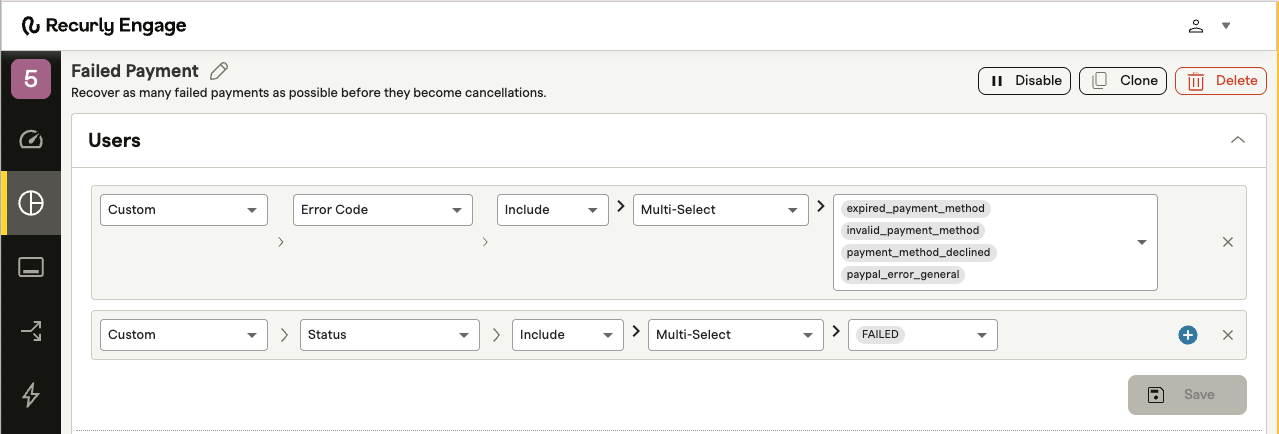
A segment is a distinct group of customers defined by shared financial or behavioral criteria (for example, customers with a failed payment or an expiring card). Targeting these subsets with highly relevant messages maximizes the effectiveness of your campaigns. Learn more about segments.
- Navigate to Segments > + New Segment to add a new segment group.
- Name your segment: Give it a clear, descriptive name.
- Select the fields that define your segment: Use preset fields like user, location, or interactions to build the logic for your targeted group.
4
Add one-click actions to your prompts
For detailed instructions on adding and configuring actions on your prompts, see the Actions documentation.
Updated 23 days ago
Did this page help you?