
Creating test account credentials
Learn how to quickly create test account credentials in Recurly Engage. Setting up these credentials allows your Recurly Account Manager or Support Specialist to directly access and test your configurations and prompts, speeding up troubleshooting and deployment.
To give you the most accurate and efficient support, your Recurly account manager or support specialist may ask for test account credentials. These credentials let a Recurly team member simulate a customer directly within your Recurly Engage environment, so we can help you faster and more effectively.
Available on all Recurly plans
Creating a test user is an essential step when our team needs to:
- Replicate issues: Accurately reproduce and diagnose a reported issue or bug within your configuration.
- Validate setup: Confirm that new prompts, notifications, and logic are triggering correctly before they go live to your customers.
- Walk through configuration: Provide hands-on guidance or demonstrations using a safe, testable user profile.
Key benefits
Faster resolution
Direct testing access for your Recurly contact cuts out the back-and-forth, so troubleshooting moves quicker.
Accurate testing
The Recurly team can test configurations under the exact conditions of a real subscriber, ensuring high-quality validation.
Data safety
Testing uses a simulated user ID, so your live customer data and subscriptions stay completely unaffected.
Confidence in deployment
You and your account manager can verify together that your configurations work as intended.
Key steps
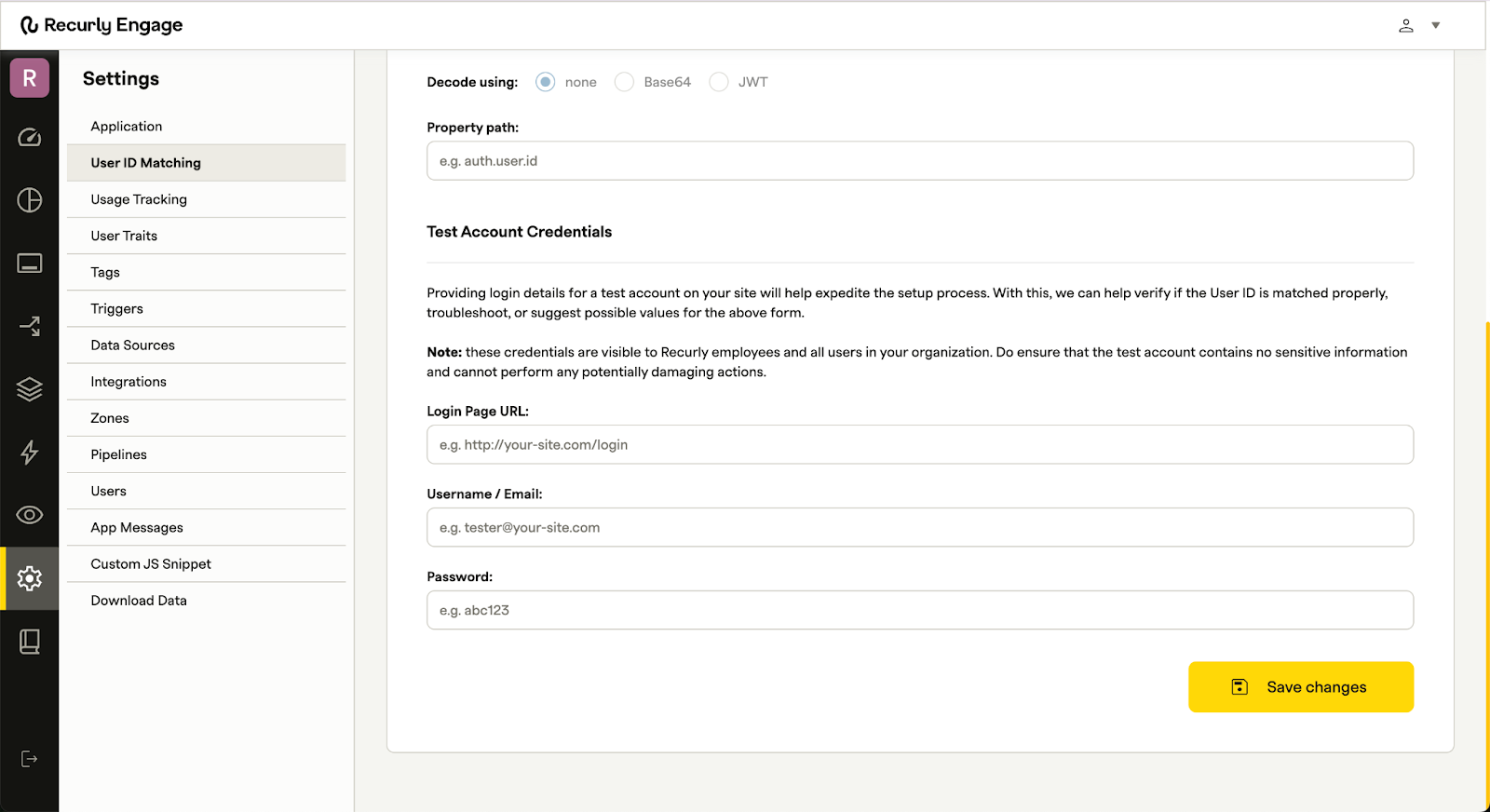
Follow these steps in Engage to create your test user:
- Log in to your Recurly Engage account.
- In the main navigation menu, click Settings.
- In the Settings menu, click User ID Matching.
- On the User ID Matching page, click Test Account Credentials.
- When prompted, enter the necessary details for your test user.
- Click Save Changes to finalize the test account.
Updated 22 days ago
Did this page help you?