
Overview: Segments
How to create and manage user segments in Recurly Engage for targeted prompt delivery.
Segments group your users by characteristics and behavior so you can target the right audience with prompts and guides. Build a segment from built-in or custom traits, then use it to include or exclude users.
Available on all Recurly Engage subscription plans
Prerequisites
- You must have Company or App Administrator permissions in Recurly Engage.
Limitations
- There's no limit on the number of segments you can create, and users can belong to multiple segments.
Definition
A segment uses trait filters to include or exclude users based on their characteristics or behaviors. Filters can use built-in usage, device, and location traits, or imported custom traits.
Key benefits
Precision targeting
Reach the right users with contextually relevant messages.
Dynamic audiences
Automatically update segments based on real-time trait changes.
Cross-functional data
Use external data through custom trait imports for advanced targeting.
Key details
Trait sources
- Built-in traits: Usage metrics (visits, minutes), device type, location, and prompt interactions, tracked automatically. See Usage tracking for the full list of automatically tracked attributes and how to add custom trackers.
- Custom traits: Import through AWS S3 (CSV, ingested within a few hours), direct CSV upload in Pulse, or real-time events through the API or SDK.
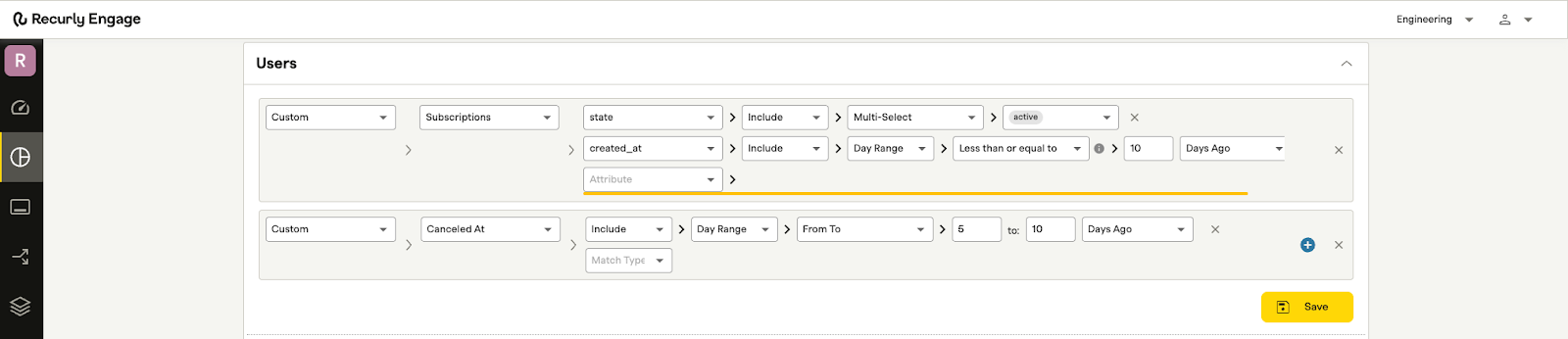
- Complex collections: Collections such as a user having multiple active or expired subscriptions. Learn more about complex collections.
Common segment examples
- Monthly plan members with declining visits
- Trial users
- Users with failed payments
Advanced filtering logic
- Multi-value support: You can add multiple rows for the same custom trait within a single segment. For example, you can set a filter to include "Renewal Start Date" greater than 30 days AND exclude "Renewal Start Date" greater than 60 days.
- Within a single "Subscription" collection: Currently, filters within the subscription object function independently. A user qualifies if they have any subscription matching criterion A and any subscription matching criterion B. They don't necessarily have to be the same subscription.
Usage-based segments
Combine segments with Usage tracking to target users based on app behavior:
- Users who have never visited a specific page or content
- Users who clicked a particular button or section
Create a segment: example
The following example creates a segment of Engaged, US-based iOS Premium plan users who have not redeemed the iOS prompt.
- Engaged: Choose Usage → Visits → Greater than or equal to → 2 over the last 7 days.
- US-based: Select Location → Countries → Include → United States of America.
- iOS: Select Device → OS → iOS.
- Premium plan: Under Custom → Plan → Include → Premium.
- Not redeemed iOS prompt: Select Interactions → User has not → accepted (primary) → [iOS popup]. Choose your created prompt from the dropdown.
- Add complex subscription traits:
- Select Subscriptions from the trait dropdown.
- Sub-attribute: Choose a dimension.
- Match Type: Set your criteria.
- Note: You can add multiple sub-attributes to further refine the collection.
NoteCustom covers any traits you've imported. Learn more about importing custom traits.
Recurly Engage starts processing incoming data and populates your segment within a few hours. To monitor the segment's metrics, open its detail view and adjust the date range as needed.
Updated 17 days ago
Did this page help you?