
iOS & tvOS SDK (V3)
How to install, initialize, and integrate the Recurly Engage Apple SDK into native iOS and tvOS applications, including prompt display, event tracking, push notifications, and in-app purchases.
Prerequisites
- A Recurly Engage account with a valid App ID (found in Settings → Application)
- Xcode with an iOS 15+ or tvOS 15+ deployment target
- Swift Package Manager or access to the
RedFast.xcframeworkfile for legacy installation
Limitations
- Push notification support is available on iOS only, not tvOS
- In-app purchase support is available on iOS only
PromptManageris a@MainActor-isolated singleton, so all public methods must be called from the main thread- Requires iOS 15+ or tvOS 15+
Definition
Key benefits
Key details
Install the SDK
The Recurly Engage Apple SDK supports iOS 15+ and tvOS 15+. The latest SDK version and a sample app are available at github.com/redfast/redfast-sdk-apple/releases.
Swift Package Manager
Add the SDK from the public GitHub repository.
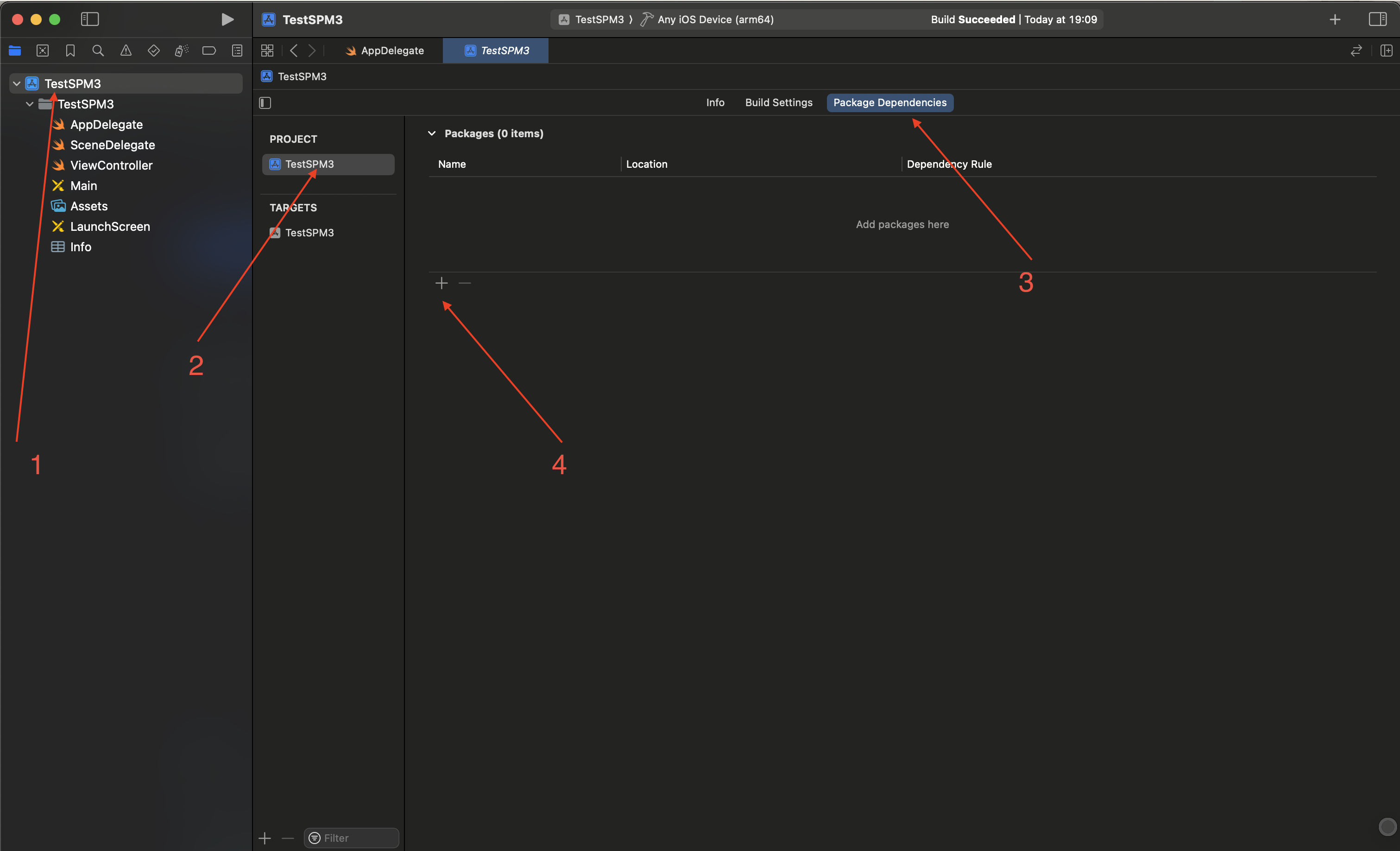
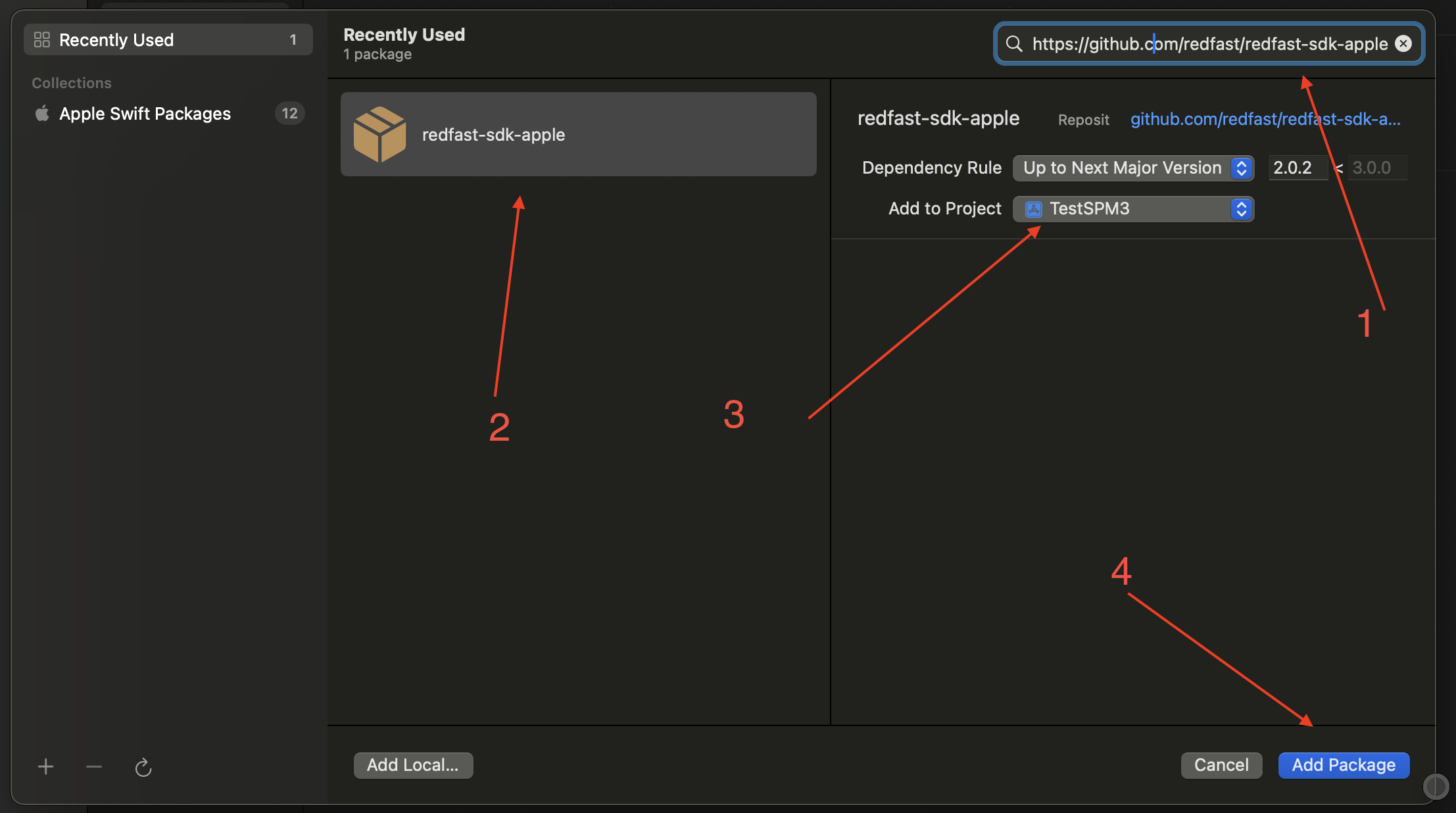
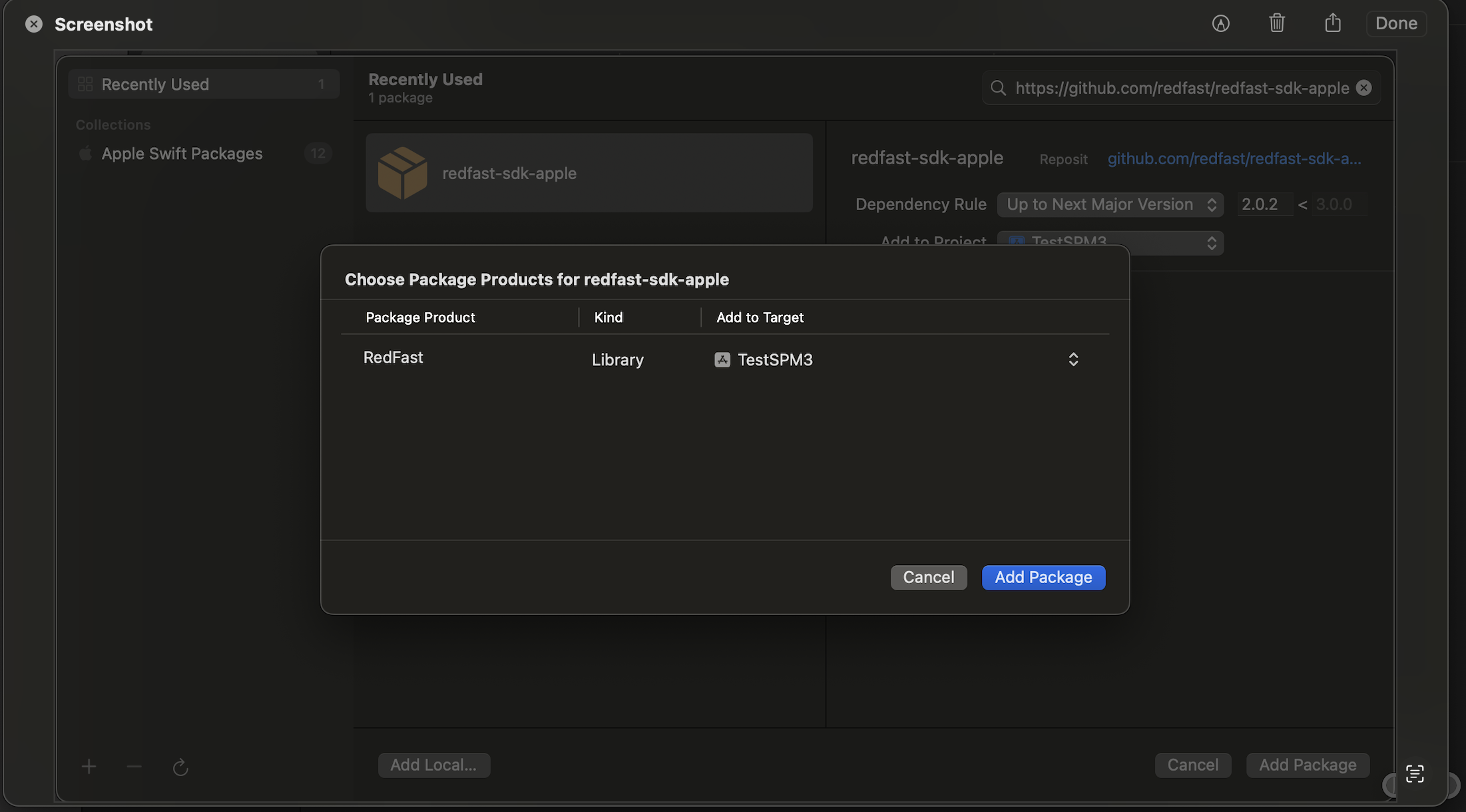
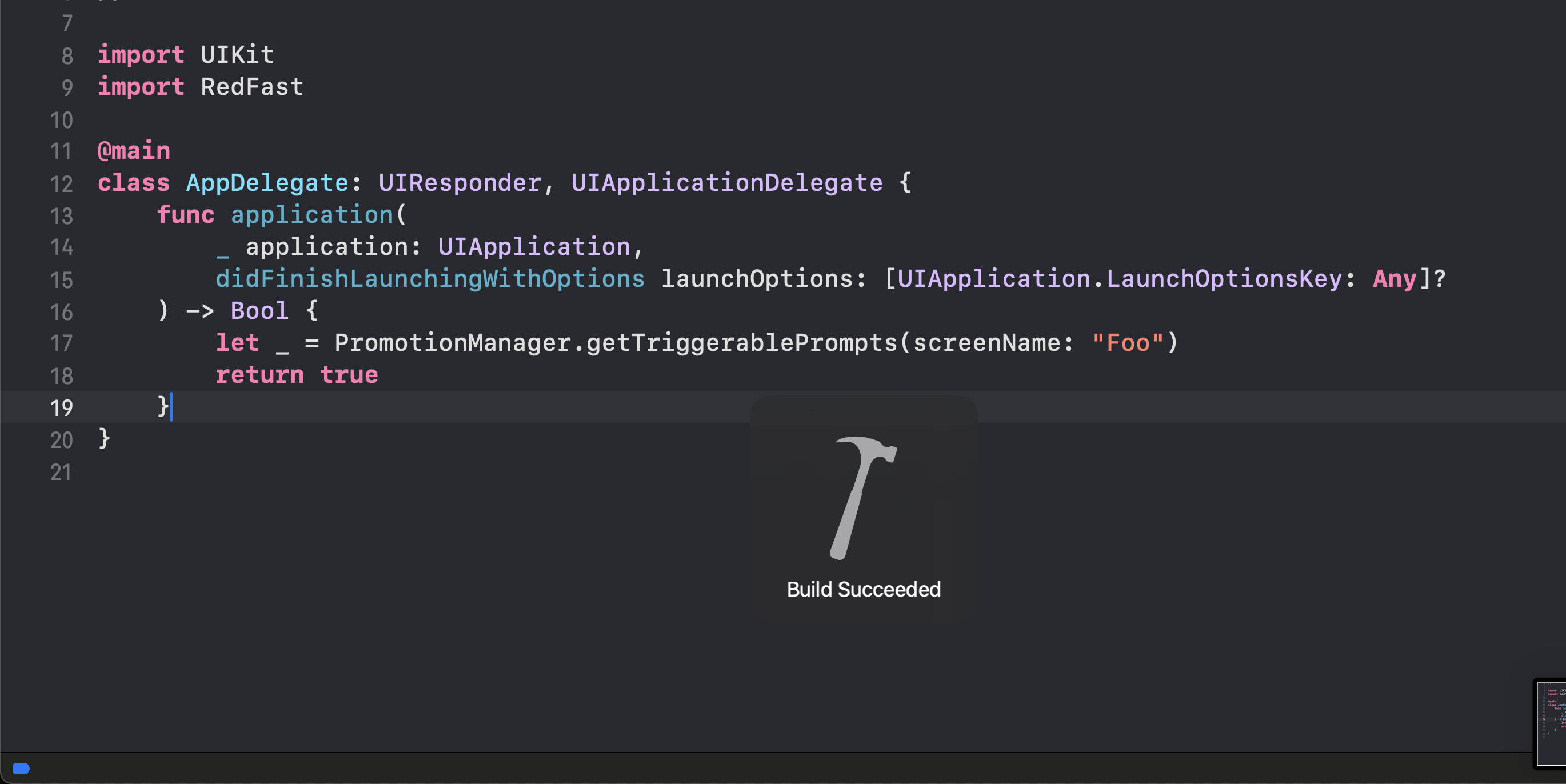
The SDK ships three products. Add only what your target needs:
| Product | Contents |
redfast-ui | Core + SwiftUI components (modals, banners, interstitials, inline) |
redfast-ui-iap | redfast-ui + StoreKit 2 in-app purchase support |
redfast-ui-push | redfast-ui + push notification support (iOS only) |
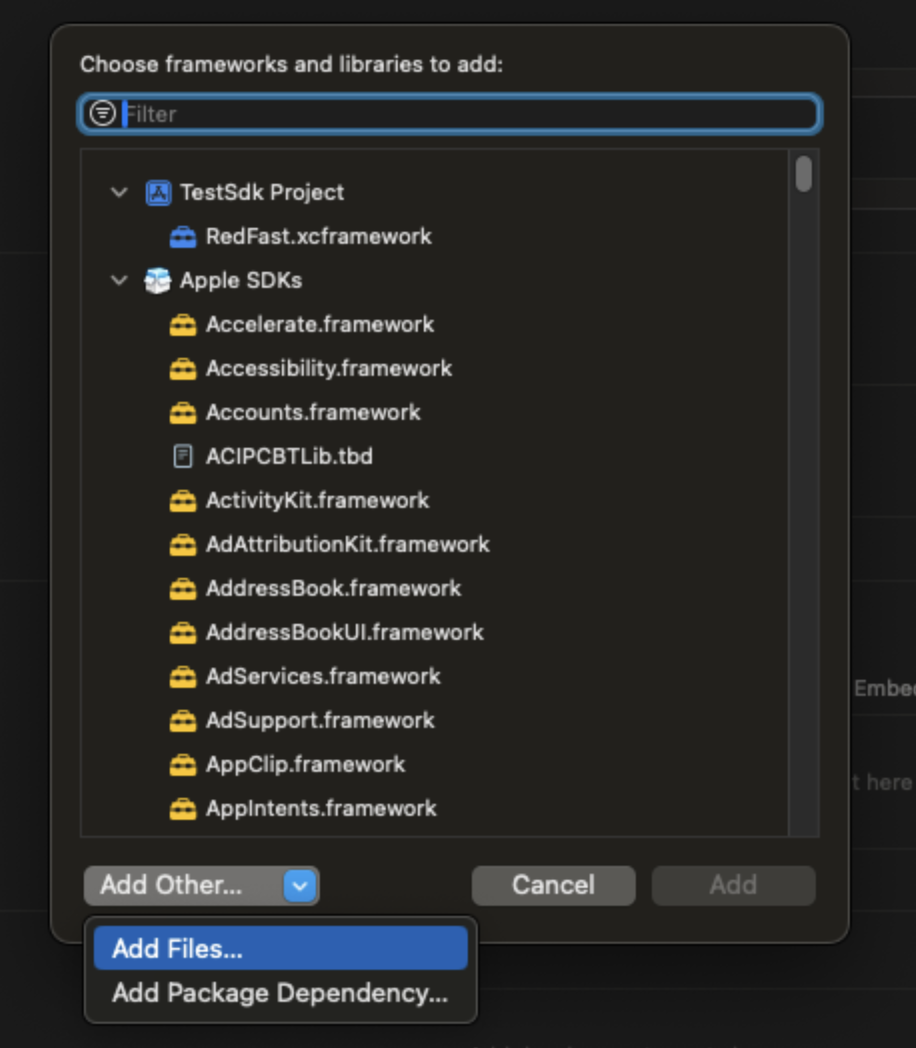
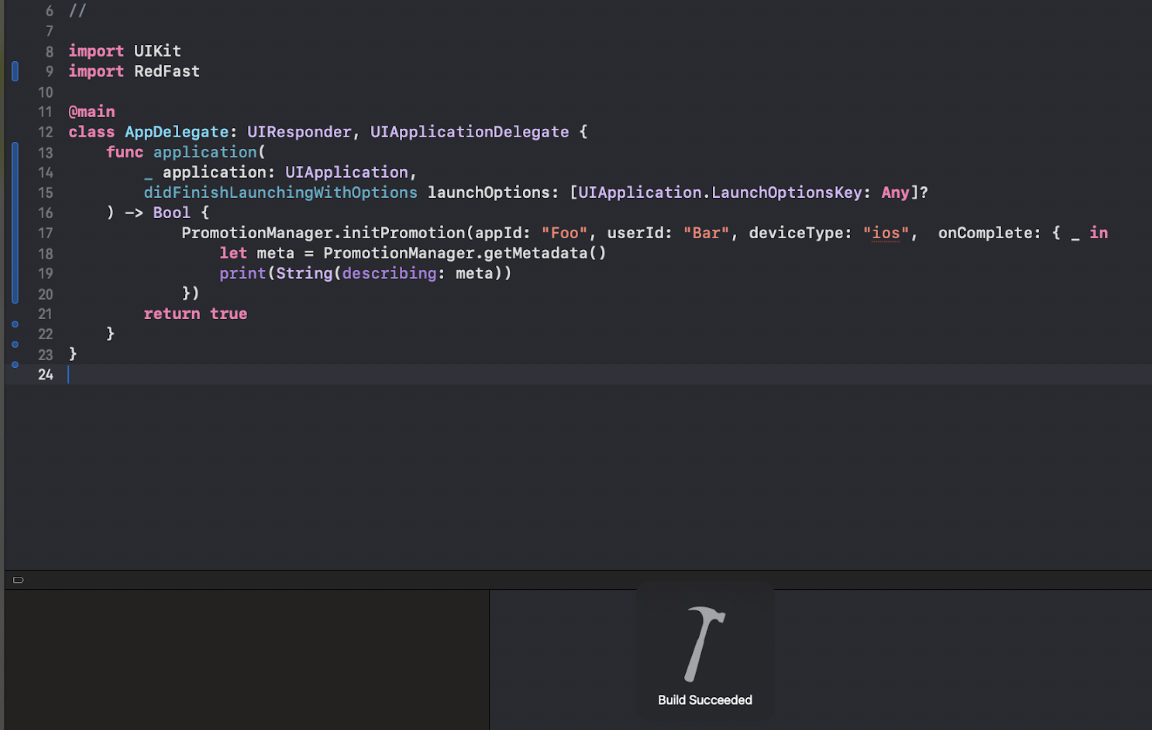
Legacy installation via local SDK
Initialize the SDK
Call PromptManager.initPrompt once at app startup, before any screen or button triggers. Your App ID appears on the Settings → Application screen in Recurly Engage.
SwiftUI
import redfast_ui

@main
struct MyApp: App {
    init() {
        PromptManager.initPrompt(appId: "YOUR_APP_ID", userId: "USER_ID") { result in
            guard result.code == .OK else { return }
            // SDK ready — safe to call PromptManager.shared from here
        }
    }

    var body: some Scene {
        WindowGroup { ContentView() }
    }
}
UIKit (AppDelegate)
import redfast_ui

func application(
    _ application: UIApplication,
    didFinishLaunchingWithOptions launchOptions: [UIApplication.LaunchOptionsKey: Any]?
) -> Bool {
    PromptManager.initPrompt(appId: "YOUR_APP_ID", userId: "USER_ID") { result in
        guard result.code == .OK else { return }
        // SDK ready
    }
    return true
}
PromptManager is a @MainActor-isolated singleton. All public methods must be called from the main thread.
Display prompts with SwiftUI (recommended)
The .promptOverlay view modifier is the simplest way to display prompts. It resolves the trigger, respects any configured delay, and renders the appropriate component (PromptPopup, PromptBanner, or PromptInterstitial) automatically.
import redfast_ui

struct HomeView: View {
    @State private var trigger: PromptOverlayTrigger? = nil

    var body: some View {
        ContentView()
            .promptOverlay(trigger: $trigger) { result in
                switch result.code {
                case .BUTTON1:  handleAccept(result)
                case .BUTTON2:  handleAccept2(result)
                case .BUTTON3:  handleDecline(result)
                case .DISMISS:  break
                case .TIMEOUT:  break
                default:        break
                }
            }
            .onAppear {
                trigger = .screen("HomeScreen")
            }
    }
}
PromptOverlayTrigger
| Case | When to use |
.screen(String) | User navigated to a screen |
.button(String) | User tapped a button with a configured click ID |
.prompt(Prompt?) | Display a specific Prompt object directly |
Setting trigger to nil hides any active prompt.
Manually trigger by screen name
Call onScreenChanged when a new screen becomes active. It returns a CandidatePathItem with the matched path and any configured display delay.
let candidate = PromptManager.shared.onScreenChanged(screenName: "HomeScreen")

if let path = candidate.path {
    let delaySeconds = candidate.delaySeconds  // configured delay before showing
    let prompt = PromptManager.shared.getPrompt(id: path.id)
    // render prompt after delay
}

// If no prompt matched, inspect candidate.result?.code:
// .NOT_APPLICABLE — no matching trigger
// .SUPPRESSED     — matched but currently suppressed
// .HOLDOUT        — user is in holdout group
// .DISABLED       — prompts are disabled via enablePrompt(false)
Manually trigger by button click
Call onButtonClicked in a button's action handler. You can use it alongside onScreenChanged when a trigger requires both a screen name and a click ID.
@IBAction func cancelButtonTapped(_ sender: Any) {
    let candidate = PromptManager.shared.onButtonClicked(clickId: "unsubscribe")

    if let path = candidate.path {
        let prompt = PromptManager.shared.getPrompt(id: path.id)
        // render prompt
    }
}
Inline prompts
SwiftUI component
PromptInline is a drop-in SwiftUI view that fetches and renders a zone-based inline prompt automatically. It handles impression and dismiss tracking internally.
import redfast_ui

struct HomeView: View {
    var body: some View {
        VStack {
            PromptInline(zone: "featured") { event in
                switch event {
                case .clicked(let result):   handleDeeplink(result)
                case .dismissed(let result): break
                default: break
                }
            }
            // rest of content
        }
    }
}
Fetch inline prompts manually
Use getTriggerablePrompts when you need to render inline prompts in a custom UI. Pass the current screen name and/or click ID. Use type to filter by prompt type and zoneId to filter by placement zone.
let prompts = PromptManager.shared.getTriggerablePrompts(
    screenName: "HomeScreen",   // use "*" to match any screen
    clickId: "*",               // use "*" to match any click
    type: .HORIZONTAL,
    zoneId: "featured"
)

for prompt in prompts {
    // Prompt properties
    let id          = prompt.id
    let type        = prompt.type          // PathType
    let deeplink    = prompt.deeplink      // [String: String?]?
    let deviceMeta  = prompt.deviceMeta    // [String: String?]?
    let inAppSku    = prompt.inAppSku      // App Store product ID if configured
    let button1     = prompt.button1       // ModalButton? (label, colors, dimensions)
    let button2     = prompt.button2
    let button3     = prompt.button3
    let countDown   = prompt.countDown     // auto-dismiss timer in seconds (0 = none)

    // Report user activity
    prompt.impression()   // call when prompt becomes visible
    prompt.goal()         // button 1 tapped
    prompt.goal2()        // button 2 tapped
    prompt.decline()      // button 3 / decline tapped
    prompt.dismiss()      // user dismissed
    prompt.timeout()      // countdown reached zero
    prompt.holdout()      // user is in holdout group
}
Available PathType values
| Value | Display name |
.MODAL | Popup prompt |
.INTERSTITIAL | Full-screen interstitial |
.BOTTOM_BANNER | Bottom banner |
.HORIZONTAL | Horizontal banner |
.VERTICAL | Vertical banner |
.TILE | Tile |
.VIDEO | Video popup |
.INVISIBLE | No UI — metadata/config only |
Manual tracking
Use these methods when you render prompts in a custom UI instead of the built-in components. All methods return a PromptResult.
// Record an impression
let result = PromptManager.shared.onImpression(pathId: prompt.id, actionGroupId: prompt.actionGroupId)

// Record a goal (button 1 accepted)
let result = PromptManager.shared.onGoal(pathId: prompt.id, actionGroupId: prompt.actionGroupId)

// Record a second-button goal (button 2)
let result = PromptManager.shared.onGoal(pathId: prompt.id, actionGroupId: prompt.actionGroupId, acceptType: "accept2")

// Record a dismiss / timeout / decline
let result = PromptManager.shared.onDismiss(pathId: prompt.id, actionGroupId: prompt.actionGroupId, reason: "dismiss")
// reason values: "dismiss" → .DISMISS | "timeout" → .TIMEOUT | "decline" → .BUTTON3

// Suppress future display after an interaction
PromptManager.shared.suppressOverlay(pathId: prompt.id, reason: "accept")
// reason values: "accept" | "timeout" | "decline" | "dismiss"
Inline-specific tracking
// Record that an inline prompt became visible
PromptManager.shared.onInlineViewed(pathId: prompt.id, actionGroupId: prompt.actionGroupId)

// Record that the user tapped an inline prompt
PromptManager.shared.onInlineClicked(pathId: prompt.id, actionGroupId: prompt.actionGroupId)
PromptResult
Every tracking call returns a PromptResult:
public struct PromptResult {
    var code: PromptResultCode
    var value: [String: Any?]?       // deep link key-value pairs
    var promptMeta: [String: Any?]?  // prompt analytics metadata
    var meta: [String: Any?]?        // custom metadata from Recurly Engage
    var inAppProductId: String?      // App Store product ID if configured
}
promptMeta contains:
| Key | Description |
promptName | Prompt name |
promptID | Prompt ID |
promptVariationName | Variation name |
promptVariationID | Variation ID |
promptExperimentName | Experiment name |
promptExperimentID | Experiment ID |
promptType | Numeric path type |
buttonLabel | Label of the button that was tapped |
PromptResultCode values
| Code | Meaning |
.OK | SDK initialized successfully |
.IMPRESSION | Impression recorded |
.BUTTON1 | User accepted (button 1) |
.BUTTON2 | User accepted (button 2) |
.BUTTON3 | User declined (button 3) |
.DISMISS | User dismissed |
.TIMEOUT | Auto-dismiss timer expired |
.HOLDOUT | User is in holdout group |
.NOT_APPLICABLE | No matching trigger |
.SUPPRESSED | Matched but suppressed |
.DISABLED | Prompts disabled via enablePrompt(false) |
.ERROR | SDK error |
PromptEvent enum
PromptEvent is what promptOverlay and PromptInline deliver to your onEvent closure:
switch event {
case .impression(let result): // prompt became visible
case .clicked(let result):    // button 1 or button 2 tapped
case .decline(let result):    // button 3 tapped
case .timeout(let result):    // timer expired
case .dismissed(let result):  // user dismissed
}
Deep links and custom metadata
You configure deep link key-value pairs and custom metadata in Recurly Engage.
// From a Prompt object (inline)
let deeplink   = prompt.deeplink    // [String: String?]?
let customMeta = prompt.deviceMeta  // [String: String?]?

// From a PromptResult (modal/banner, after a goal event)
let deeplink   = result.value       // [String: Any?]?
let customMeta = result.meta        // [String: Any?]?
Invisible prompts (metadata only)
Prompts of type .INVISIBLE carry no UI. They deliver metadata that's visible across all screens. Use getMeta() to read the merged metadata from all active invisible prompts.
let meta = PromptManager.shared.getMeta() // [String: Any]Send a custom tracking event
PromptManager.shared.customTrack(customFieldId: "YOUR_CUSTOM_TRACK_ID")Update the user ID
Change the user ID after initialization, for example when a user authenticates mid-session. Prompts refresh automatically within a few seconds.
PromptManager.shared.setUserId("NEW_USER_ID")Enable or disable prompts
Pause and resume all prompt display without re-initializing the SDK.
PromptManager.shared.enablePrompt(enabled: false) // pause
PromptManager.shared.enablePrompt(enabled: true)  // resume
Reset suppression
Clear all suppressed prompt state and report a goal reset to Recurly Engage. This is useful for QA or when a user's subscription state changes.
PromptManager.shared.resetGoal()Push notifications (iOS only)
Add the redfast-ui-push product to your target. Integrate in this order:
FirebaseApp.configure(): optional, only if you use Firebase Cloud Messaging (FCM)PromptManager.initPrompt(...): must come before the push managerRedfastPushManager.shared.configure(): requests permission and registers for remote notifications
import redfast_ui
import redfast_ui_push

class AppDelegate: NSObject, UIApplicationDelegate {
    func application(
        _ application: UIApplication,
        didFinishLaunchingWithOptions launchOptions: [UIApplication.LaunchOptionsKey: Any]? = nil
    ) -> Bool {
        // FirebaseApp.configure()  // uncomment if using FCM

        PromptManager.initPrompt(appId: "YOUR_APP_ID", userId: "USER_ID") { _ in }
        RedfastPushManager.shared.configure()
        return true
    }
}
RedfastPushManager handles the full push lifecycle automatically:
- Requests user permission and registers for remote notifications
- Swizzles
UIApplicationDelegatepush callbacks, so no manual forwarding is needed - Posts the Apple Push Notification service (APNs) or FCM token to Recurly Engage
- Tracks push impression and goal events
Firebase/FCM support is enabled automatically when FirebaseMessaging is present in the host app.
See Redflix/Redflix/redflixApp.swift for a SwiftUI integration example using @UIApplicationDelegateAdaptor.
Customize the notification action button
RedfastPushManager.shared.setCustomButton("Remind me later")Read the notification payload
These helpers parse the notification userInfo dictionary regardless of whether the payload uses a flat, nested, or APNs aps.alert structure:
let manager = RedfastPushManager.shared

let title       = manager.getTitle(userInfo)
let body        = manager.getBody(userInfo)
let actionUrl   = manager.getActionUrl(userInfo)      // URL to open on tap
let deeplink    = manager.getActionDeeplink(userInfo) // deep link on tap
let images      = manager.getImageUrls(userInfo)
// images.iconUrl, images.smallIconUrl, images.imageUrl
In-app purchases (iOS only)
Add the redfast-ui-iap product to your target. When a PromptResult includes an inAppProductId, pass it to PromptManager.shared.purchase:
if case .clicked(let result) = event, let sku = result.inAppProductId {
    let iapResult = await PromptManager.shared.purchase(sku)
    switch iapResult {
    case .successful: break  // entitle the user
    case .cancelled:  break  // user cancelled
    case .pending:    break  // awaiting parental approval
    case .unverified: break  // StoreKit verification failed
    case .unfound:    break  // product ID not found in the store
    case .error:      break  // StoreKit error
    case .unknown:    break
    }
}
On a successful purchase, the conversion goal is automatically reported to Recurly Engage.
Local testing: Redflix ships a configurations.storekit file. Use Xcode's StoreKit test environment to test purchases without hitting App Store servers.
Claude skill
A Claude skill for this SDK is available for download at SKILL.md. This skill enables Claude to assist with SDK integration, prompt configuration, and event handling in your Android application.
Updated 16 days ago