
Goals
How to set up and use custom conversion goals for your Recurly Engage prompts.
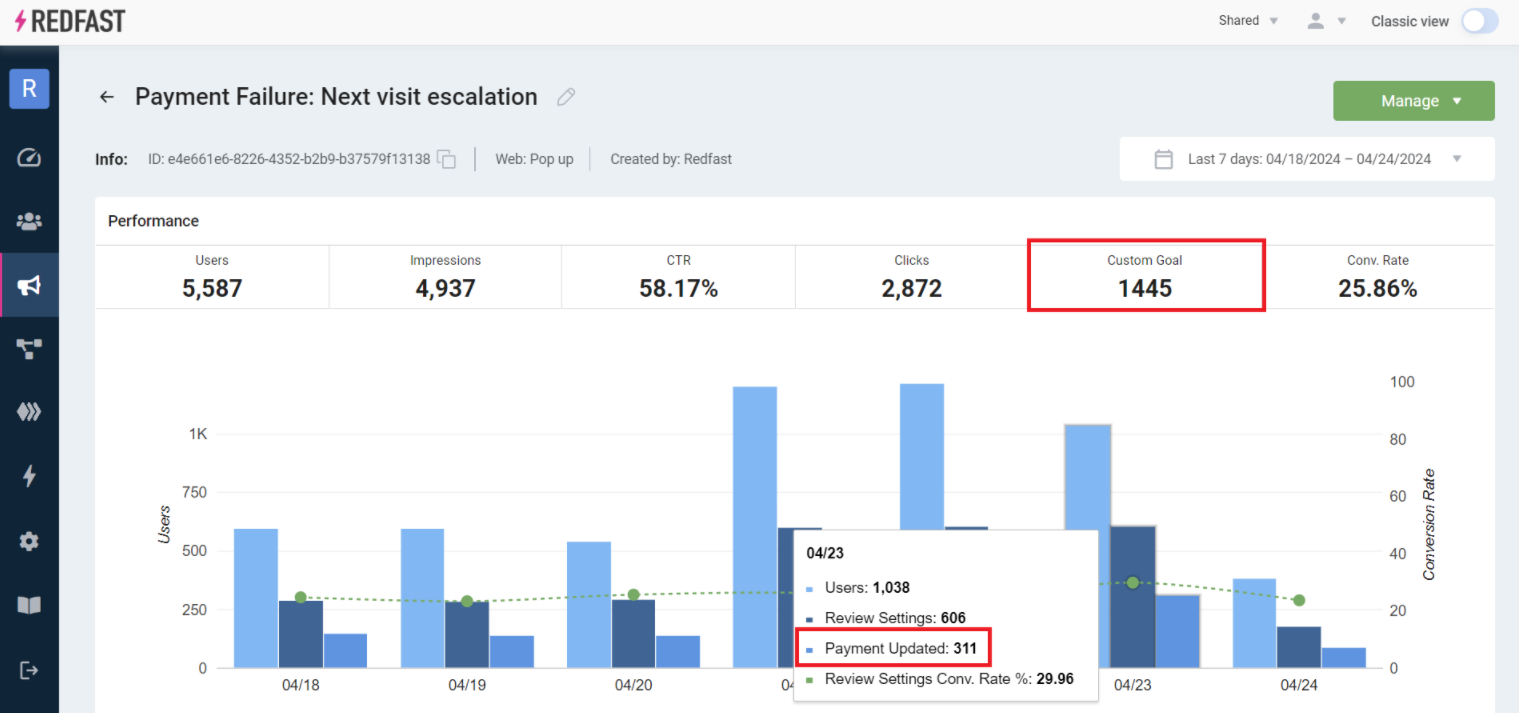
Custom goals let you track conversions beyond the built-in "prompt accepted" metric, such as page visits, API events, or activity in external systems. Attach a goal to a prompt and see how many users complete the action you care about.
Available on all Recurly Engage subscription plans
Prerequisites
- You must have Company, App Administrator, or App Member permissions in Recurly Engage.
Limitations
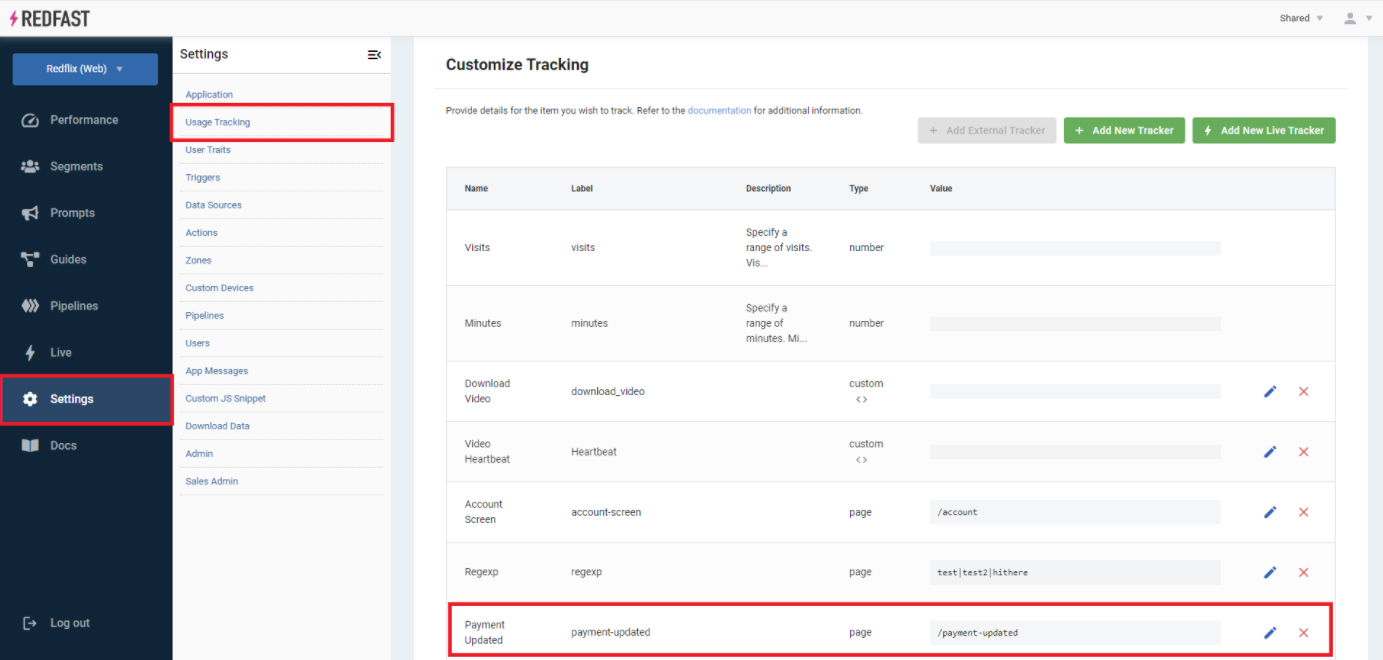
- At least one usage tracker must exist before you add a custom goal.
Definition
A custom goal is a user-defined conversion event, tracked through a usage tracker, that you attach to a prompt to measure success against your own criteria.
Key benefits
Flexible measurement
Define conversions like page visits, payment completions, or external API events.
Accurate attribution
Attribute custom goals to prompt interactions with configurable time windows.
Deeper insights
Compare prompt acceptance with actual business outcomes to optimize more effectively.
Near real-time updates
The enhanced integration with Recurly Subscription Management provides near real-time subscription status information, so you can target and track custom events in Recurly Engage faster. Learn more
Key details
What you can track
- Visits to a specific URL path (for example,
/payment-updated) - Arrivals on a particular app screen (mobile or TV)
- Backend events (payment processed, subscription changed)
- External system activities accessible through your usage tracker
- Recurly Subscription Management webhook events, which deliver near real-time subscription status updates (for example, plan changes, payment failures, and cancellations) for instant targeting and custom goal events in Recurly Engage. Learn more
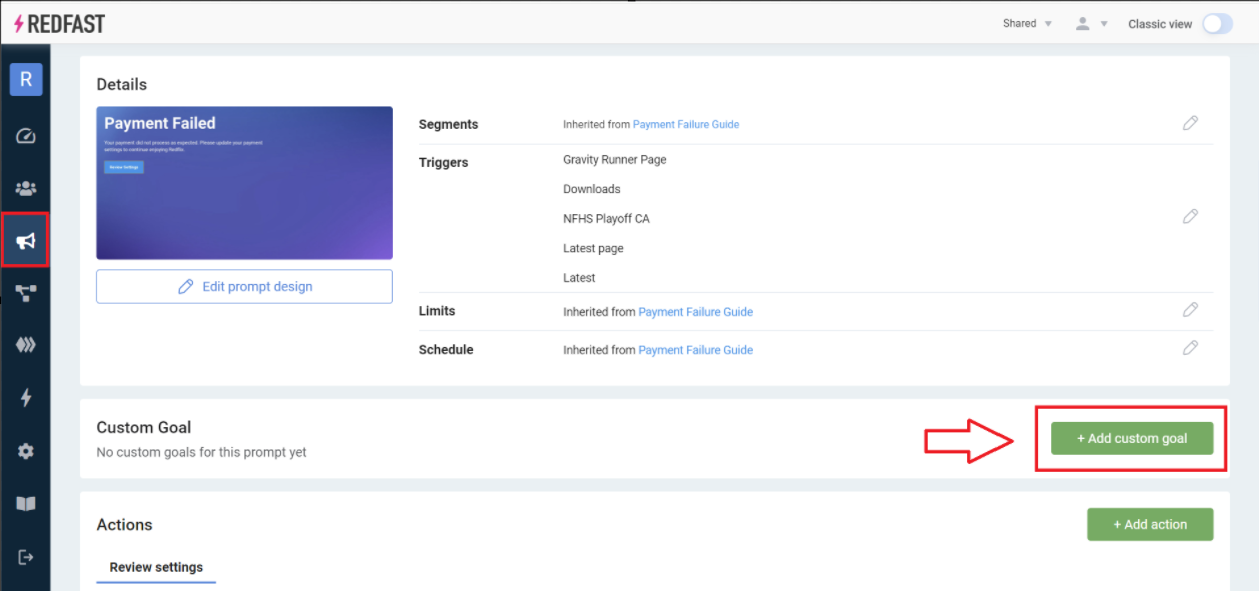
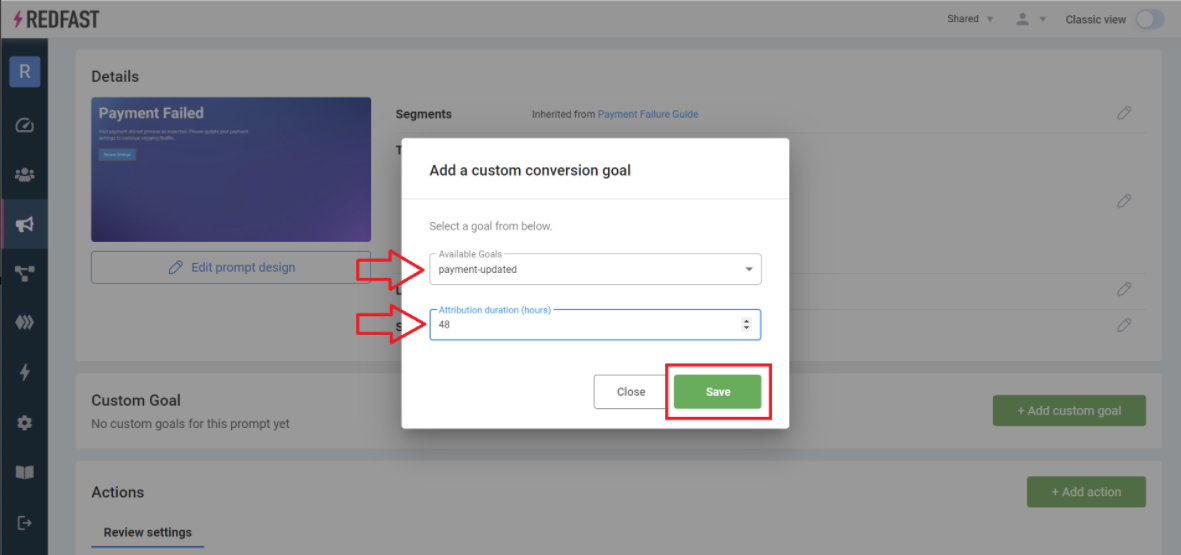
To use a custom goal, first create a usage tracker. Then follow the steps below to attach it to a prompt.
Attach a custom goal to a prompt
Updated 22 days ago
Did this page help you?