
App Stores
Guidance for configuring in-app purchase flows in Recurly Engage prompts across Roku, Apple, and Google platforms.
Configure Recurly Engage prompts to start native in-app purchase flows on Roku, Apple, and Google Play devices. Users can buy, upgrade, or downgrade without leaving your app or the prompt.
Available on all Recurly Engage subscription plans
Prerequisites
- You must have Company or App Administrator permissions in Recurly Engage.
- Your app must integrate the Recurly Engage software development kit (SDK) on the target platform.
Limitations
- Supported on Android devices and web browsers with FCM support.
Definition
The In-App Purchase feature enables direct purchase, upgrade, and downgrade flows from within prompts, using native store dialogs and validation.
Key benefits
Streamlined UX
Let users complete purchases without leaving your app or prompt.
Consistent integration
Use the same prompt UI across platforms while invoking native purchase flows.
Flexibility
Support upgrades, downgrades, and one-time purchases natively.
Key details
Configure your prompt's main call-to-action (CTA) to trigger the in-app purchase flow for a specific product identifier. The steps vary by platform.
Roku App Store
2
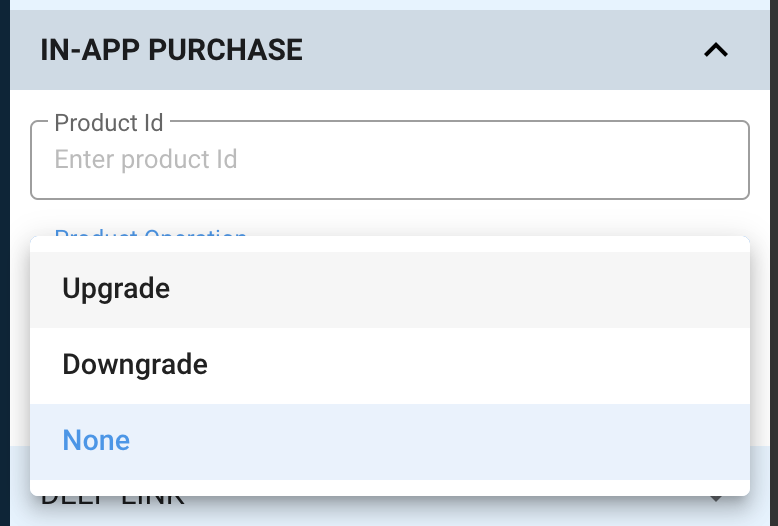
When the user taps the CTA, the Roku SDK starts the appropriate purchase flow.
Apple App Store
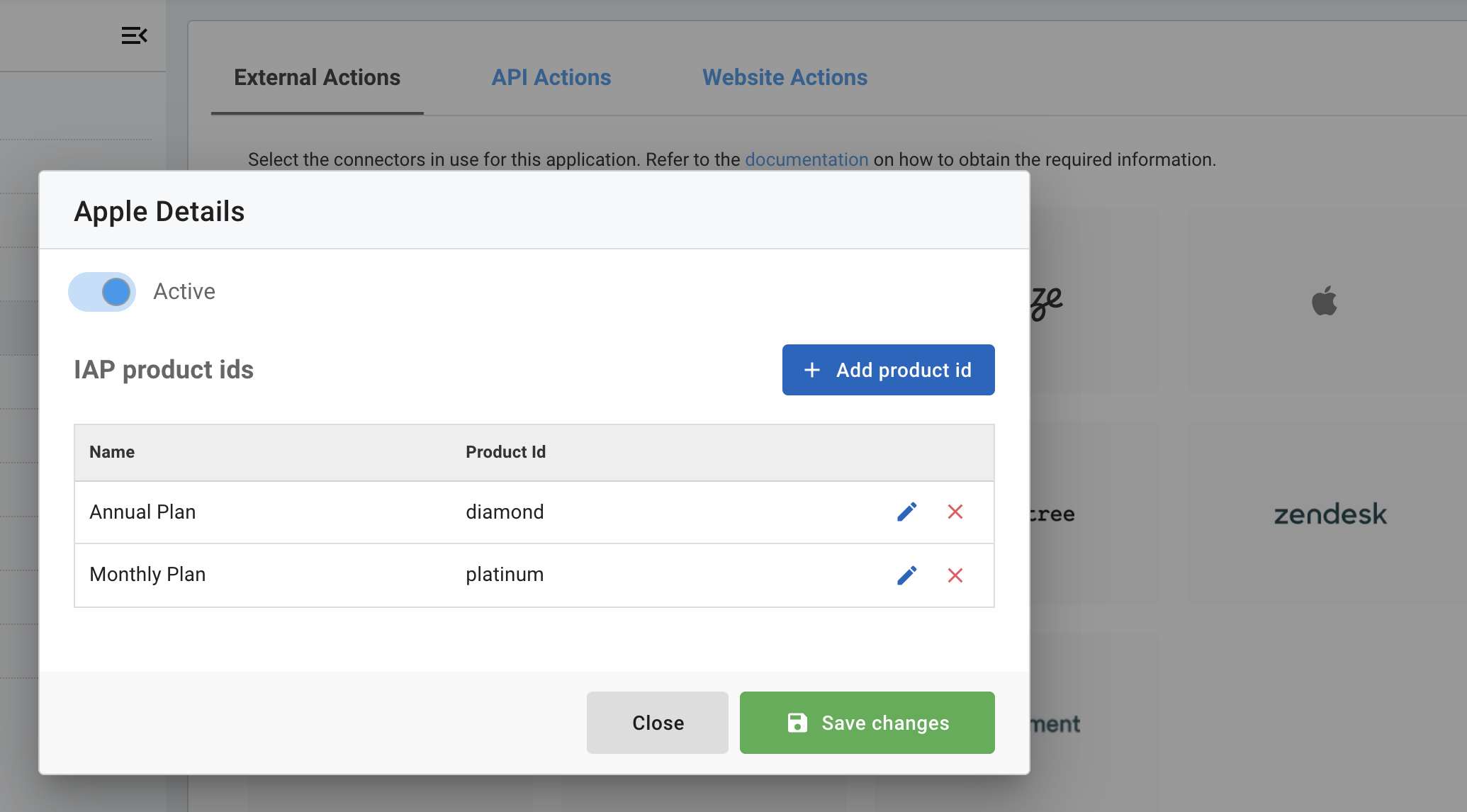
Add in-app product IDs
Attach a product ID to a prompt
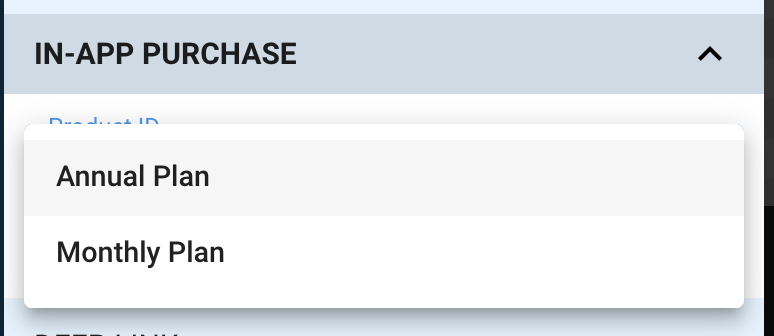
When the user selects the CTA, the Recurly Engage SDK handles the native purchase dialog.
Google Play Store
When the user selects the CTA, the SDK triggers the Google Play purchase flow.
Use these settings to add native in-app purchase experiences to your Recurly Engage prompts across Roku, iOS, and Android.
Updated 13 days ago
Did this page help you?