
Inline prompts
Comprehensive guide to creating and managing inline prompts—horizontal, vertical, tile, and text-only—using defined zones in Recurly Engage.
Prerequisites
- Company, App Administrator, or App Member permissions in Recurly Engage.
Definition
Key benefits
Key details
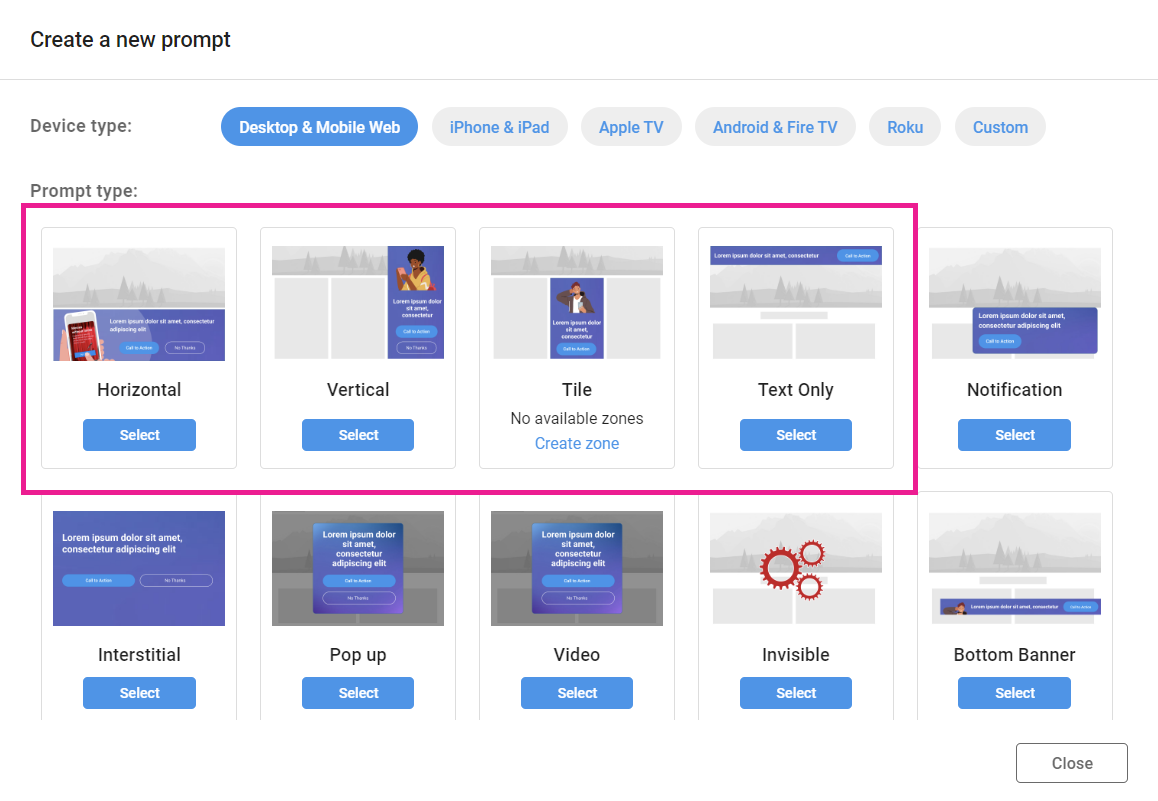
These four prompt types occupy defined zones on your site or application alongside your content—that's where the name "inline" comes from.
Inline prompts live in zones. Any prompt assigned to a zone appears in that location—for example, a horizontal banner in the Web Featured zone.
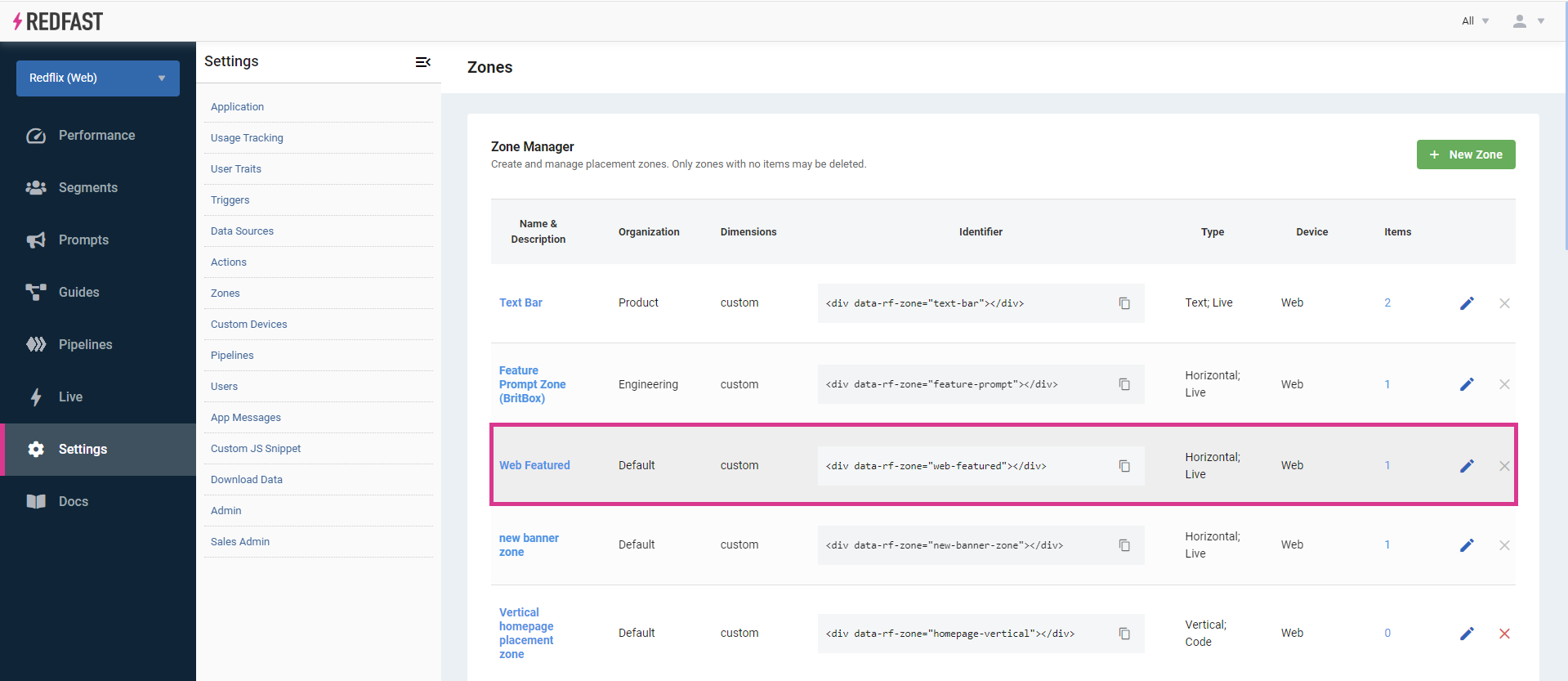
A single zone can render multiple items of the same type in one of three modes:
- Stack: items overlap; each new item appears after the prior one is dismissed.
- List: items display side by side, ideal for showing a row of personalized recommendations.
- Slider: a carousel showing one item at a time, with optional bullet indicators or auto-rotation.
Horizontal
A wide banner with a landscape orientation that spans the width of your content area or screen edge-to-edge. Commonly placed at the top or bottom of pages, it can include a call-to-action button and hide itself on click or remain visible.
Recommended ratios: 2×1, 4×1, 6×1, 8×1, 10×1.

Vertical
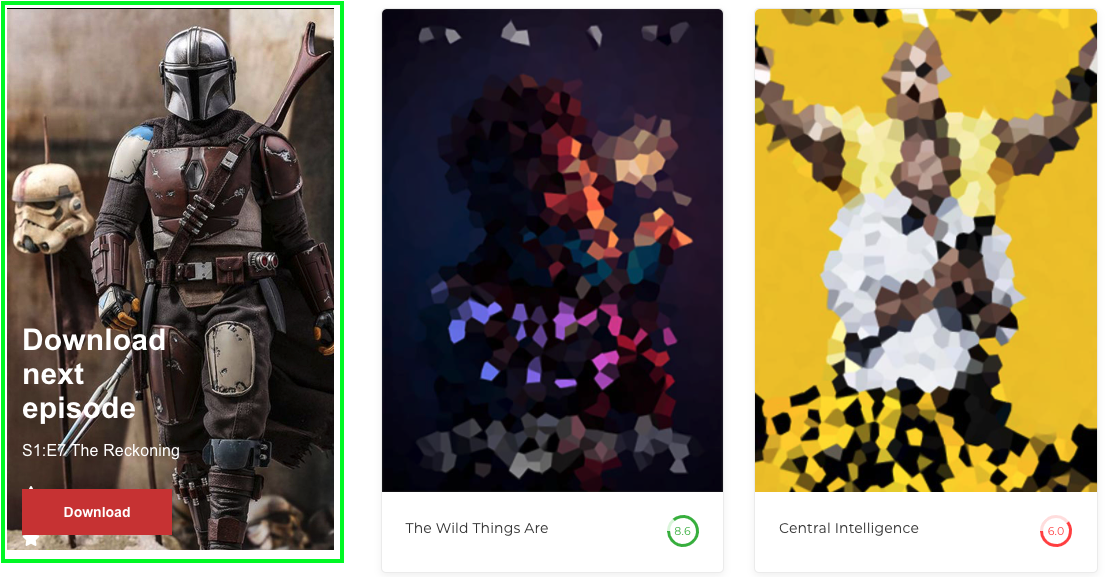
A tall panel with a portrait orientation, typically along the left or right edge of your layout. Like horizontals, it may include buttons and can be timed or dismissed with a click.
Recommended ratios: 1×2, 1×3, 1×4.

Tile
A square or rectangular zone—perfect for grid layouts. Tiles display media and text, and can be closed or persist after interaction.
Recommended ratios: 1×1, 4×3, 16×9.
Text-only
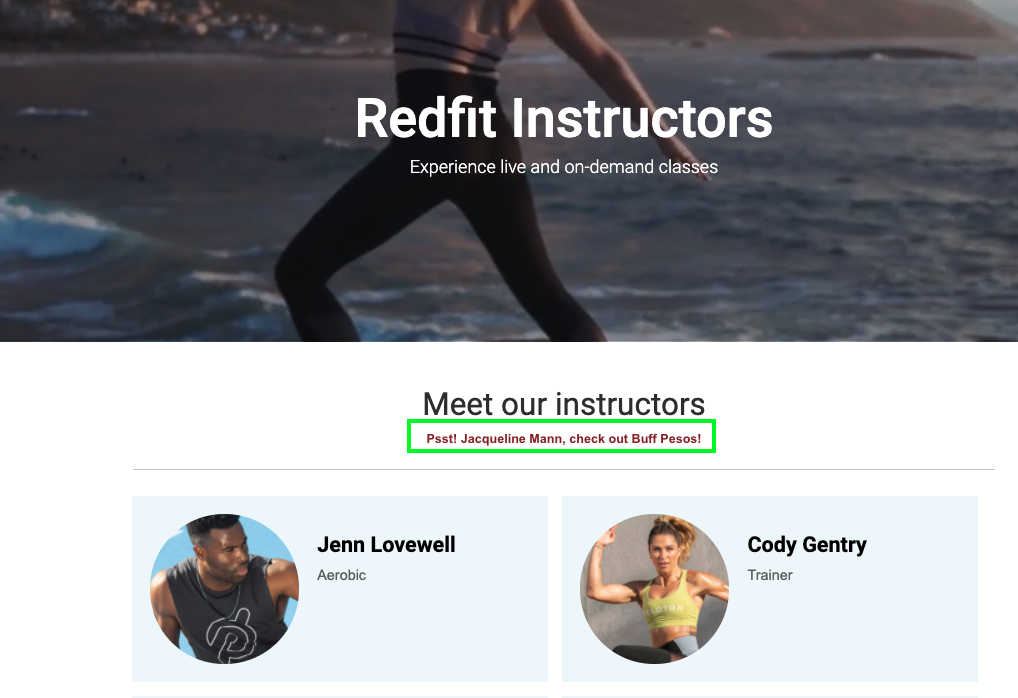
A clickable text bar without images, useful for simple announcements or links. It can be configured to hide on click or remain in view.
Recommended ratios: 6×1, 8×1, 10×1.
Step-by-step guide
Follow these steps to build and publish your first inline prompt.
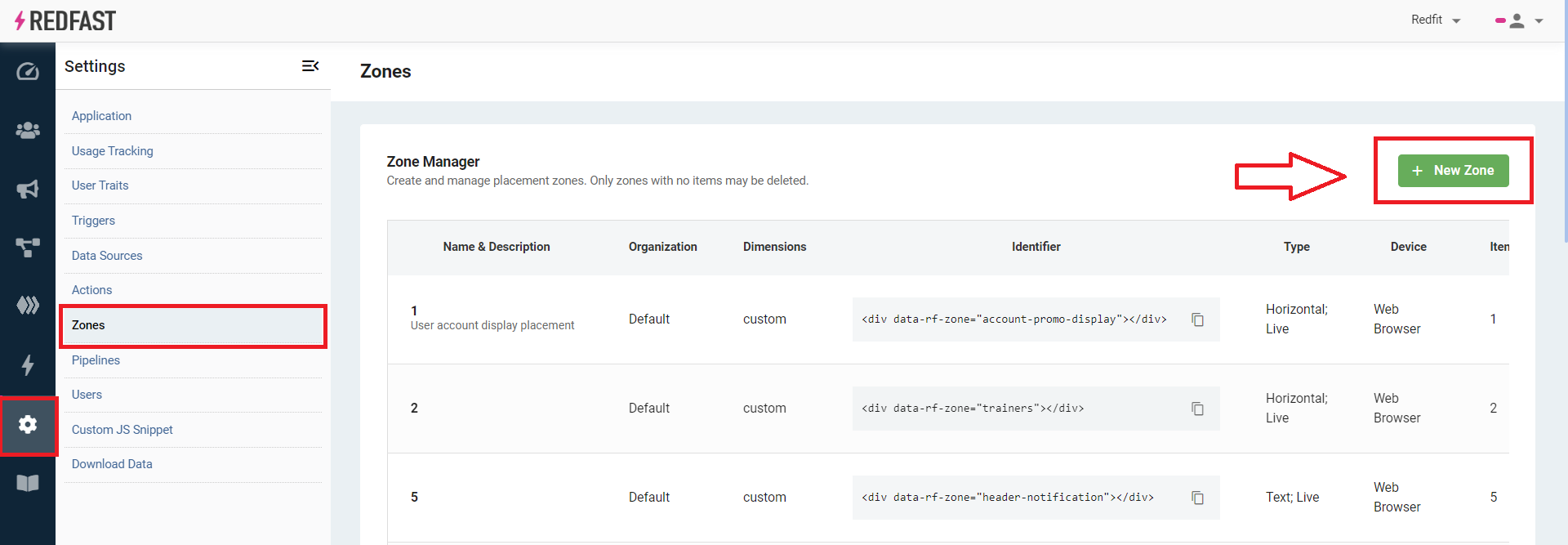
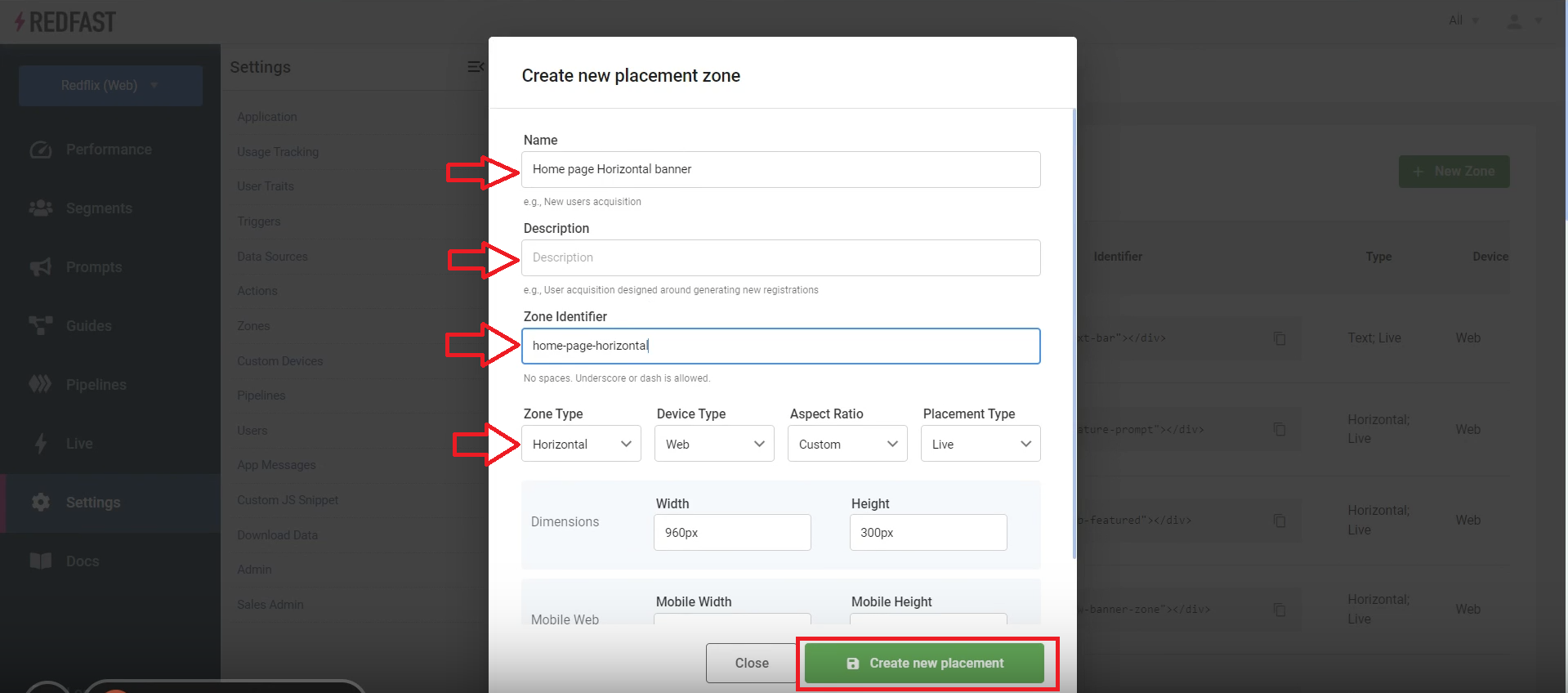
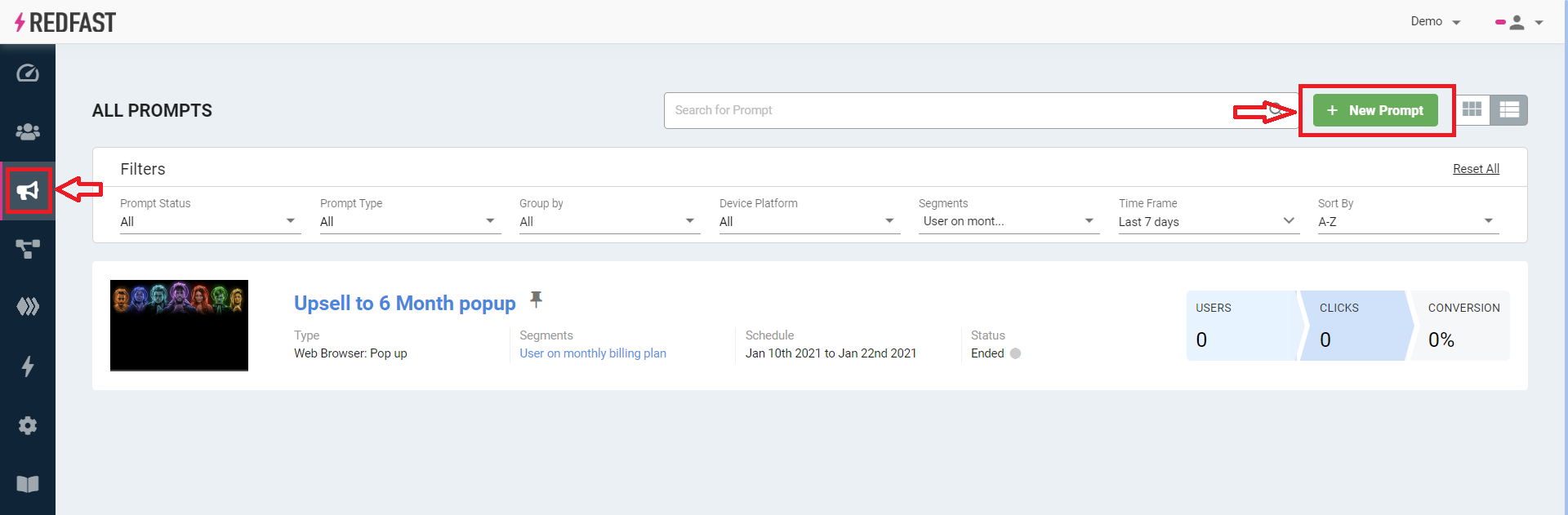
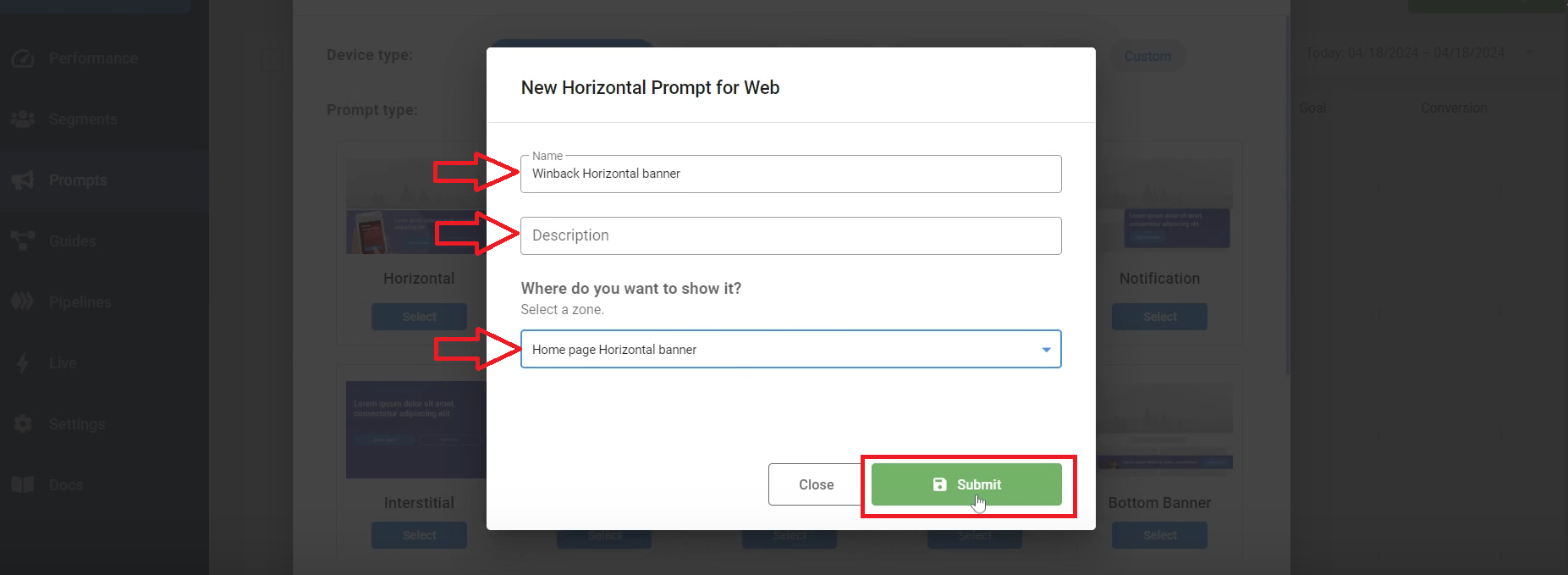
Enter a name and description, assign the prompt to your new zone, then select Submit.
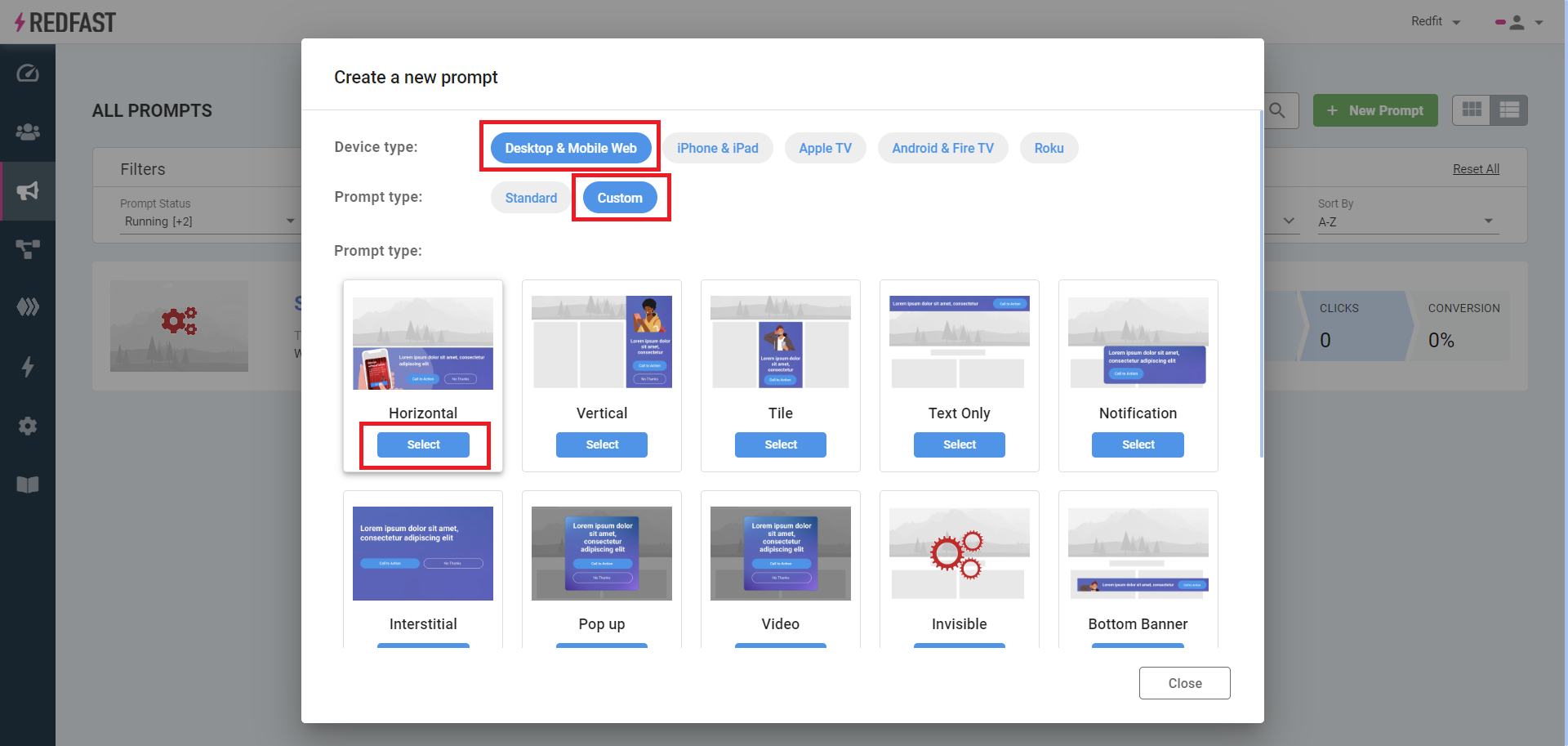
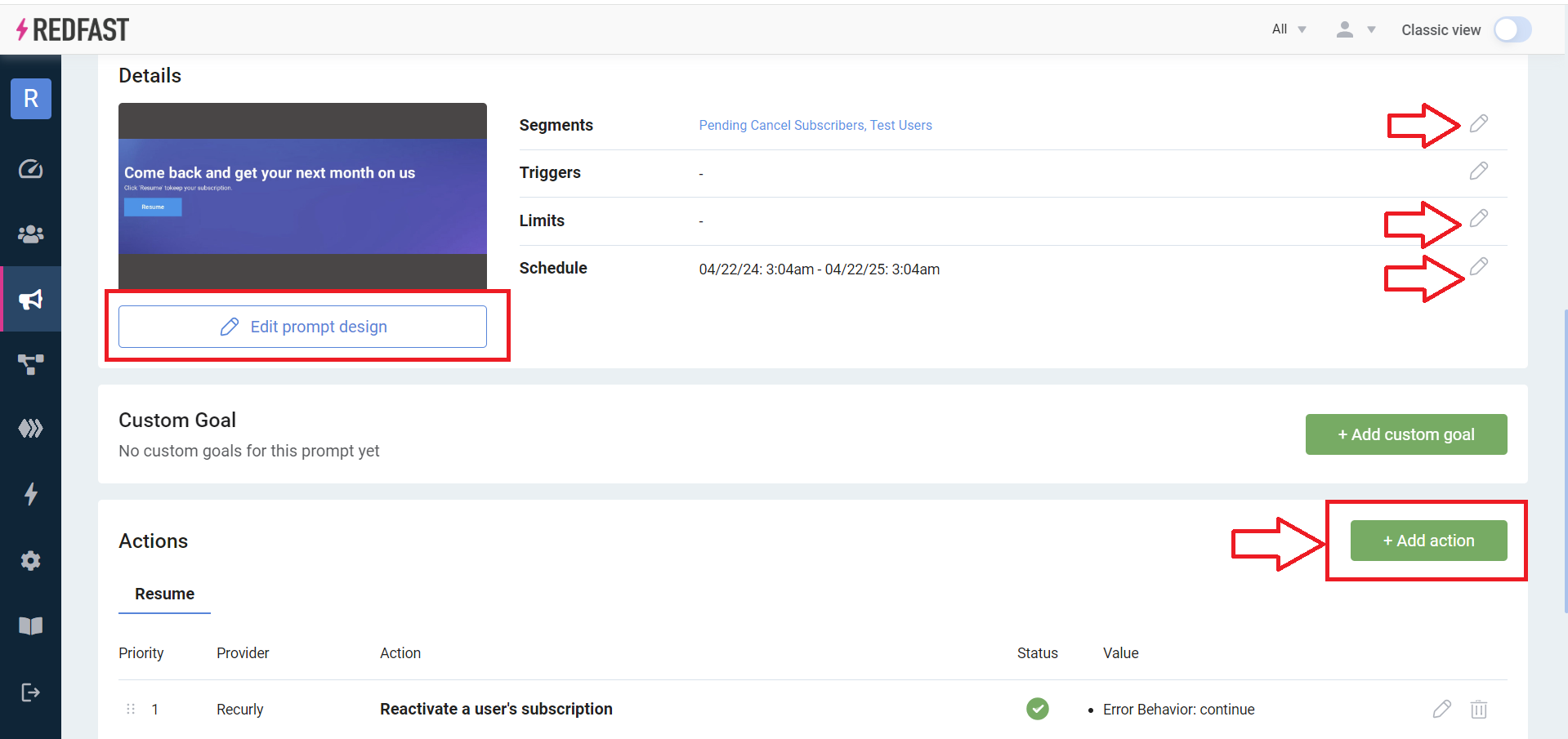
Configure segments, limits (optional), schedule (optional), and actions, then select Edit prompt design to customize visuals and copy.
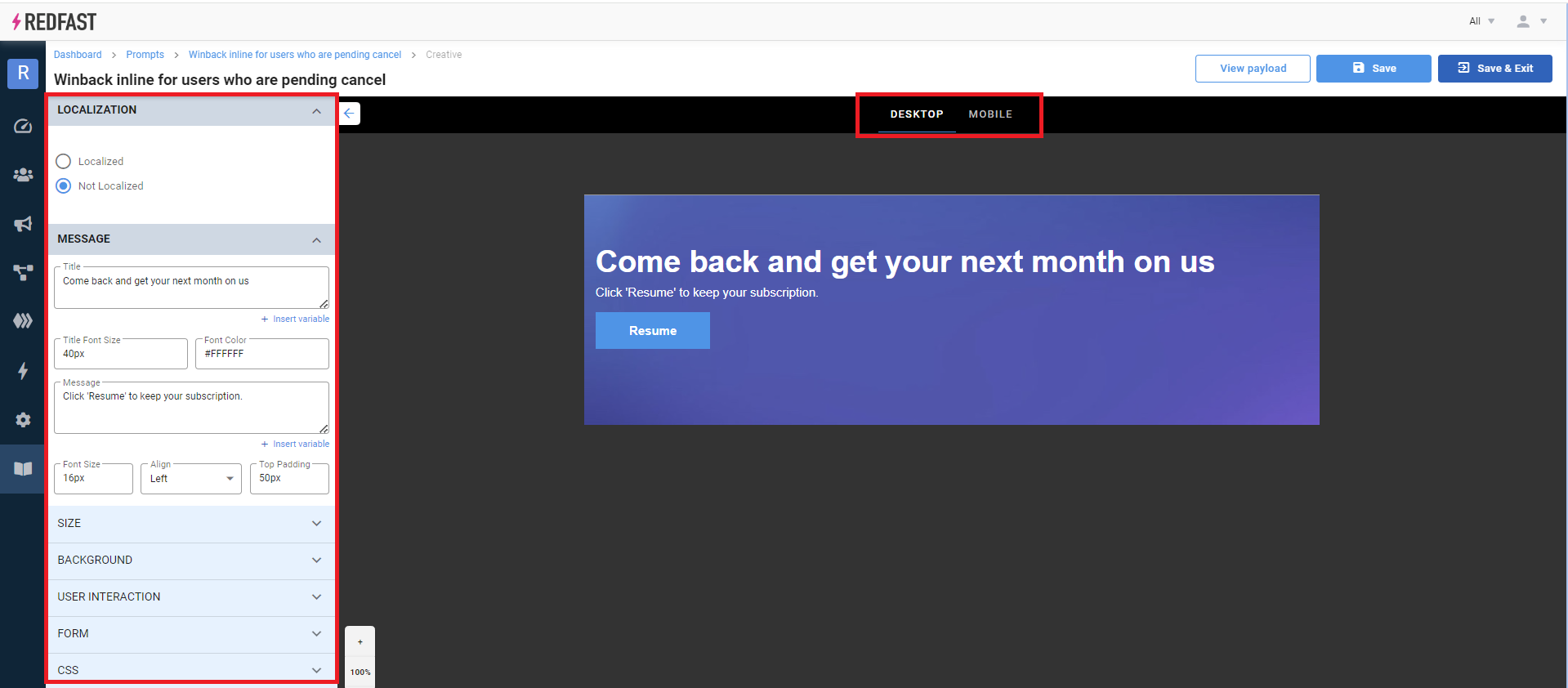
Tweak the settings in the designer and preview your changes live. You can download sample backgrounds here.
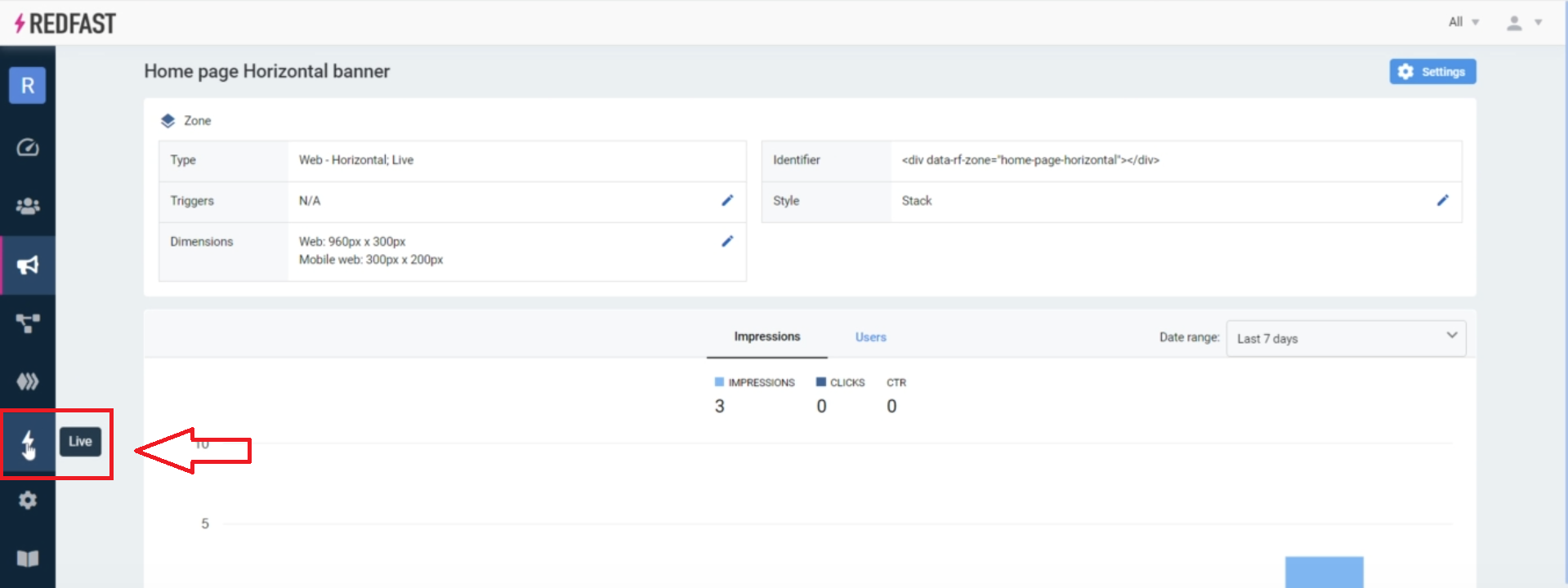
Select Publish to make the prompt live.


Integration
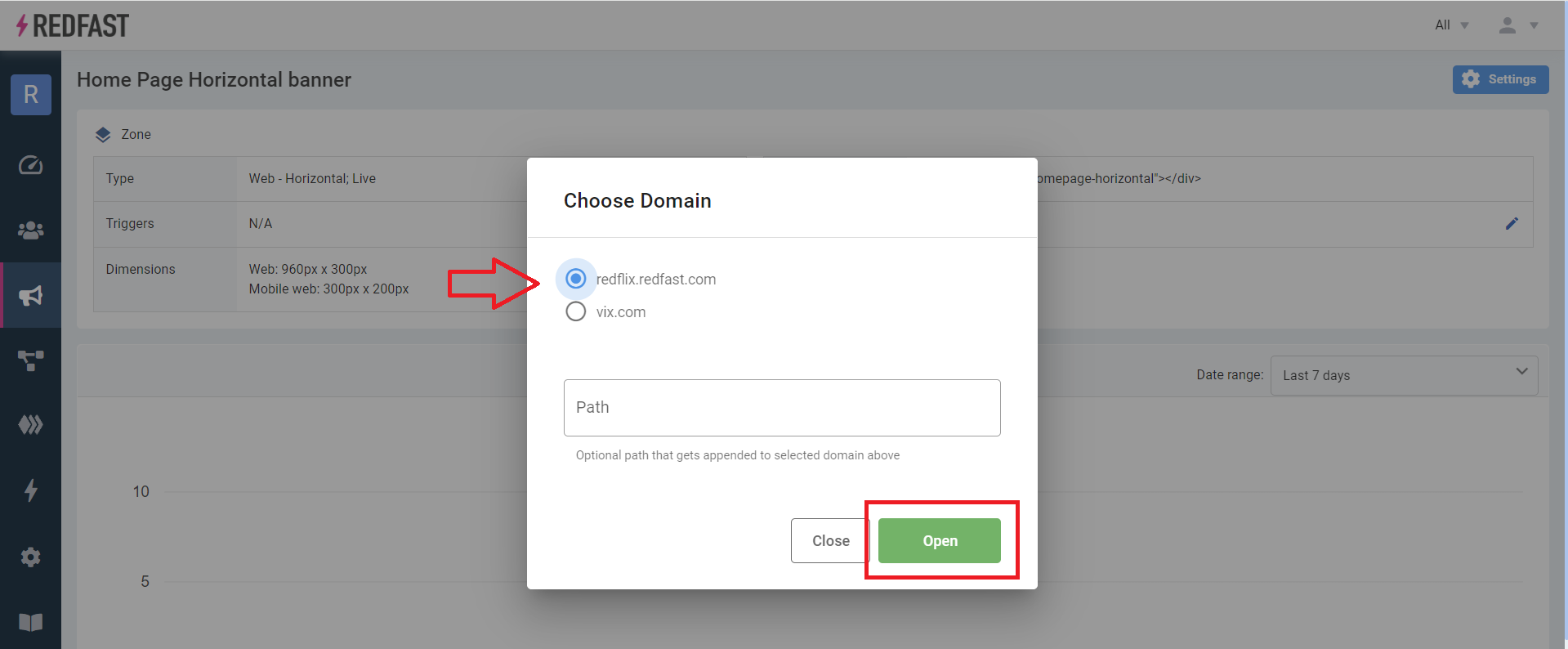
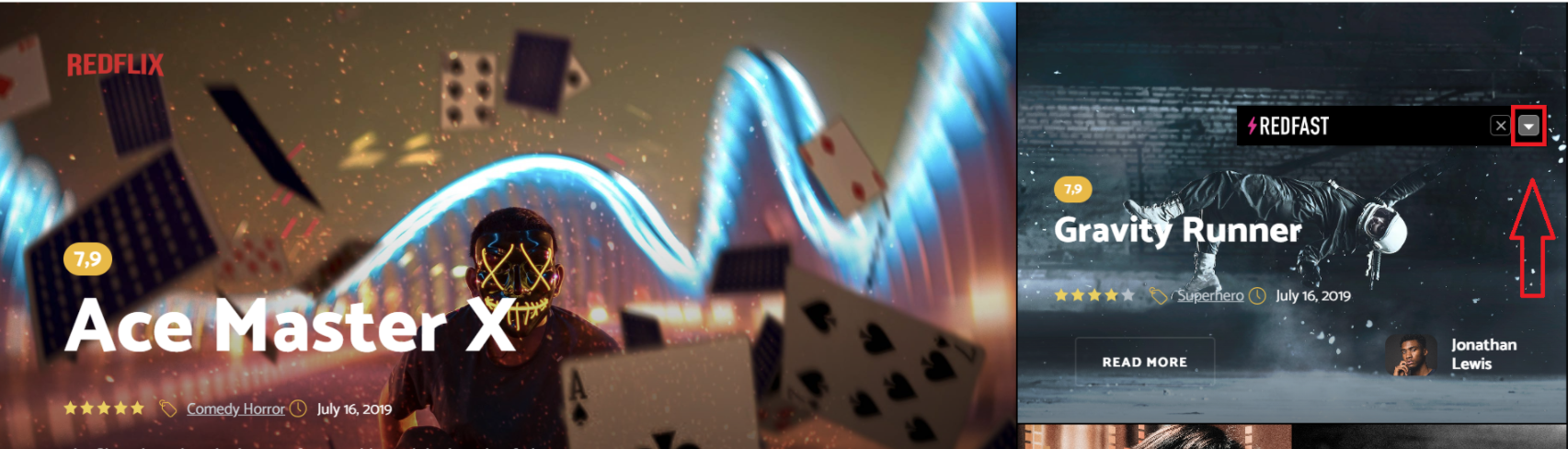

<div data-rf-zone="example-tag"></div><div style="height:200px">
<div data-rf-zone="example-tag"></div>
</div>Tips and tricks
Absolute positioning—new content
- Insert the zone tag where needed.
- Wrap it in a container with a set height.
- Initialize your scroll or animation logic.
Absolute positioning—replacing content
Use the Live Tool sparingly, and make sure your prompt's dimensions match the element it's replacing.
Content delay solutions
- Header load lag: add CSS animations or skeleton loaders.
- Above-the-fold delay: set an explicit height with a brief no-collapse timer.
- Slow SDK load: move the Recurly Engage tag earlier in your tag order.
Responsive resizing
- Use CSS media queries or
transform: scale()for width issues. - Apply
background-size: cover, or bake text directly into your background images.
Updated about 1 month ago