
Tags
Manage and report on groups of prompts using tags, with combined analytics and frequency controls.
Tags in Recurly Engage let you categorize prompts by campaign, use case, market, or any custom criteria. They keep your prompts organized, give you consolidated reporting, and let you cap how often related prompts are shown.
Available on all Recurly Engage plans
Prerequisites
- You must have Company or App Administrator permissions in Engage.
Definition
A tag is a label you assign to one or more prompts to group them for filtering, reporting, and frequency capping.
Key benefits
Organize prompts
Group prompts by use case, campaign, or market for easier management.
Unified analytics
View combined performance metrics (impressions, conversions, and click-through rate) across all prompts sharing a tag.
Frequency control
Set per-tag frequency caps to limit how often users see any prompts with that tag.
Create and manage tags
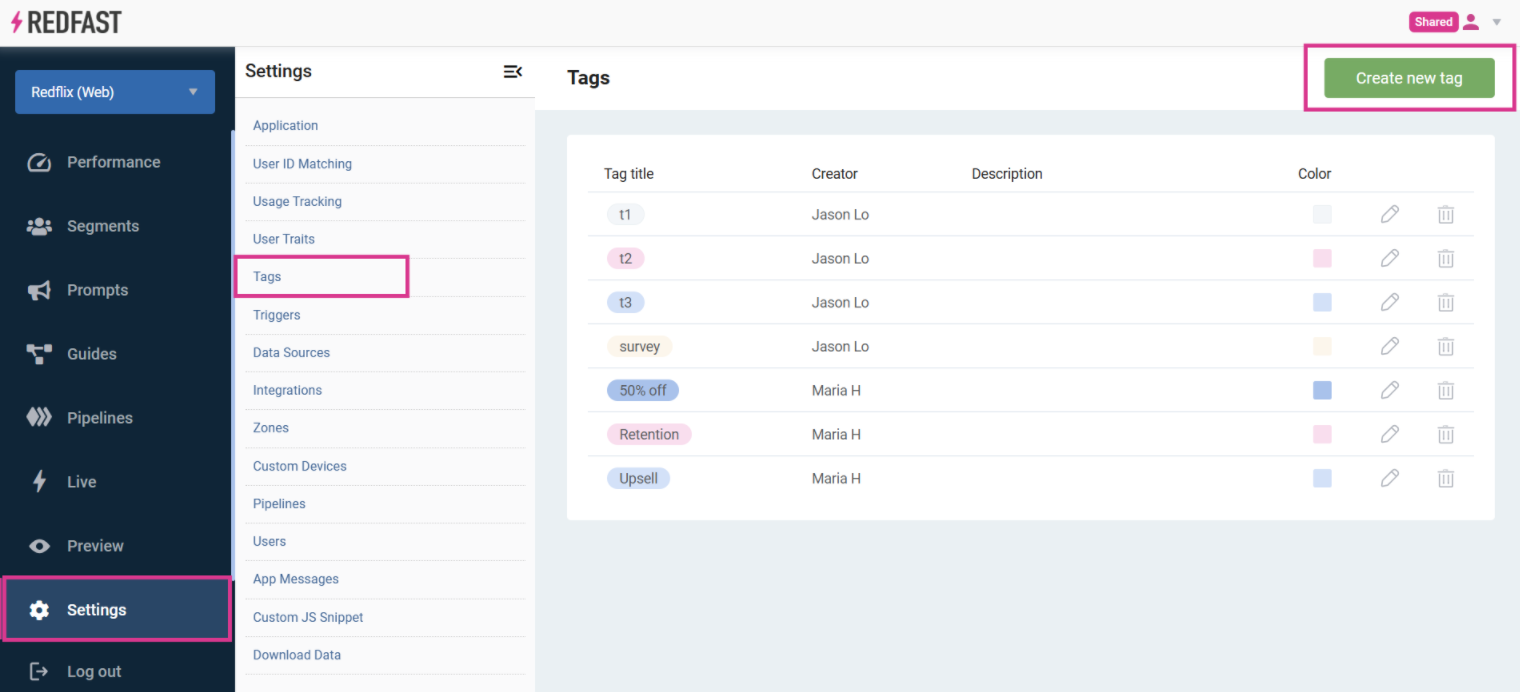
App admins can create default tags at the application level under Settings → Tags, or add new tags on the fly when editing a prompt.
Assign tags to prompts
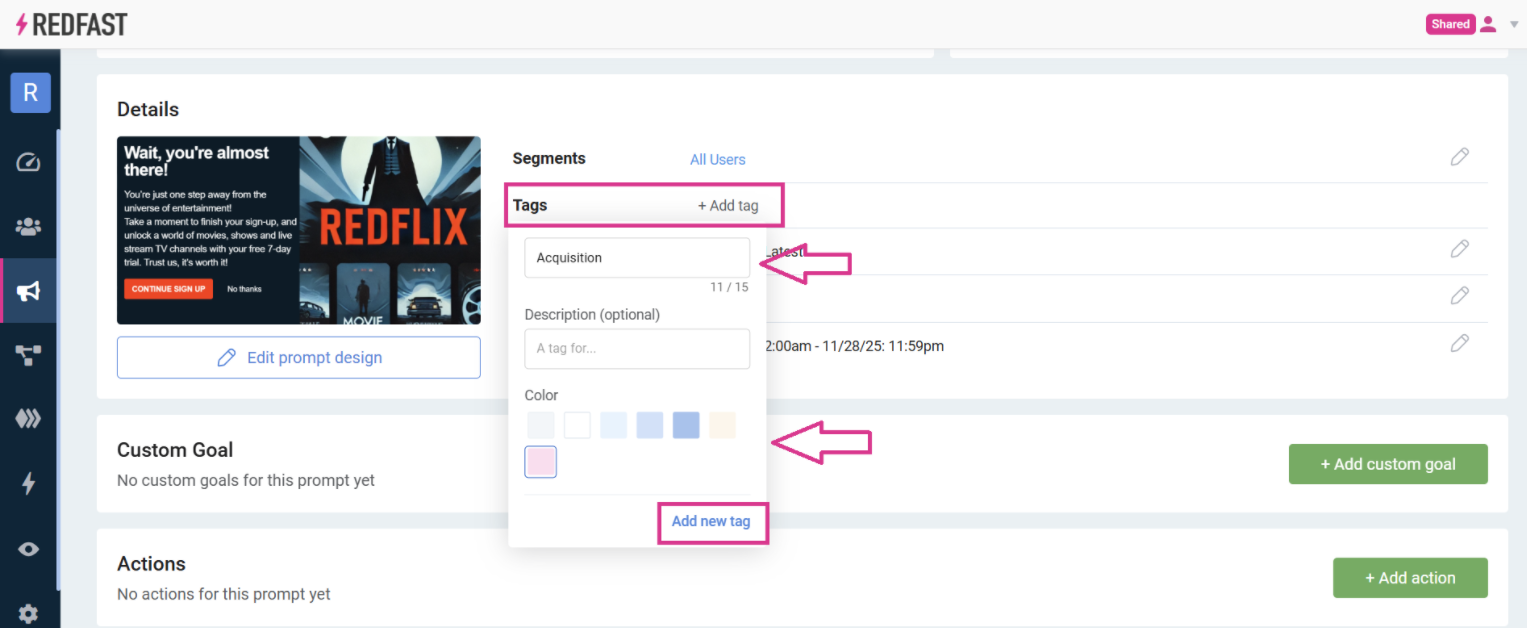
When you create or edit a prompt, select existing tags or type to add a new one under Details → Tags.
Filter and report by tag
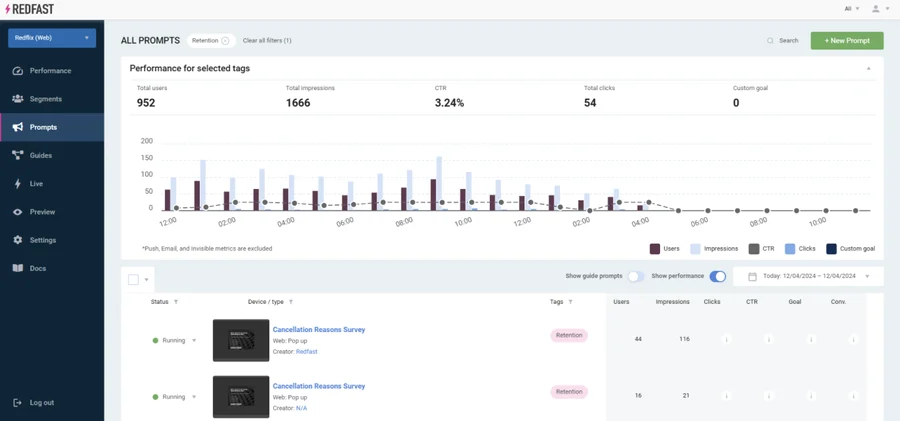
Go to Prompts, click the filter icon in the Tags column, and choose a tag to see all associated prompts and their combined metrics.
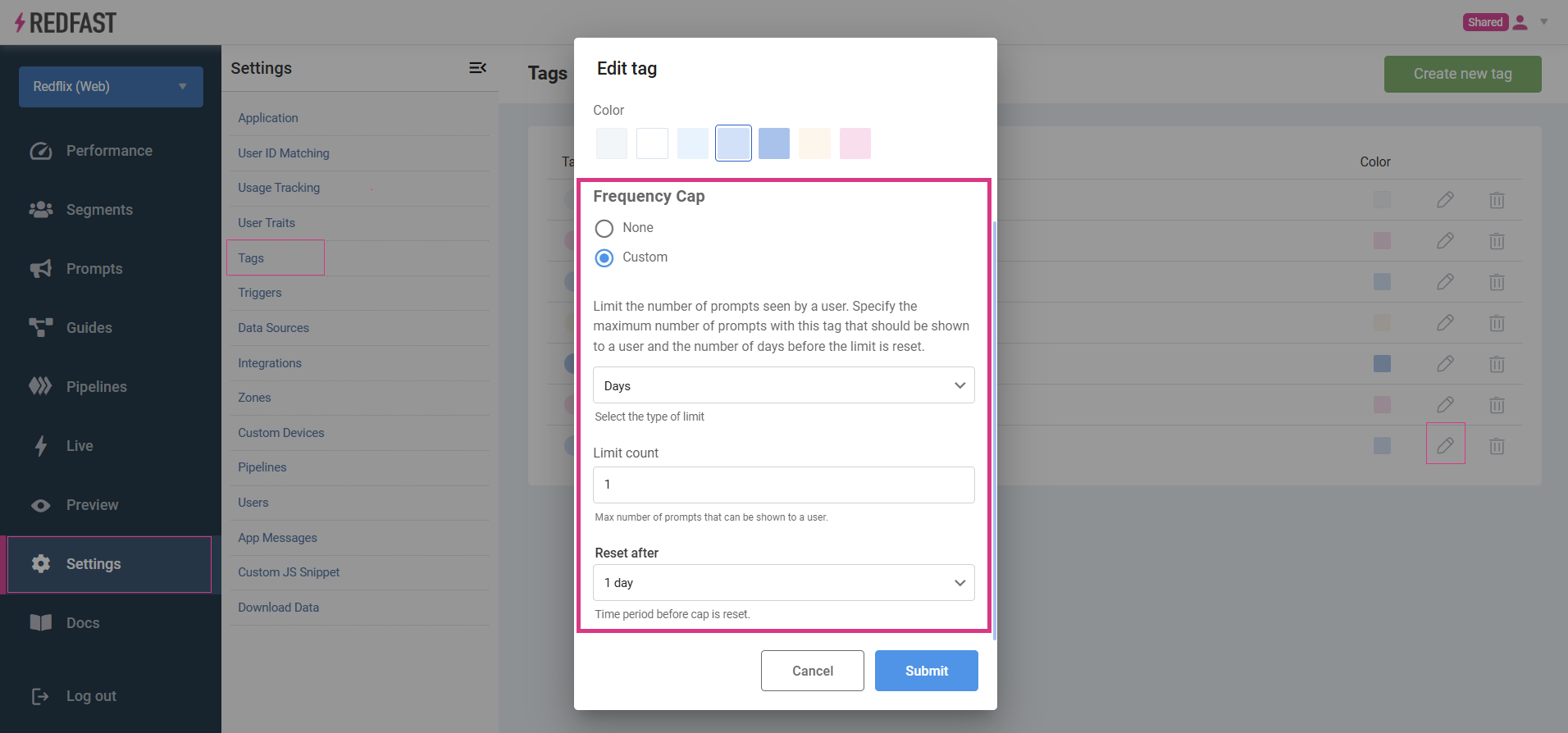
Frequency capping by tag
To limit how often prompts with a specific tag appear to users:
Updated about 1 month ago
Did this page help you?