
Adobe dynamic tag manager
Step-by-step instructions for integrating the Recurly Engage JavaScript client via Adobe Dynamic Tag Manager.
Learn how to deploy the Recurly Engage tag through Adobe Dynamic Tag Manager (DTM) to start syncing your site's data with Engage for personalized customer experiences.
Available to all customers on any Recurly Engage subscription plan
Prerequisites
- You need to be able to add or modify embed code in your site's header.
Limitations
- You must have publish and rule-creation permissions in your Adobe DTM account.
Definition
The Adobe Dynamic Tag Manager integration injects the Recurly Engage JavaScript client into your pages using DTM rules and workflows, letting Engage collect events and deliver customized checkout experiences.
Key benefits
Seamless deployment
Use your existing DTM workflows to roll out Engage without touching site code.
Controlled release
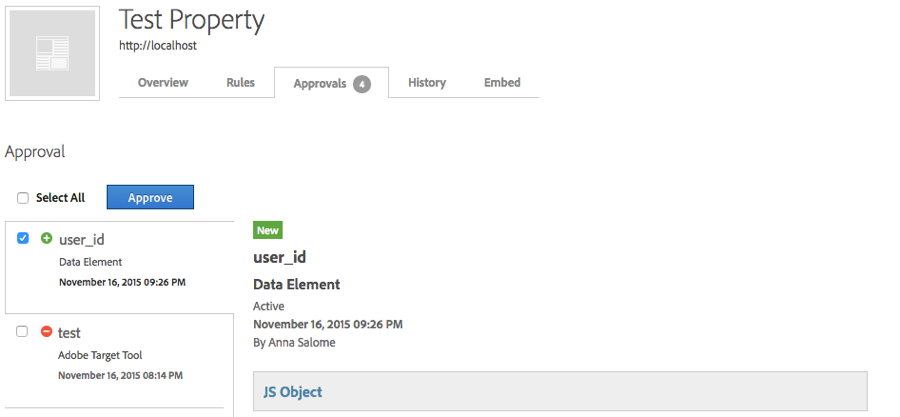
Use DTM's approval process to test in staging before going live.
Performance-safe
Host the client via Akamai or your preferred DTM option to minimize latency.
Key details
Guide
Configure embed code
Choose one of three hosting options in DTM, then decide where to place the embed tag.
Hosting options
- Akamai
- FTP delivery
- Library download
Location options
- Header
- Footer
We recommend Akamai hosting with the embed tag in the header for the fastest load times. For more control, coordinate with your IT team to use the library download option.
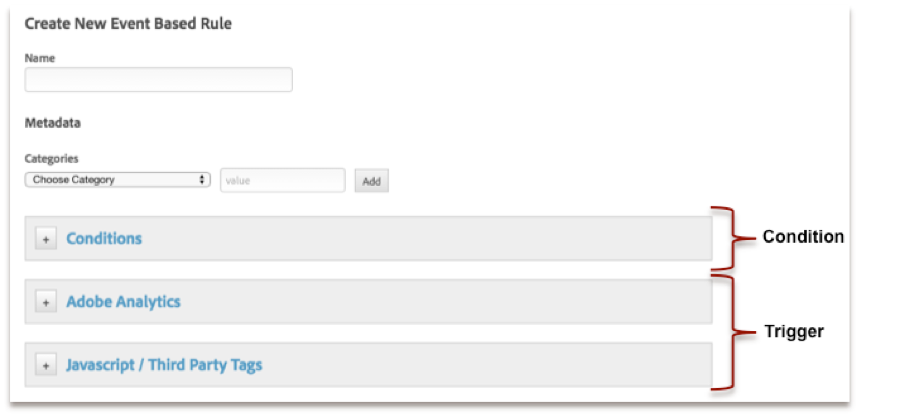
Rules
In most cases, use a Page-Load rule when targeting your site's pages.
Workflows
Propagate your tag from non-production (staging) to production using DTM's approval workflow to keep your rollouts safe.
Installation
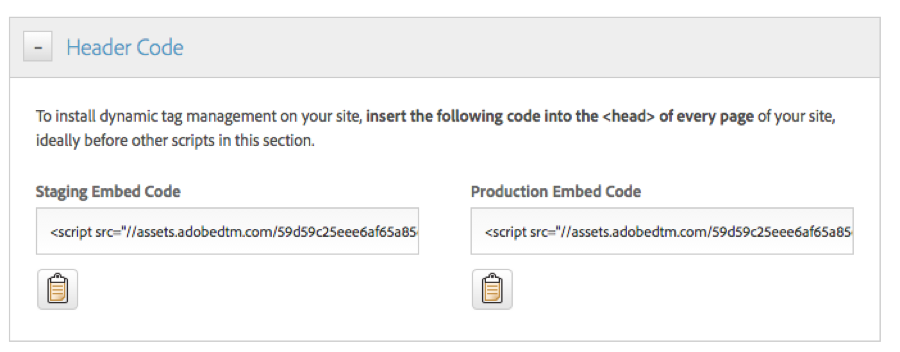
Add the DTM header code that loads the Recurly Engage tag to all pages of your site.
Updated about 1 month ago
Did this page help you?