
Looker
The Looker integration lets you schedule daily exports of CSV user trait data directly from Looker into your Recurly Engage AWS S3 bucket for seamless ingestion.
Prerequisites
- You must have Company or App Administrator permissions in Engage.
- A Looker account with access to the dashboard containing your user traits.
- Amazon Web Services (AWS) S3 credentials retrieved from Engage (Pulse) for secure uploads.
Definition
Key benefits
Key details
Follow these steps to configure your Looker schedule and connect it to your Engage S3 bucket:
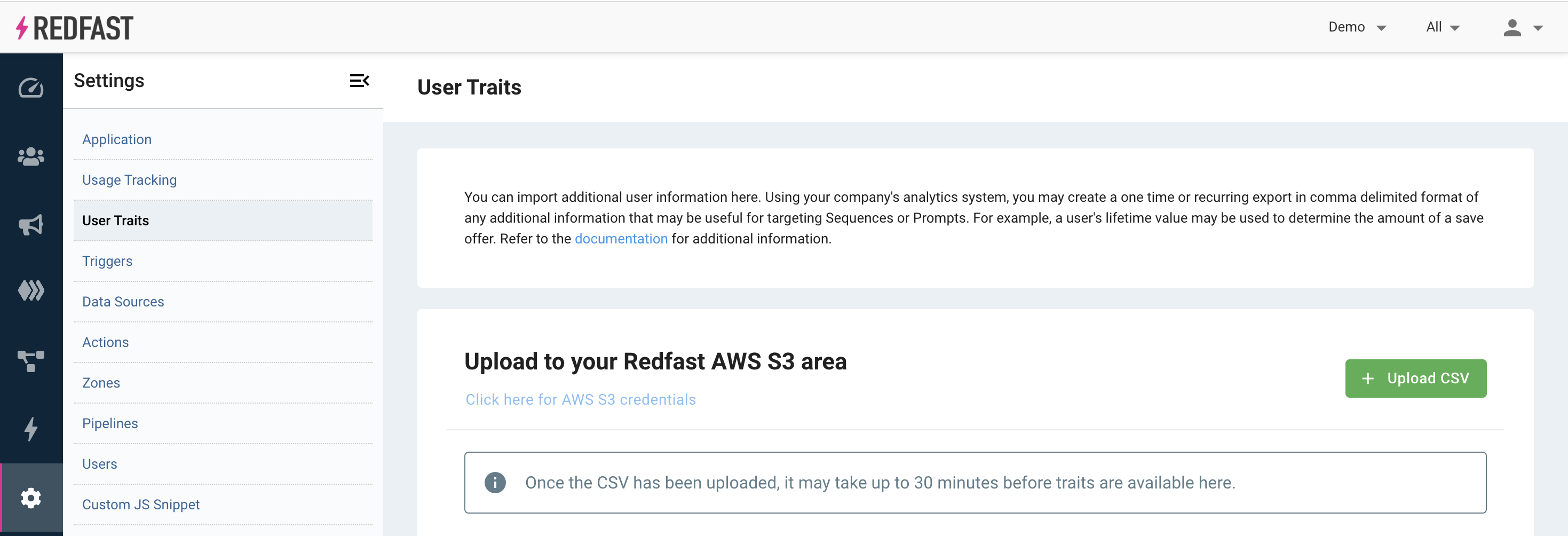
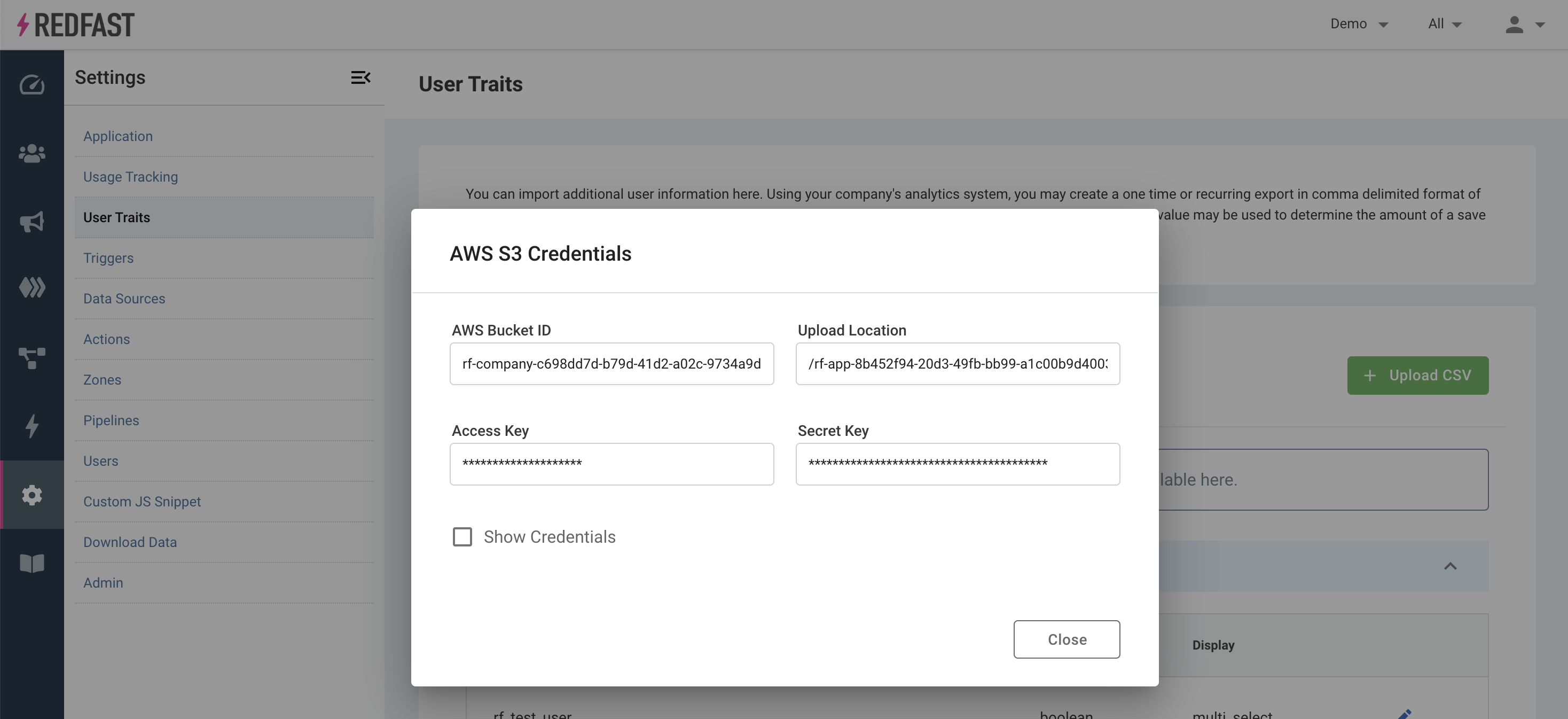
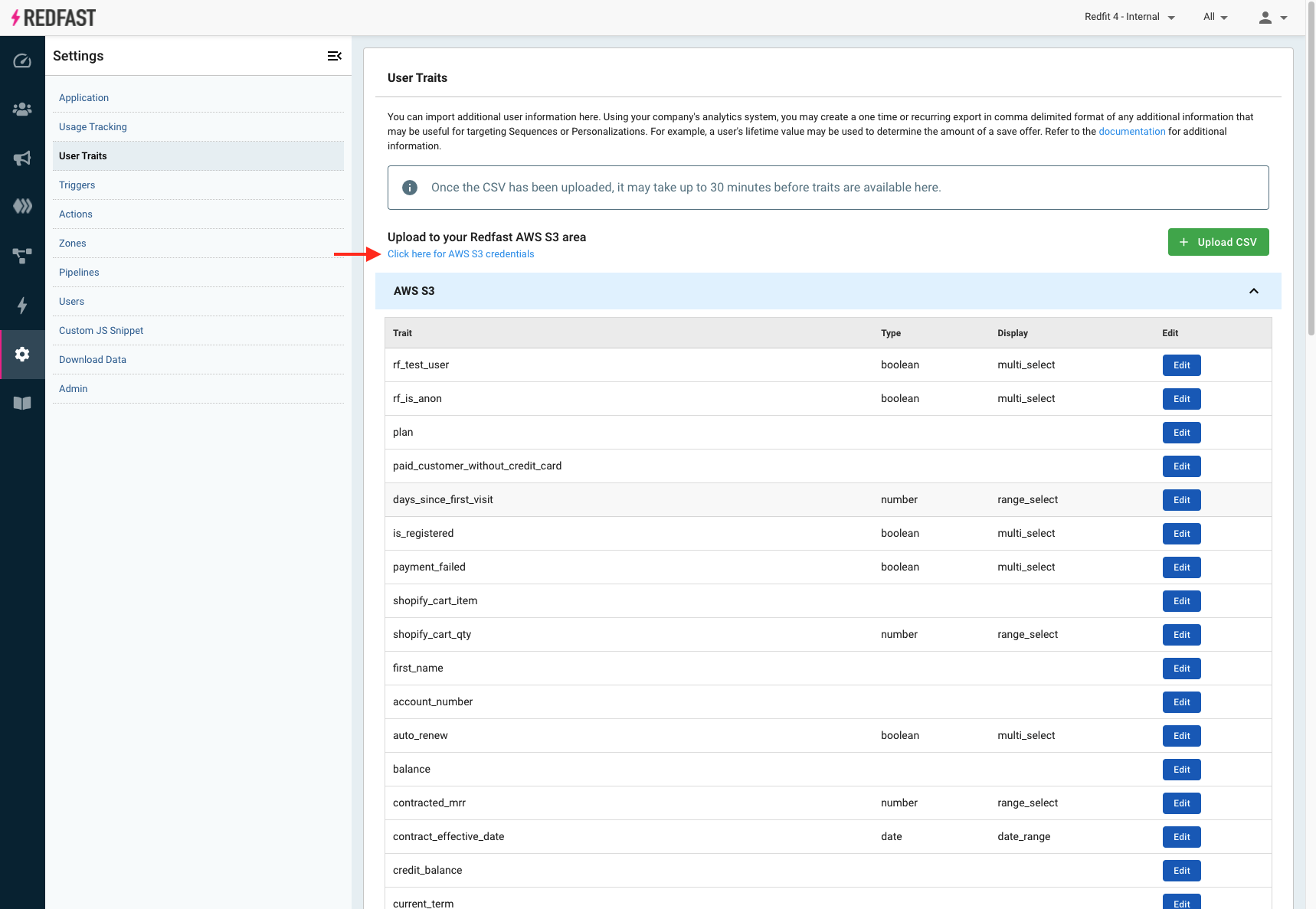
Click Click here for AWS S3 credentials and check Show Credentials to reveal your Bucket name, Access Key, and Secret Key.
Log in to Looker
Open a new browser tab and go to Looker.
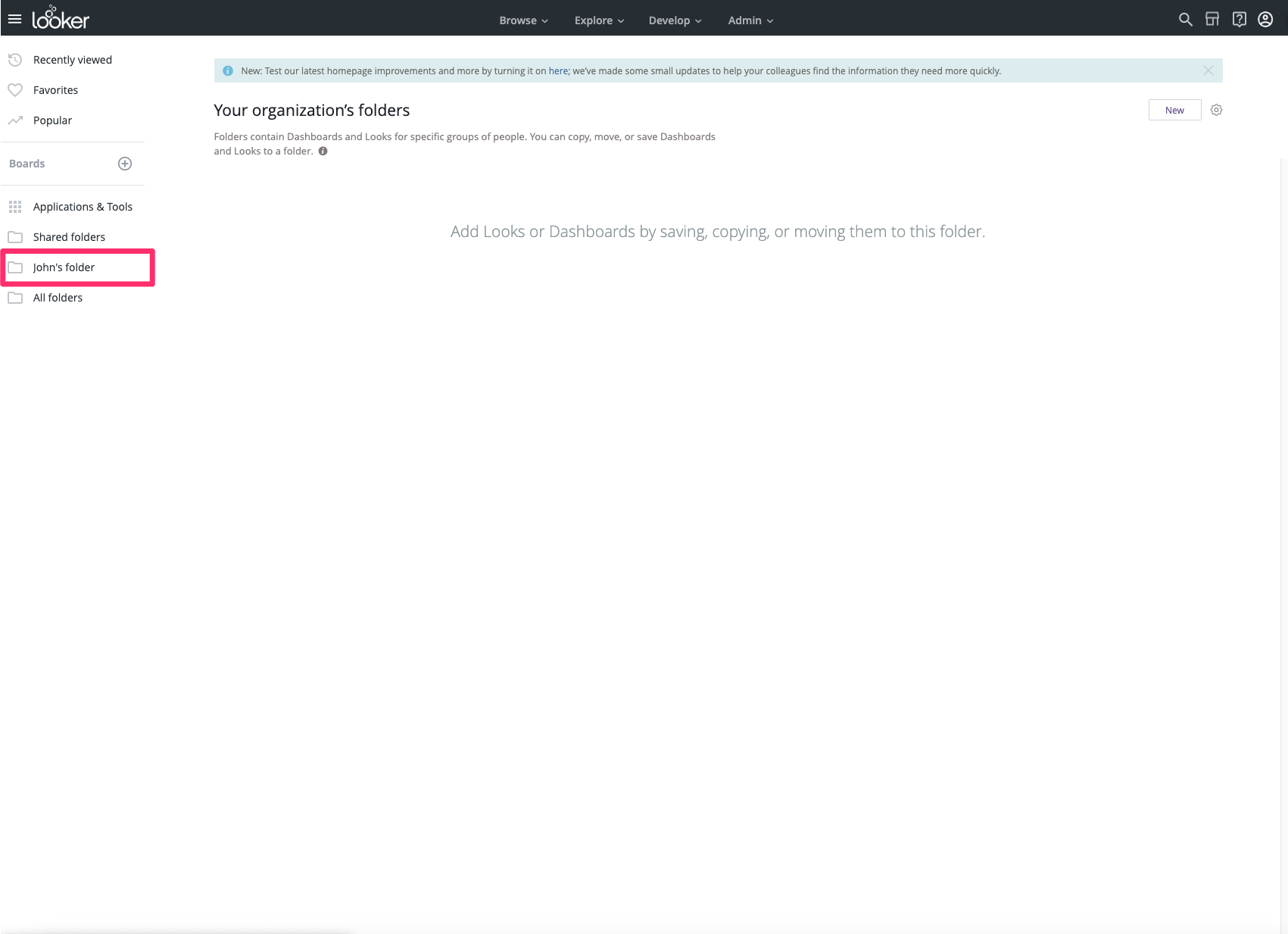
Choose an existing Look that outputs all required trait columns.
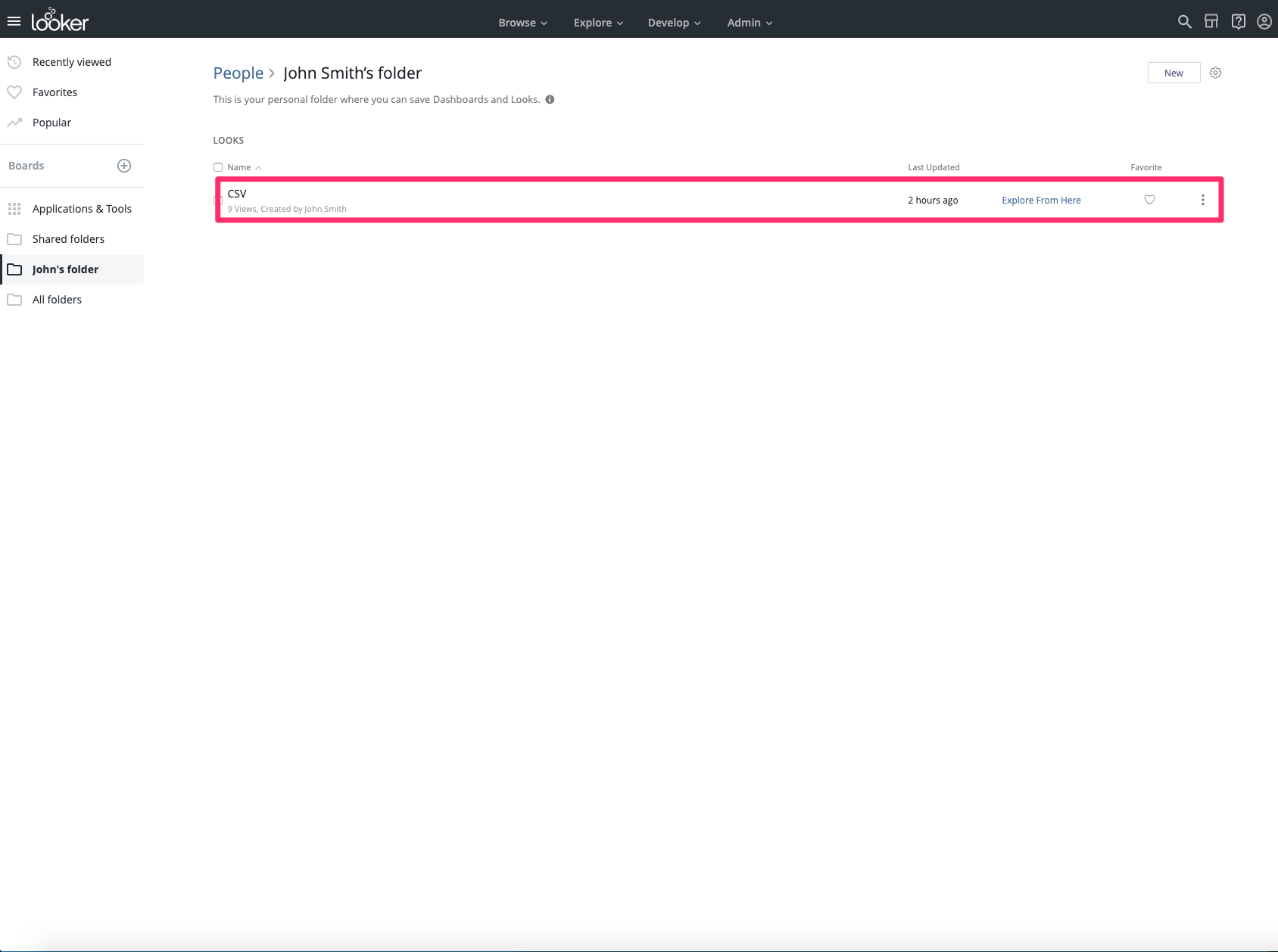
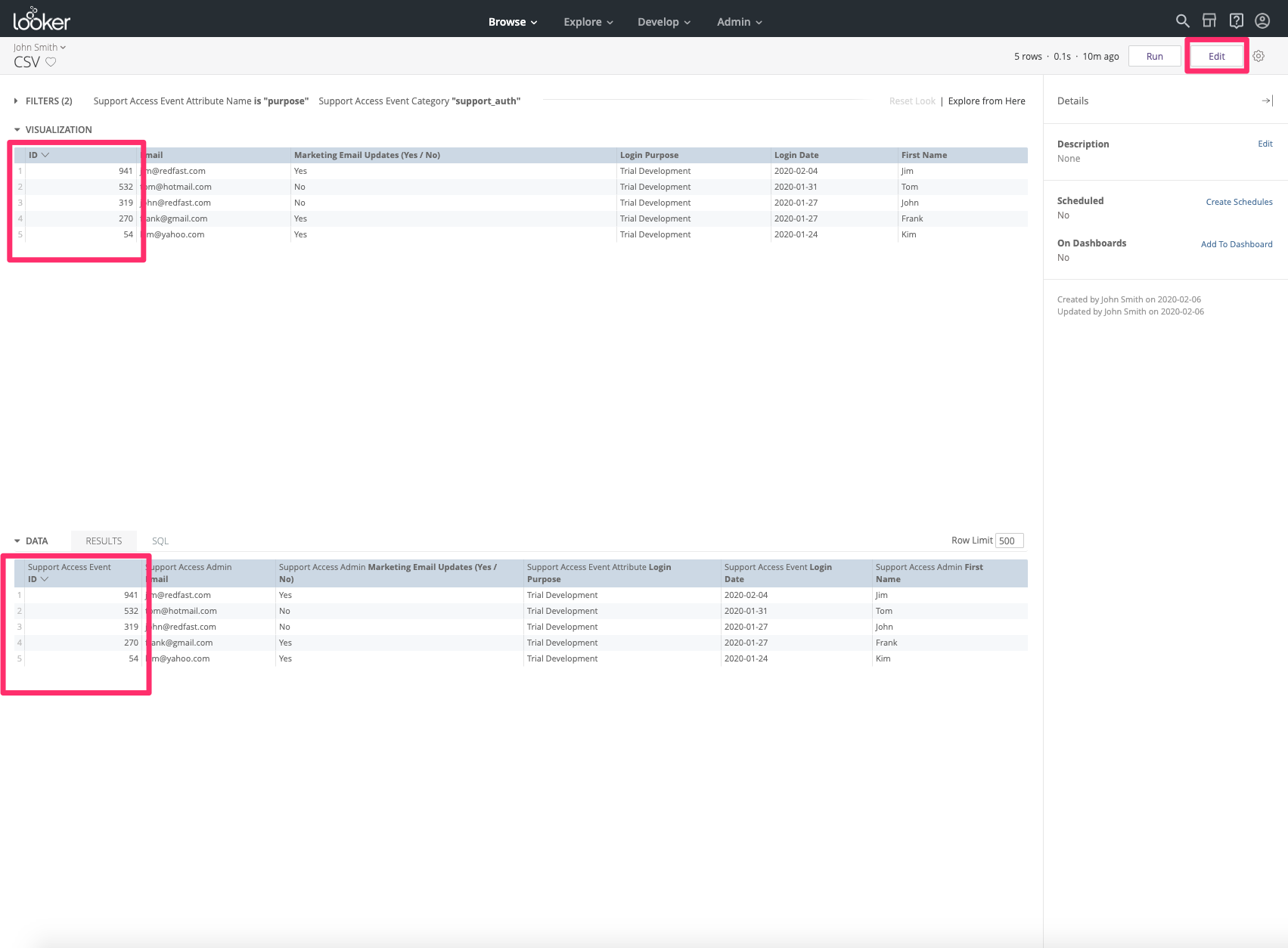
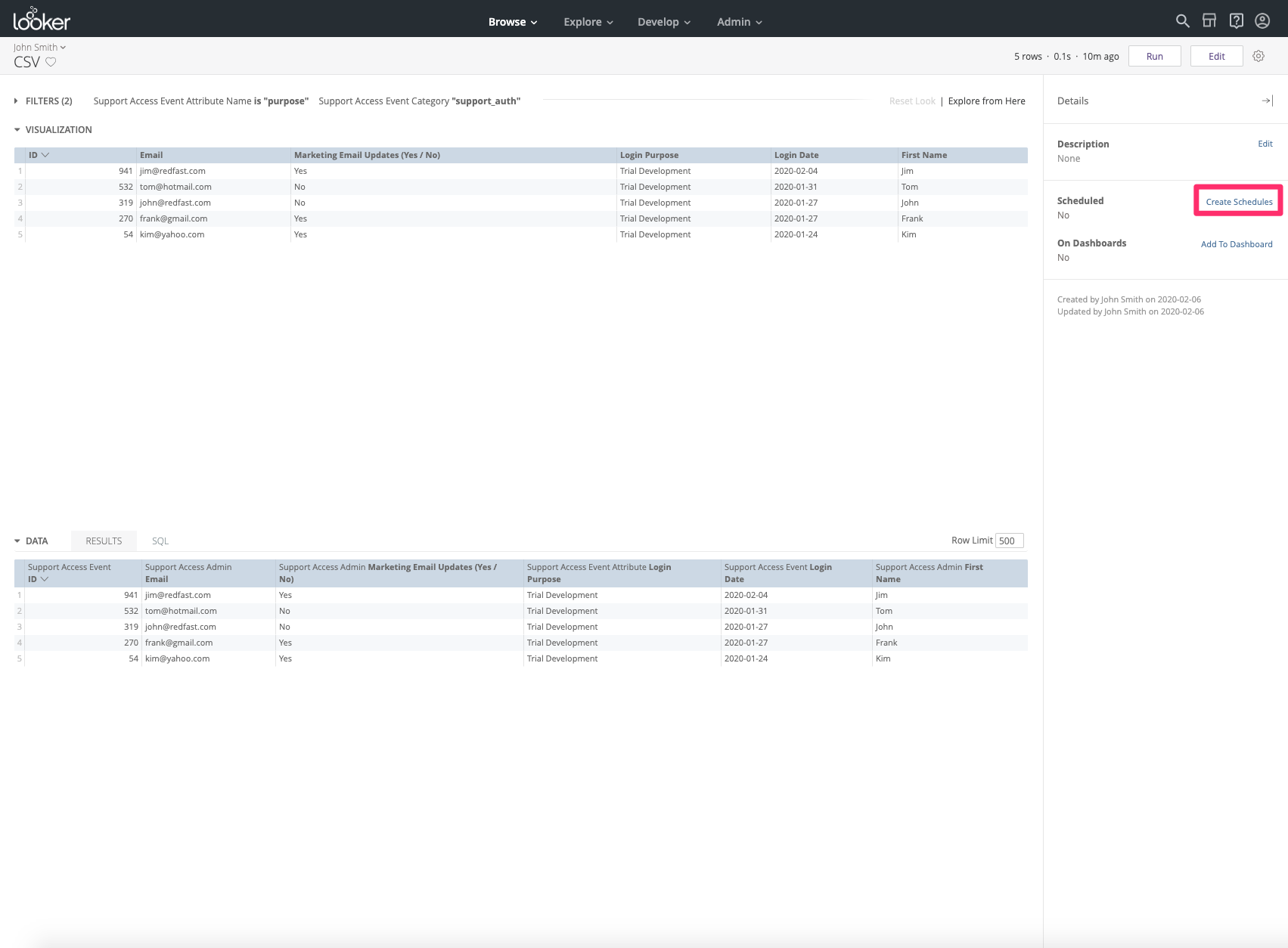
In the schedule modal, choose Amazon S3, then paste your Engage Bucket, Access Key, and Secret Key into the fields. Adjust the delivery time if needed.
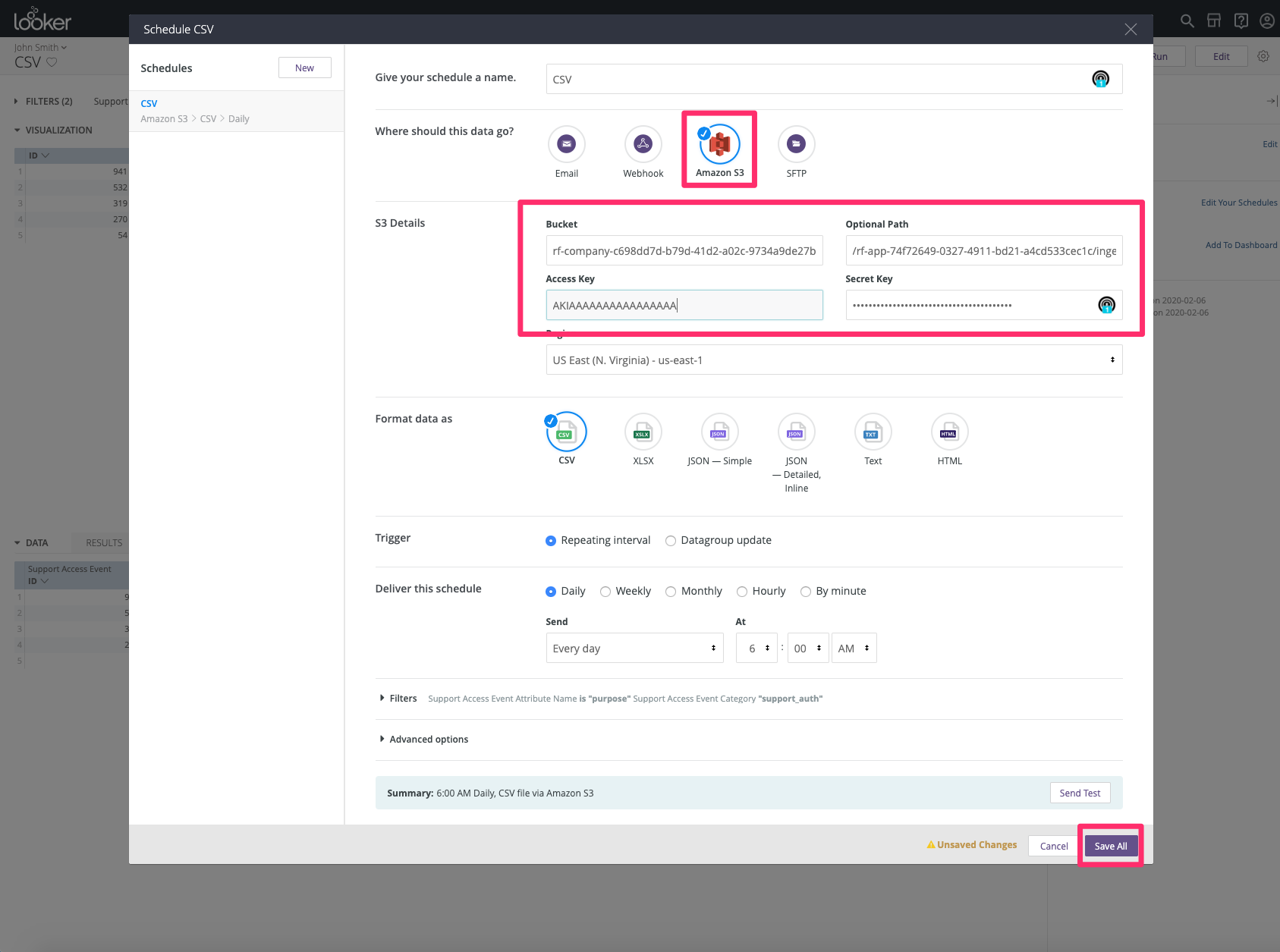
Once you've set this up, Engage automatically ingests the daily CSV upload within a few hours, keeping your user traits up to date for segmentation and targeting.
Updated 26 days ago