
Using custom fonts in a prompt
Configuration guide for applying custom fonts to Recurly Engage prompts using Custom CSS.
Use the fonts your website already loads in your Recurly Engage prompts. Add a short Cascading Style Sheets (CSS) rule in the prompt Editor, and your prompt elements use the font you choose.
Available on all Recurly plans
How can I use custom fonts in a prompt?
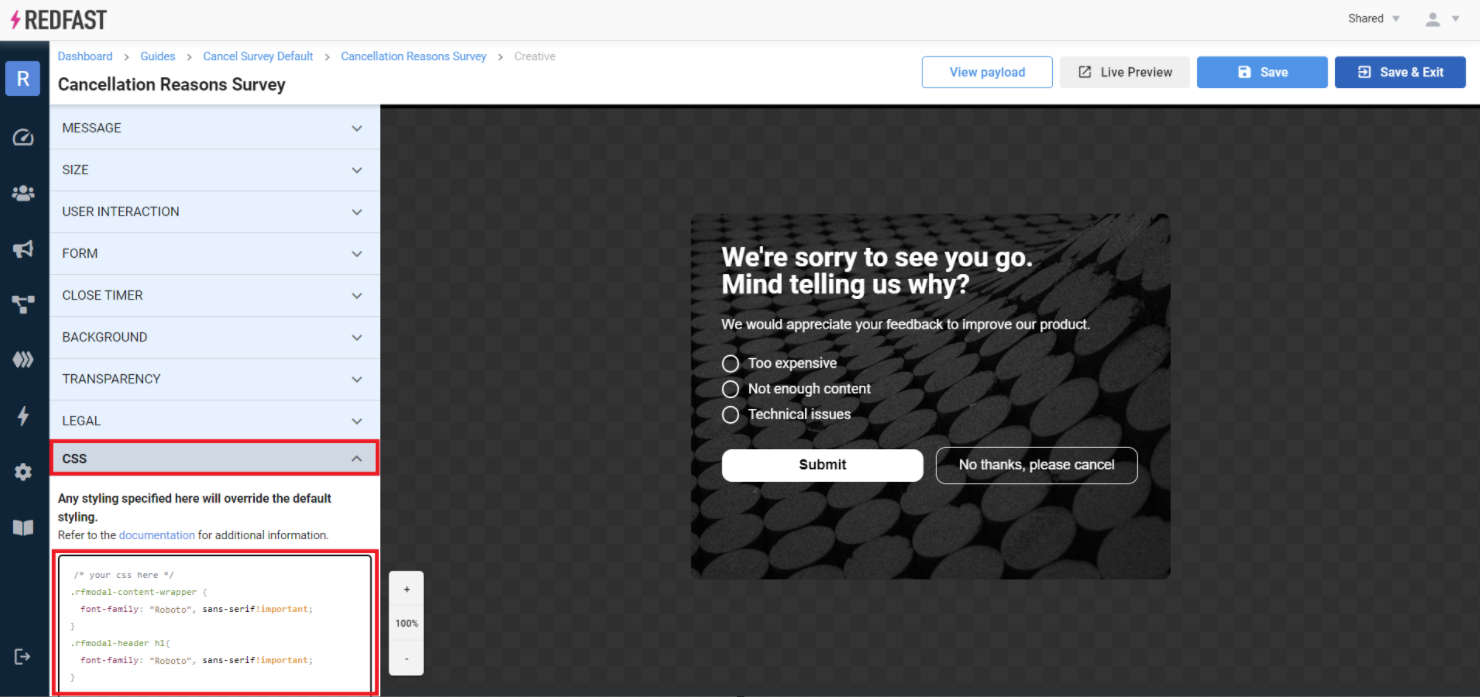
You can apply any web-loaded font to your prompt elements in the Custom CSS section of the prompt Editor.
2
Add your font rule
Add a rule that sets the font for the prompt elements you want to style. Refer to the styling guide for the full list of CSS classes available for prompt styling.
For example, to set the modal content wrapper to use Roboto:
.rfmodal-content-wrapper {
  font-family: "Roboto", sans-serif!important;
} ImportantOnly use fonts that are already loaded on your website.
NoteCustom fonts don’t render in the Editor’s built-in preview, but they display correctly when you use Live Preview or view the live site, provided your site loads those font files.
Updated about 1 month ago
Did this page help you?