
Schedule
How to schedule prompts or guides to run only during specific dates, days, and times in Recurly Engage.
A schedule controls when a prompt or guide is active in Recurly Engage. Set a date range, choose the weekdays it runs, and narrow it to specific hours so it turns on and off automatically.
Available on all Recurly Engage subscription plans
Prerequisites
- You must have Company, App Administrator, or App Member permissions in Recurly Engage.
Limitations
- Times are interpreted in the selected time zone (user's or app's).
Definition
A schedule is a configuration that limits when a prompt or guide is active. It uses three nested settings: Date Window, Day Part, and Time Part.
Key benefits
Precision timing
Target promotions or messages during high-traffic windows.
Automated control
Automatically enable and disable prompts without manual intervention.
Flexible recurrence
Combine date ranges, weekdays, and hourly windows for complex schedules.
Key details
Date window
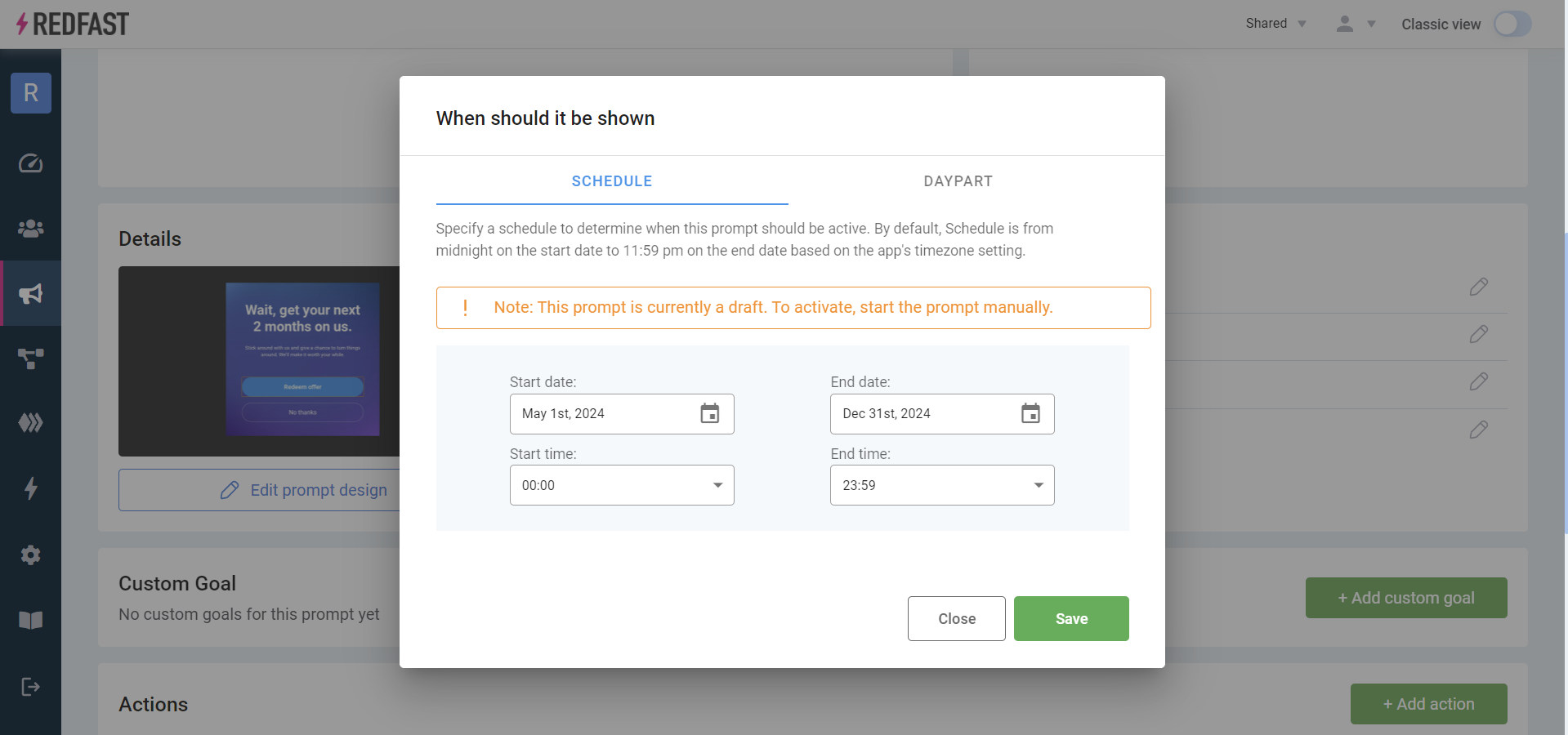
The Date Window defines the overall start and end dates for your prompt or guide. The item is active from 12:01 AM on the start date to 11:59 PM on the end date. Leave the dates blank to run indefinitely.
Day part
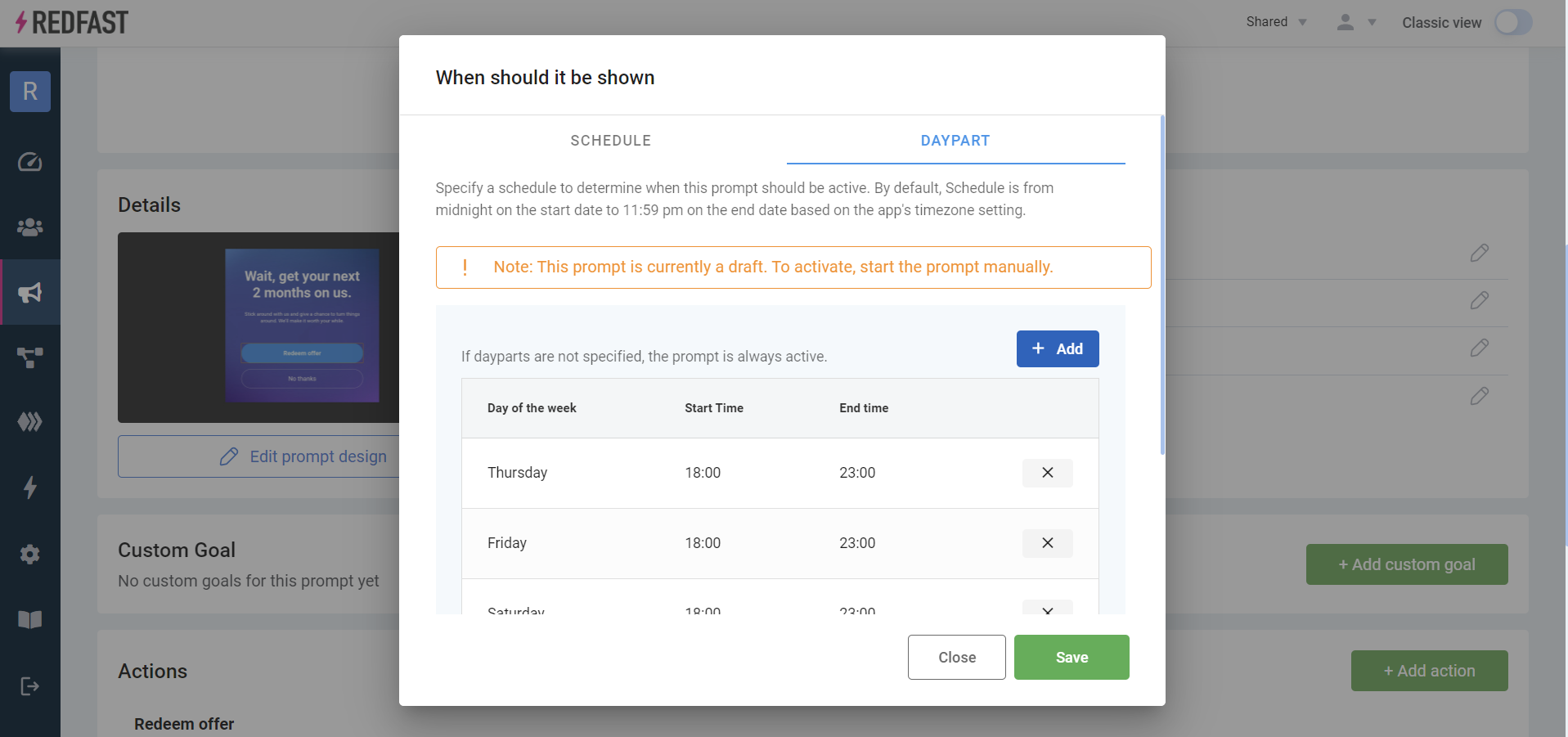
The Day Part setting lets you choose the specific weekdays when the prompt or guide is active. If you don't set it, all days are included.
Time part
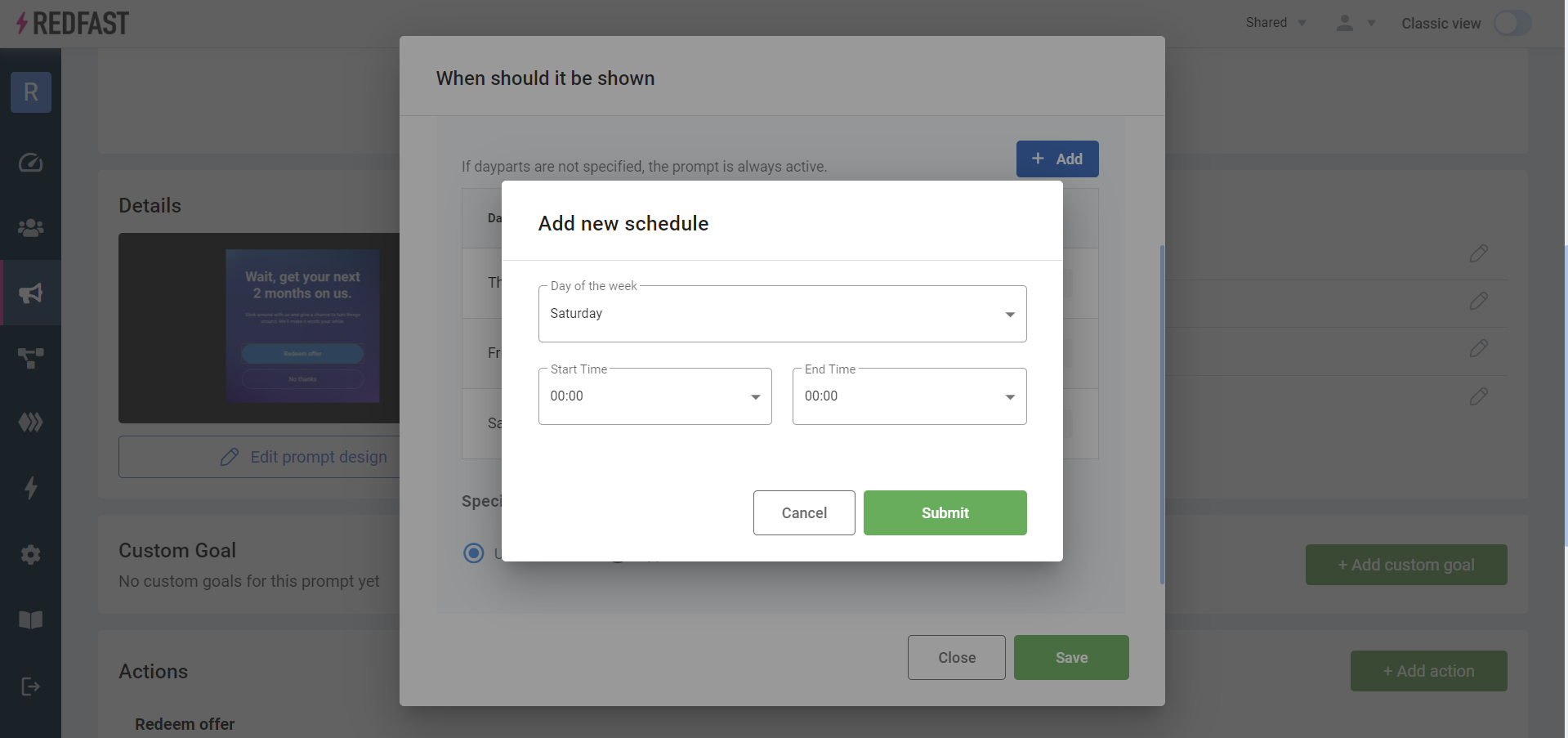
The Time Part setting defines the specific hours within each selected day when the prompt or guide appears. Time parts are a sub-setting of day parts, so select your days first. You must also choose whether to enforce the schedule in the user's time zone or the app's time zone.
WarningMake sure your time windows don't overlap midnight unless you intend the schedule to wrap across days.
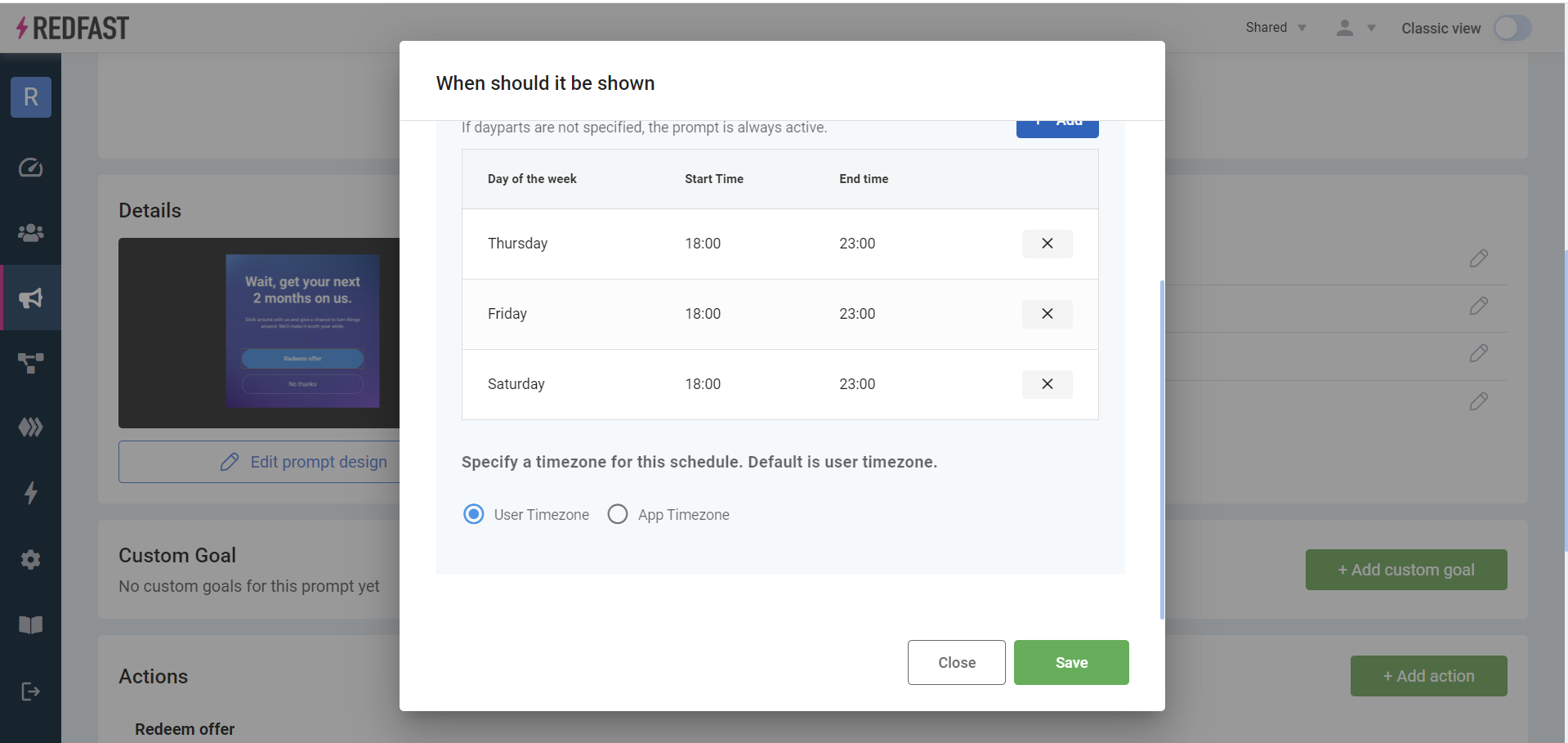
TipUse these settings together to create complex schedules. For example, show a weekend-only special offer every Friday and Saturday evening between 6 PM and 11 PM, from May 1, 2024, through December 31, 2024.
Updated about 1 month ago
Did this page help you?