
Paywall and hardwall prompts
Set up an Engage dynamic paywall to limit free content and convert readers into subscribers.
Dynamic Paywall and hardwall prompts help publishers and content providers control and monetize access to their digital content. Let readers view a set number of complimentary articles or paragraphs, then require sign-up or subscription before they can keep reading—no intrusive blocking required.
Available on all Recurly Engage plans
Definition
A Dynamic Paywall or hardwall prompt limits how much content a reader can access for free. Once a user reaches that limit, the prompt visually obscures the remaining content and blocks further scrolling until they sign up or subscribe.
Key benefits
Maximized content valueConvert frequent readers into paying subscribers by blocking the remainder of premium article content.
Flexible access controlDefine the precise number of complimentary visits a user is permitted, with granular control over the pre-access experience.
Customizable blockingBlock content by hiding, blurring, or custom CSS, with precise control over complimentary paragraphs or elements.
Drives user registrationCreate a clear incentive for users to sign up once they've used their introductory content quota.
Optimize with experimentsA/B test any part of the experience over time to improve conversion.
Step-by-step guide
- Fill out the required fields for Name, Label, and Description. Select the Page tracker type, then enter the relevant URL path.
- Check the Use as paywall tracker checkbox.
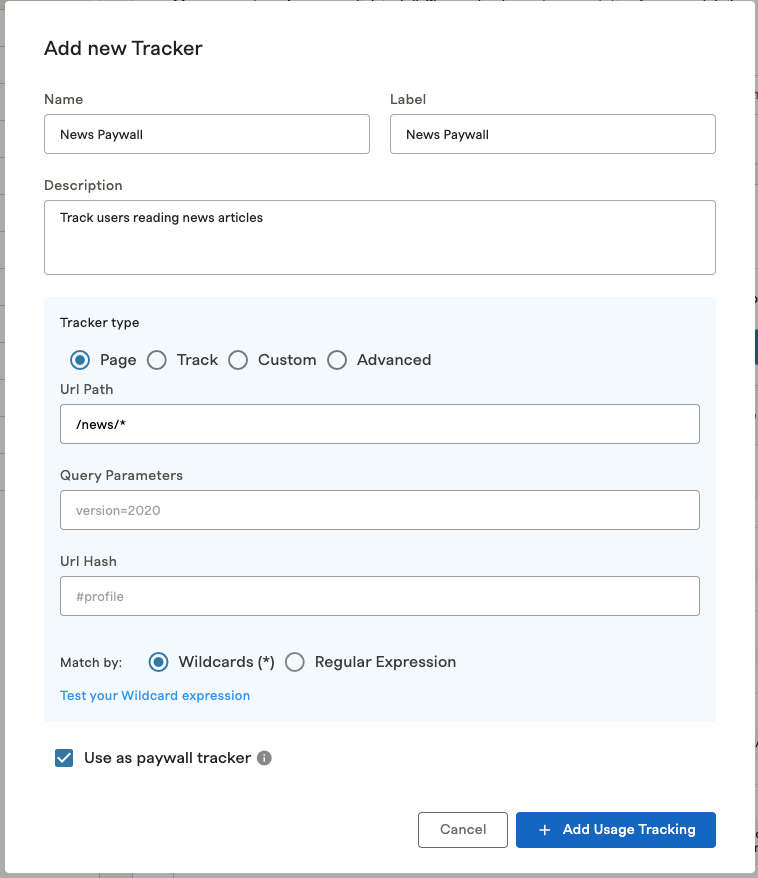
If you're using an inline prompt, you can create a new zone to control where the prompt displays, or reuse the same zone. If you reuse the Article Zone, the prompt is appended to the end of it.
- Navigate to Settings > Zones and select New Zone.
- Enter the information for your zone—the parent element containing the content you want to block or hide.
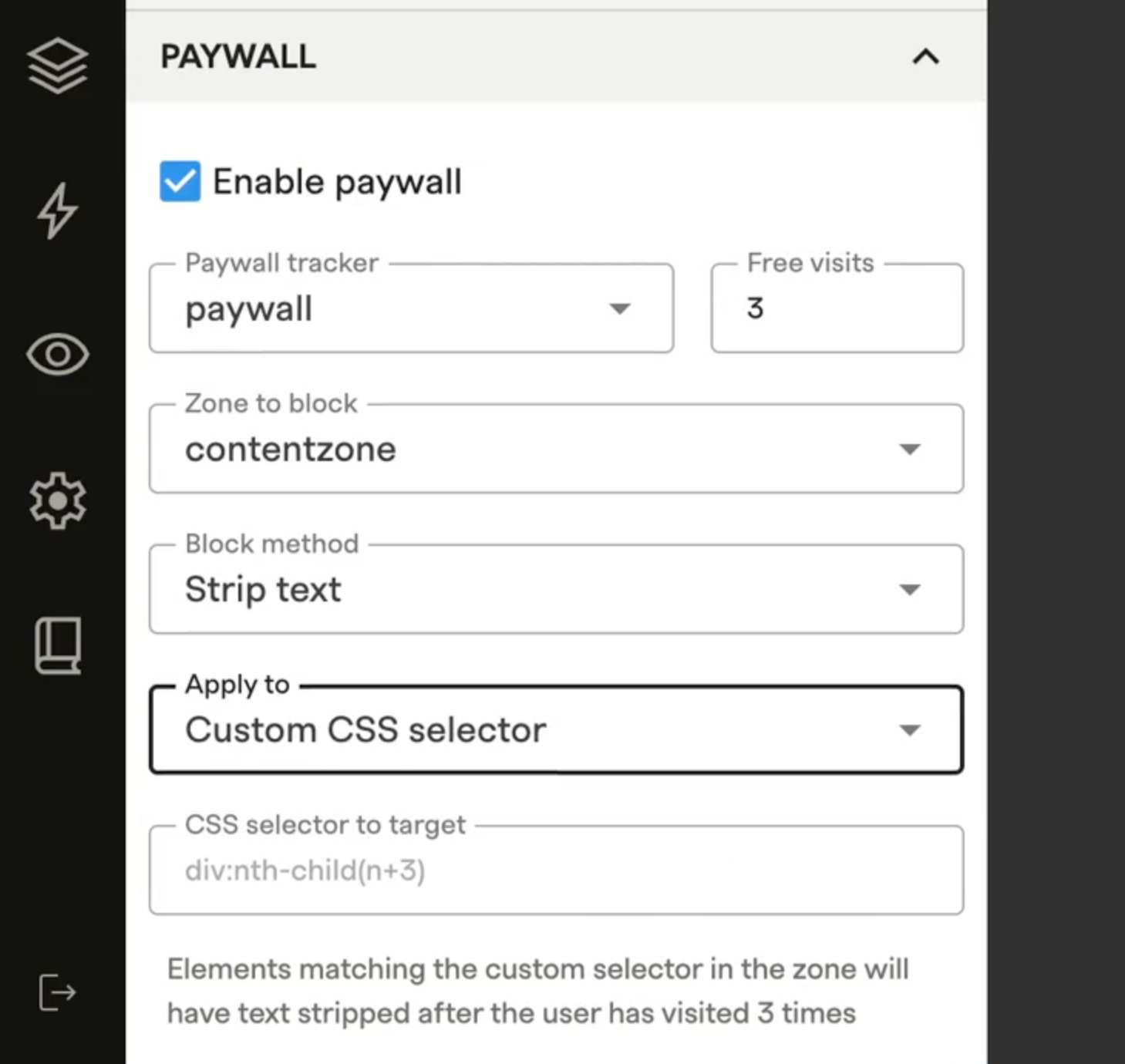
- In the Edit Prompt Design view, scroll to the Paywall accordion menu.
- Check Enable paywall, then select the zone that defines the article—your Article Zone.
NoteConfigure the following paywall settings before you save.
- Paywall tracker: the usage tracker you created in Step 1.
- Free visits: how many visits a user gets before the paywall activates.
- Zone to block: the area that will be obscured.
Choose a block method—how the content will be removed or obscured from the page:
- Blur: the content stays on the page, but CSS styling prevents it from being readable.
- Hide: the content is hidden, but not removed from the page.
- Strip text: the text is removed from the DOM, but the DOM elements remain, so you don't break any JavaScript.
- Custom CSS: enter your own CSS to block the content.
- Apply to elements: choose which elements in the Article Zone the block method applies to. You can specify a custom CSS selector for precise control.
- Elements to allow: set how many paragraphs or child elements in the Article Zone stay unblocked, if you're not using a CSS selector above.
- Save and activate: once your limits are set and your copy is finalized, save the prompt to apply the paywall logic to your site.
Updated about 1 month ago
Did this page help you?