
Create an experiment
Step-by-step guide to creating and running A/B experiments on your prompts in Recurly Engage.
Prerequisites
- You must have Company or App Administrator permissions in Recurly Engage.
Limitations
- At least one prompt must exist in draft or review status before you can create an experiment.
Definition
Key benefits
Key details
Guide
Experiments follow these steps.
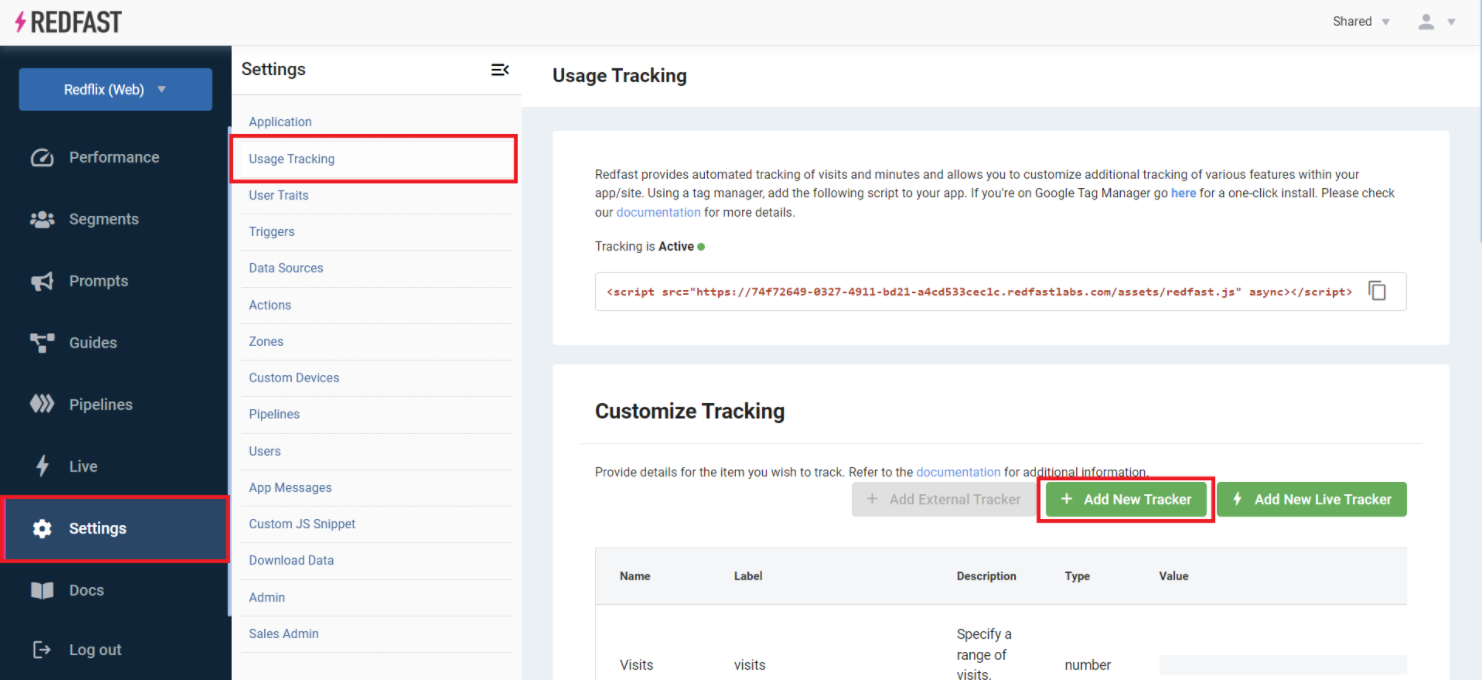
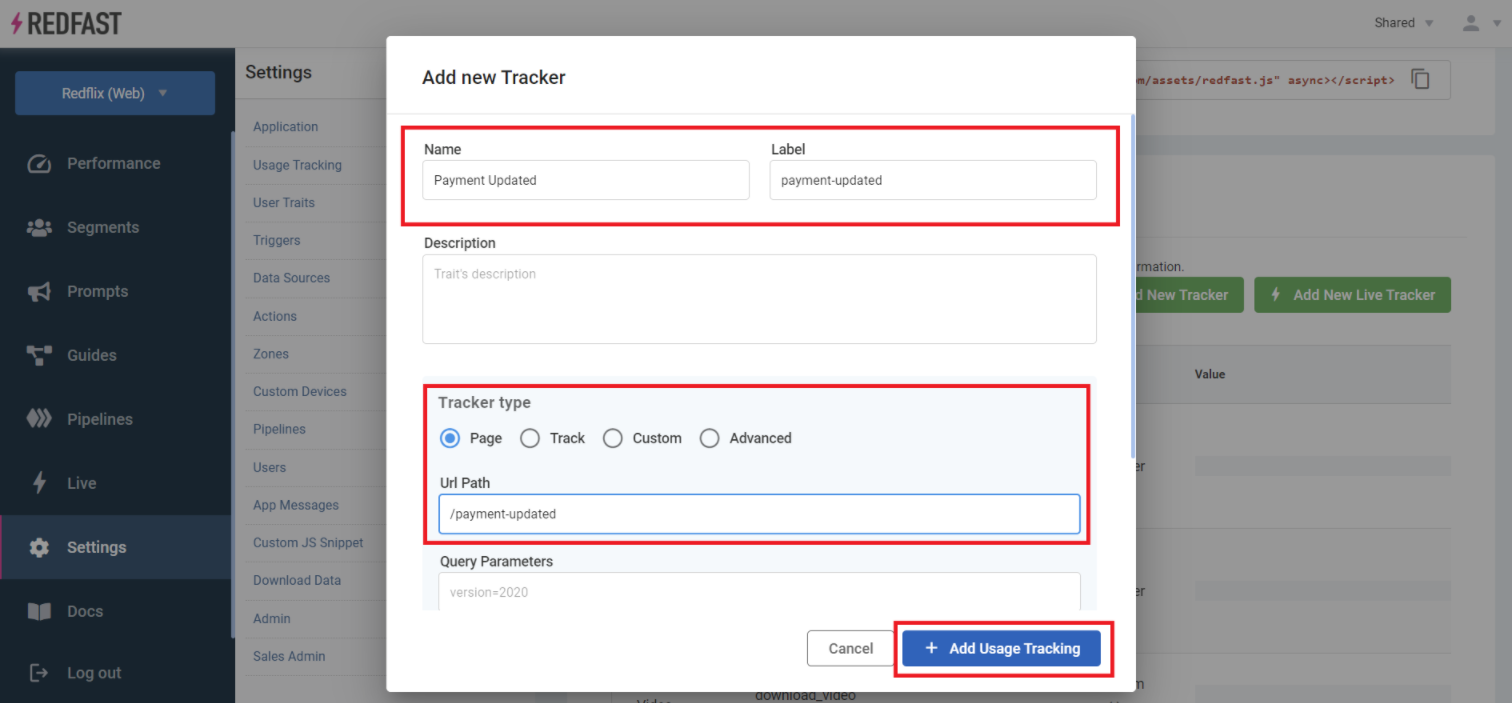
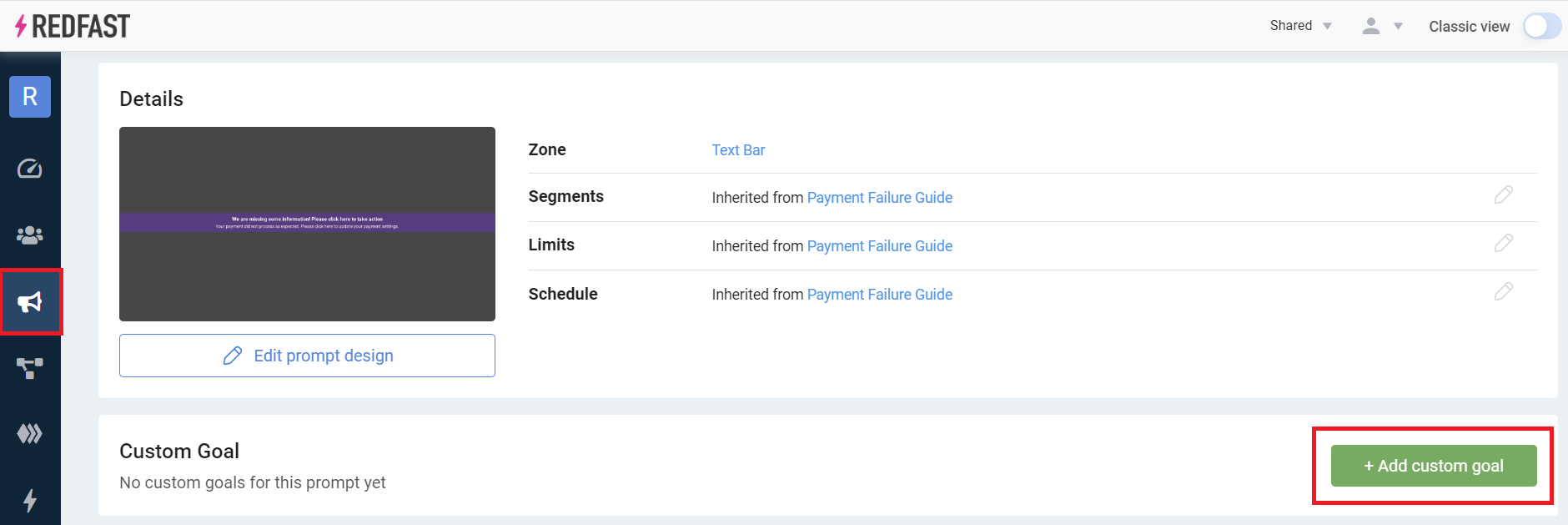
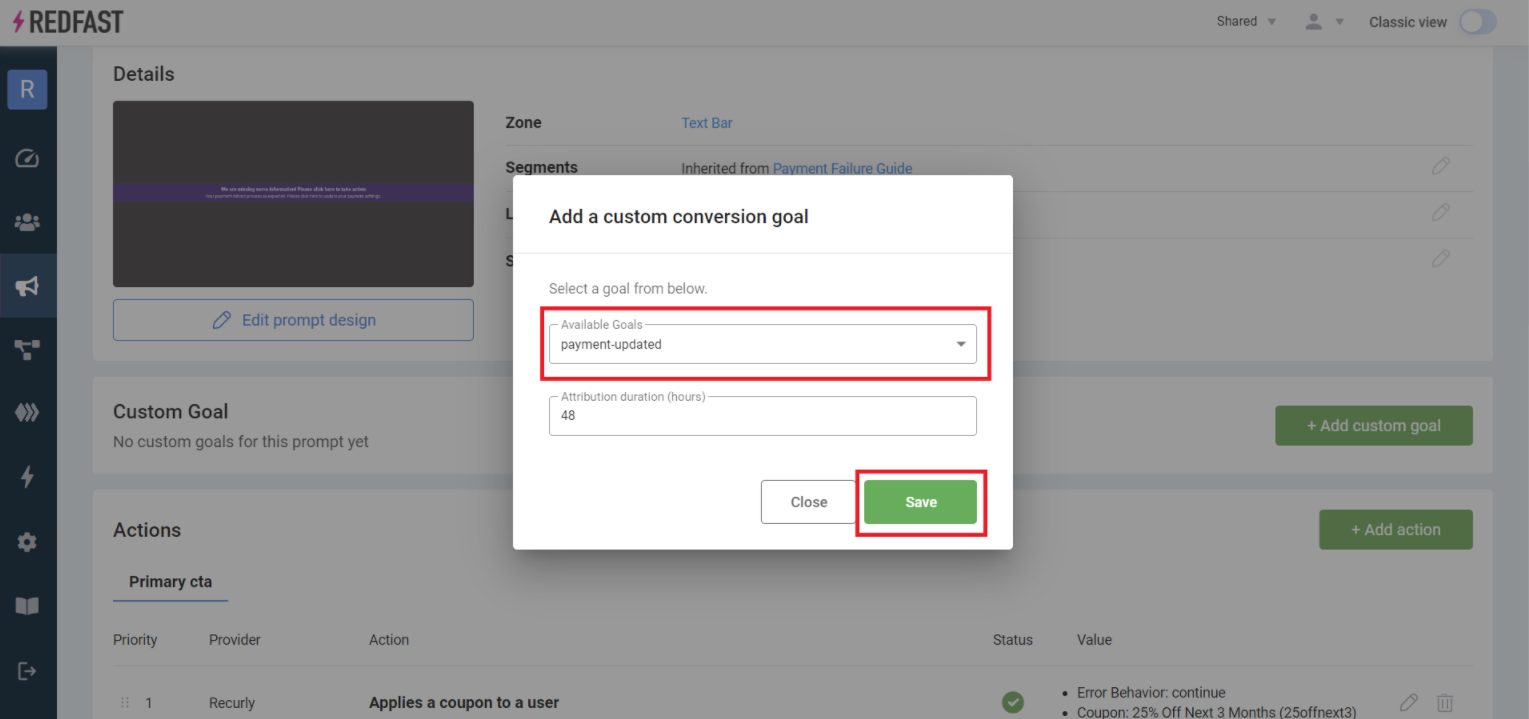
Add a custom goal (optional)
Define what success looks like — a click or a purchase, for example — before creating variations.
Create the experiment
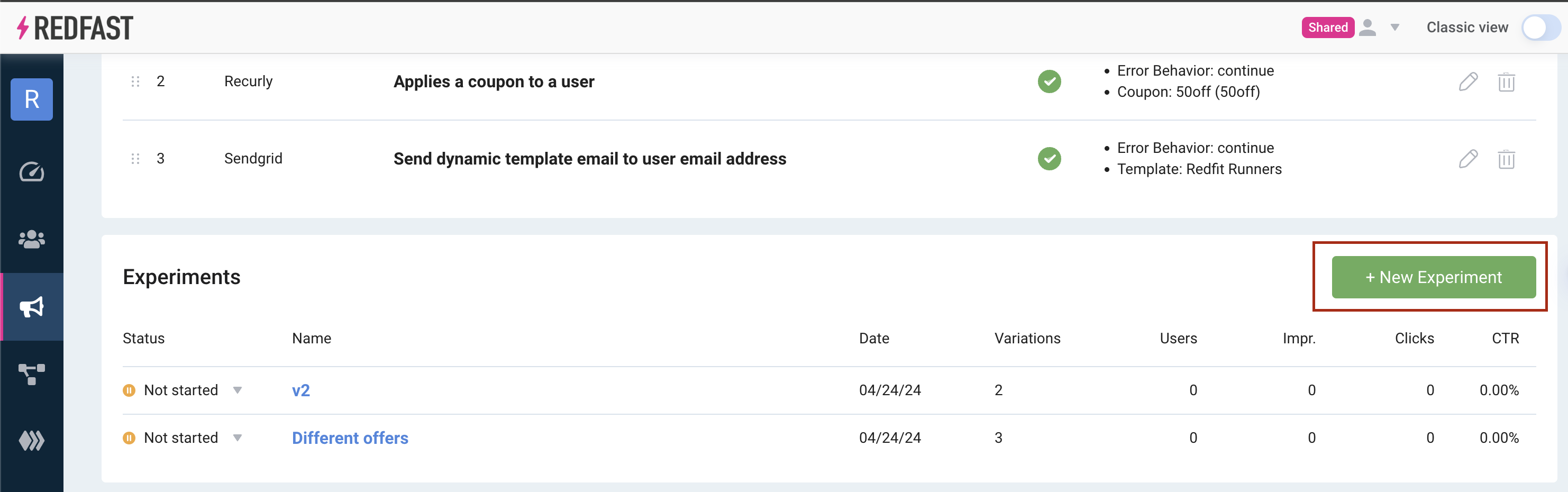
Name your experiment
Give it a clear name — see the overview on experiments for naming best practices.

Configure variations
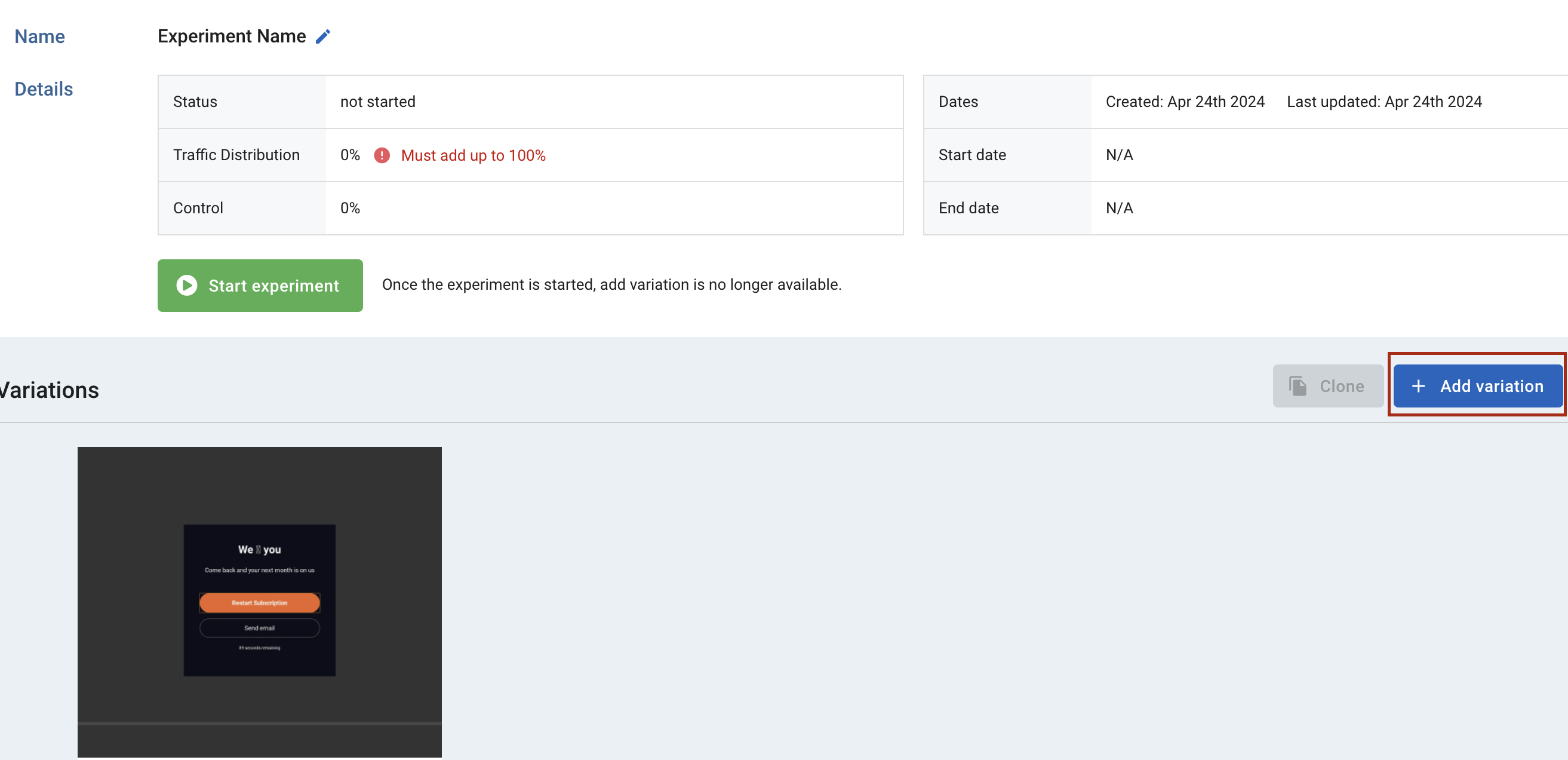
Default setup: your experiment starts with the Original prompt. If you added a custom goal, you can also include a Control group to measure the impact of showing the prompt versus hiding it.

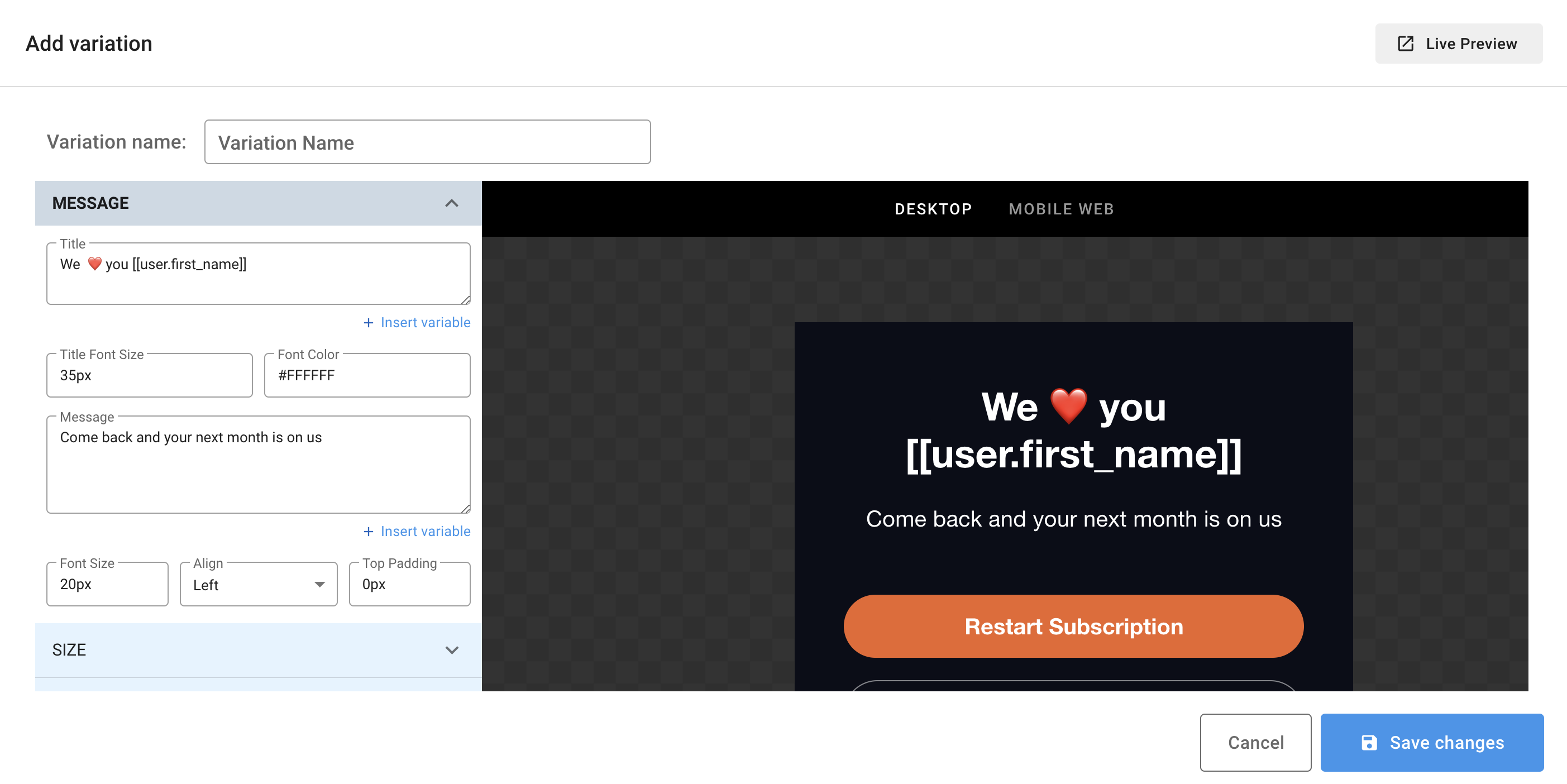
Add a variation: click Add variation, name it to reflect the change (for example, "New headline"), and modify one or more aspects — text, design, triggers, or actions.
Use the editor to scroll down and adjust settings as needed.
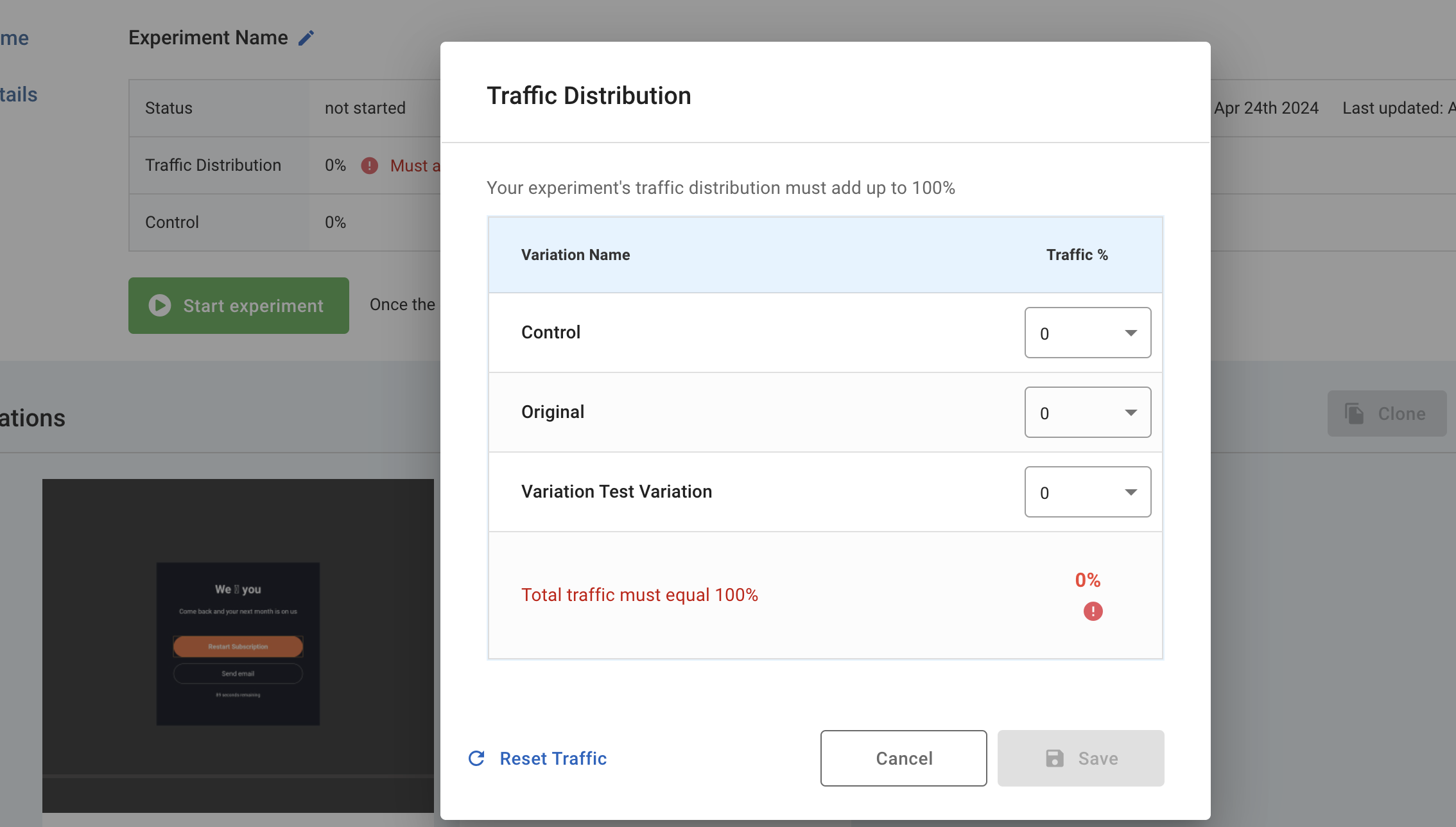
Allocate traffic
Set the percentage of users who see each variation — make sure the total adds up to 100%.
Launch and monitor

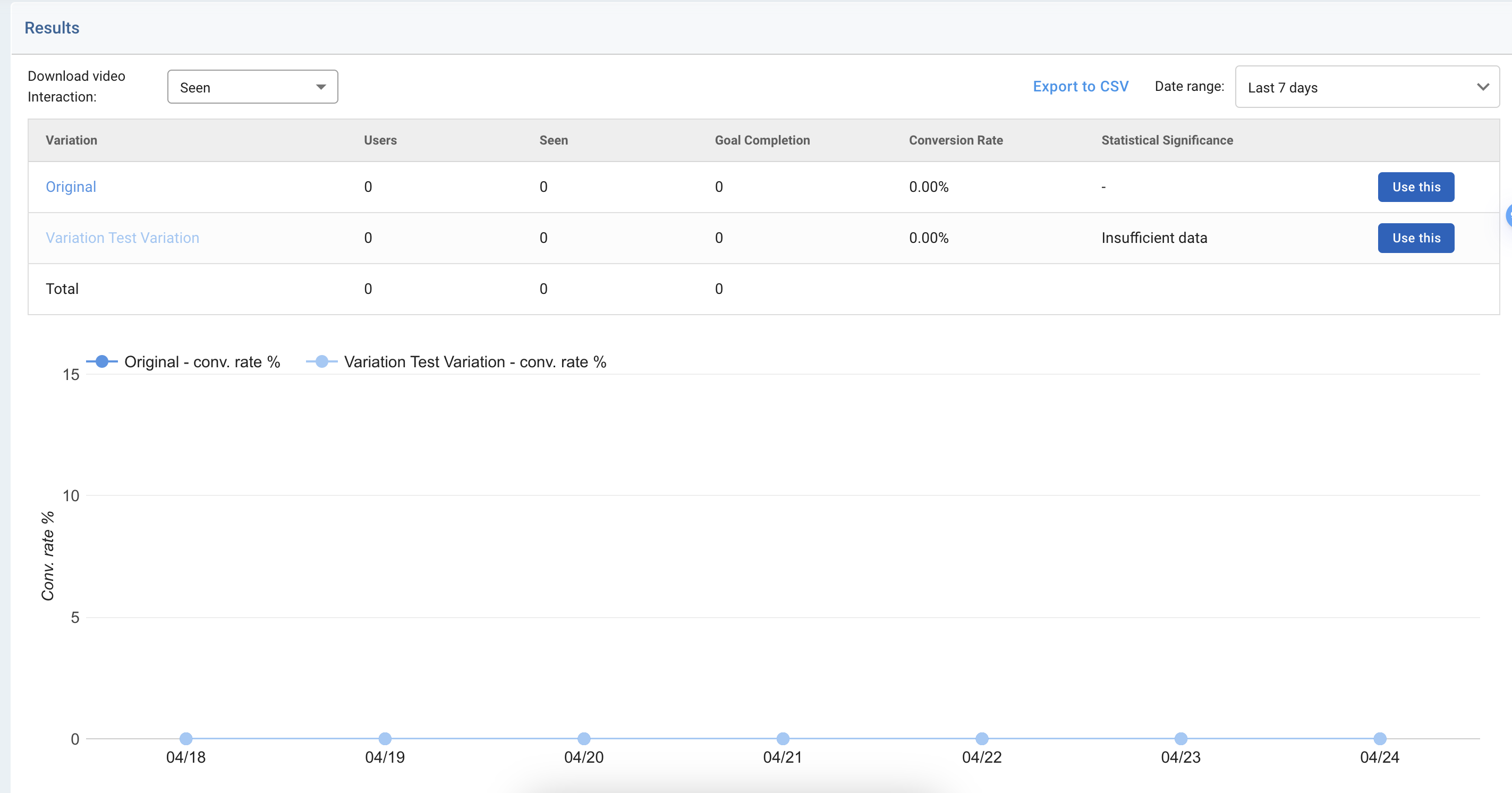
That's it — your experiment is live, and you can review the results to make data-driven optimizations to your prompts.
Updated about 1 month ago