
Triggers
Instructions for configuring when and where your prompts should appear using page, event, and advanced triggers—all within a single, comprehensive guide.
Prerequisites and limitations
- You must have Company, App Administrator, or App Member permissions in Recurly Engage.
- Collaborate with your development or product team to identify URLs, Cascading Style Sheets (CSS) selectors, or custom logic.
Definition
Key benefits
Key details
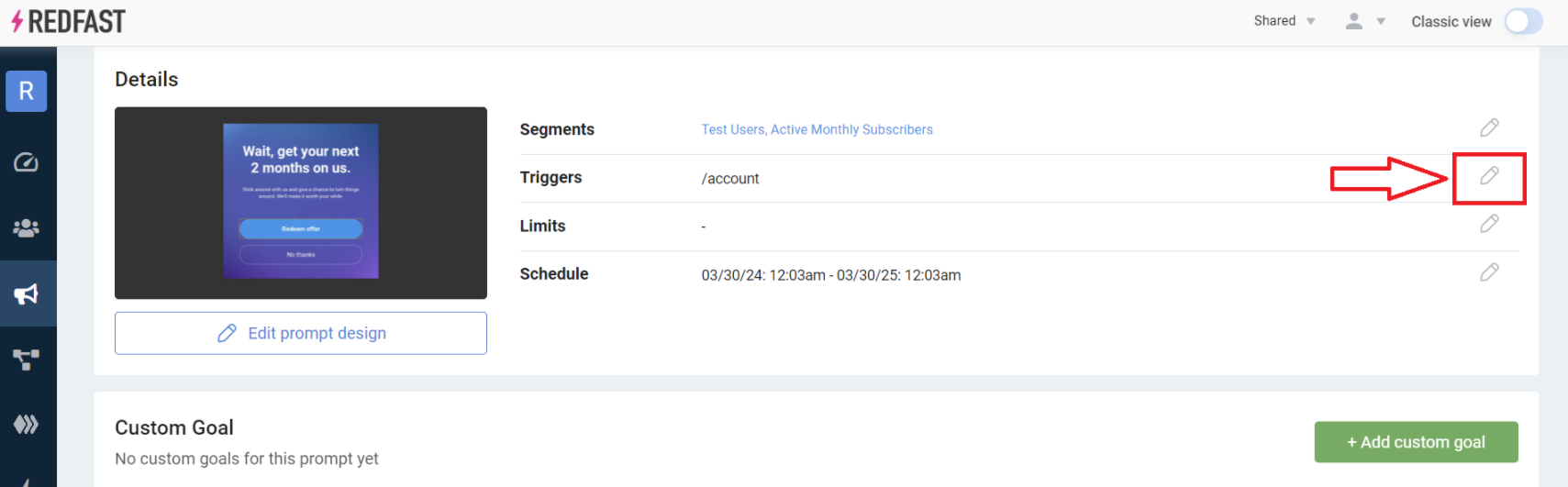
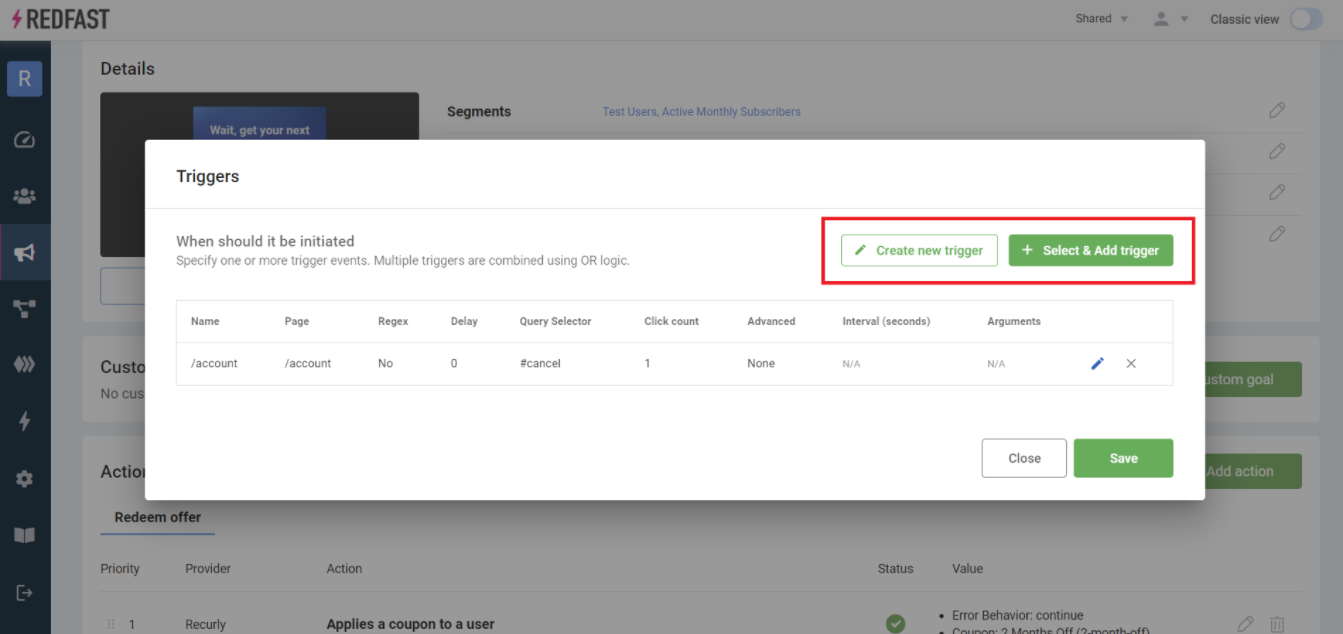
Triggers set the criteria for when a prompt displays. To configure triggers in the console:
Page trigger
The page trigger displays a prompt when visitors arrive on a screen that matches the specified URL path. Set a delay timer to show the prompt after a number of seconds instead of immediately.
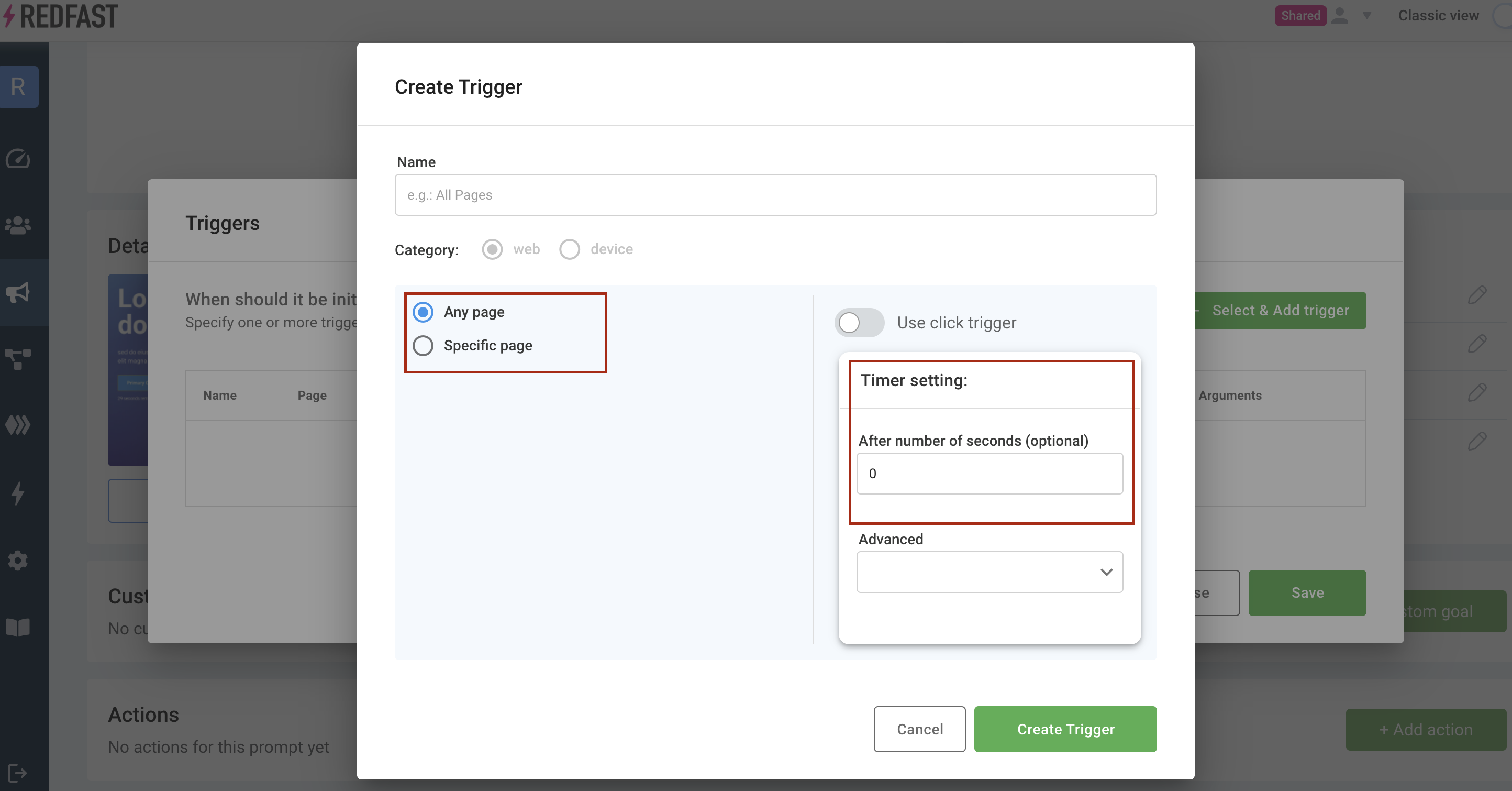
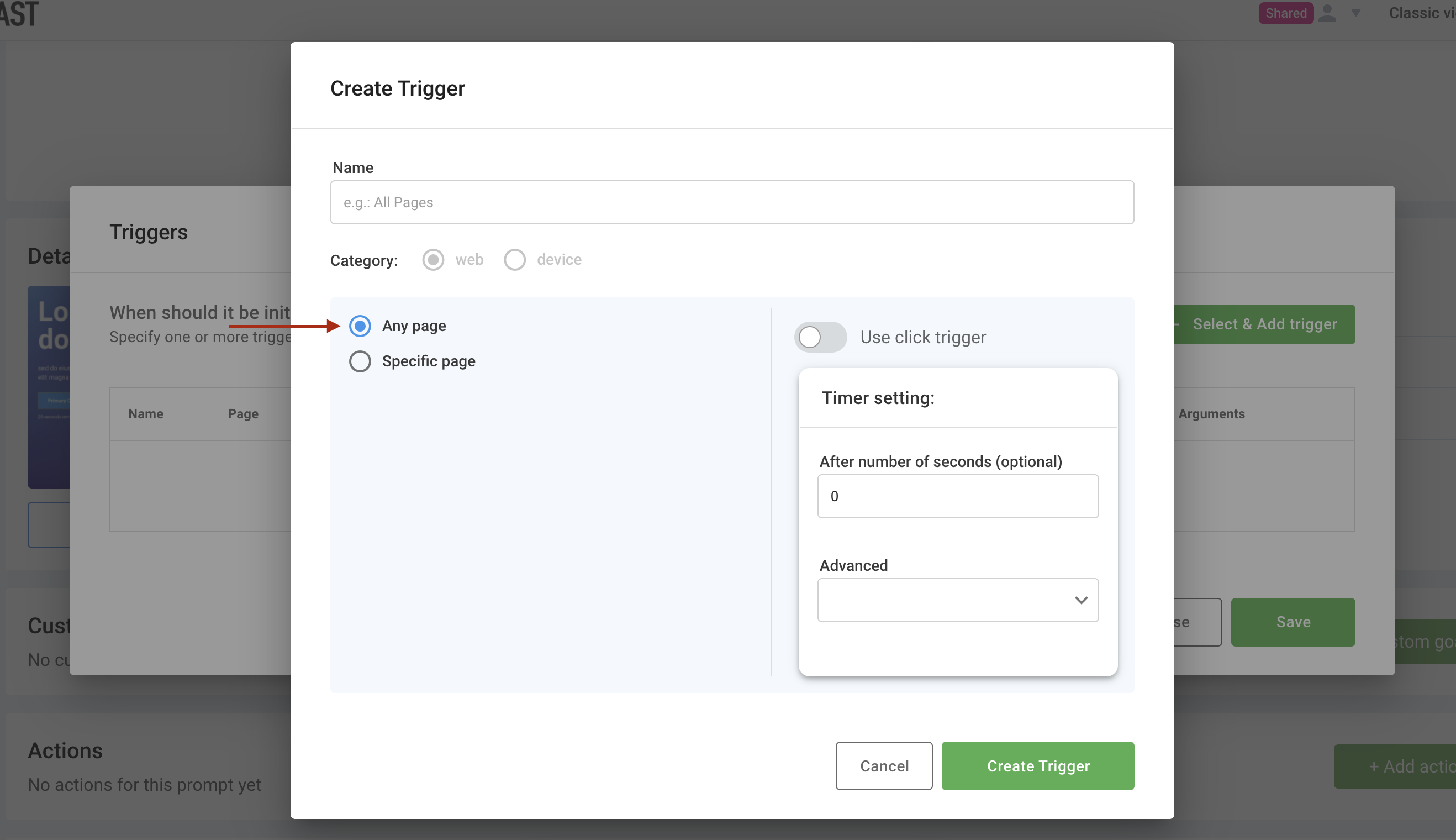
Any page
This option triggers your prompt on every page of your site.
URL path
https://www.example.com) in your trigger rule prevents the trigger from firing correctly.For example, to match https://www.example.com/path/, enter only /path/ in the trigger URL Path field.
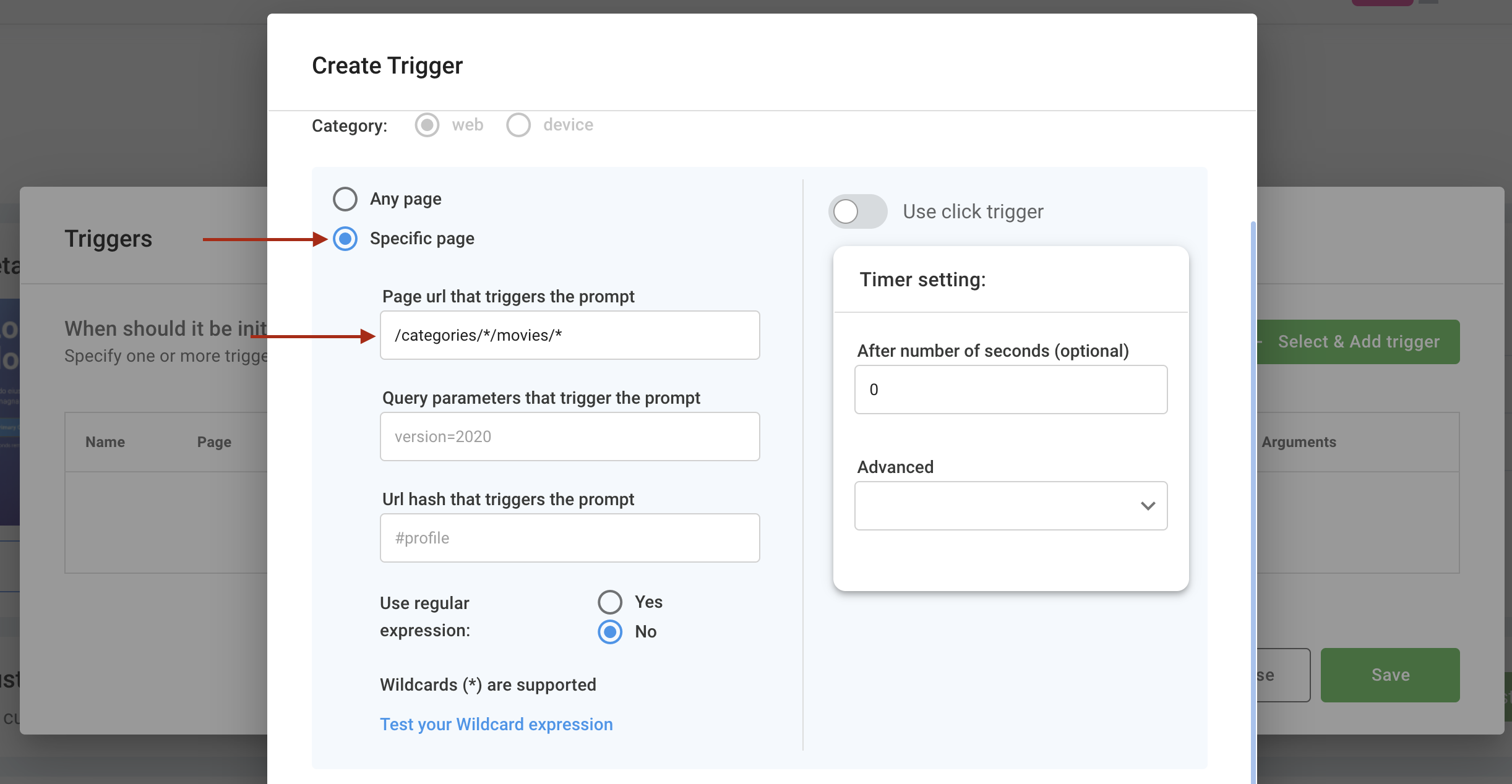
Wildcard URL path
Match URL patterns using *. Always include a leading slash.
Examples:
/categories/*matches/categories/123or/categories/123/detail/categories/movies/*matches/categories/movies/top-ten/movies/the-*matches/movies/the-endor/movies/the-best/123
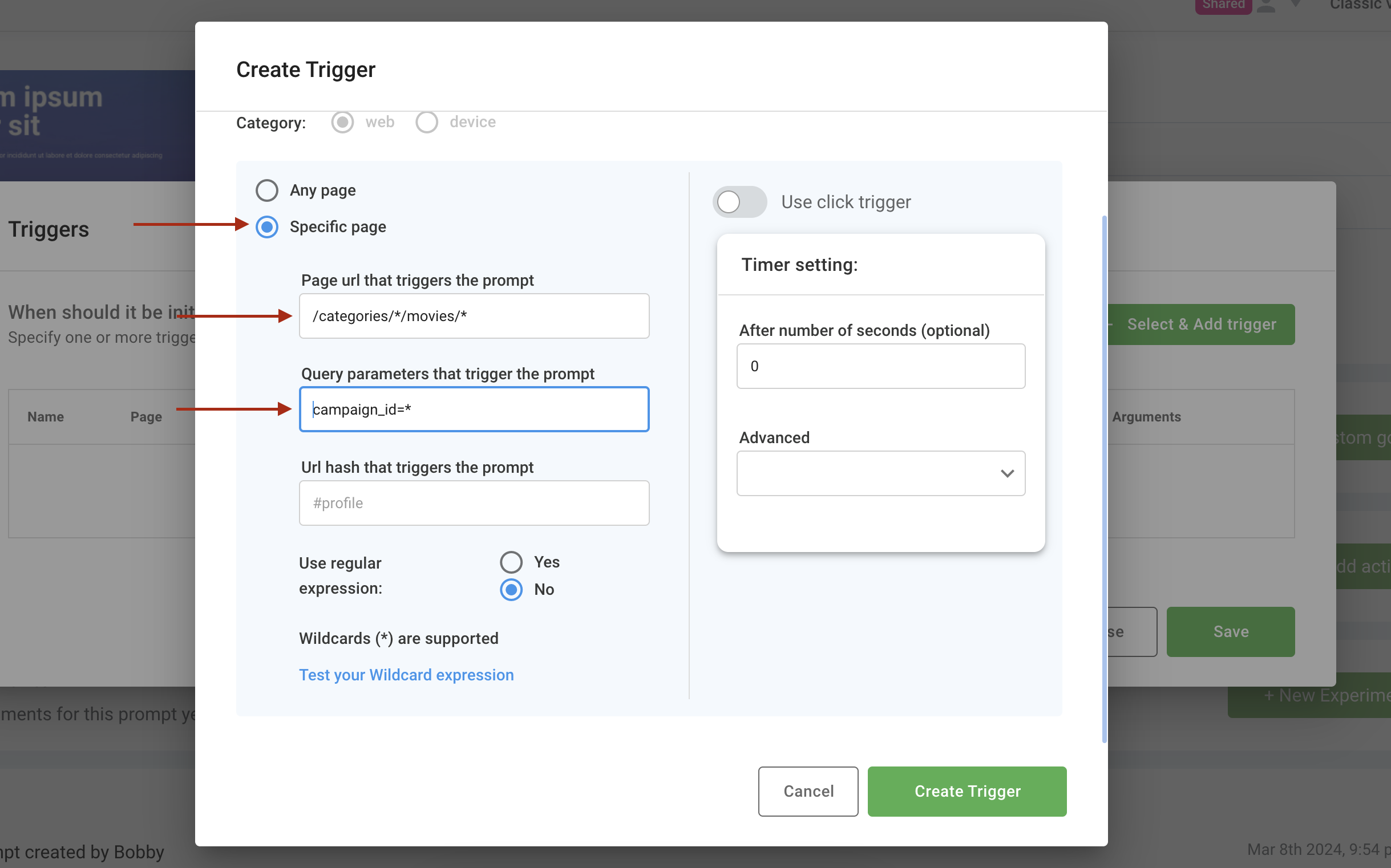
Match query parameters
Match URL query parameters. Wildcards are allowed.
campaignid=*id=*&referrer_id=456utm=mycampaign
Match URL hash
Match URL fragments after #.
#anchor1#category*
Combine Wildcard URL Path, Query Parameters, and URL Hash. Leave fields blank if you don't use them.
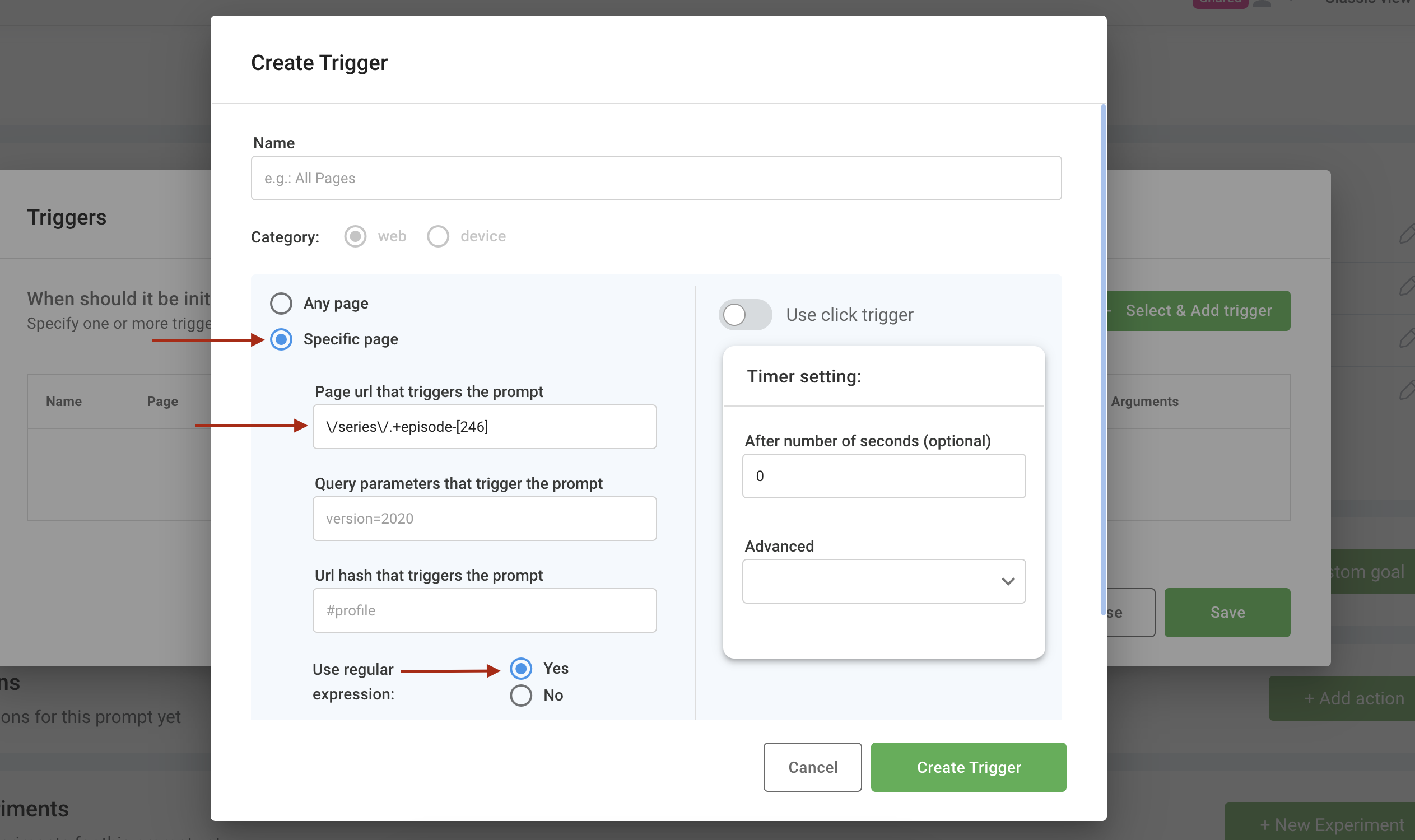
Regular expression URL path
Use regular expressions (regex) for complex include and exclude patterns.
Exclude URL paths
^(?!\/accounts).*excludes any path starting with/accounts/^(?!\/category\/live-news).*excludes/category/live-news
Exclude query parameters
^(?!campaign_id).*excludes URLs containingcampaign_id
Exclude URL hash
^(?!#section_5).*excludes hash#section_5
Complex regular expressions
For complex regular expressions, contact your Customer Success team or [email protected] for assistance.
Examples:
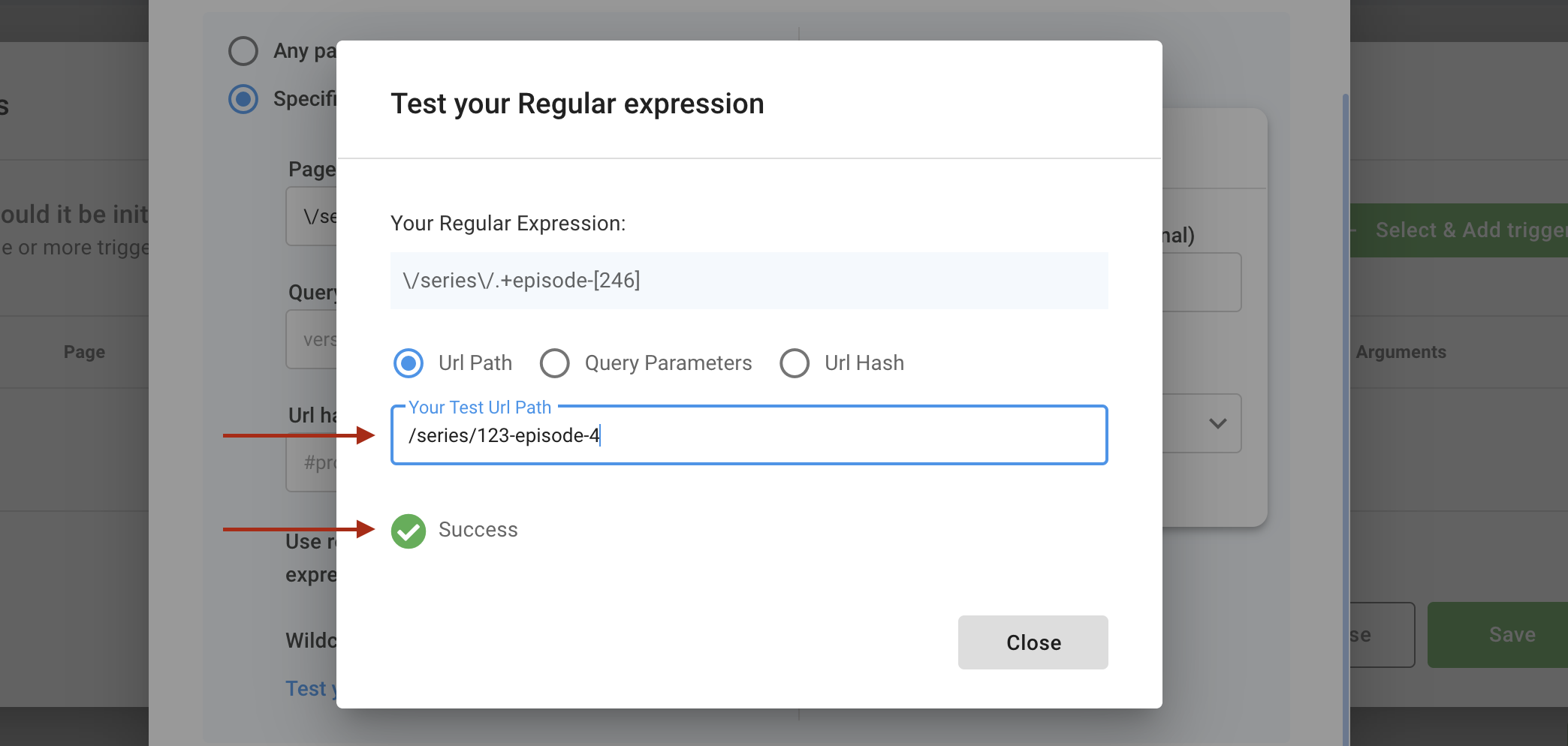
/skus/123[a-z]{3,}456matches stock keeping unit (SKU) paths like/skus/123abc456/series/.+-episode-[246]matches episodes ending in 2, 4, or 6
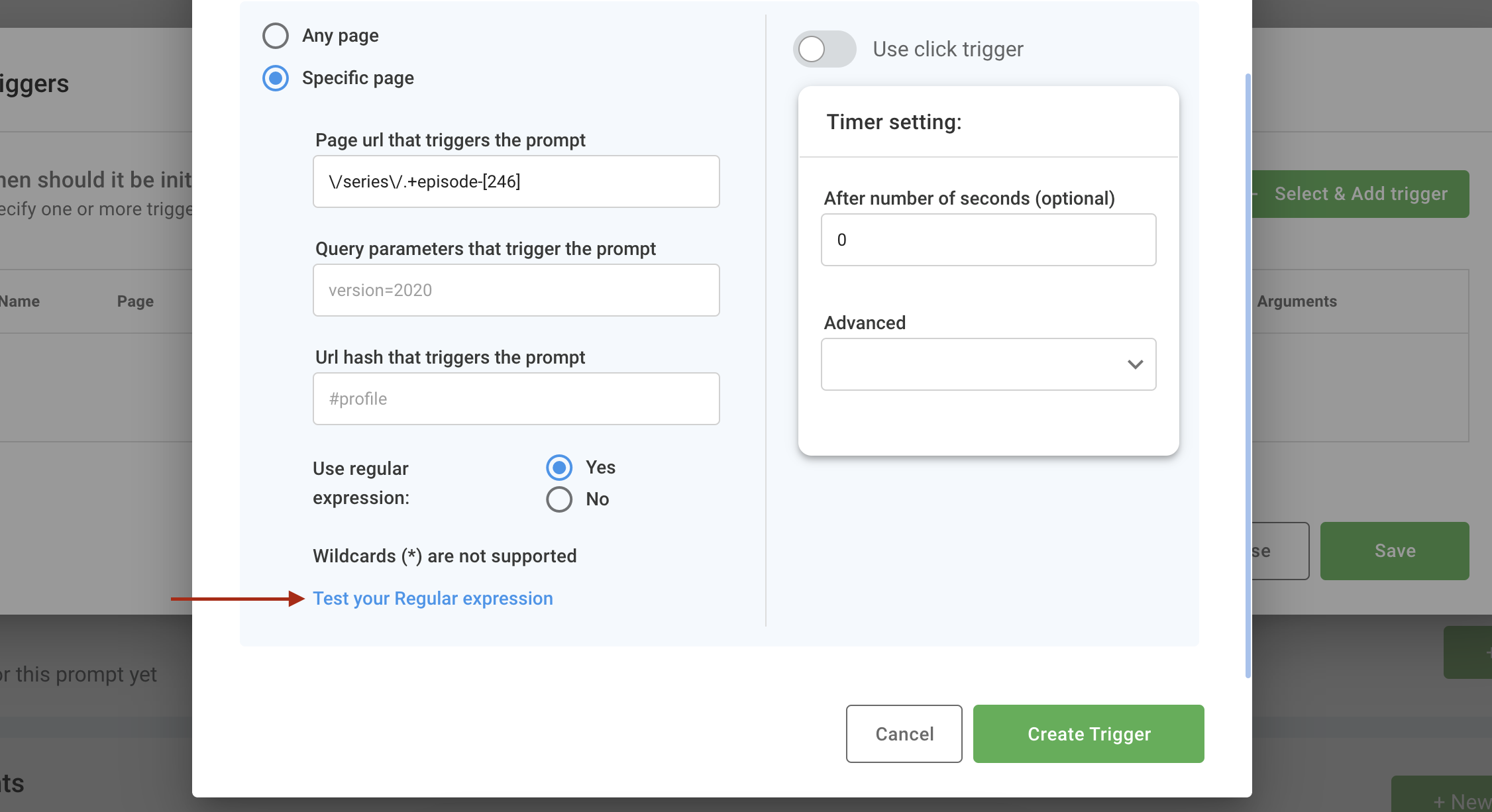
Regular expression tester
Validate sample paths against your regular expression.
Click trigger
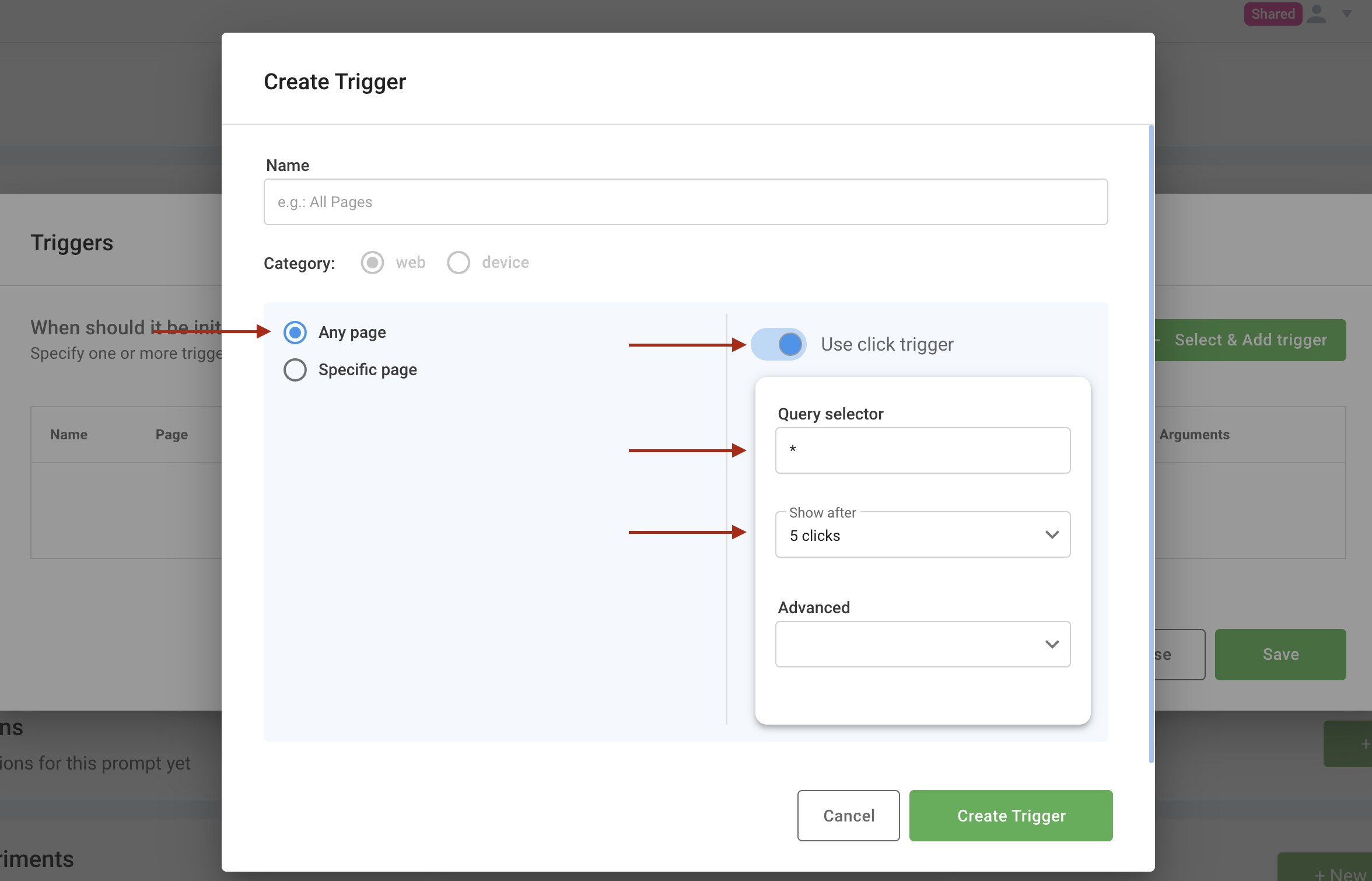
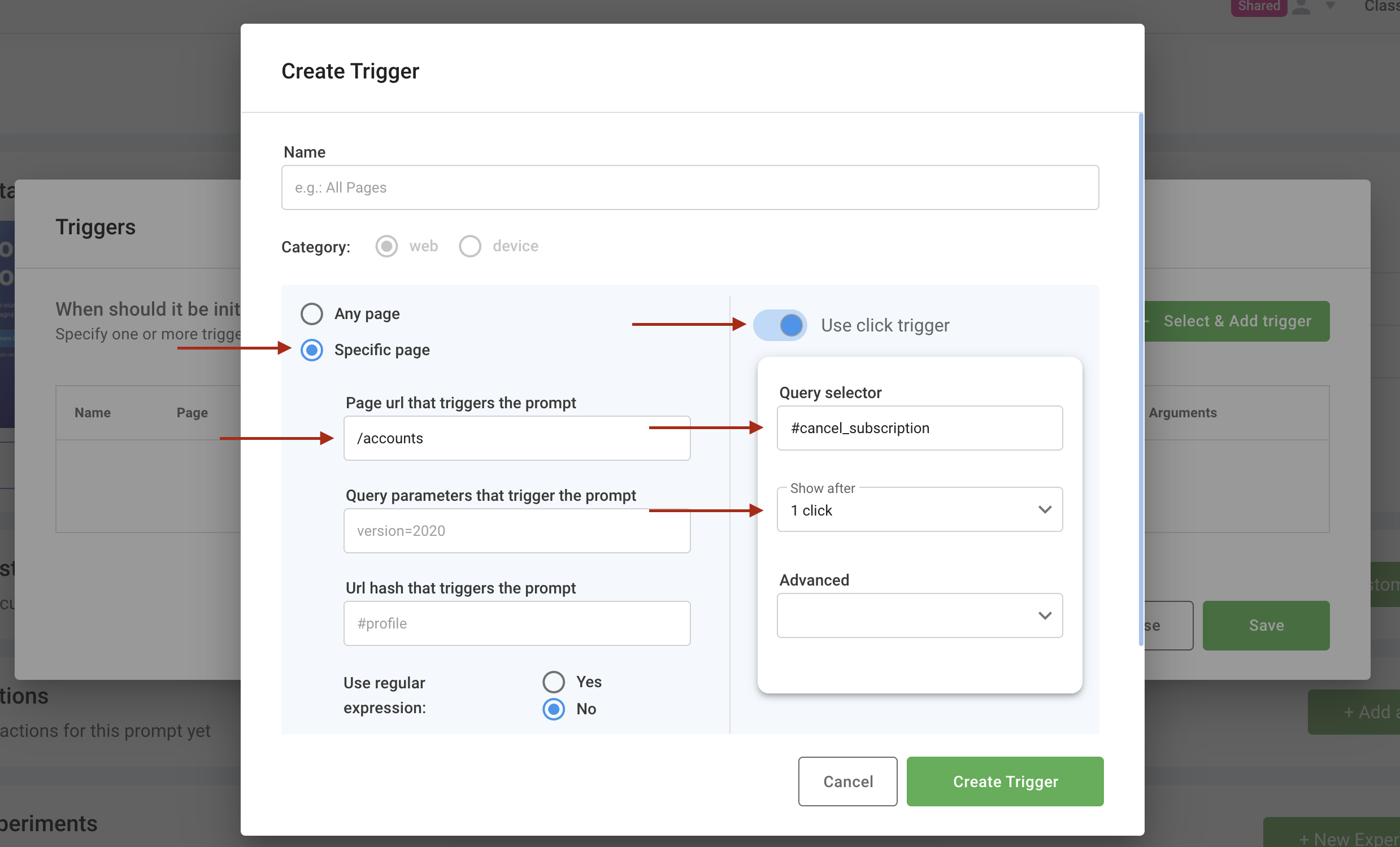
A click trigger displays a prompt after a set number of clicks on a specific element, which you identify with a CSS selector.
Examples:
- After five clicks on any element (
*).
- After one click on the Cancel Subscription button (
#cancel-subscription) on/accounts.
Advanced trigger
Use custom client-side code when the built-in triggers aren't enough. Advanced triggers are available for Web SDK clients.
Create a new advanced trigger
Polling-based examples
Polling-based triggers evaluate conditions every two seconds by default:
- Specified element exists (Recipe)
- Specified text exists (Recipe)
- User scroll depth (Recipe)
- Video watched percentage
const video = document.querySelector("video[data-html5-video]");
if (!video) return false;
const percent = (video.currentTime / video.duration) * 100;
return percent >= 90;
Event-based examples
Event-based triggers react to specific events once:
User attempts to leave the page
const isLeaving = await new Promise(res => {
  document.addEventListener("mouseout", function onLeave(e) {
    if (!e.toElement && !e.relatedTarget) {
      document.removeEventListener("mouseout", onLeave);
      res(true);
    }
  });
});
return isLeaving;
User is idle for more than 30 seconds
if (!window.lastActiveTs) {
  window.lastActiveTs = Date.now();
  document.onmousemove = document.onkeypress = () => window.lastActiveTs = Date.now();
}
return (Date.now() - window.lastActiveTs) > 30000;
Use an advanced trigger
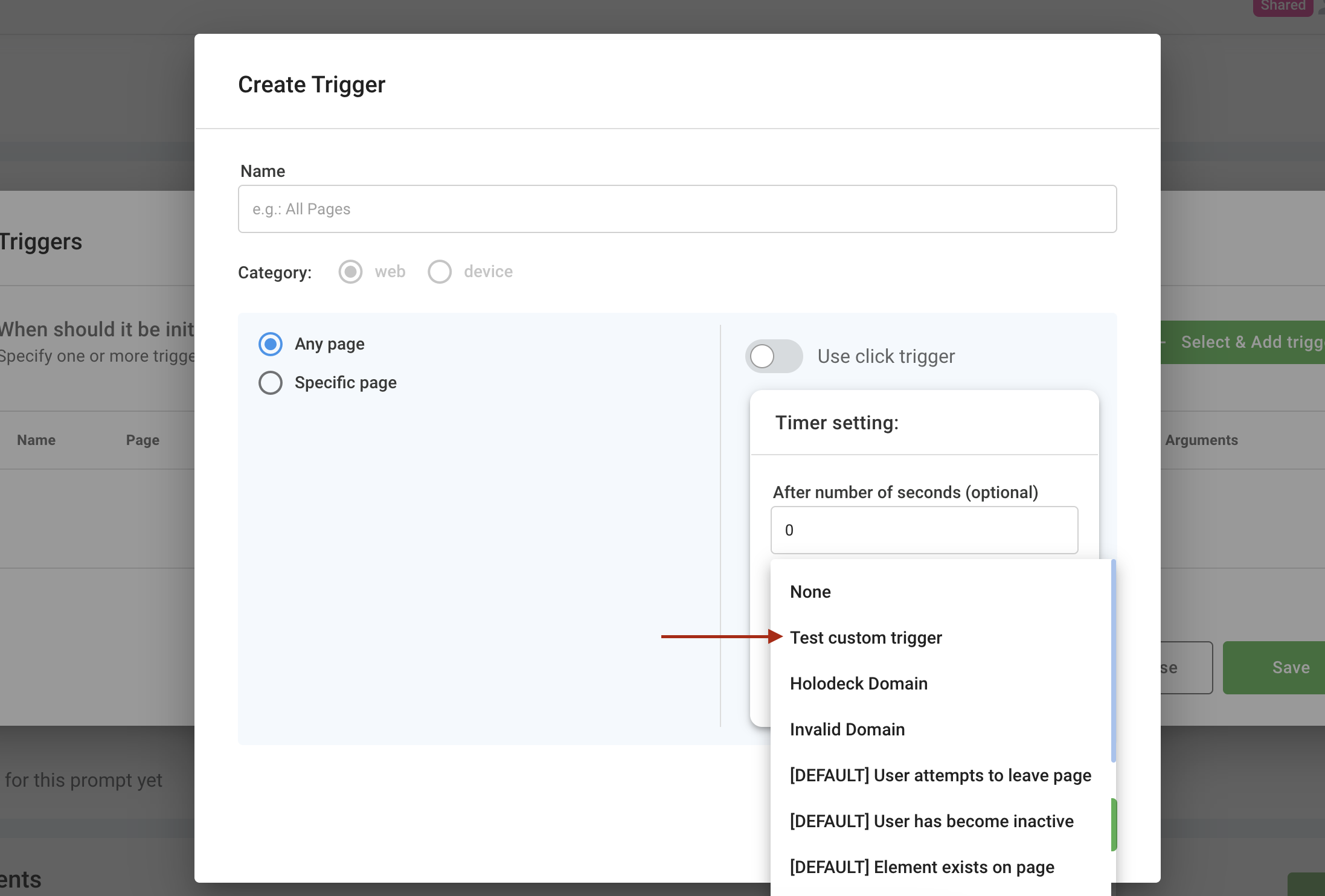
When you edit a prompt, select your advanced trigger.
- For polling-based triggers, set the polling interval (default two seconds).
- For event-based triggers, choose Event-based mode.
Updated 25 days ago