
Prompts
An introduction to in-app messaging prompts in Recurly Engage and quick access to their management console.
Definition
Key benefits
Key details
Creating prompts is core to what your customers experience. This section has detailed how-to guides for building and managing every prompt type. If you need hands-on support or want us to run campaigns for you, contact [email protected] or your CSM to learn about our Managed Campaign options.
Prompt types
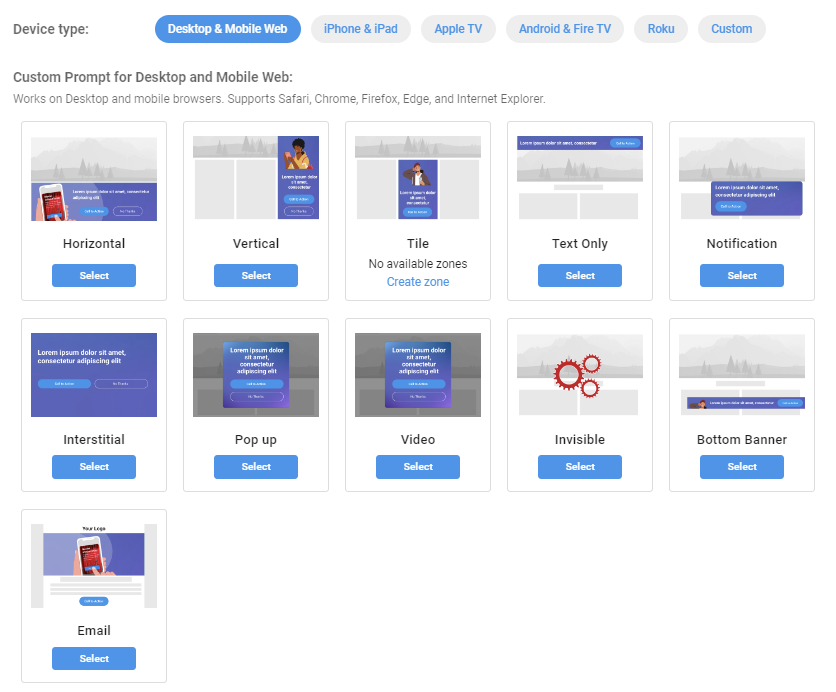
Recurly Engage supports a variety of in-app message formats, all designed in accordance with the IAB Guidelines:
Prompts embedded directly in your page layout, in horizontal, vertical, tile, or text-only formats.
Floating prompts that appear above your content, including notification, interstitial, pop-up, video, and bottom banner formats.
Silent prompts delivered through tracking pixels or JavaScript callbacks for analytics.
Scheduled notifications sent to users' devices (ADM, APNs, FCM) to drive re-engagement.
Rich-media overlays that play video with text and call-to-action buttons in a pop-up modal.
Full-screen native prompts on iOS and Android, rendered through the SDK for immersive mobile experiences.
How prompts work
A prompt can be targeted to one or more Segments and set to Trigger on events like button clicks, page visits, or time spent on a page. You can Schedule prompts for specific dates and times and Limit their delivery by user count or budget. For use-case inspiration, explore our Popular use cases.
You can also run A/B tests with our built-in Experiments, helping you choose the most effective variation before a full rollout.
The Prompts page
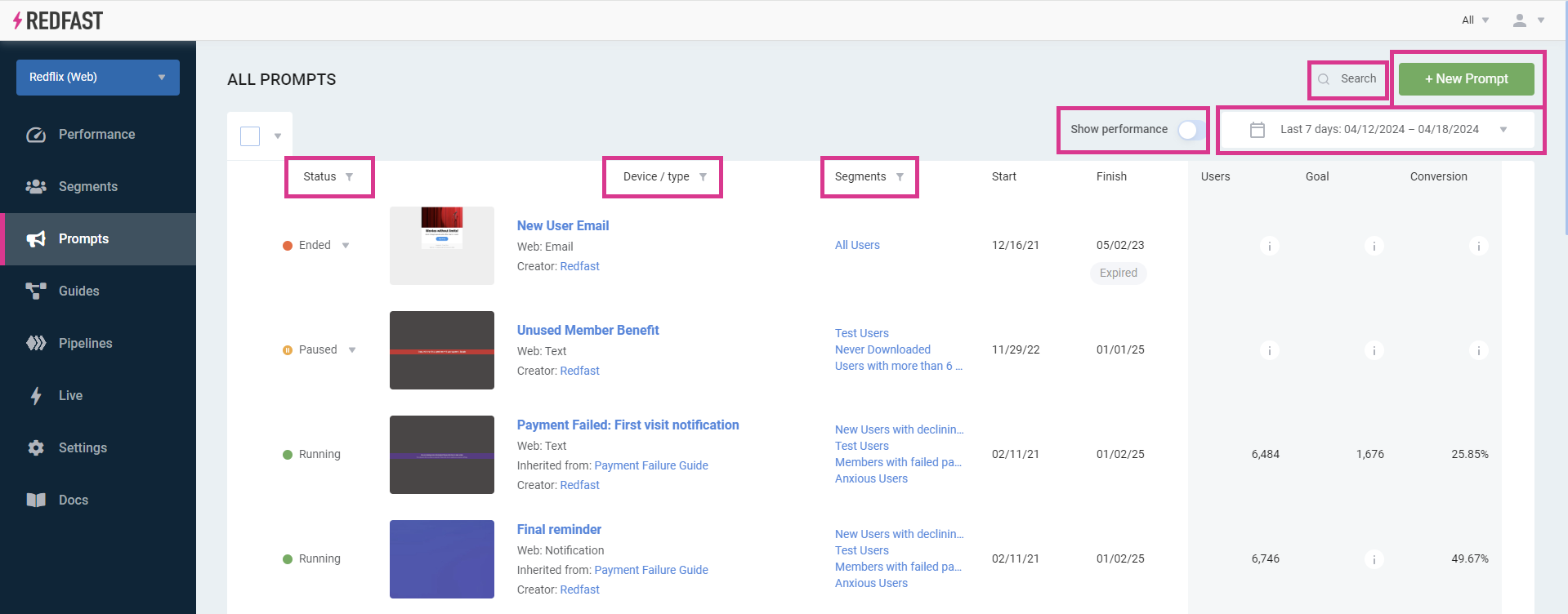
The Prompts page gives you a quick view of every prompt in your account, showing its status, design preview, target segments, schedule, and high-level performance metrics (impressions, clicks, and click-through rate). Use the Search bar or the filters — Status, Device/type, and Segment — to find what you need.
Updated about 1 month ago