
Pulse users
Manage user access to your Recurly Engage (Pulse) application by assigning permission levels to team members.
Prerequisites
- You must have Company or App Administrator permissions in Engage.
Definition
Key benefits
Key details
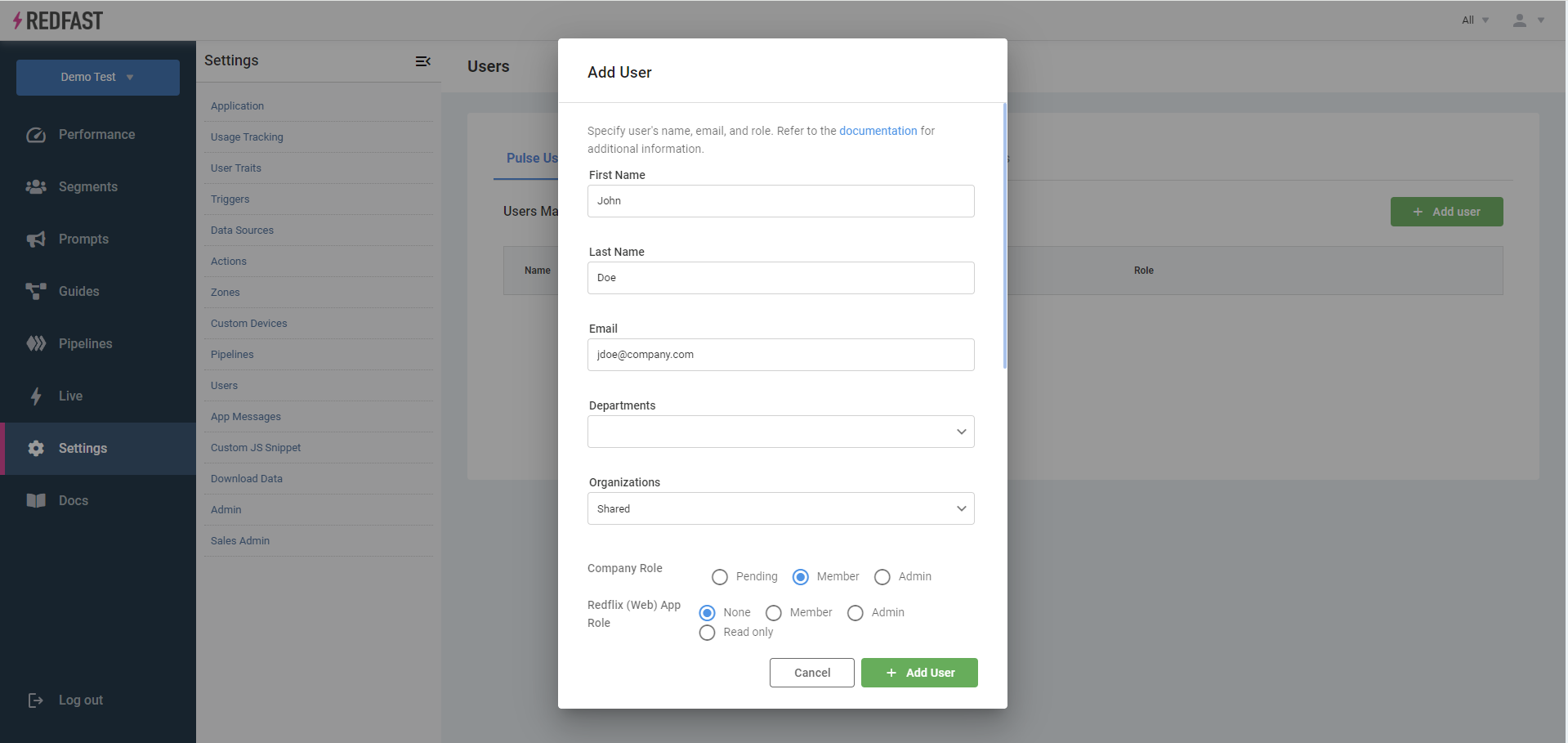
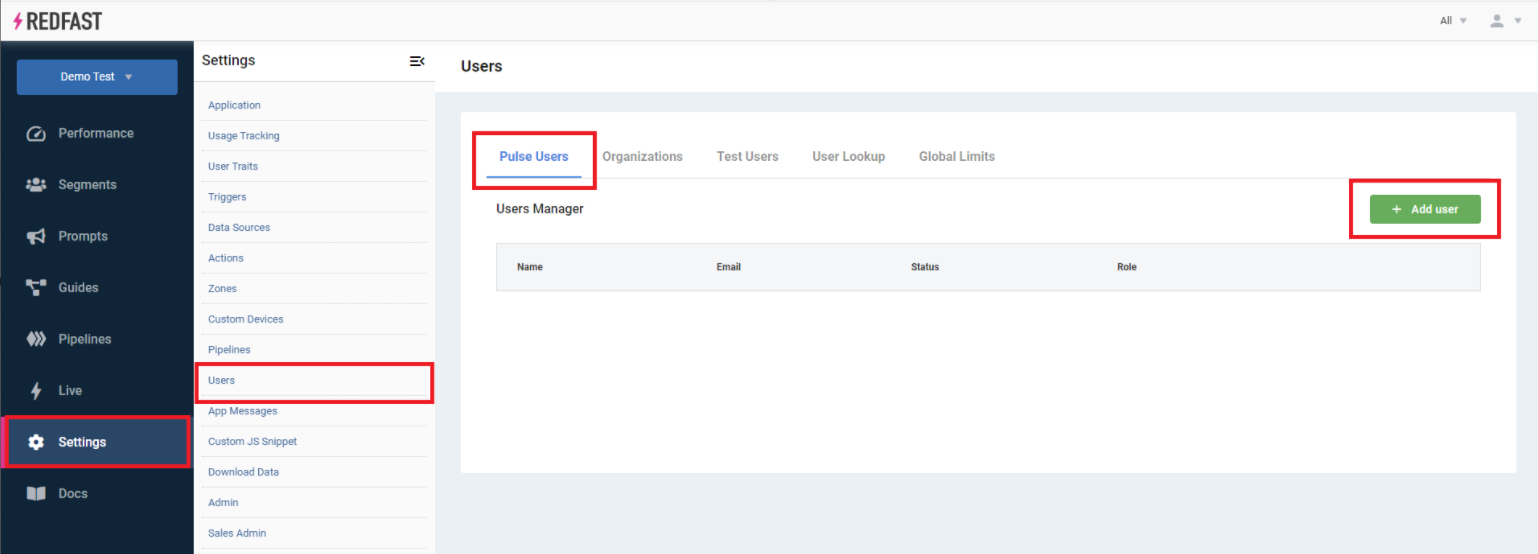
Use the Settings > Users page to invite new users and update existing user permissions.
Permission levels
Company admin
Company admins can create, modify, and delete any app within the company, manage all settings, and invite new users across applications.
App admin
App admins have full control over a specific app’s settings, prompts, segments, and guides, but they can't create new apps.
App member
App members can view dashboards and create or modify prompts, segments, and guides, but they can't change app settings or invite users.
Read only
Read-only users can view the dashboard and performance metrics, but they can't create or modify any prompts, segments, guides, or settings.
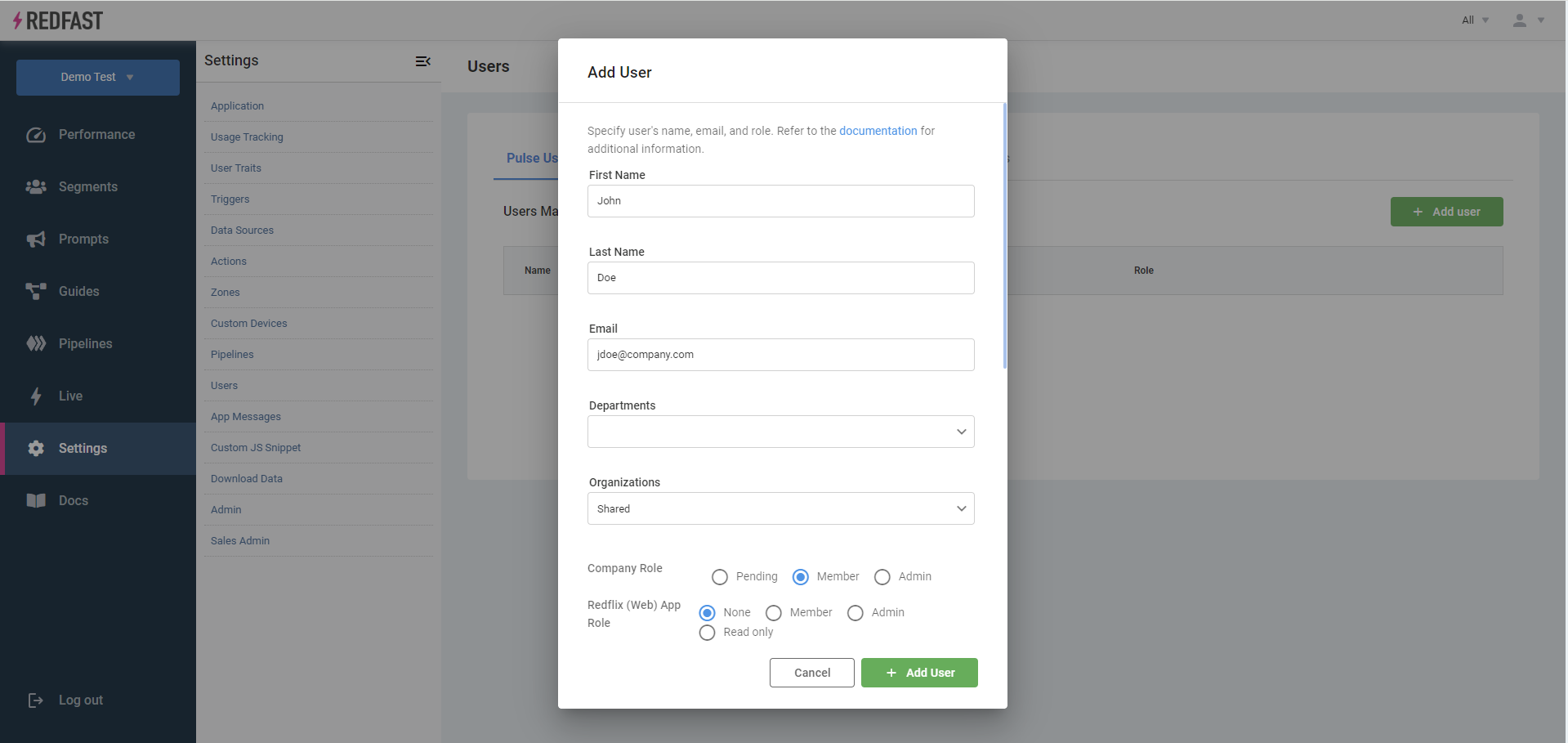
Invite a new user
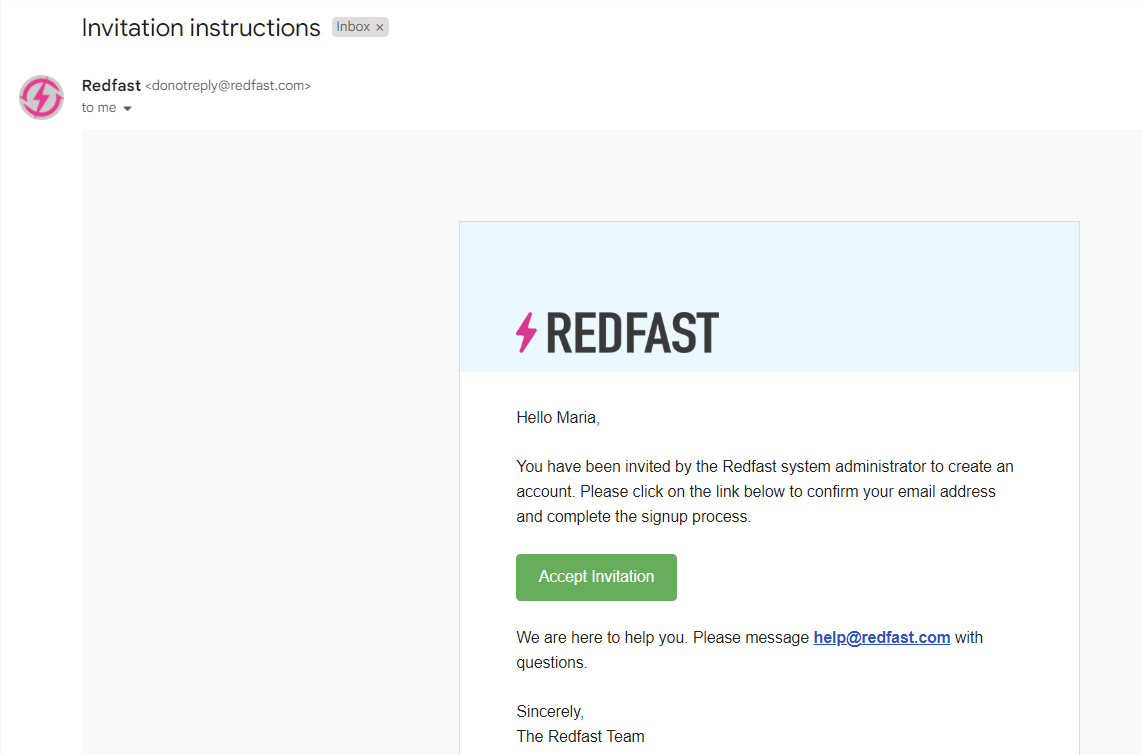
The invitee receives an email to set up their account and access Pulse.
Updated 22 days ago