
Template library
How to create prompts and guides from pre-configured, use-case-based templates in Recurly Engage.
The template library surfaces a curated set of pre-configured templates, organized by common subscriber lifecycle use cases, right inside the New prompt and New guide flows in Recurly Engage. Instead of starting from an empty prompt or guide, you pick a template that already includes proven copy, layout, and campaign settings, then customize it for your business. Templates come from the best-practice prompts and guides Engage has historically provisioned for new apps — now selectable on demand whenever you create a prompt or guide, so both new and experienced customers can launch faster.
Available on all Recurly Engage plans
Limitations
- Templates are available for prompts and guides on desktop and mobile web
- Creating and saving your own custom templates isn't currently supported
Definition
A template is a pre-built prompt or guide, mapped to a common subscriber lifecycle use case, that you select when creating new content. Choosing a template creates a new draft with preset configuration already filled in, so you go straight to refining instead of building from scratch. Templates are grouped into four use-case categories: churn prevention, involuntary churn, winback, and acquisition and onboarding.
Key benefits
No blank canvas
Begin with a proven foundation for common use cases instead of building from scratch.
Faster activation
Launch your first campaign in minutes, with copy, layout, and settings already in place.
Fewer setup mistakes
Required fields come pre-populated, which cuts misconfiguration and support requests.
Best practices built in
Templates reflect the lifecycle moments Recurly Engage customers rely on most.
Key details
Use case categories
Templates are organized by the subscriber lifecycle goal you're trying to solve:
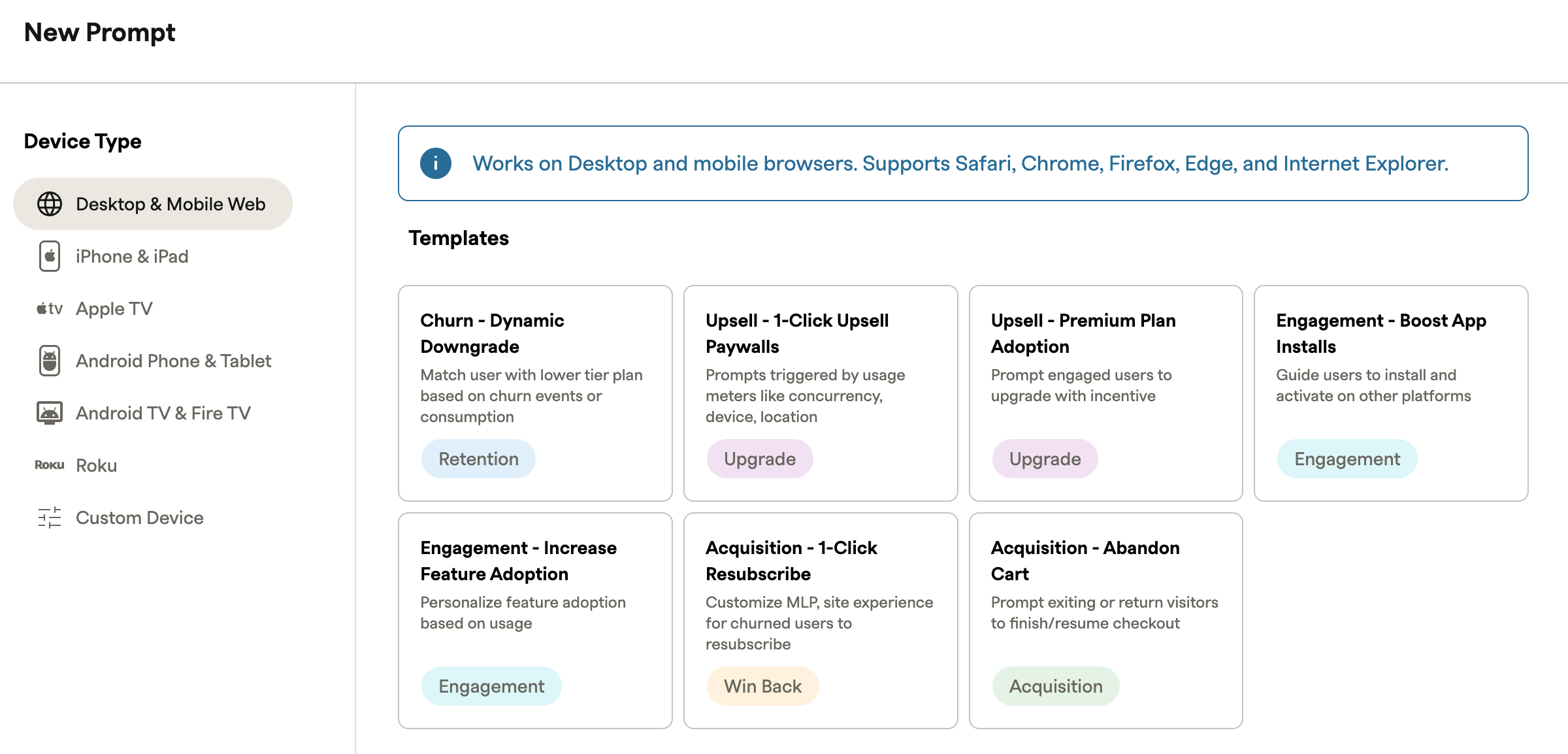
Popular examples include cancel save with offer and personalized onboarding. For deeper background on each scenario, see Popular use cases.
Create a prompt from a template
1
2
TipTo build a prompt without a template, scroll to the Custom Prompts section, which stays available in the modal.
Create a guide from a template
1
2
TipTo build a guide without a template, scroll to the Custom Guides section, which stays available in the modal.
Updated about 1 month ago
Did this page help you?