
Google Analytics
Integration guide for sending Recurly Engage prompt interaction events to Google Analytics via client-side SDK and server-side Measurement Protocol.
Send Recurly Engage prompt events to Google Analytics (GA) to see prompt engagement alongside your existing site metrics. You can use a client integration, a server integration, or both.
Available on all Recurly Engage subscription plans
Prerequisites
- You must have Company or App Administrator permissions in Recurly Engage.
- You must have a Google Analytics property and tracking ID (GA Tag ID).
- You must have access to Recurly Engage → Settings → Integrations → External → Google Analytics.
- For server-side calls, you should be familiar with the Measurement Protocol (v1).
Definition
The Google Analytics integration provides two methods for sending prompt events to GA: a client integration and a server integration.
- Client integration: Uses your existing GA JavaScript software development kit (SDK) instance to fire custom events for prompt interactions.
- Server integration: Sends events through an API action using the Google Analytics Measurement Protocol.
Key benefits
Unified reporting
View prompt metrics in your GA dashboards alongside pageviews and user behavior.
Session continuity
Events fire in the same session context as your GA page events.
Custom payloads
Use GA's Measurement Protocol to include any relevant parameters.
Key details
Client integration
For web-based devices, Recurly Engage uses the running instance of the Google Analytics JavaScript SDK. This preserves session and user context when it reports real-time prompt events.
1
2
Enter your GA Tag ID
Enter your GA Tag ID.
Event details
| Activity | Description |
| Recurly Engage Prompt Impression | A user has seen the prompt |
| Recurly Engage Prompt Dismiss | A user has dismissed the prompt by clicking the close button or outside the prompt view |
| Recurly Engage Prompt Timeout | The prompt closed automatically due to a timer |
| Recurly Engage Prompt Decline | A user has declined the prompt by clicking the decline button |
| Recurly Engage Prompt Click | A user has accepted the prompt by clicking the primary call-to-action (CTA) button |
| Recurly Engage Prompt Holdout | A holdout user has reached the prompt but not seen it |
| Recurly Engage Prompt Click 2 | A user has accepted the prompt by clicking the secondary CTA button |
Each event includes these attributes when applicable:
| Event property | Description |
promo_id | Unique prompt identifier (see Prompt Details) |
promo_name | Name of the prompt |
variation_id | Identifier of the experiment variation (if any) |
variation_name | Name of the experiment variation (if any) |
event_timestamp | Timestamp when the interaction occurred |
Server integration
https://www.google-analytics.com/collect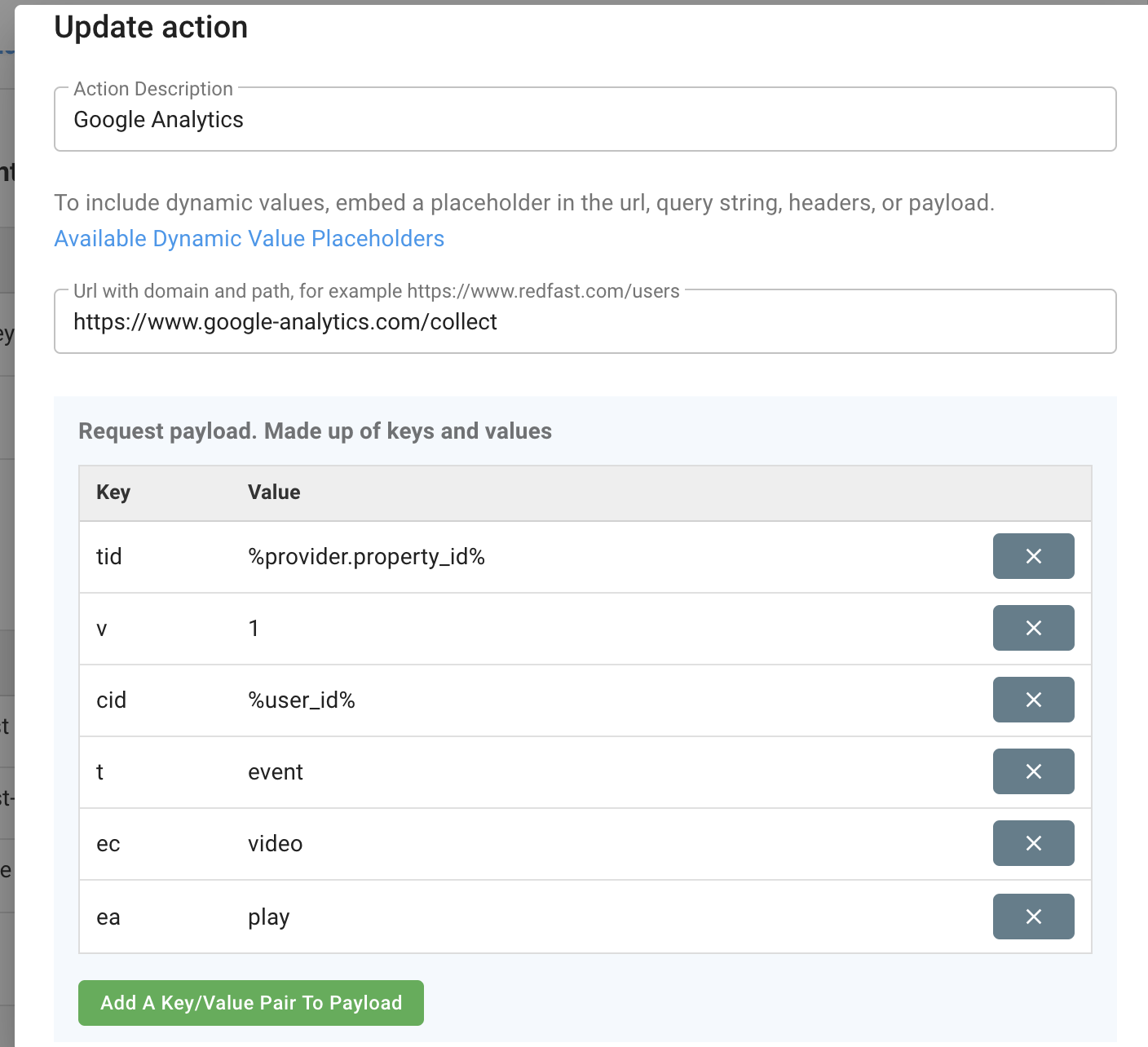
- Required:
v(protocol version),tid(Tracking ID), andt(hit type, for example,event). - Optional:
cid(Client ID),ec(event category),ea(event action),el(event label), andev(event value).
See the full Measurement Protocol parameter reference.
3
Add the action to a prompt
Attach the new API action to a prompt interaction (Accept, Decline, and so on) or within a guide or experience. For detailed steps, follow the Add Action guide.
Updated 25 days ago
Did this page help you?