
Overview: Pipelines
Overview of Recurly Engage Pipelines for lifecycle staging and behavior-based user segmentation.
Pipelines let you manage users across lifecycle stages or custom behavior loops in Recurly Engage. Visualize where your users are, and trigger targeted prompts that move them to the next stage.
Available on all Recurly Engage subscription plans
Prerequisites
- You must have Company, App Administrator, or App Member permissions in Recurly Engage.
Limitations
- Pipelines update automatically based on incoming trait and usage data. Allow time for the data to refresh.
Definition
A pipeline is a multi-stage user lane, either lifecycle-based or custom, that organizes users by progression. You can attach prompts to a pipeline to drive movement between stages.

Key benefits
Holistic user view
See where users are in their journey, from anonymous visitors to loyal customers.
Behavioral reinforcement
Create custom pipelines to reward and reinforce desired usage patterns.
Prompt orchestration
Attach prompts at each stage to guide users forward in the funnel.
Key details
Lifecycle pipelines
Recurly Engage includes three built-in pipelines.
Member pipeline
- Anonymous: Visitors to marketing pages.
- Trial: Users in their trial period.
- Monthly: Subscribers on a monthly plan.
- Premium: Subscribers on a premium plan.
- Pending Cancel: Canceled subscribers with continued access.
- Cancelled: Users who have fully churned.
Engagement pipeline
- New users
- Repeat users
- Regular users
- Frequent users
- Heavy users
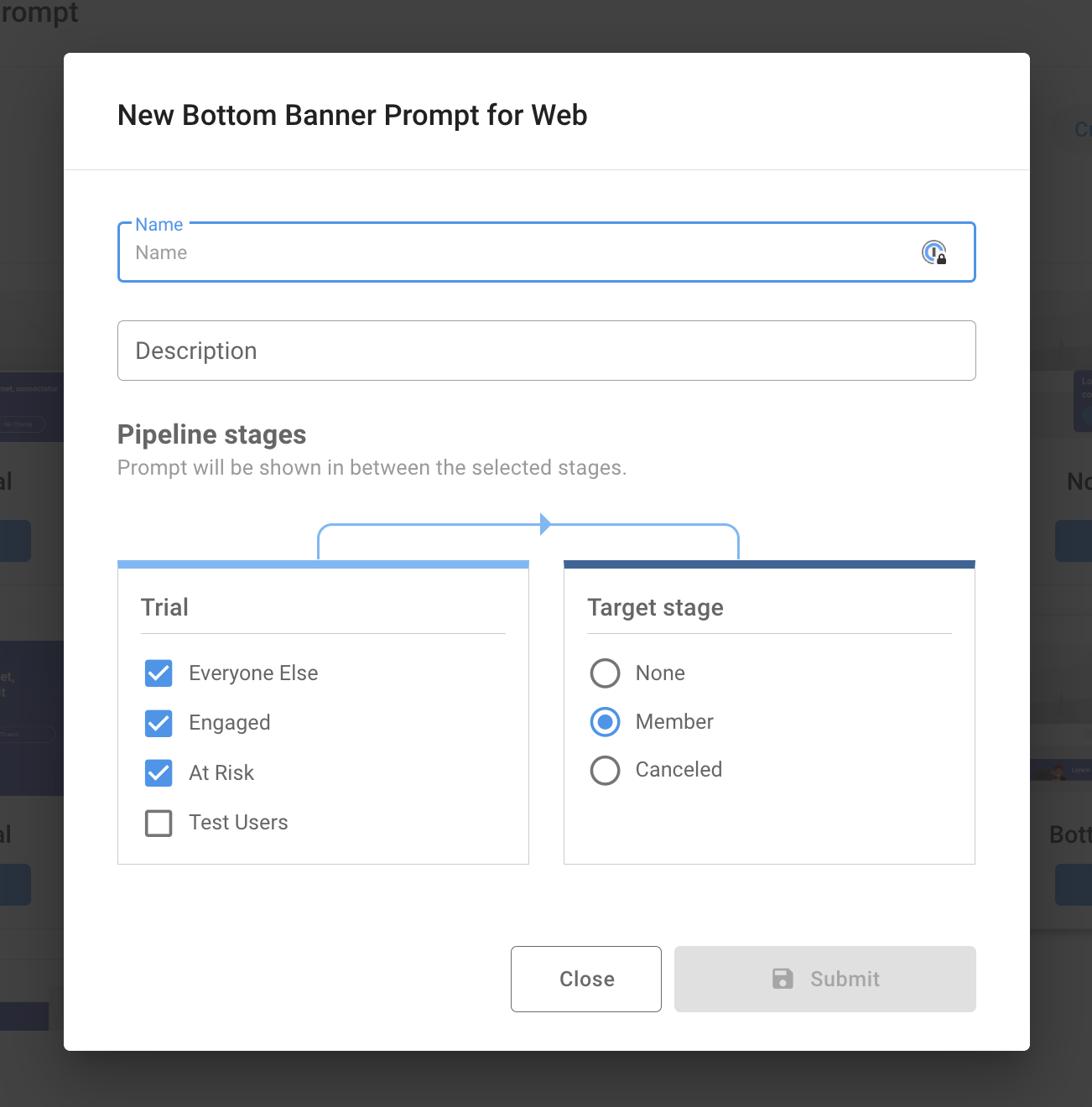
NoteBased on visit and minute trends, you can further segment each stage into Engaged (increasing activity), At Risk (decreasing activity), or Everyone Else.
Ecommerce pipeline
- Visitor: Has not started checkout.
- Shopper: Added items to cart.
- Checkout: In the checkout process.
- Customer: Completed purchase.
Behavior pipelines
Create custom, behavior-driven pipelines to reinforce lifetime value patterns. For example, a "Watch More" pipeline:
- Watched one episode
- Watched two episodes
- Watched three or more episodes
Moving users between stages
You can attach prompts directly to any pipeline stage. For example, to convert Engaged Trial users into paying members before their trial expires:
The remaining setup steps follow the same flow as creating a prompt. Once live, prompts fire when users enter that pipeline stage, driving them toward the next segment.
Updated 23 days ago
Did this page help you?