
Actions
Overview of prompt actions—triggered events tied to user interactions, built-in connectors, and custom integrations in Recurly Engage.
Prerequisites
- You must have Company, App Administrator, or App Member permissions in Recurly Engage.
Limitations
- For connector actions, you must supply third-party credentials.
- Website actions require custom JavaScript knowledge.
Definition
Key benefits
Key details
User interactions
You can tie actions to any of these five prompt events:
- Accept: User clicks the primary button.
- Secondary Accept: User clicks the secondary button (if configured).
- Decline: User clicks a Decline option.
- Dismiss: User closes the prompt with the X icon.
- Timeout: Prompt closes automatically after a timer.
Use the two buttons (Accept and Decline) for complementary actions, such as "Sign me up" on Accept and "Add to watchlist" on Decline.


Configure actions on a prompt
You can attach one or more actions to each interaction. For example, you might apply a discount through an API call and then send a confirmation email on Accept.
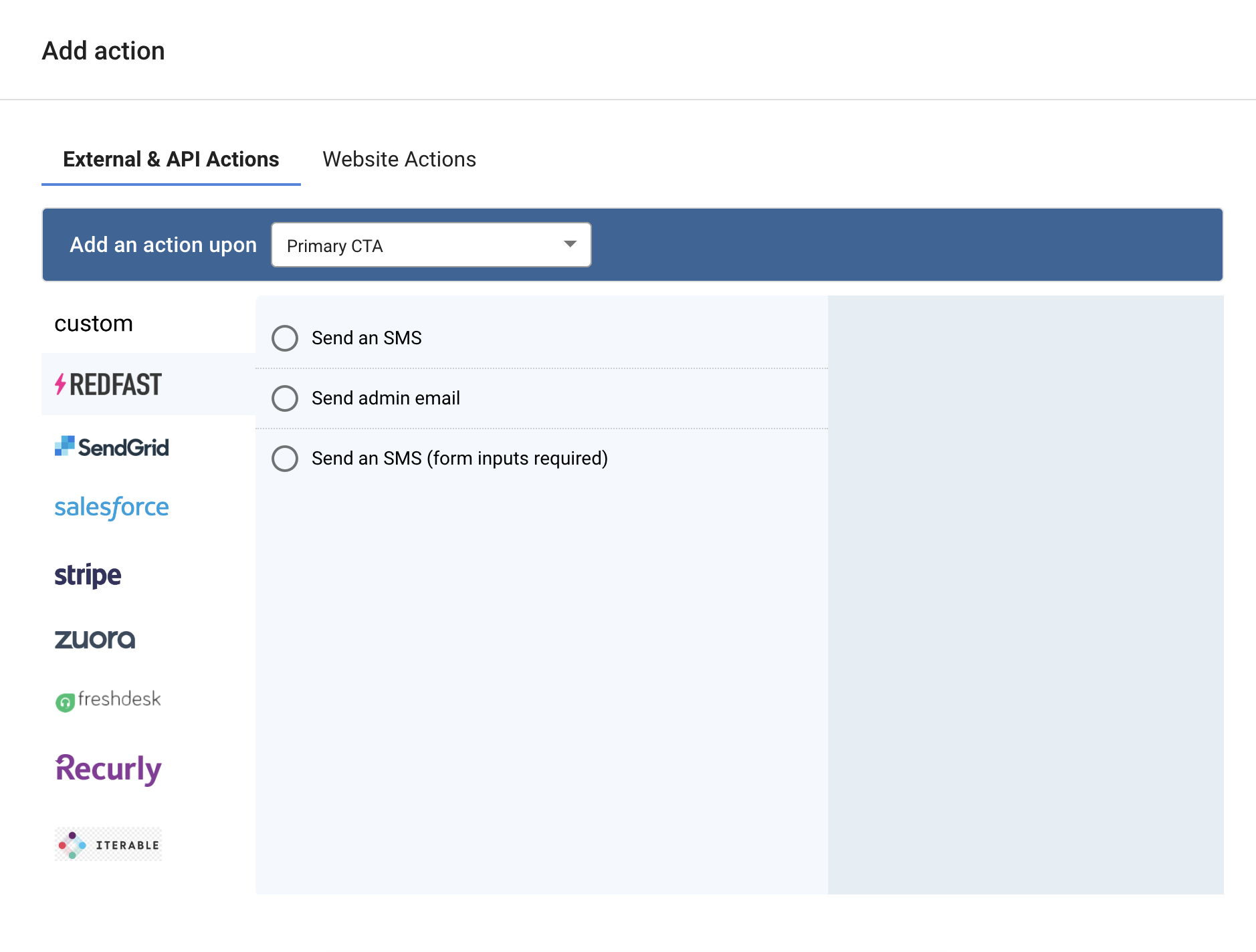
Built-in actions
These actions are available by default on every prompt:
- Send an email: Dispatch an email to a specified address on Accept.
- Send an SMS: Send an SMS to a specified number on Accept.
- Redirect the user: Navigate the user to a URL when they accept.
Connector actions
Integrate with external systems, such as billing, CRM, and support, using prebuilt connectors. Supply your credentials in Settings > Connectors before you use one.
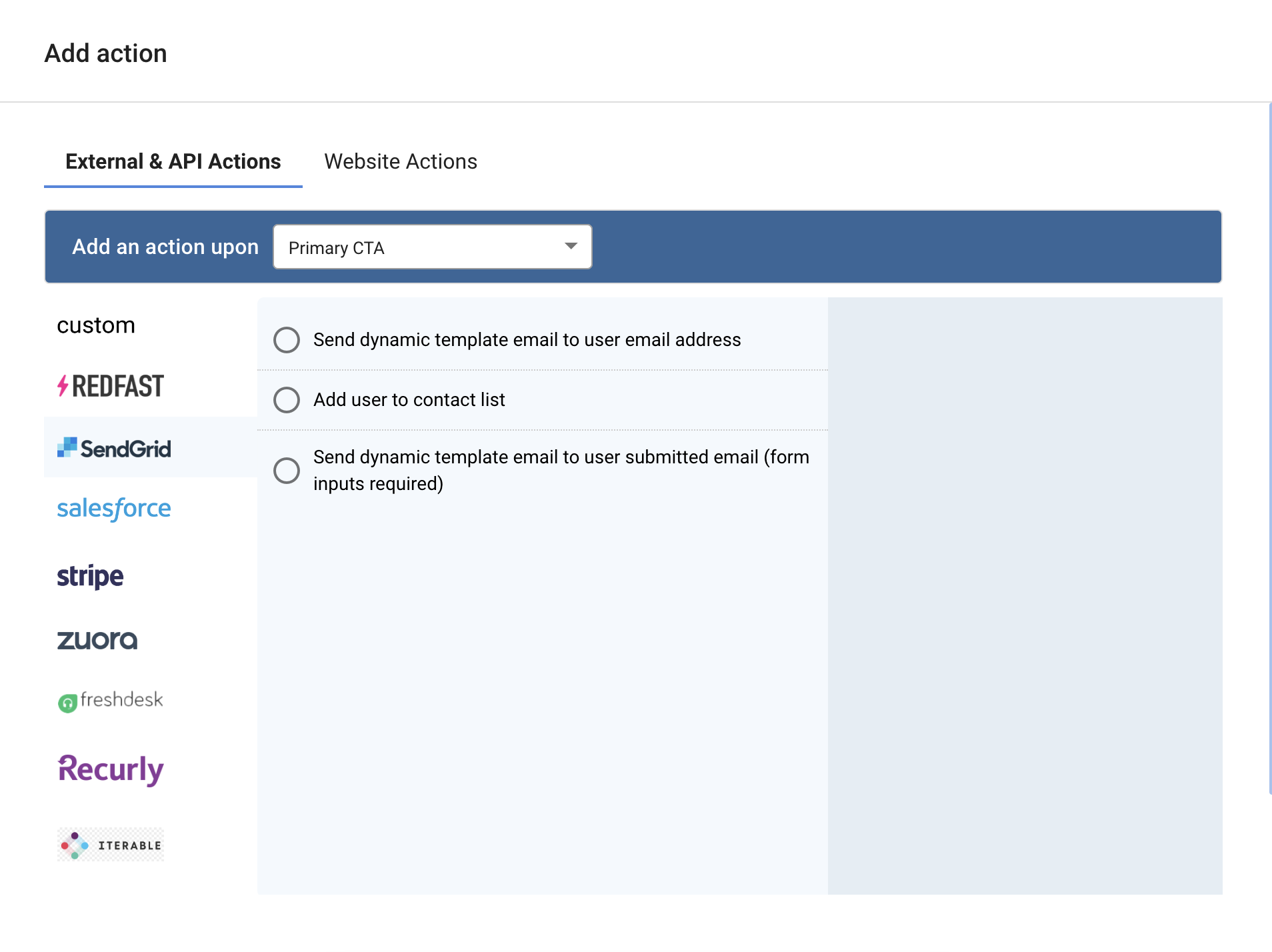
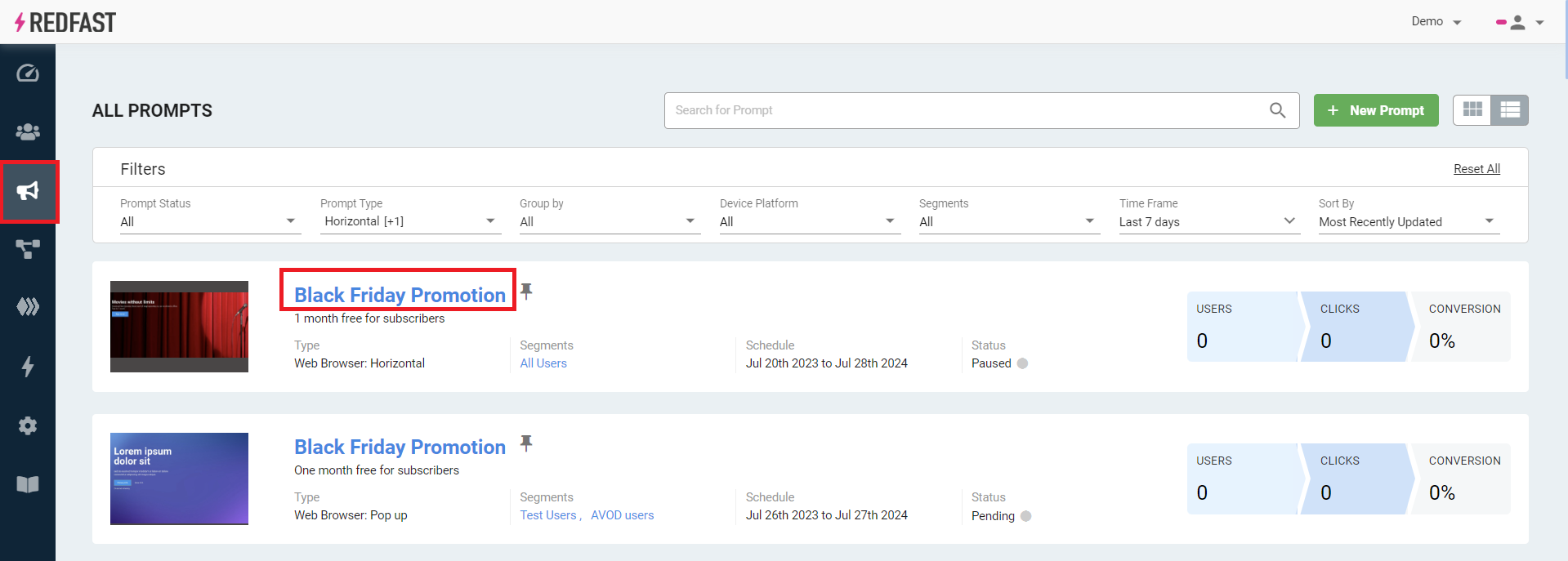
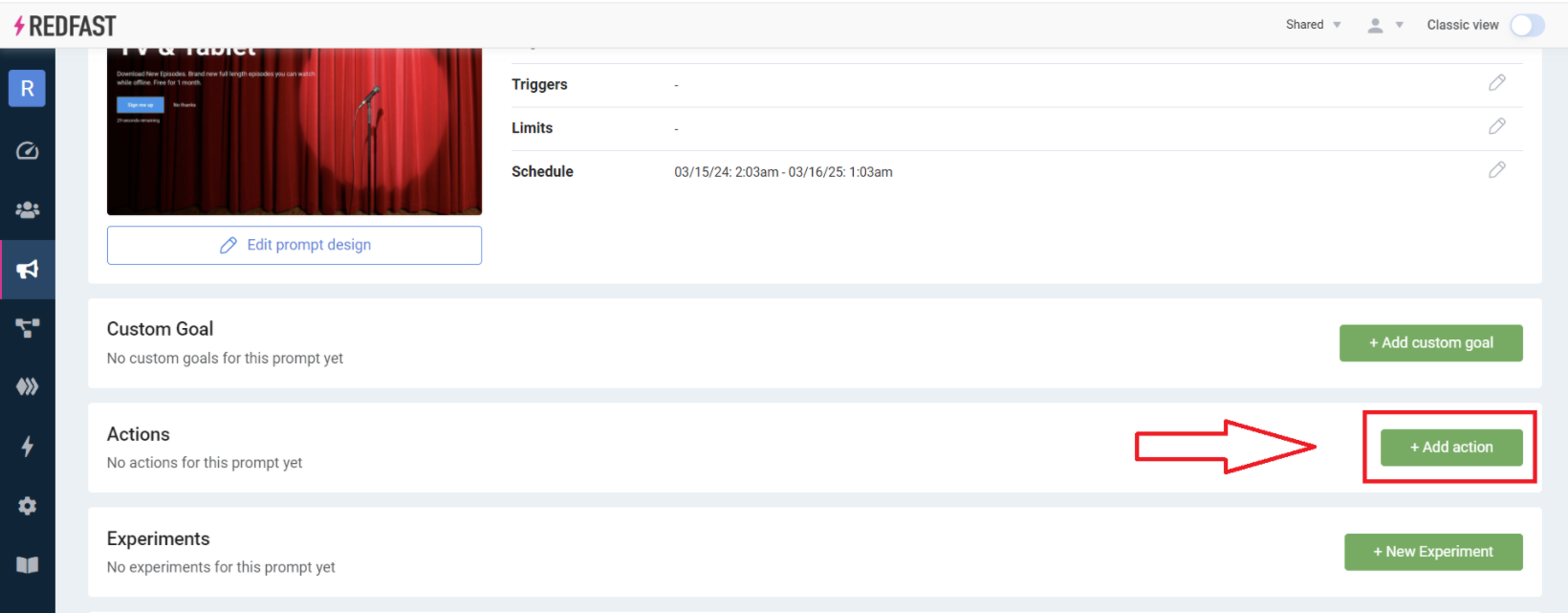
Add a connector action
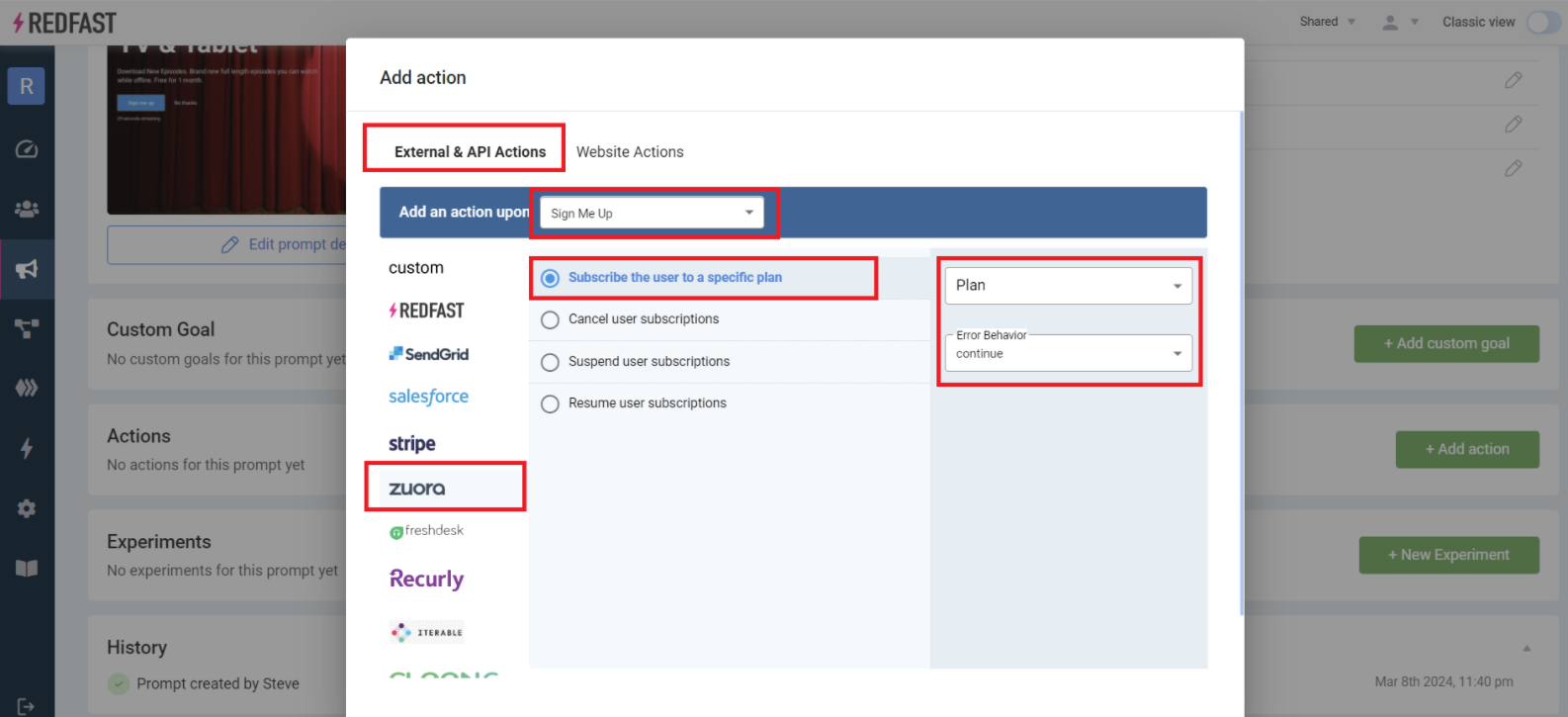
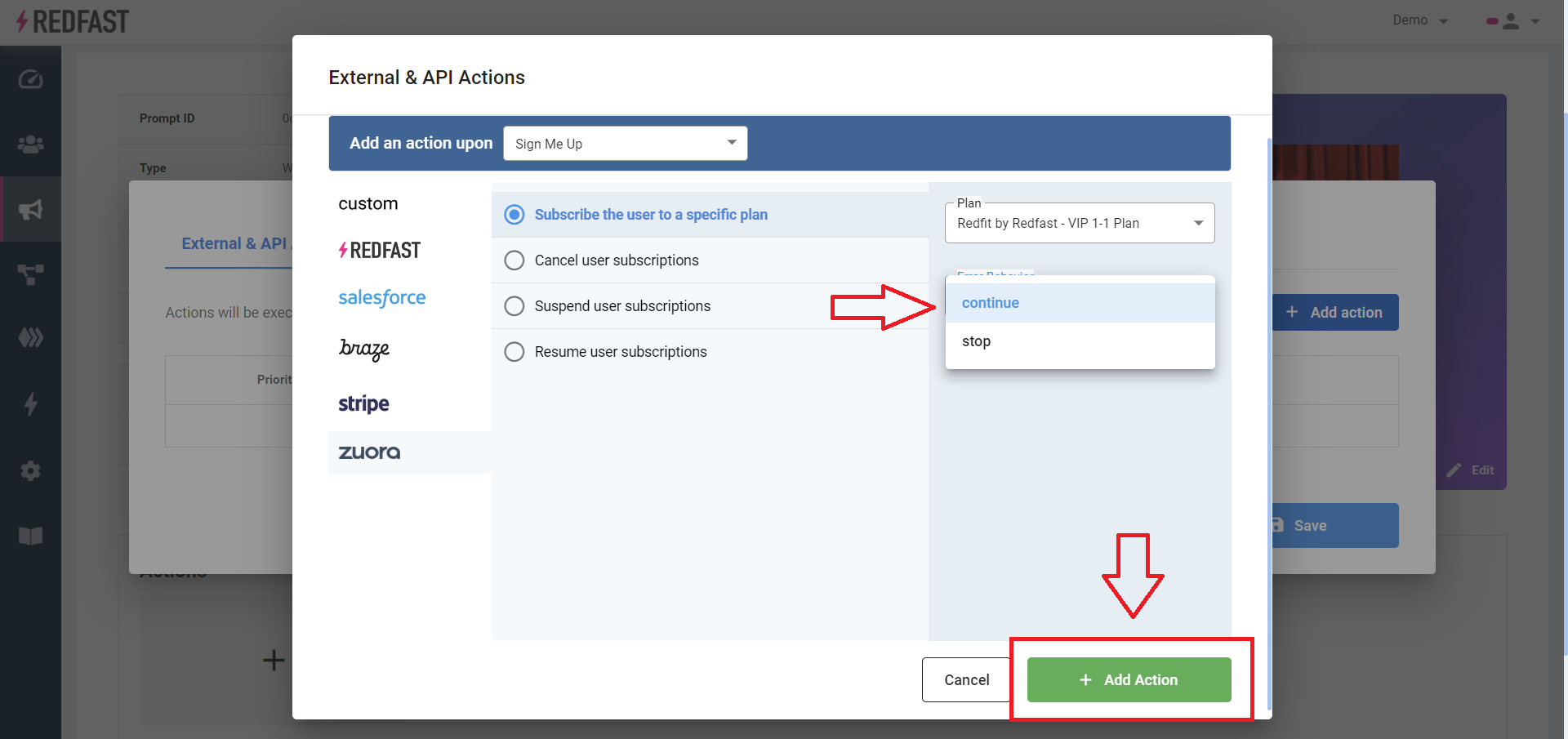
- Stop: Halts downstream actions if this action fails.
- Continue: Proceeds to the next actions even if this one errors.
Custom actions
Build your own actions for advanced scenarios:
For complex setups, like 1-click save offers, our technical team can help. Reach out on Slack or contact [email protected] for hands-on support.
Updated 23 days ago