
Access management

Create roles, manage user access, and configure read-only or administrator privileges in Recurly RevRec.

Access Management controls who can see and do what inside Recurly RevRec. Create roles with tailored permissions, invite users, and set read-only or administrator access — all while keeping your revenue data secure and your team accountable. This feature is part of Recurly RevRec. Learn more.
Available as part of Recurly RevRec

Prerequisites

  • Familiarity with Recurly's user interface.
  • Understanding of the organization's hierarchy and user roles.
  • Knowledge of the desired access levels and functionalities for each user.

Limitations

  • Any changes you make apply to future transactions only.
  • User roles and access levels are predefined and can't be customized beyond the available options.
  • Changes to user privileges may require a re-login or session refresh to take effect.
  • Only users with administrative privileges can modify or create new roles.

Definition

Recurly's Access Management streamlines user access and privileges within the platform. It ensures users have the right level of access to do their jobs while maintaining data integrity and security — from creating roles with tailored permissions to managing individual user access.

Key benefits

Enhanced security Define user roles and access levels to protect data and prevent unauthorized modifications.
Customizable roles Create roles tailored to specific job functions, so users have the right tools for their tasks.
Streamlined operations Manage and modify user access easily, without compromising security.
Clear oversight Monitor user activities and access levels to support compliance and accountability.
Flexibility Provide read-only or administrative access to fit different operational needs across your organization.

Revenue Recognition user management

Creating roles and their specifications

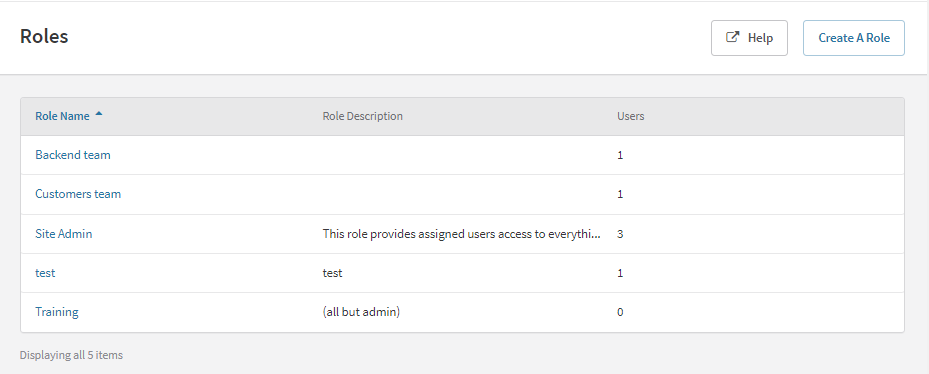
Before creating any user, you need to establish roles that define their access and editing privileges within the platform. Roles determine the level of access and functionality a user has. There are two primary types of roles you can create: read-only (or access-only) and Administrator. The Site Admin role is the only role available by default, and it provides full access.

To create roles and manage their specific settings:
1

Start a new role

From the Recurly main menu, navigate to Admin → Roles → Create a Role.

2

Name the role

Fill in the Role Name and Roles Description fields.

3

Set permissions

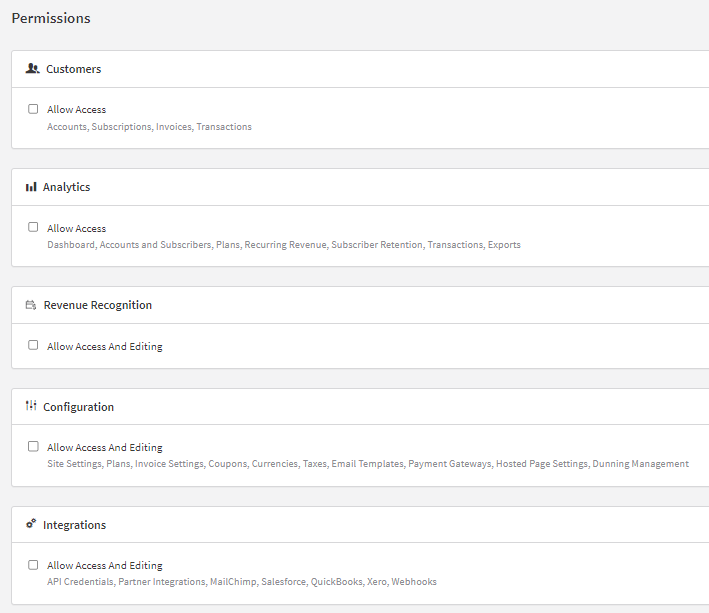
Select the desired configuration in the Permissions section.

  1. In the revenue recognition settings, you can select whether the role provides read-only or admin access. This can only be set during this initial configuration, so we recommend creating two separate roles — one read-only and one admin.
  2. You can always manage a user's privileges within the revenue recognition platform afterward.
4

Save the role

Select Create Role.

In the access configuration screen, the revenue recognition option lets you specify whether a user with a given role can access and edit information within the revenue recognition tool. The configuration of editing privileges or read-only access within the revenue recognition platform itself must be done from inside that platform.
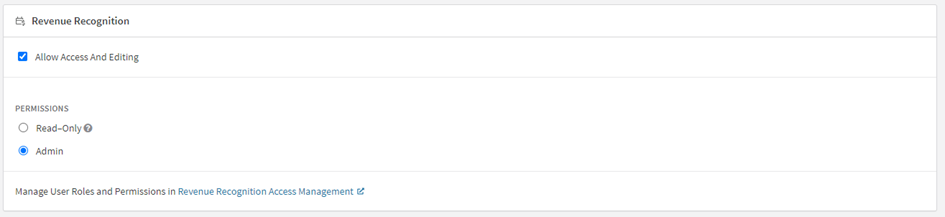
A read-only user has limited access and can only view data and reports within the revenue recognition platform — they can't make modifications. An Administrator user has full access and can perform administrative tasks, including managing users, configuring settings, and overseeing the overall workflow.

Creating RevRec users and providing Recurly access

In the Recurly User Management section, you can create new users and grant them access to Recurly's revenue recognition platform. This is available during the initial configuration phase, assuming you've purchased Recurly's revenue recognition service.

To create a new user and provide access to Recurly:

1

Invite the user

From the Recurly main menu, navigate to Admin → Users → User Actions → Invite Users.

2

Set their access

Fill in the user's email address, select their access level or role, then select "Send Invite."

3

Wait for acceptance

The user receives an invitation to join the platform and must accept it to participate as part of your team.

4

Manage their access

Once the user accepts the invitation, you can see and manage their privileges in the Users section under the Admin menu.

Providing administrator or read-only privileges in the revenue recognition site

Creating a role within the platform
1

Open Recurly Revenue Recognition

Navigate to Recurly Revenue Recognition in the platform.

2

Open Roles

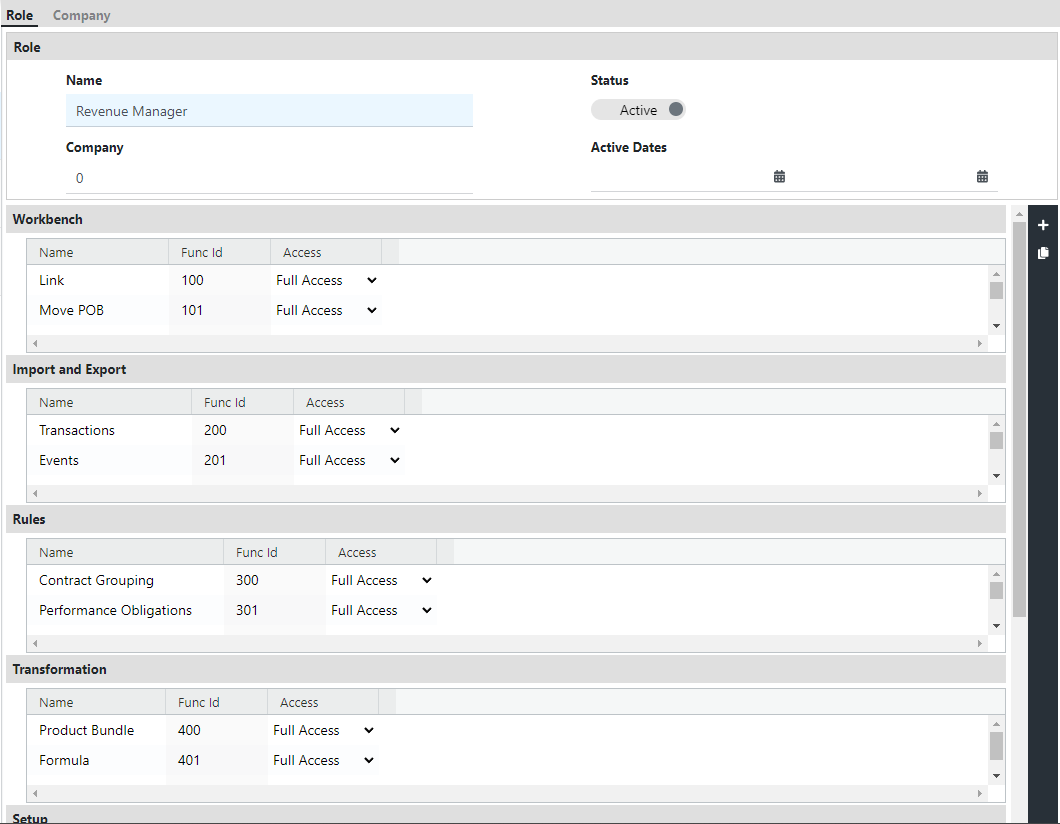
Go to Access Management and select Roles.

3

Start a new role

Select the "+" button to create a new role.

4

Name the role

Provide a name for the new role.

5

Configure settings

Configure the role settings by selecting each dropdown and choosing the desired options.

6

Save the role

Once you've configured the role settings, select Save to create the role with the specified configuration.

Modifying a user's privileges within the platform
1

Open Recurly Revenue Recognition

Navigate to Recurly Revenue Recognition in the platform.

2

Open Users

Go to Access Management and select Users.

3

Select the user

Select the user from the list on the left.

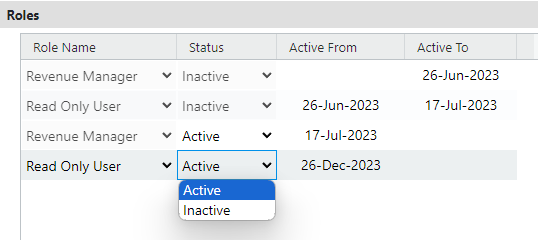
4

Add a role

In the Roles section, select "+" to add a role configuration and set it to active. The roles available depend on those you've already created.

5

Save

Select Save to update the user's privileges.

NoteThe availability of the revenue recognition section and its corresponding permission set depends on the Revenue Recognition feature flag being enabled for your Recurly site. Enabling this feature flag activates revenue recognition functionality within the Recurly platform.

User profile

Users can view and modify their own profile.

1

Open your profile

From within Recurly Revenue Recognition, select the dropdown menu in the upper right and choose "View profile." This takes you to the Recurly UI and the profile page.

2

Update your details

From here, you can modify your name, timezone, and job function.

FAQ

How is user management and access configured in Recurly RevRec?

User management and permissions are configured in the Administration area. See the User Management documentation for step-by-step setup and access details.

Can I customize user roles?

Yes. To customize a role, go to Access Management → Roles, adjust the role's permissions, and save.

We recommend not changing the default settings for the Revenue Manager role.

How do I add a new user to RevRec?

Add users through the Recurly Billing platform, not directly in RevRec.

  1. Sign in to Recurly Billing and open Admin.
  2. Add the user by email.
  3. Assign a role that includes Revenue Recognition access so they can open RevRec.