The Holds feature in Recurly RevRec lets you pause revenue recognition based on conditions set by management. Apply a hold at the contract level to pause recognition for an entire contract, or at the element level to hold specific revenue elements independently. Once the hold condition is satisfied, revenue recognition proceeds.
Available as part of Recurly RevRec
Holds allow you to temporarily pause revenue recognition for a contract or individual revenue elements based on specific conditions. Once the defined hold condition is met — whether a specific event, date, or other management-defined criteria — revenue recognition can proceed.
There are two types of holds:
Contract level hold
Applies to the entire contract. Prevents revenue recognition until the hold condition is met. Once satisfied, revenue recognition for the whole contract proceeds.
Element level hold
Applies to individual revenue elements within a contract. Each element can have its own hold condition. Once that condition is satisfied, recognition for that element proceeds independently.
2
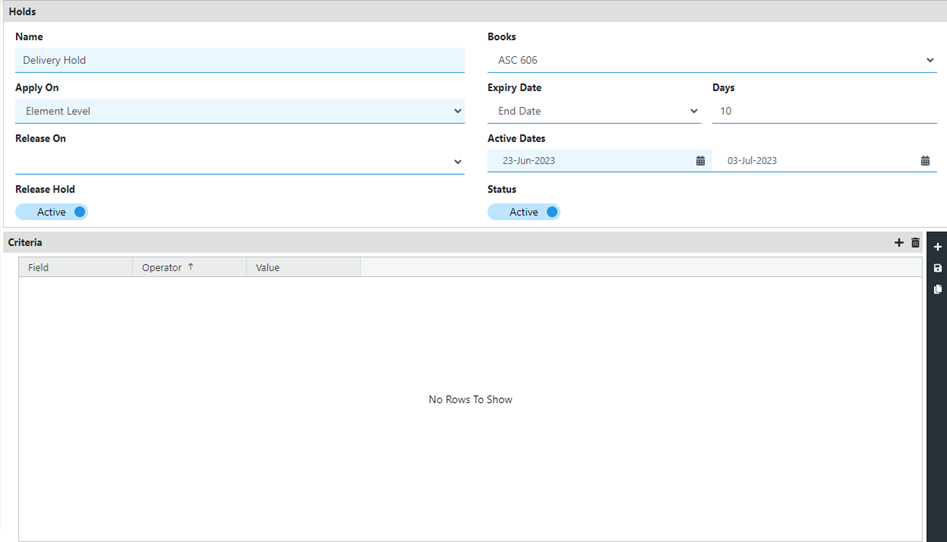
Enter a name for the hold — for example, "Delivery Hold."
3
Under Apply on, select whether the hold applies at the Contract level or Element level.
4
Under Release on, select the event that releases the hold. Note that this option is inactive for contract-level holds.
5
Select the books the hold configuration should apply to — either all books or specific ones.
6
Choose the date on which the hold expires and stops being applied.
7
Enter the number of days after which the hold no longer applies.
8
Specify the date or period during which the hold should be active.
9
Choose one of the following options for Release Hold.
- Active: Revenue can't be scheduled and won't transfer to the general ledger, even if you attempt to release revenue manually.
- Inactive: Revenue can be scheduled and will transfer to the general ledger when you release revenue manually.
10
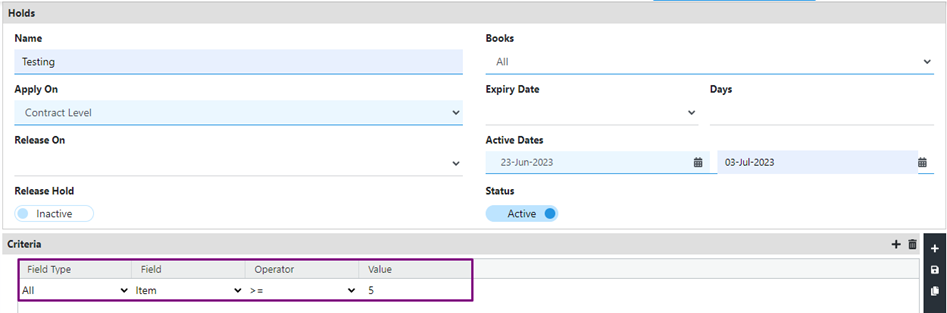
Use the Criteria section to define conditions for applying the hold to a contract or element.
- Field type: Specify the field type, such as "All" or a specific field.
- Field: Choose the field on which the hold criteria is based.
- Operator: Select the comparison operator — for example, =, <, or >.
- Value: Enter the value to compare against — for example, "Damaged" as text, or a specific number.
1
Fill in the mandatory fields and set a criteria for the hold. For example, set criteria as "quantity equal to or greater than 5."
2
Upload the sales order (SO) file that satisfies the hold criteria.
3
Open the contract in the Revenue Workbench.
4
Navigate to the Hold tab in the contract view.
5
Right-click on each order line that needs its hold released. A "Release Line Hold" dialog box appears — select it to release the hold on that line.
The released hold is reflected in the waterfall view, showing the updated revenue recognition.
Element-level holds follow the same release process. If holds are configured at the element level, right-click on the element line in the Hold tab and release it the same way.
First, configure the hold at the element level:
1
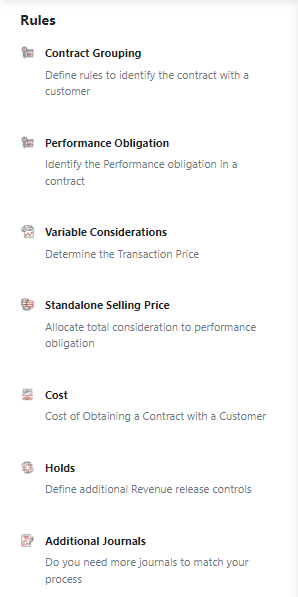
Go to the Rules section and select Hold.
2
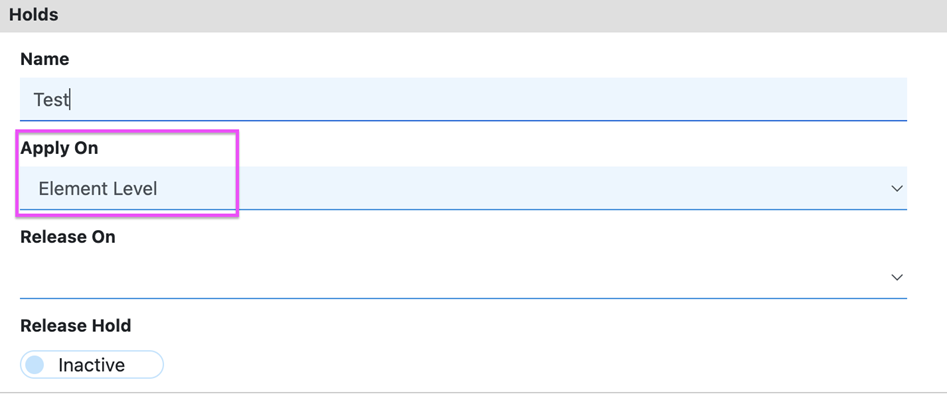
Select Element Level from the dropdown list, and set Apply on to Element Level for Line Hold.
3
Select the Save icon to save the configuration.
Then, to apply the hold manually:
4
Upload a contract that doesn't satisfy the element-level hold criteria.
5
Go to the Revenue Workbench and open the contract.
6
Navigate to the Hold tab in the Revenue Workbench. No hold will be applied at this point.
7
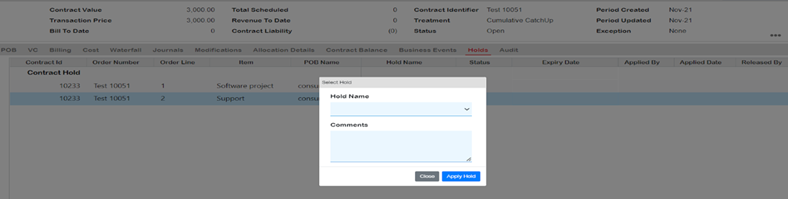
Right-click on the order line that needs the hold applied. An "Apply Line Hold" dialog box appears — select it.
8
A second dialog box appears. Select a predefined hold from the options and add comments explaining why the hold is being applied. You can apply the hold even if the contract doesn't satisfy the configured hold criteria.
9
Select the appropriate buttons to confirm and save the applied hold.
- In the Hold tab of the Revenue Workbench, you can see when and by whom each line hold was applied.
- Holds can also apply to partial revenue. For example, if 50% of a contract's revenue has been released, you can apply a hold on the remaining 50% and release it later. The same manual process above applies to partial revenue holds.