
Contract modification
Understand the six types of contract modifications in Recurly RevRec, set contract revision levels, configure modification rules, and view changes in the Revenue Workbench.
Prerequisites
- A valid Recurly account with appropriate permissions.
- Basic understanding of Recurly's revenue recognition processes.
- Familiarity with contract terms and conditions.
Limitations
- Modifications must be approved by both parties.
- Not all types of modifications may be supported under certain conditions.
- Manual modifications using the Revenue Workbench may be treated differently.
Definition
Key benefits
Key details
Types of modification supported
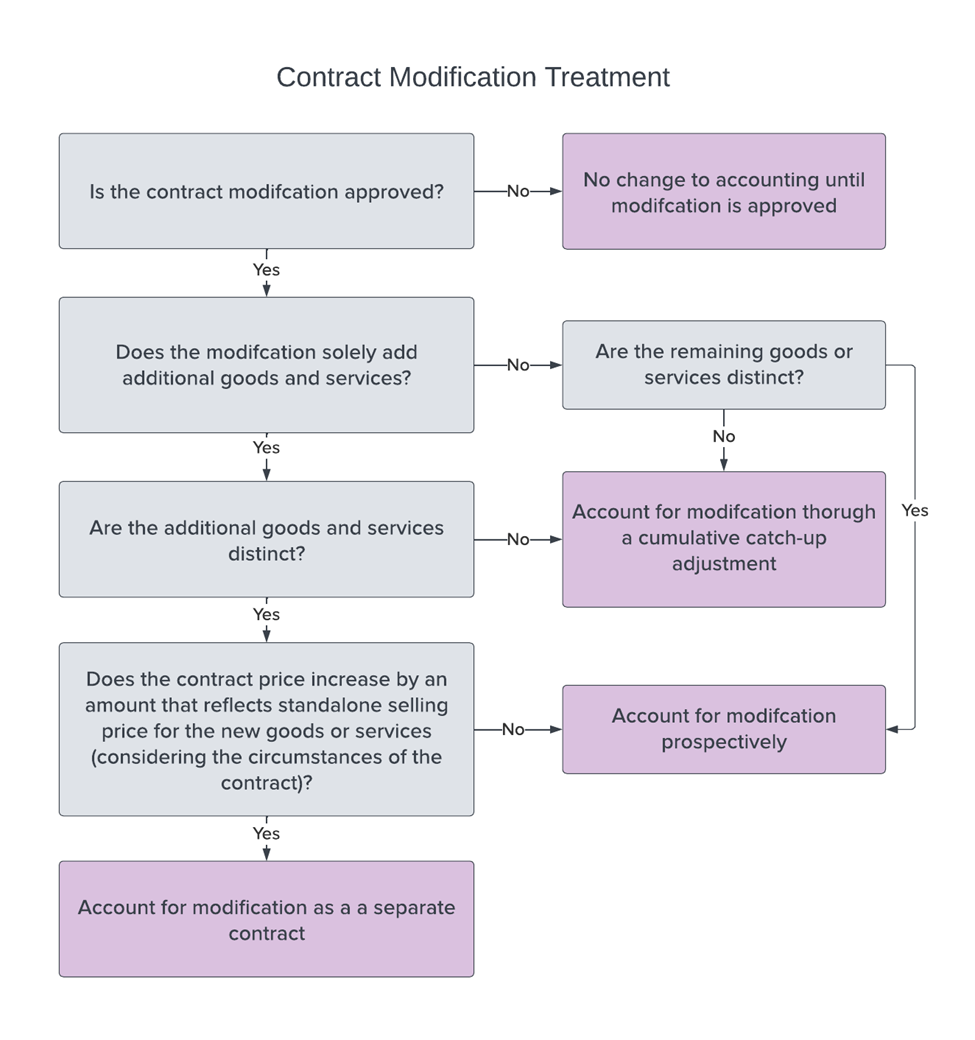
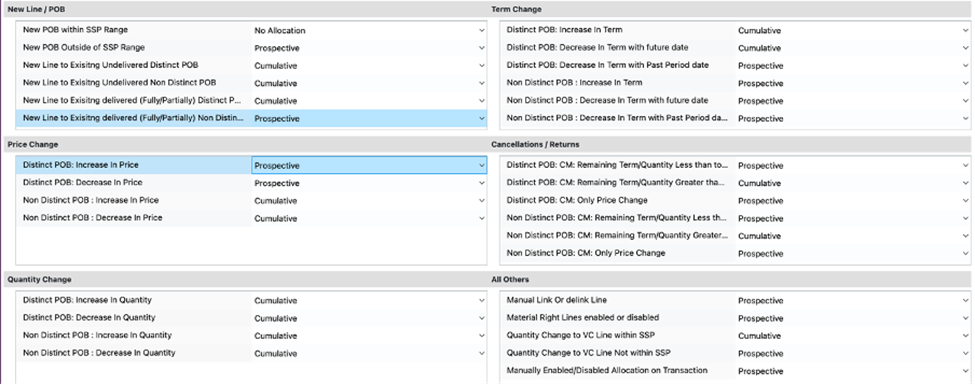
Recurly Revenue Recognition supports six primary types of contract modifications. Each primary type encompasses various sub-types. Depending on the nature of the change during the set Contract Revision Level, specific actions are triggered:
The system selects an appropriate sub-type based on the modification.
A sub-type is chosen based on the nature of the price alteration.
The system determines a sub-type according to the modification.
A sub-type is selected based on the term adjustment.
Activated when a contract amendment results from a cancellation or return.
Any alterations made to the contract using manual functions in the Revenue Workbench are treated as a Contract Modification.
Key terminology
- POB-related terminology: POBs are categorized as distinct or non-distinct based on term, quantity, or both.
- SSP-related terminology: Terms such as "Within SSP Range" and "Outside SSP Range" describe the sell price of a new line relative to the SSP range.
- Treatment-related terminology: Contract modifications can be treated as "Cumulative Catchup," "Prospective Catchup," or "No Allocation."
Setting the Contract Revision Level
The Contract Revision Level defines how long after a change the system recognizes it as a modification.
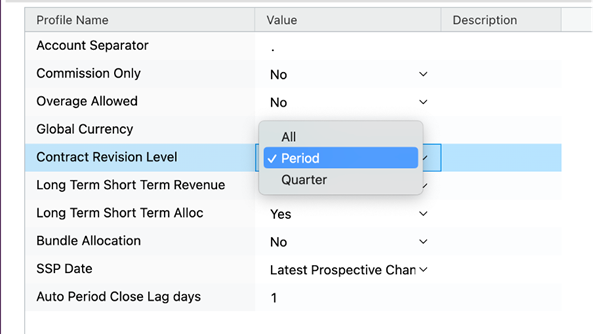
- All: All changes to the contract are treated as modifications.
- Period: Changes in the next and subsequent periods are recognized as modifications.
- Quarter: Adjustments in the next and subsequent quarters are considered modifications.
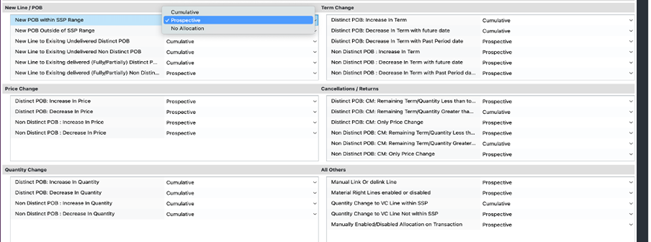
Changing treatment in modification rules
Viewing modifications in the Workbench

FAQ
What is a Contract Modification in Recurly RevRec?
It's an approved change in the price, term, or both of a contract within Recurly's revenue recognition platform. Both the supplier and customer must agree on the modification.
How many types of modifications does Recurly RevRec support?
Recurly RevRec supports six primary types of modifications, each with its own sub-types: New Line/POB, Price Change, Quantity Change, Term Change, Cancellations/Returns, and All Others.
Can I manually modify a contract in Recurly RevRec?
Yes. You can make manual modifications using the Revenue Workbench. These changes are treated as the "All Others" type of Contract Modification.
How can I view the changes made to a contract?
Navigate to the Revenue Workbench and select the modified contract. Under the Modifications tab, you'll see all changes and revision levels.
What's the difference between Cumulative Catchup and Prospective Catchup treatments?
Cumulative Catchup uses a retrospective approach, recalculating amounts from the beginning of the contract. Prospective Catchup only considers changes from the moment they were made, excluding amounts posted in closed periods.
How do I set the Contract Revision Level?
Go to Setup → Profiles → Contract Revision Level. From there, select the desired revision level from the dropdown — All, Period, or Quarter.
What happens if a new line's sell price falls outside the SSP range?
It's described as "Outside SSP Range" — terminology used to indicate that the sell price of a new line falls outside the configured SSP range.
Are all modifications treated the same way in Recurly RevRec?
No. Modifications can be treated as Cumulative Catchup, Prospective Catchup, or No Allocation, depending on the nature of the change and the settings you choose.
What are Contract Modification Rules and how do they automate one-off scenarios?
Contract Modification Rules define how RevRec automates one-off contract changes such as upsells, downsells, or extensions. Configuration steps are detailed in the Application setup → Contract modification section. See the Contract Modification documentation for complete setup guidance.
Updated 4 months ago