
Revenue workbench
Use the Revenue Workbench in Recurly RevRec to review contracts, analyze performance obligations, and perform manual actions including linking, POB changes, revenue recognition, and allocation management.
Prerequisites
- A valid Recurly account with appropriate permissions.
- Basic understanding of Recurly's revenue recognition processes.
- Familiarity with contract terms and conditions.
Limitations
- Any changes you make apply to future transactions only.
- Modifications must be approved by both parties.
- Not all types of modifications may be supported under certain conditions.
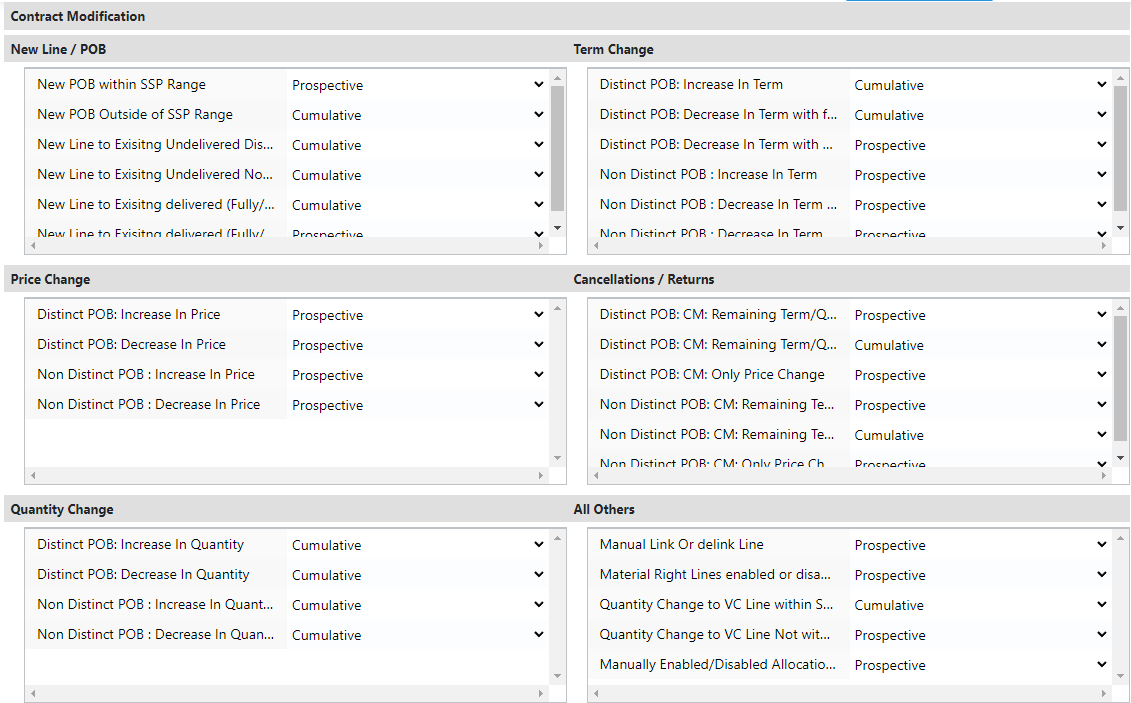
- Manual modifications using the Revenue Workbench may be treated differently.
Definition
Key benefits
Key details
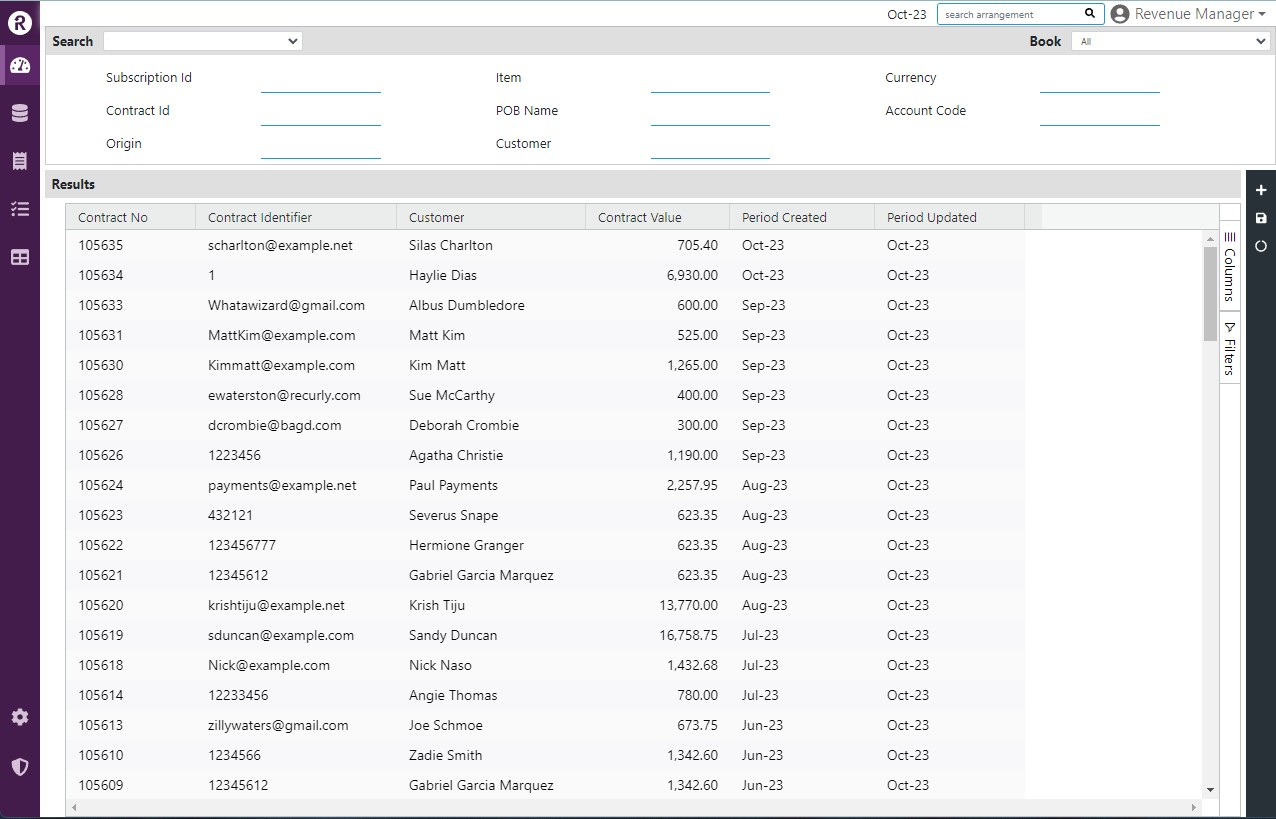
The Revenue Workbench is your centralized platform for contract management — analyze, monitor, and optimize contract performance from one place.
Contract insights
Select a contract from the list to explore its details:
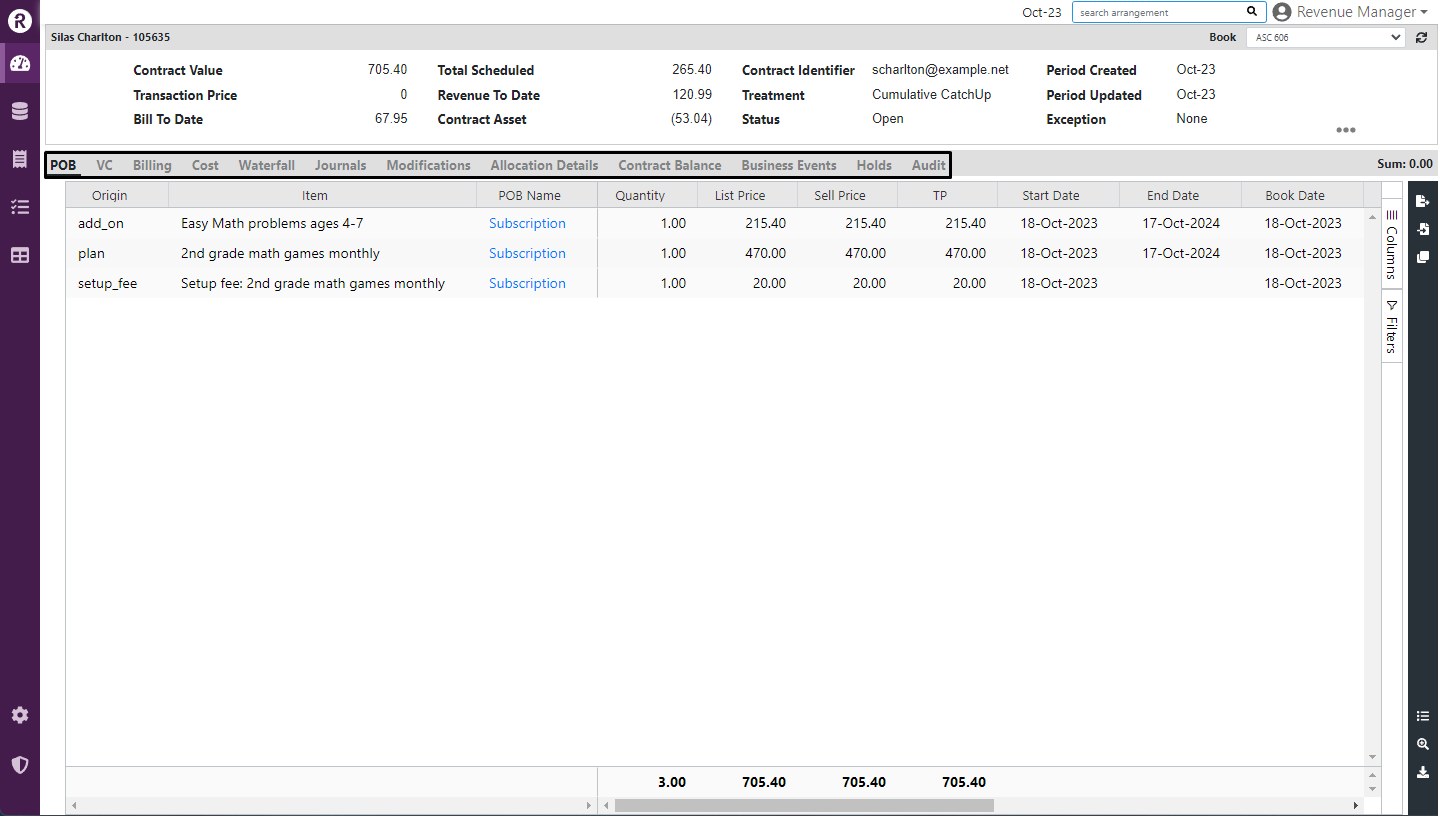
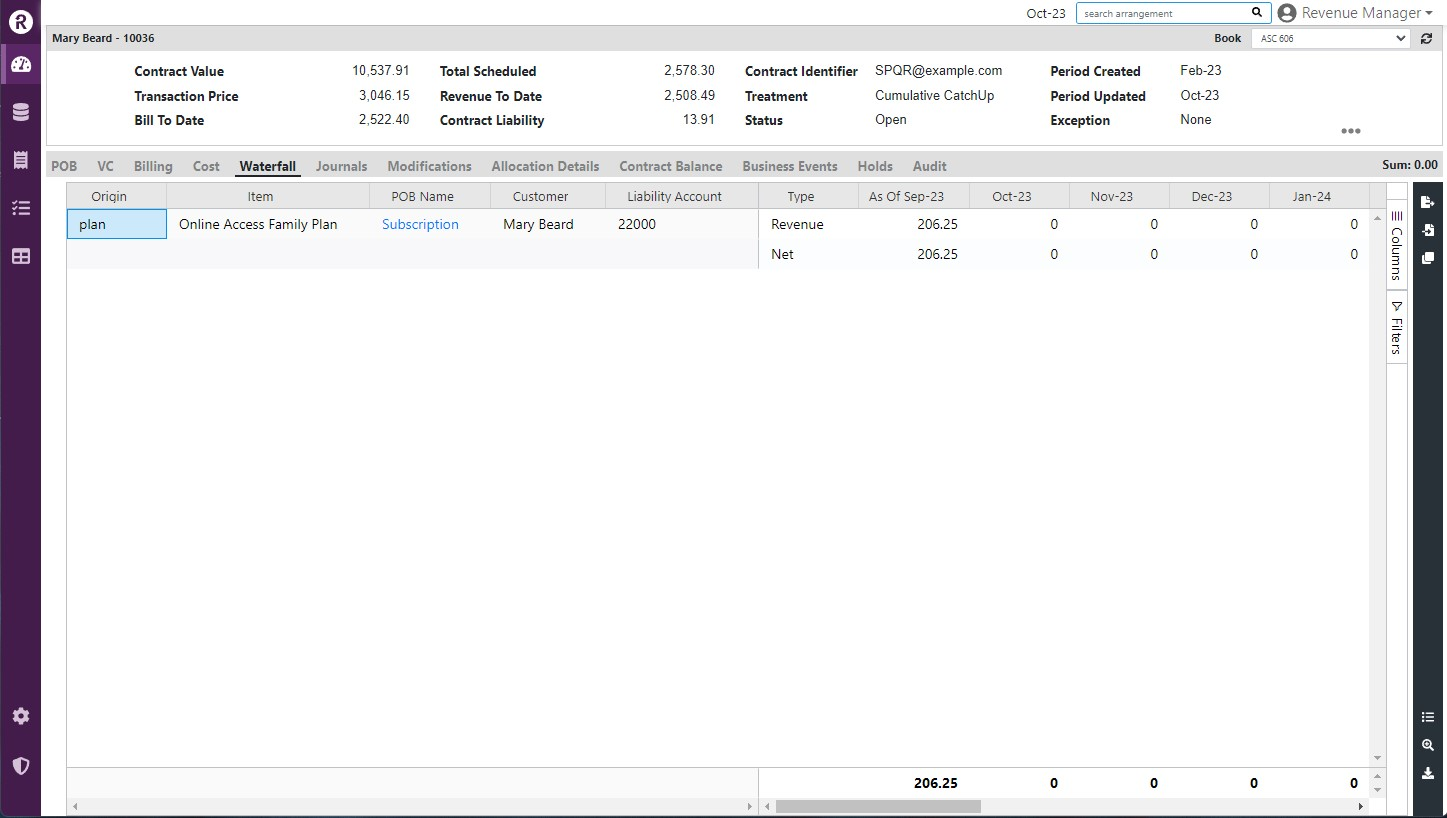
- Tab-based contract analysis: Navigate through tabs to access different contract perspectives — Performance Obligations (POB), Variable Considerations (VC), Billing, Cost, Waterfall, Journals, Modifications, Allocation Details, Contract Balance, Business Events, Holds, and Audit.
- Manual adjustments: Modify contract details directly within the Revenue Workbench. All changes are logged in the Audit tab for transparency.
- In-depth insights: Use the workbench's detailed contract data for strategic decision-making — review specific elements, understand contract balances, and navigate modifications with ease.
- Invoice connection: In any contract, select the invoice number to return to the Recurly UI and view the invoice directly.
Manual action tools
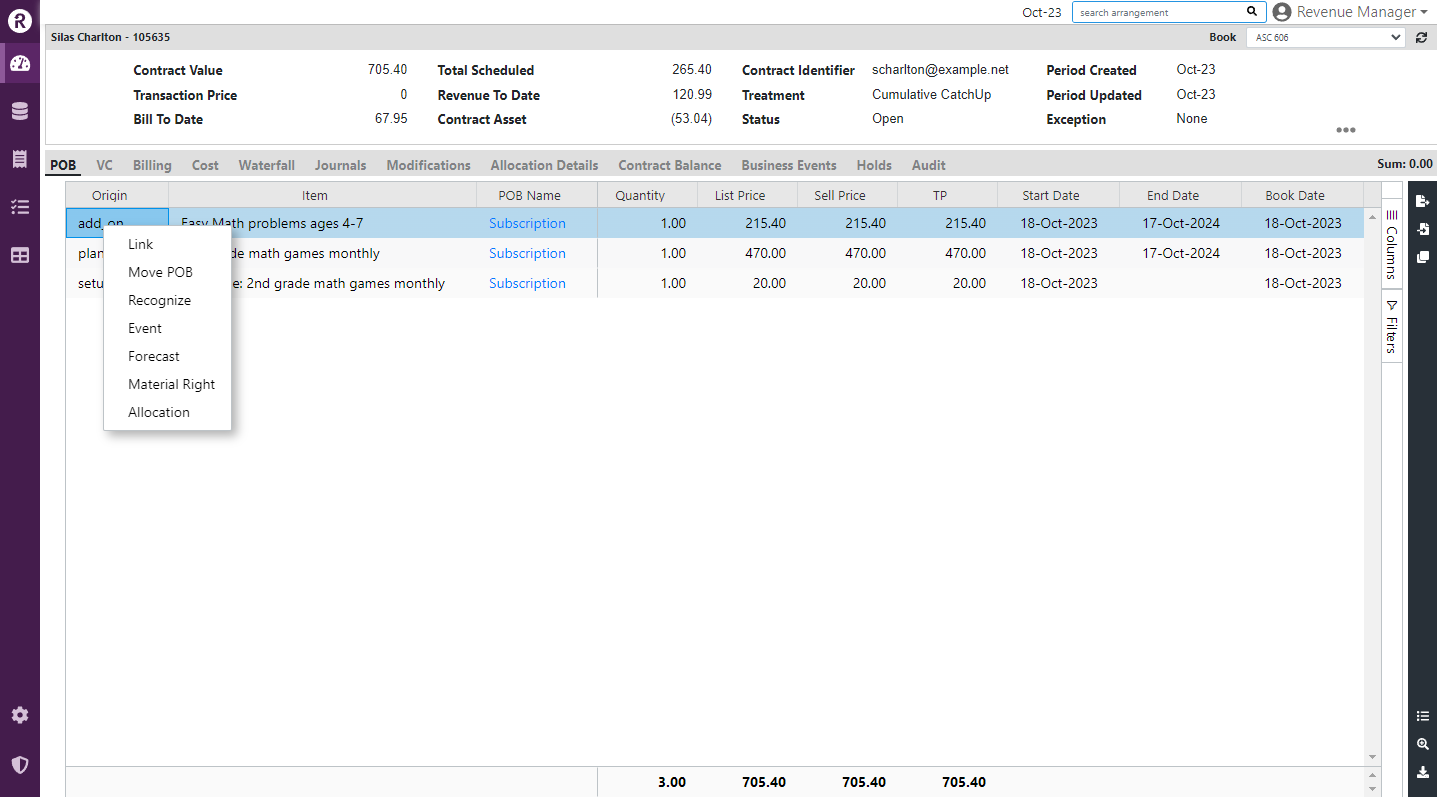
To access manual action tools, right-click a field within the desired contract. The options available depend on the field selected.
Linking and de-linking contracts
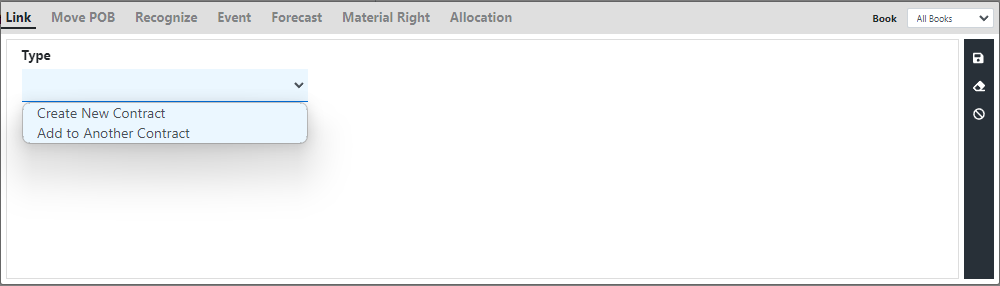
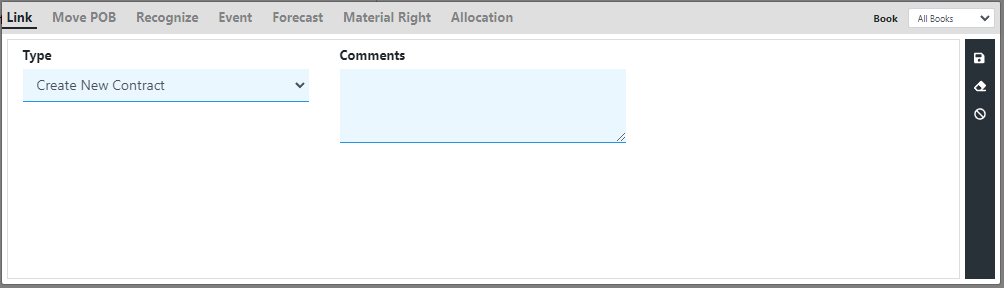
Create New Contract: Select this option to create a new contract for the lines de-linked from the current contract. Add a comment for reference, then save.
Add to Another Contract: Select this option to link the de-linked lines to a different existing contract.
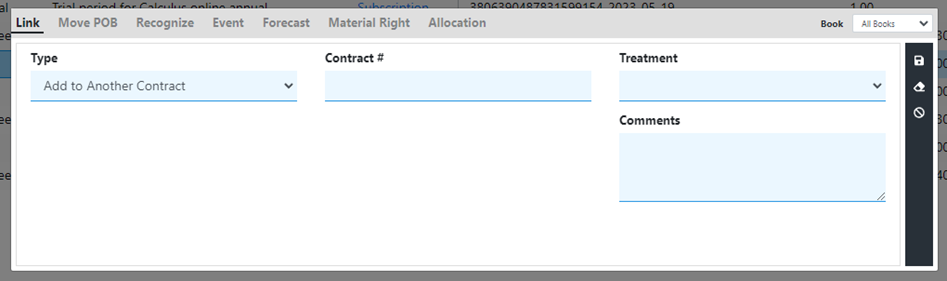
- Contract# field: Enter the contract number to which the selected lines should be linked.
- Treatment: From the Treatment dropdown, choose either "Cumulative Catch up" or "Prospective" based on the desired revenue recognition approach.
- Comments: Provide a brief explanation for the linkage in the Comment box to support documentation and tracking.
Moving the POB
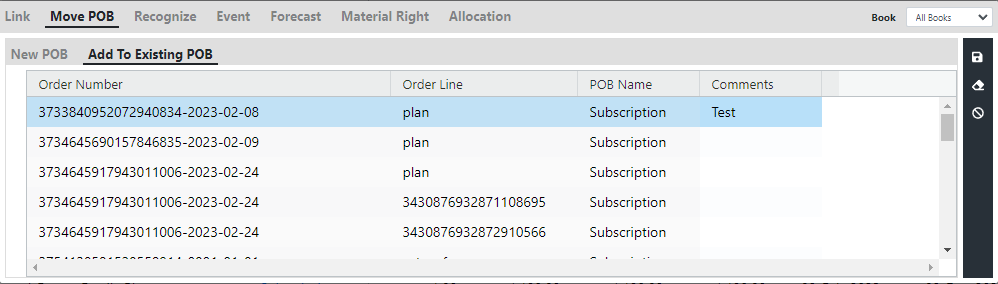
New POB: Select this option to assign a new POB to the selected lines, creating a new performance obligation specifically for them.
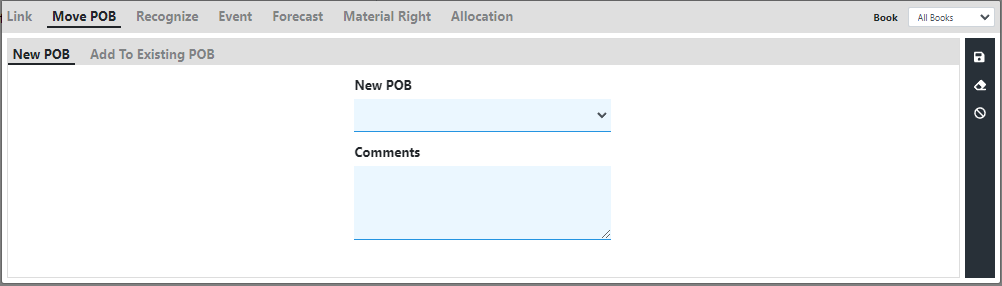
Add to Existing POB: Select this option to manually add the selected lines to an existing POB within the same contract, consolidating related lines under a single performance obligation.
Recognizing revenue
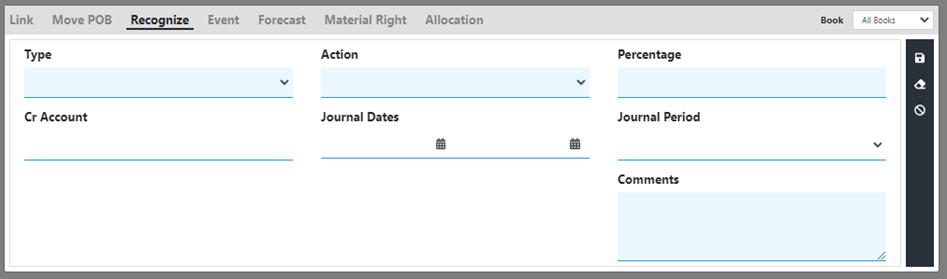
- Type: Choose the appropriate revenue type from the dropdown to categorize the revenue for recognition or deferral.
- Action: Select either "Recognize" or "Defer" based on the desired treatment.
- Percentage: Enter the percentage of revenue to recognize or defer for the selected lines.
- Journal dates (optional): Enter a start and end date if you want the recognition or deferral to apply only to certain journal dates.
- Comments: Provide a clear explanation for the chosen recognition or deferral to maintain proper documentation.
Releasing revenue for events
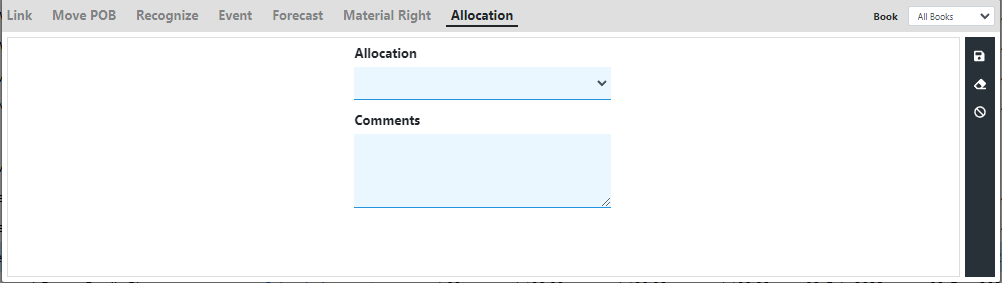
Enabling and disabling allocation
FAQ
What is the Workbench and how is it used to manage revenue recognition contracts?
The Workbench is the central place to review and manage revenue contracts and contract groups. From here, you can search and filter contracts, inspect line details and POB assignments, apply holds, and perform corrective actions (subject to permissions). For step-by-step use cases, see the Revenue Recognition Workbench documentation.
Is it possible to change a POB after a contract has been processed?
Yes. RevRec lets you manually change a POB after it has been assigned. Use the Change POB action in the Workbench to reassign the performance obligation — the system recalculates schedules according to your rules and book settings. Be aware that changes can affect recognition timing and may create reallocation or restatement entries depending on period status and approvals. For detailed instructions, see Change POB in the Workbench docs.
Updated 4 months ago