
RevRec Reports
Recurly RevRec's reporting module provides detailed reports across revenue, cost, transactions, balances, audit, and exceptions, with configurable views and savable layouts.
Recurly RevRec's reporting module gives you a comprehensive view of your organization's financial landscape — revenue recognition, contractual balances, costs, variable considerations, and more. Configure any report to show exactly the attributes you need, save custom layouts for reuse, and generate the output in your preferred format. This page covers how to configure reports and save layouts, plus a full index of every available report.
Part of Recurly RevRec — learn more
Prerequisites
- Familiarity with your organization's RevRec Essentials.
- Understanding of product bundling and data rule configurations.
- Knowledge of the desired attributes for dataset creation.
Limitations
- Any changes you make apply to future transactions only.
- Changes to revenue data can take up to an hour to appear in reporting.
- Once a dataset is created, it can't be deleted — only inactivated.
- Data rules can't be deleted, but they can be set to an inactive status.
Definition
Recurly RevRec's reporting module offers a wide range of detailed reports for your financial and contractual needs — from revenue insights to transaction details. Each report gives you a view into revenue recognition, contractual balances, costs, variable considerations, and more. Through an intuitive interface, you can configure reports, save layouts, and generate output tailored to your requirements.
Key benefits
In-depth analysis
Dive into financial data with detailed reports on revenue, costs, variable considerations, and more.
Customizable views
Configure reports based on specific attributes and save layouts for future use.
Audit and compliance
Access audit reports to ensure adherence to financial standards and regulations.
Exception handling
Identify and address exceptions with dedicated reports for SSP and holds.
Strategic decision making
Use comprehensive insights to make informed financial and operational decisions.
Configuring reports
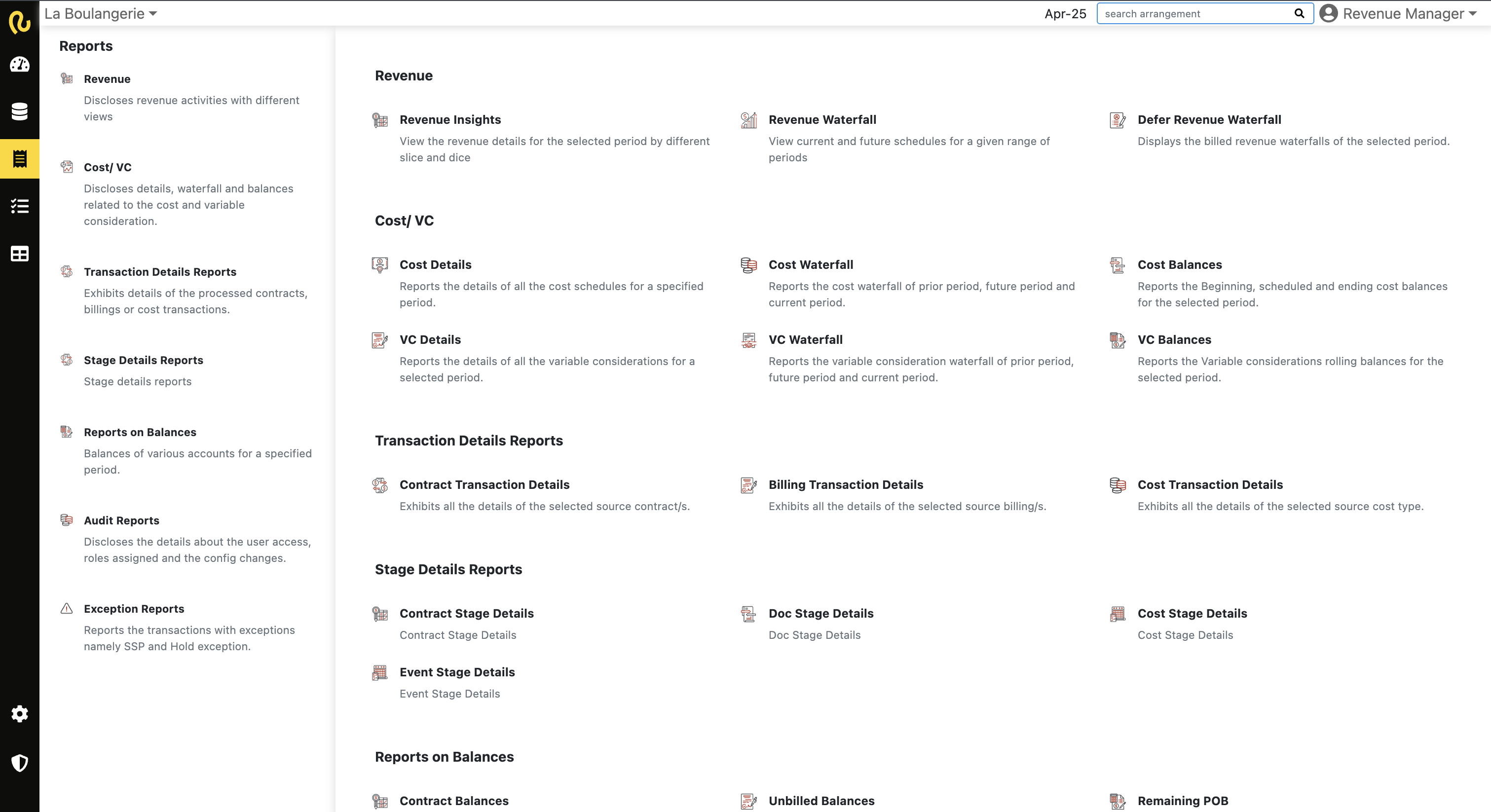
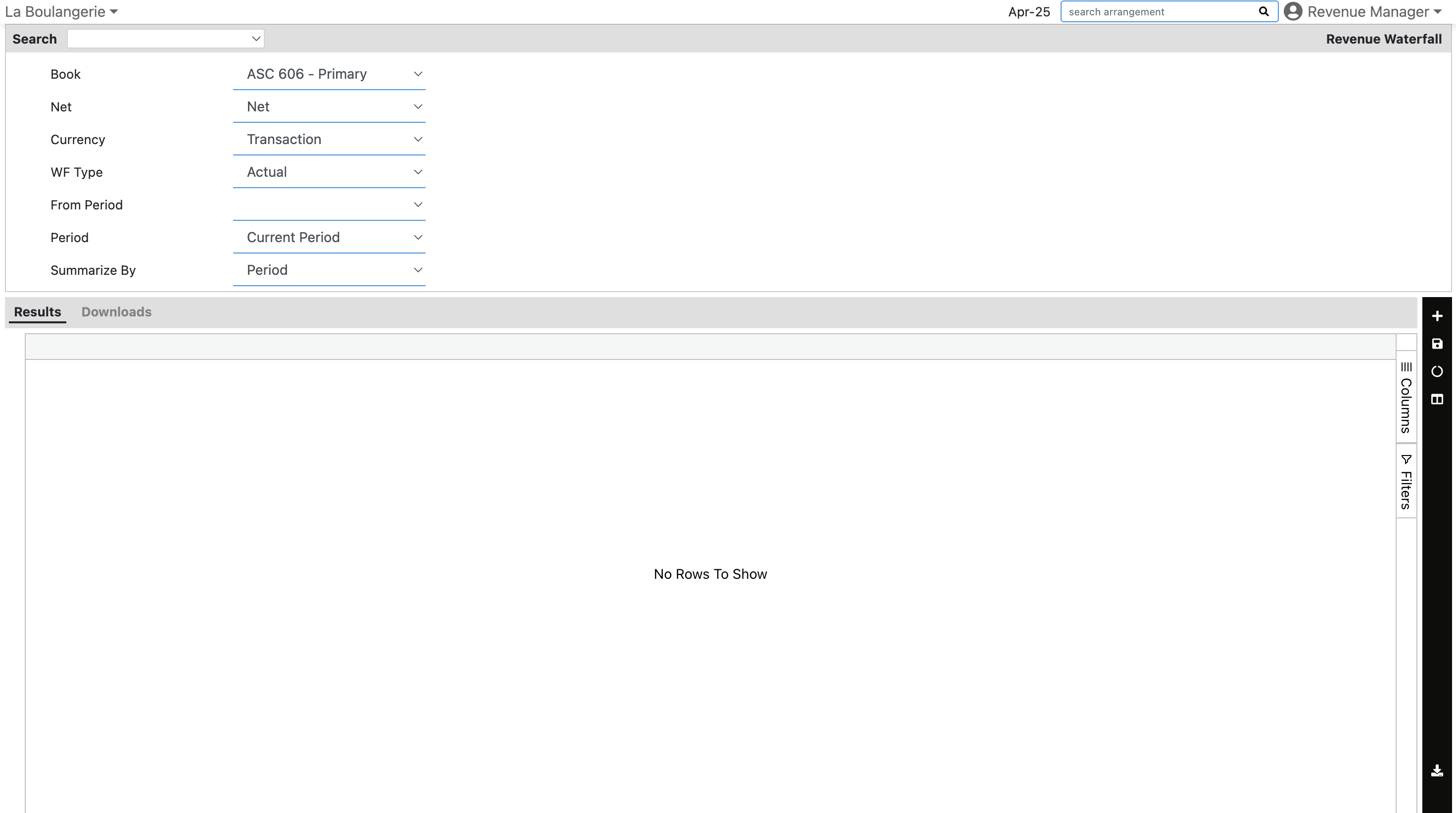

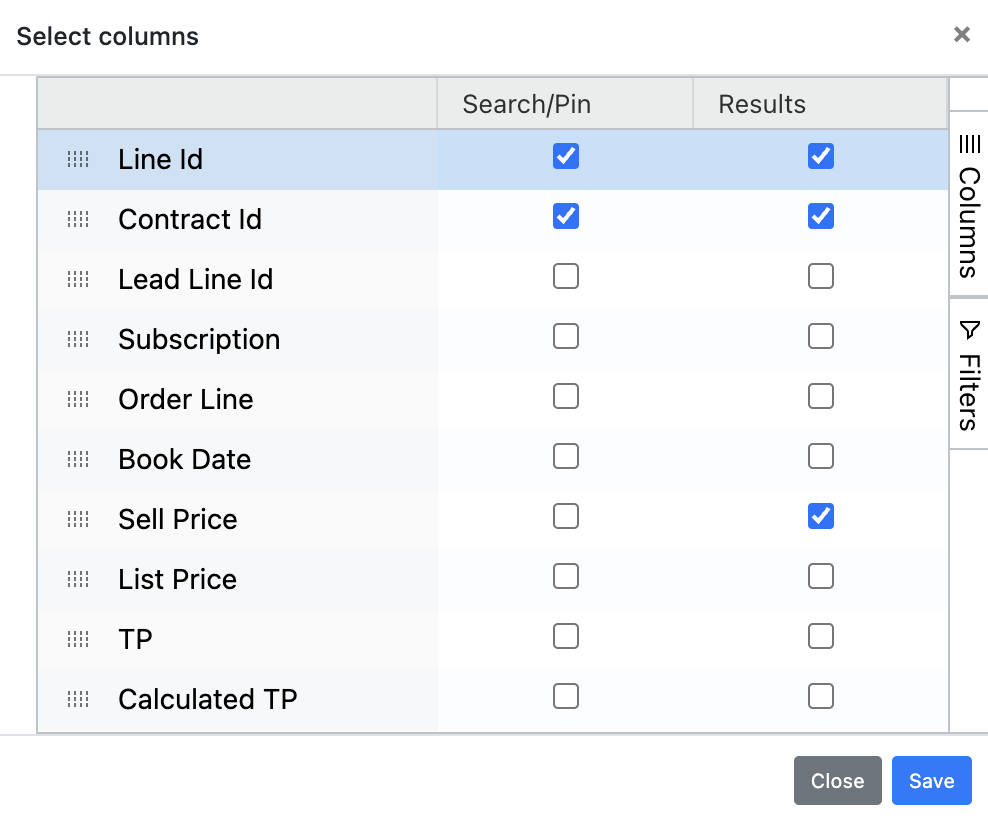
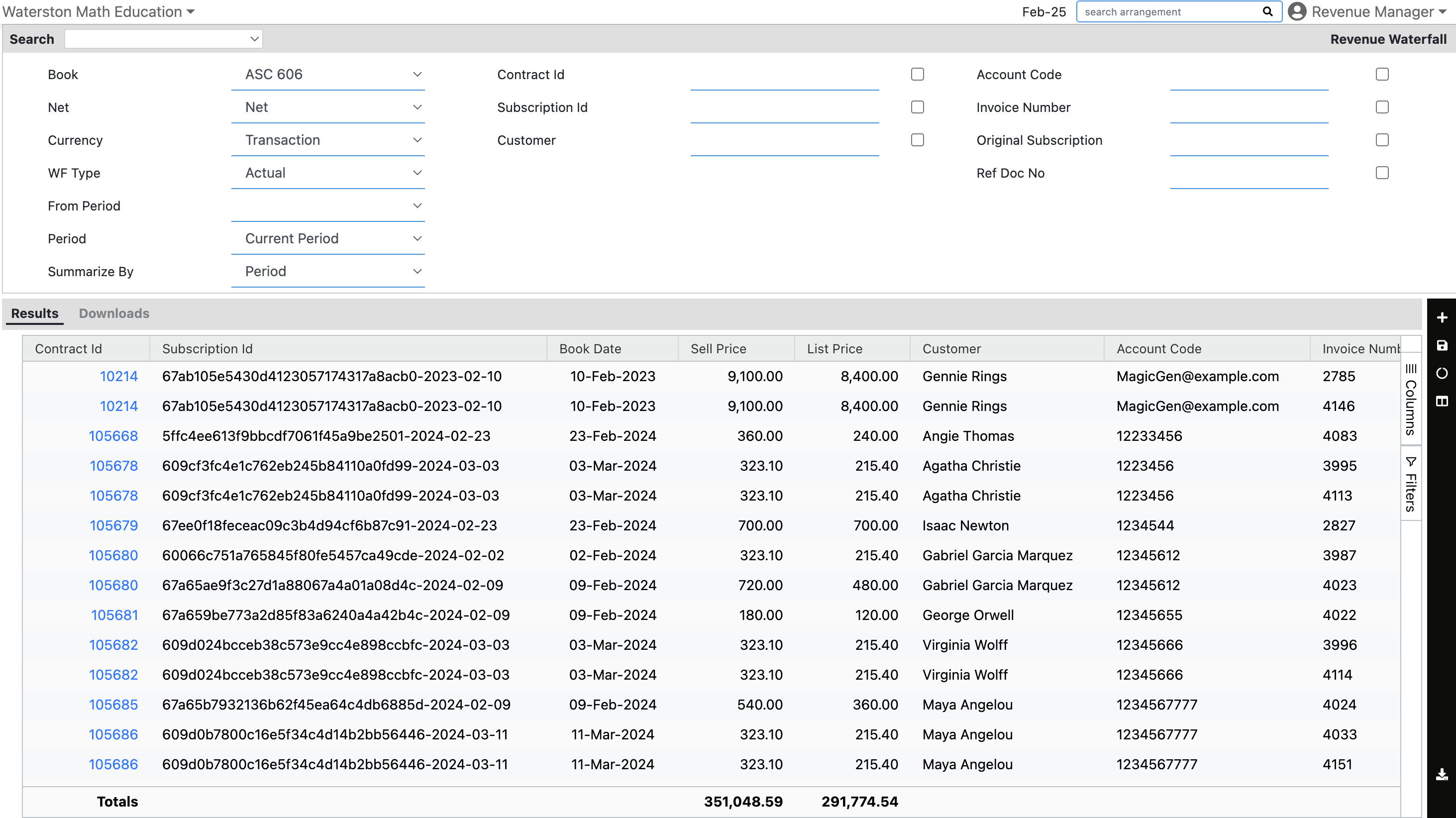
How to save layouts in reports
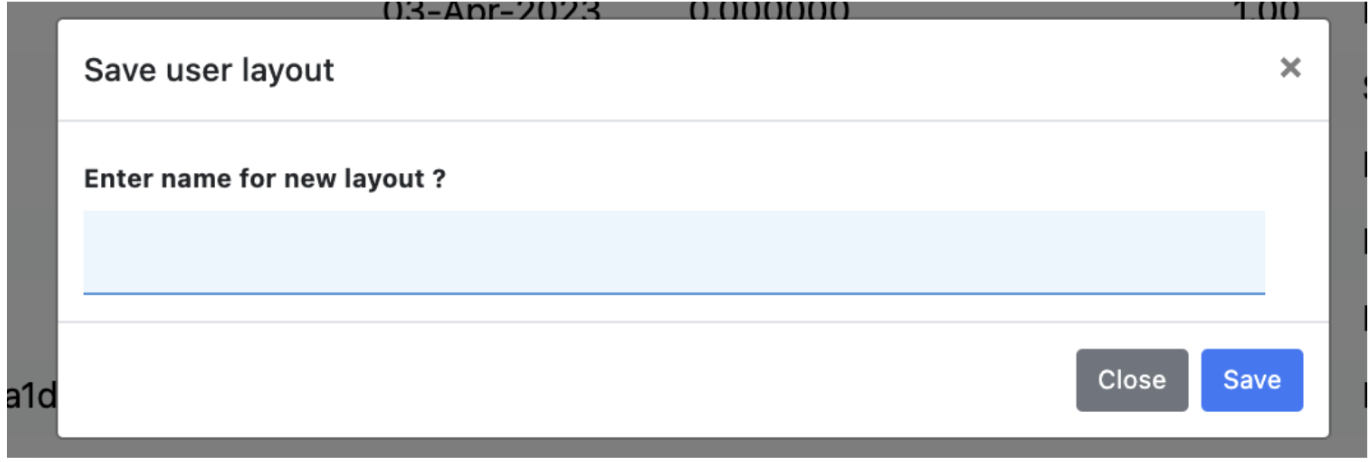
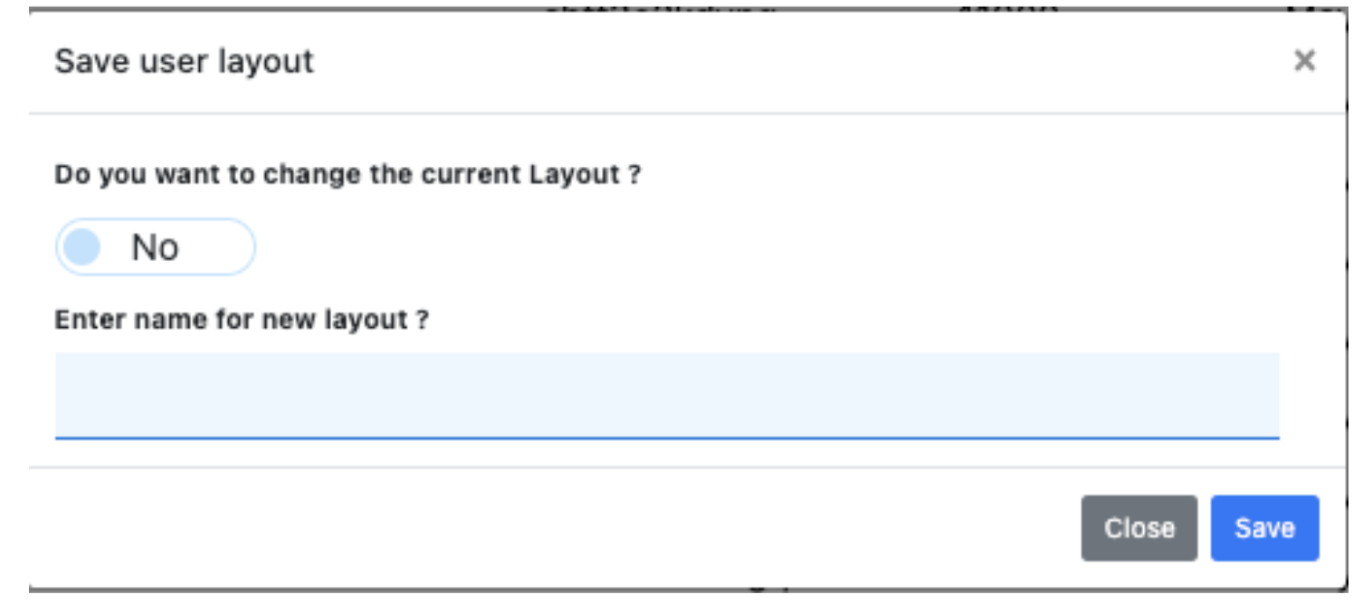
Once you open a report, you can apply filters and adjust columns to create a custom format — called a layout — that you can save for future use.
2
5
Reports list
Browse the full set of reports by category. Select any report for its detailed guide.
Revenue reports
Cost and VC reports
Transaction details reports
Stage details reports
- Doc Stage Details
- Contract Stage Details
- Cost Stage Details [TODO: Add URL — no link provided in source]
- Event Stage Details
Balances reports
Audit reports
Exception reports
Updated 4 months ago
Did this page help you?