
Business events
Configure standard and custom business events in Recurly RevRec, link them to POBs, and structure your event file upload template.
Key details
Standard events
Standard events are built-in business triggers in Recurly RevRec that help release a POB:
The event occurs upon billing for sales orders.
The event occurs upon sales order loading.
The event triggers upon expiration.
Custom events
You can also create custom events in Recurly RevRec, such as:
Associated with a POB template to release revenue.
Linked to holds or approvals to release revenue, or to transfer revenue placed on a contract, POB, or line hold.
Configuring events
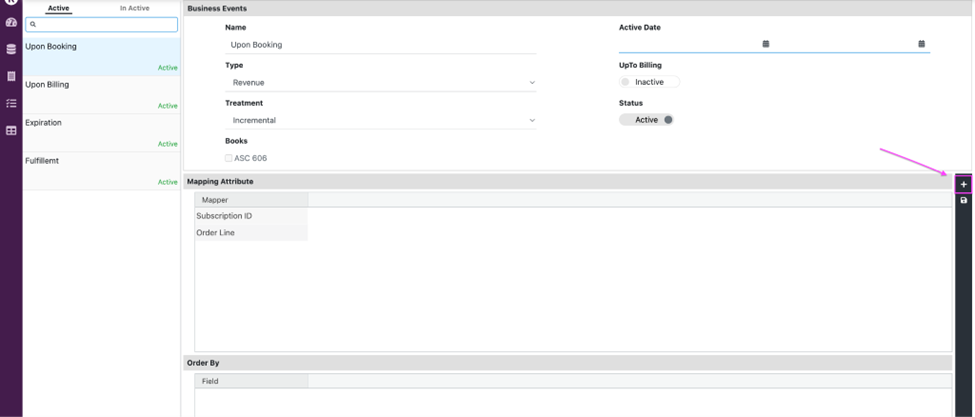
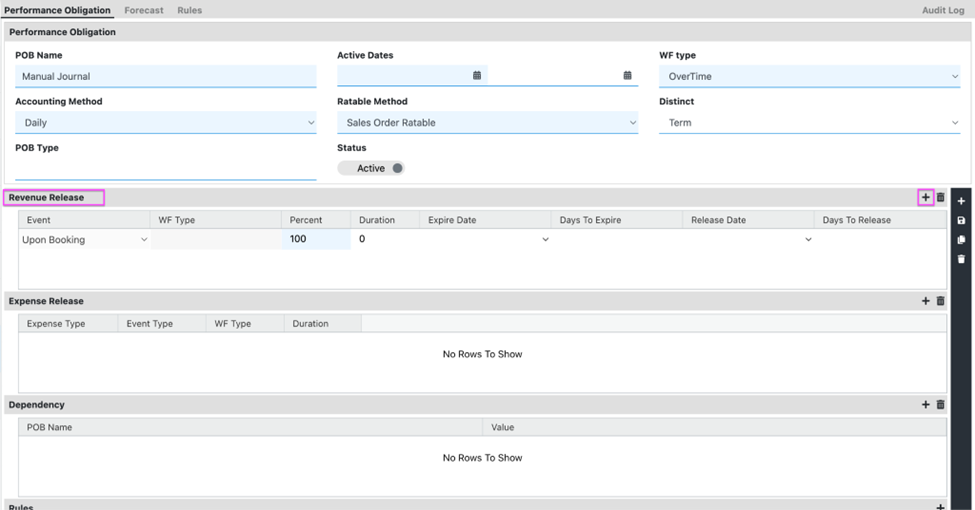
Associating an event with a POB
Before uploading an event file to Recurly RevRec, you need to link the business event with a POB.
Event file template
Your event file template should resemble the table below:
| Attribute 1 (from event mapper) | Attribute 2 (from event mapper) | Event action | Start date | End date | Release date | Effective date | Expiry date |
| — | — | — | — | — | — | — | — |
Template components
Event code
Every uploaded event file must include an event code. Recurly RevRec supports the following event codes:
| Event type | Event action |
EventActionRemoveHold | 1 |
EventActionRecognize | 2 |
EventActionDefer | 3 |
EventActionExpiryDate | 4 |
EventActionDeferFuture | 5 |
EventActionAccelerate | 6 |
EventActionDeferReRecognize | 7 |
- Start and end date: Optional, but they determine the revenue recognition period and override any dates specified in the contract.
- Release date: Lets you input data for the current period as if the event is scheduled for a future date. For example, you can upload an event file in May 2023 for July 2023, which helps with waterfall catchup.
- Effective date: Governs future events. For example, if events dated July 2023 are loaded in May 2023, the system won't process them until July 2023 is active — the effective date manages this future scheduling.
- Expiry date: Applicable for events with a set expiration, and can be used to update an event's expiration date.
Updated 3 months ago